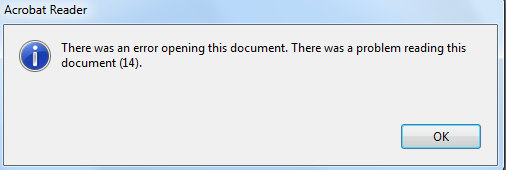
If you’ve ever opened a PDF only to see a cryptic “Error 14” message, you know the panic. Maybe it’s your thesis, a work report, or a legal document. Don’t worry — error 14 usually means the file’s internal structure (like the xref table or cross-reference stream) is damaged, but the content is often still there. This guide is for anyone who’s not a tech wizard but wants to recover their file without paying for expensive services. By the end, you’ll have tried a sequence of methods — from quick online tools to a safe manual hex edit — and at least one of them should get your PDF back to health.
We’ll start with the easiest, least risky options and only move to manual fixes if needed. Along the way, I’ll explain what’s happening under the hood so you can avoid this error in the future. Ready? Let’s fix that PDF.
What You’ll Need
- The corrupted PDF file (make a backup copy first)
- A computer with internet access
- A hex editor (like HxD for Windows or Hex Fiend for Mac) — free and safe
- One of the free online PDF repair tools (we’ll list a couple)
- A PDF reader like Adobe Acrobat or SumatraPDF to test the repaired file
Step 1: Confirm It’s Really Error 14
Not every PDF error is the same. Error 14 specifically points to a problem with the cross-reference table or stream. Before you start repairing, double-check the exact error message. Try opening the PDF in different readers — sometimes a lighter reader like SumatraPDF ignores minor errors and opens the file anyway. If it opens, save a fresh copy immediately using that reader’s “Save As” function. This can fix some issues on its own.

If the error persists across readers, move to the next step.
Step 2: Use an Online PDF Repair Tool
Online tools are the quickest fix — they run on the server side and require no installation. Upload your backup copy (never work on the original) to a service like iLovePDF or Smallpdf’s repair feature. These tools attempt to rebuild the xref table and fix stream errors. They work best for simple corruption. Wait a few seconds, download the repaired file, and test it.

If the repaired PDF still shows error 14, or if the tool says it can’t fix it, don’t give up. The file might have deeper structural damage that needs a desktop repair tool.
Step 3: Use a Desktop PDF Repair Tool
For more stubborn errors, a dedicated desktop tool gives better control. Download one of the trusted options — many have free trials. I recommend looking at our list of the best pdf repair software for recommendations. Install it, then open your corrupted PDF. Most tools will scan the file and show a preview of recoverable content. If the xref table is broken, the tool will rebuild it automatically. Save the output as a new PDF and test.

If the tool fails, the xref might be beyond automatic repair, but we can still try a manual approach.
Step 4: Manual Hex Repair of the XREF Table
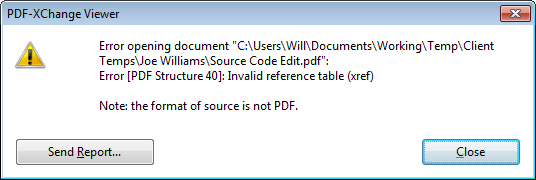
This step is for when all else fails and involves editing the raw PDF data. It sounds scary, but we’ll keep it simple. Open your backup copy in a hex editor. Look for the substring “xref” near the end of the file — that’s the cross-reference table. If it’s missing or garbled, we’ll recreate a minimal one. A full guide on repairing the PDF xref table is available, but here’s the gist: you need to count the number of objects in the file (search for “obj” keywords), then write a new xref section. Save the edited file with a .pdf extension and reopen.

This method also works for malformed PDF repair and repair a 0KB PDF file, but be extra careful: one wrong byte can break the file. Always keep the original backup.
Step 5: Fix Streams If Content Is Still Missing
Sometimes after fixing the xref, error 14 disappears but the page content is blank or garbled. That usually means the content streams (the actual text and images) are corrupted. You can try to fix a corrupted PDF stream by locating each stream object in the hex editor, checking its length, and repairing compression headers. A simpler route is to use a tool like PDF Stream Dumper to extract and recompress streams. Once streams are clean, you’ll have a fully readable PDF.
Common Pitfalls
- Working on the original file instead of a backup. One misstep and you lose everything. Always duplicate the file before any repair attempt.
- Overwriting the repaired file too soon. After each step, save the output with a new name (like fixed_v1.pdf) so you can revert if the next step makes it worse.
- Using untrusted online tools for sensitive documents. If your PDF contains personal info, avoid uploading it to random websites. Stick to well-known services or use desktop software instead.
Where to Next
You’ve recovered your PDF from error 14 — nice work! Now that you know the basics, you might want to explore other common fixes. Check out our guide on why pdf is unreadable for a broader overview, or dive into specific repairs like fixing PDF upload failed errors. And remember: regular backups and using reliable PDF creation tools can prevent most corruption issues. Happy reading!




