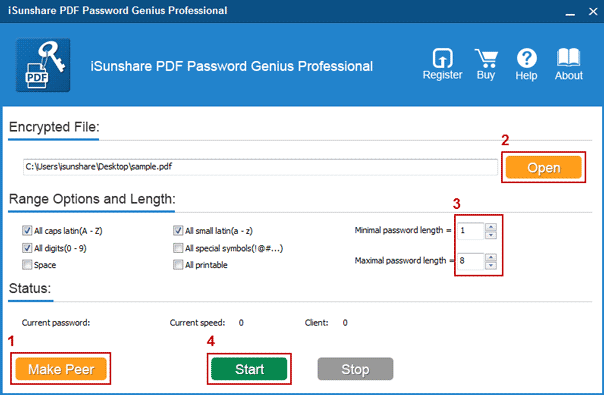
Ever been locked out of your own PDF? Maybe you set a password months ago and now you can’t remember it. Or you downloaded a protected document and forgot the key. Don’t worry—you’re not alone, and there are several practical ways to get back in. This guide is for anyone who needs to recover a password protected PDF without hiring a pro or buying expensive software.
By the end of this tutorial, you’ll have a working, unlocked PDF in your hands. We’ll cover multiple methods: from simple tricks like using Google Chrome to more powerful command-line tools like qpdf, plus last-resort brute-force options. No single method works for every file, but one of these will almost certainly do the trick.
What You’ll Need
- The password-protected PDF file you want to unlock
- A computer (Windows, Mac, or Linux) with internet access
- A bit of patience—some methods take time
- Optional: Google Chrome browser (free) or a tool like qpdf (free)
Step 1: Try Common Passwords
Before diving into technical methods, take a moment to think. Did you use a standard password like ‘password’, ‘123456’, your pet’s name, or a date? Try any common passwords you might have used. Also check sticky notes or password managers you were using at the time. This step takes 30 seconds and could save you the rest of this guide.
Step 2: Use Google Chrome to Remove Password
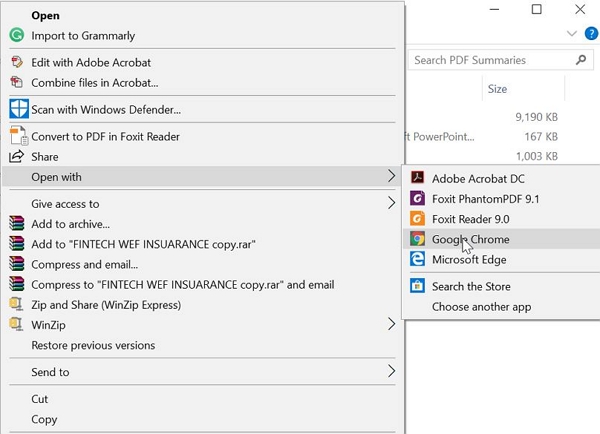
If you can open the PDF with a known password (or the file has a permissions password but not an owner password), Chrome can help. Open the PDF in Chrome, enter the password if asked, then go to Print (Ctrl+P or Cmd+P). In the printer destination, select ‘Save as PDF’. This creates a new copy of the file without the password restrictions. It won’t work for files that require a password to even view, but it’s a fast, free trick.
Step 3: Use qpdf Command Line (Advanced Users)
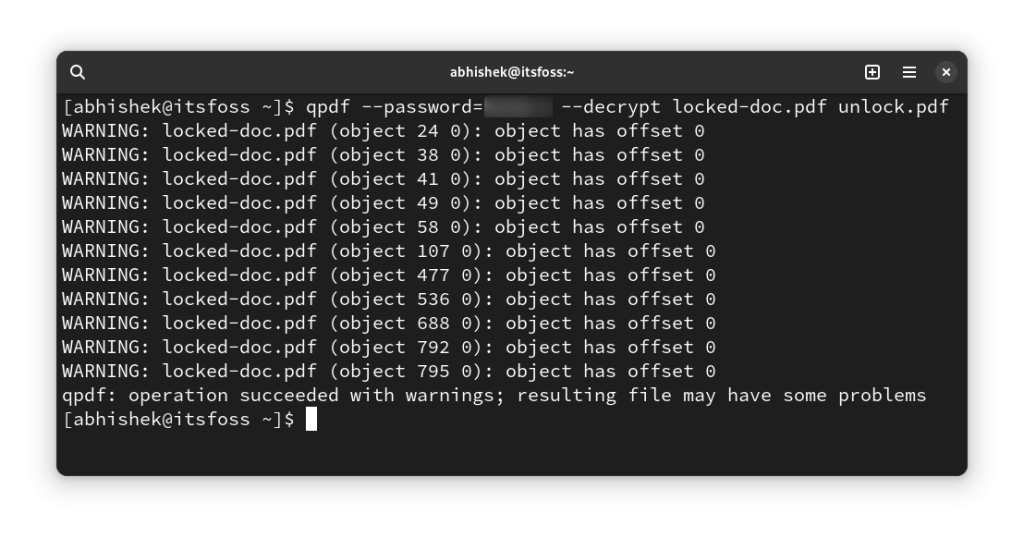
For files you can open (but can’t edit or print), qpdf is a powerful free tool. Install it from your package manager (on Linux/macOS) or download the Windows binary. Run this command: qpdf --decrypt input.pdf output.pdf. If it works, you’ll get a fully unlocked PDF. If it fails because the file uses AES-256 encryption, try using the password as an argument: qpdf --password=yourpassword --decrypt input.pdf output.pdf. This method is reliable for removing permissions passwords.
Step 4: Use Online PDF Unlockers
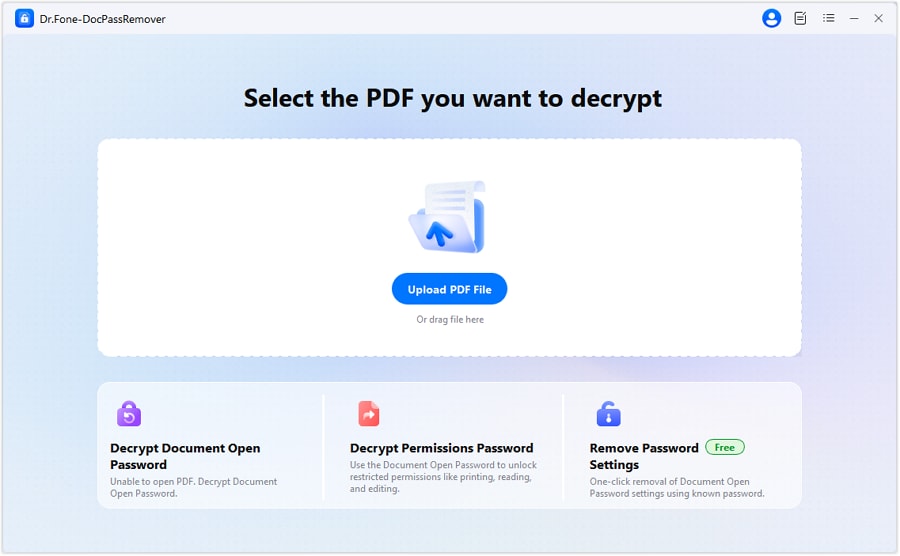
Several websites offer free PDF unlocking. Services like Smallpdf, Ilovepdf, or PDF24 let you upload your file, enter the password (if known), and download an unlocked version. For files you don’t have the password for, some services attempt to remove the password—but be careful. Only use reputable sites, and never upload sensitive personal documents. These services work best for permissive passwords, not strong encryption.
Step 5: Use Brute Force as Last Resort
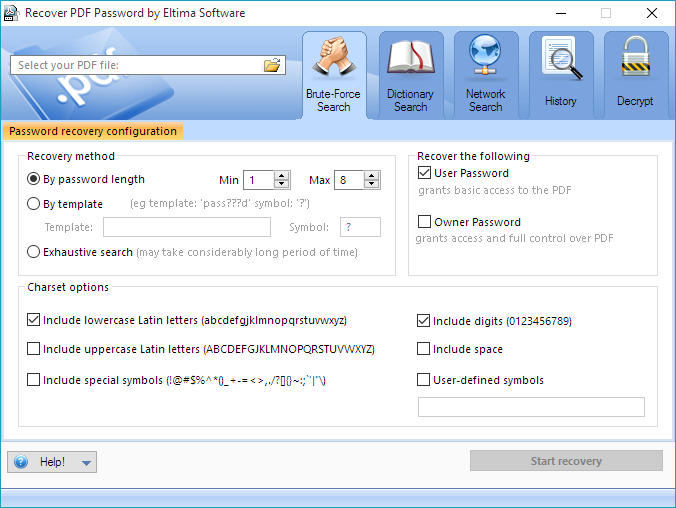
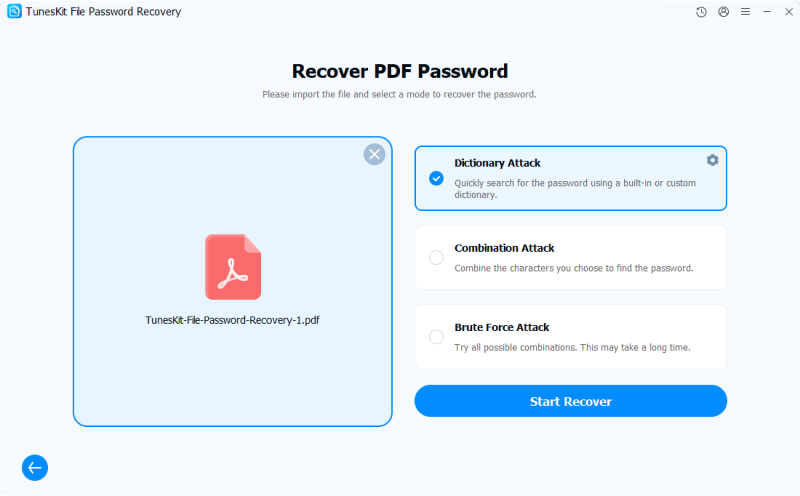
If you really need the file and nothing else worked, you can try a brute-force attack using tools like John the Ripper or a specialized PDF password cracker. This method tries every possible password combination—so it only makes sense if the password is short or you have strong clues (like knowing it’s a 4-digit number). It can take hours or days, and it’s resource intensive. Use this only when the PDF is extremely important and you’ve exhausted other options.
Common Pitfalls
- Assuming the password is recoverable if you truly forgot it: For strong AES-256 encryption, no free tool can just ‘remove’ the password. You must know the password or brute-force it.
- Using shady online services that may steal your document: Always check reviews and never upload confidential files to unknown sites.
- Corrupted PDFs that won’t open even with the right password: The file might be damaged. Try a best PDF repair tool or PDF XREF repair first.
Where to Next
Once you’ve unlocked your PDF, you might want to check if the file is healthy. Read our guide on PDF validation repair to make sure it’s not corrupted. If you encounter issues with files created from other programs, our repairing a PDF exported from Excel article can help. And for future password issues without logging in, check out no-login PDF repair options.




