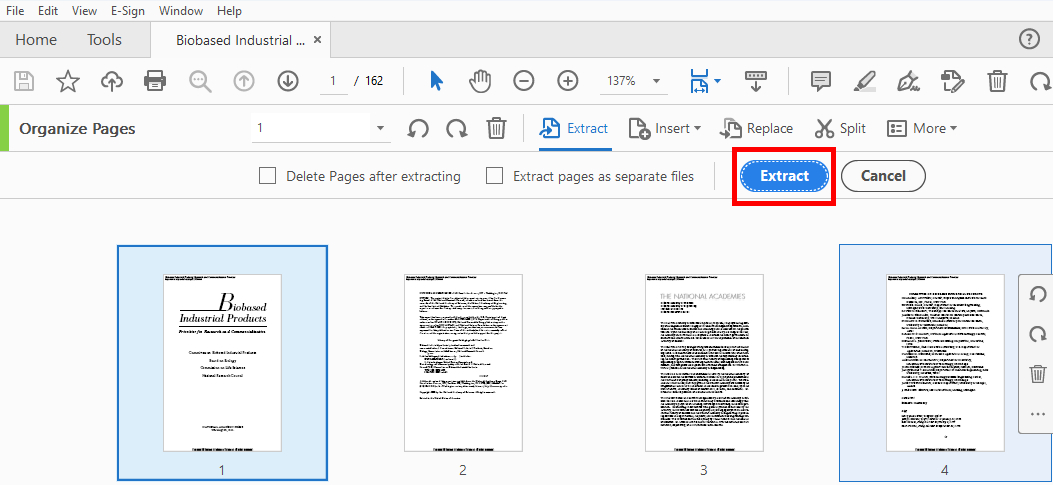
So you’ve got a corrupted PDF that won’t open properly, but you know there’s good content inside. Maybe it’s that crucial report you need to submit, or a contract you can’t lose. Don’t panic — even when a PDF is damaged, individual pages are often still intact. This guide is for anyone who has a partially corrupted PDF and wants to extract the readable pages without paying for expensive software. By the end, you’ll have a clean PDF with just the salvageable pages, using free tools like qpdf, Ghostscript, or even a browser-based online tool.
I’ve been there myself — a PDF that refused to open in any viewer, but I knew the data was still in there. In most cases, the file structure is broken but the page content streams are fine. With the right approach, you can extract those pages and move on. Let’s get to work.
What You’ll Need
- The corrupted PDF file (obviously!)
- qpdf (free command-line tool) — download from SourceForge or via package manager
- Ghostscript (free command-line tool) — alternative to qpdf
- A hex editor (optional, for last resort manual extraction) like HxD or Hex Fiend
- A reliable internet connection if you plan to use an online PDF extractor (like Smallpdf or Ilovepdf)
Step 1: Assess the Corruption Level
Before you start, try to open the PDF in a viewer like Adobe Acrobat or your browser. Does it show a blank screen? An error? Or does it partially display some pages? If you see anything at all, that’s a good sign — those visible pages are likely recoverable. Also try opening the PDF in a text editor to peek at the raw content. If you see readable text scattered among gibberish, the data is still there. If the entire file is just zeros, you may have a zero-byte problem — in that case, check our guide on how to repair a 0KB PDF first.

Step 2: Extract Pages with qpdf (Command Line)
qpdf is a powerful, free tool that can handle many types of corruption by reading the PDF’s internal structure. It’s my go-to for page extraction. After installing qpdf, open your terminal (Command Prompt on Windows, Terminal on macOS/Linux) and run the following command:
Replace corrupted.pdf with your file’s name, 1-5 with the page range you want (or just 1-z for all pages), and output.pdf with the desired output. This command copies the specified pages into a new, clean PDF. If qpdf reports errors but still produces a file, check if the output is usable. Some corruption can be bypassed this way. If the file is completely unreadable to qpdf, you may need to first diagnose why your PDF is unreadable using other methods.
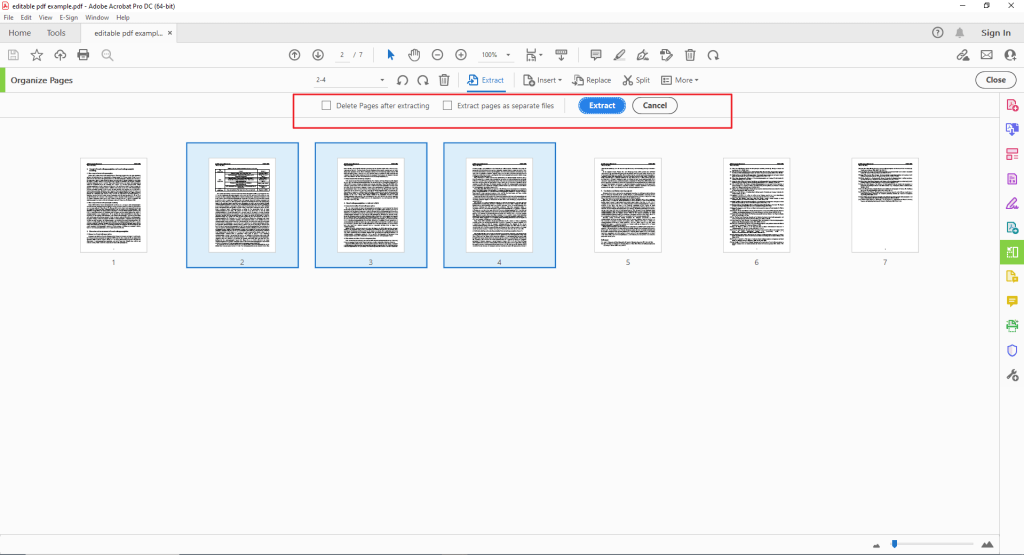
Step 3: Try Ghostscript as a Backup
If qpdf doesn’t work, Ghostscript is another free command-line powerhouse. It interprets the PDF page-by-page and can often salvage content that qpdf can’t. Run this command in the terminal:
Adjust -dFirstPage and -dLastPage to your range. Ghostscript may take a while, but it often produces a cleaner output. If you get errors, try decreasing the page range or just extracting one page at a time. If the PDF is malformed, this tool can still work wonders — see our dedicated guide on how to repair a malformed PDF.
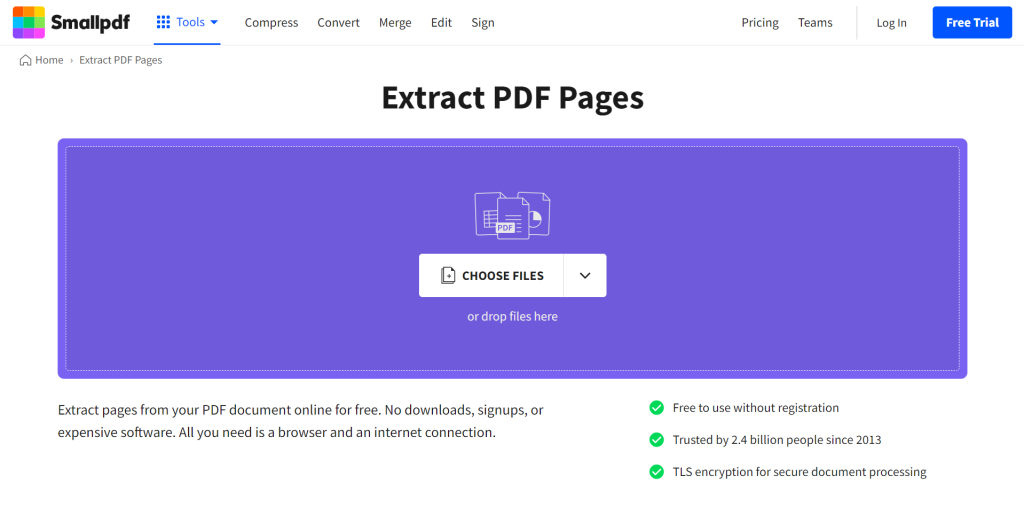
Step 4: Use an Online PDF Tool (No Login Required)
If command lines aren’t your thing, online tools can extract pages without installing anything. Sites like Ilovepdf, Smallpdf, or Sejda allow you to upload a PDF and select pages to extract. They run their own repair routines, so even a corrupted PDF might work. However, be careful with sensitive files — avoid uploading confidential documents. For privacy, check out our guide on how to repair a PDF without login, which covers tools that don’t require accounts.
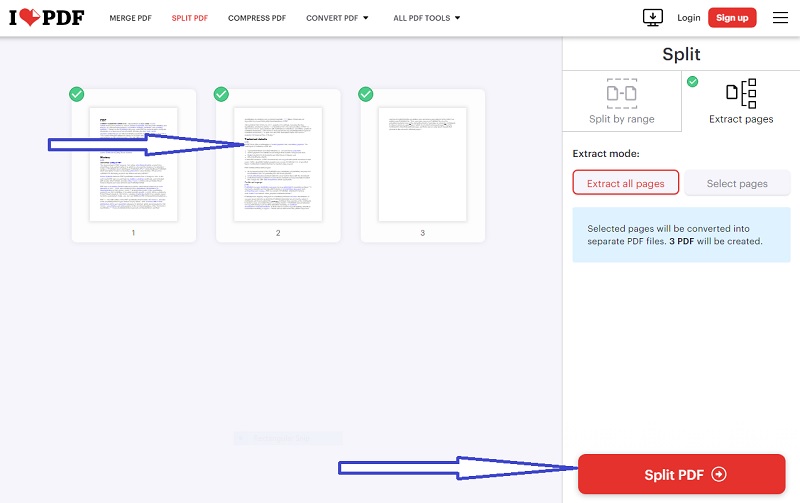
Step 5: Manual Extraction as a Last Resort (Hex Editor)
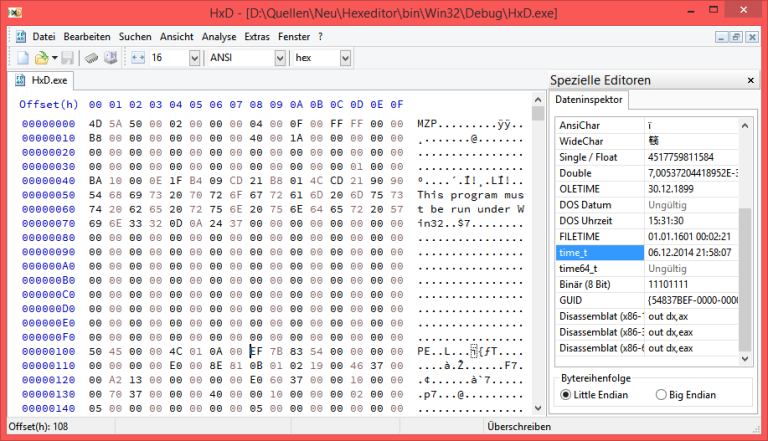
When all else fails, you can manually extract pages using a hex editor. This is advanced, but sometimes the only way to get a single critical page. Open the PDF in a hex editor (like HxD on Windows). Look for the string stream and endstream — these mark the beginning and end of page content. Copy everything between the stream of one page and the endstream of the next, then paste into a new file. This is tedious but can recover one or two pages. If you have many pages to extract, consider trying the best PDF repair tool first.
Common Pitfalls
- Running commands on the original file: Always work on a copy. If you accidentally overwrite your original and the output is blank, you’ve lost everything. Keep the original safe.
- Assuming all pages are recoverable: Some pages may be too damaged to extract. If qpdf or Ghostscript produce a smaller file, accept that you may have to lose a few pages. You can always try to fix a PDF that failed to upload after extraction if needed.
- Using online tools for sensitive data: Uploading confidential PDFs to free online services can be a security risk. Use command-line tools for private files.
Where to Next?
You’ve successfully extracted pages from a corrupted PDF. Now that you have a clean document, you might want to optimize it for sharing or fix any remaining issues. If you still have multiple corrupted PDFs, check out our comprehensive PDF validation and repair guide. And if you ever run into a USB drive full of broken PDFs, we have a guide on how to fix a PDF from a USB drive that might come in handy.




