
Ever had a PDF on your USB drive that just won’t open? Maybe you got an error like ‘File is corrupt’ or the PDF shows up as 0KB. Don’t panic—most of the time you can fix it without any fancy software or logging into sketchy websites. This guide is for anyone who needs to recover a PDF from a USB stick quickly, whether you’re on Windows, Mac, or even Linux. By the end, you’ll have a working PDF back on your USB drive.
We’ll walk through three practical methods: using built-in tools, free online services, and a dedicated desktop app. Along the way, I’ll point out common pitfalls so you don’t waste time. If you’ve ever tried to repair a PDF without login and got stuck, this is the place to start.
What You’ll Need
- The USB drive with the broken PDF
- A computer (Windows, Mac, or Linux) with internet access
- A free PDF repair tool (we’ll use Adobe Acrobat Reader or an online tool)
- Optional: a backup copy of the PDF (just in case)
Step 1: Check the USB Drive and Copy the File
First, plug the USB drive into your computer. Open the drive and locate your PDF file. Right-click it and select ‘Copy’, then paste it onto your desktop or a folder on your internal drive. Working with a copy prevents further damage. If the file shows as 0KB, don’t toss the USB yet—you may be able to repair 0KB PDF files using a recovery tool.

Step 2: Try Opening with a Different PDF Reader
Sometimes the PDF isn’t corrupt—your reader just can’t handle it. Open the copied file with a different program. If you have Adobe Acrobat Reader, try that. Or use your browser’s built-in PDF viewer by dragging the PDF into a Chrome tab. If it opens, save it as a new PDF (File > Print > Save as PDF) to create a clean copy. This is the easiest fix before diving into advanced repair.

Step 3: Use a Free Online PDF Repair Service
If step 2 failed, head to a trustworthy online repair tool. I recommend PDF Repair Online (no login required) or the official Adobe online PDF repair. Upload the copied PDF and let the service fix it. After processing, download the repaired file. This method is great because it doesn’t require installing software. For more background, check out our guide on how to repair PDF without login.

Step 4: Repair Using a Desktop App (For Stubborn Cases)
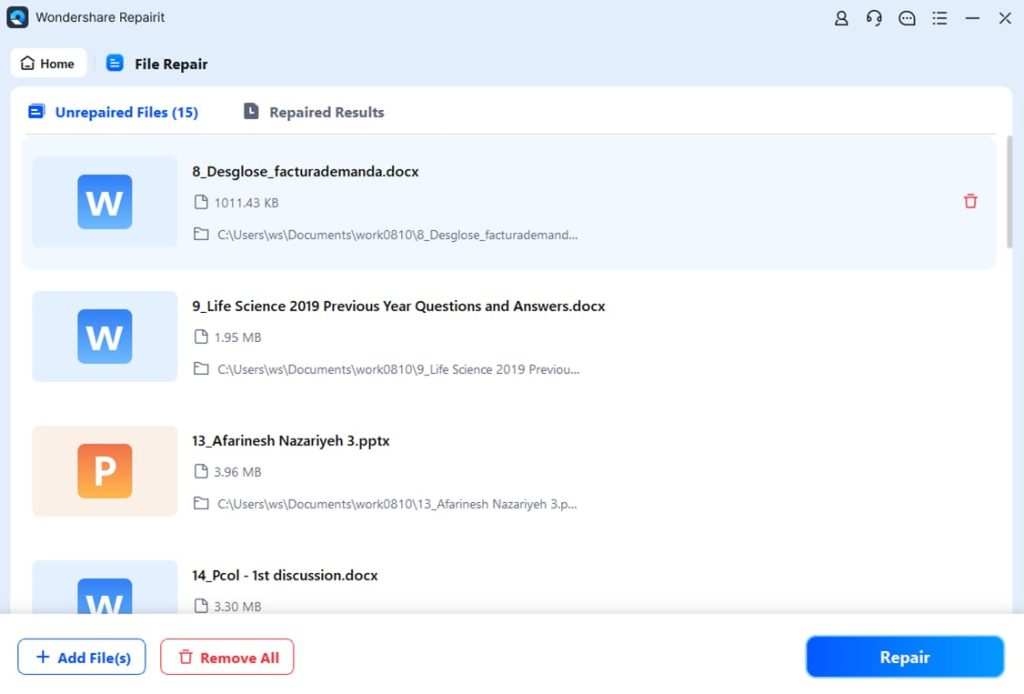
Online tools sometimes fail on severely corrupted files. If that happens, use a dedicated desktop program. The best PDF repair tool for free is often the one built into Ghostscript (command line) or a GUI like PDF Repair Toolkit. Download and install it, then open the corrupted PDF. Most tools will reconstruct the internal structure—including fixing a broken XREF table. After repair, save the file to your desktop.
Step 5: Validate the Repaired File
Don’t assume the repair worked perfectly. Open the fixed PDF with your usual reader. Scroll through all pages, check for missing graphics or garbled text. If you see issues, you might need a more thorough approach like malformed PDF repair. Alternatively, run the file through a PDF validator—try PDF Tools online. This ensures your document is fully recoverable.

Step 6: Copy the Fixed PDF Back to USB
Once you’re satisfied, copy the repaired PDF back to your USB drive. Safely eject the drive (right-click > Eject). Then reconnect it and open the file to confirm it works from the USB. If you’re worried about future corruption, consider backing up important PDFs. For persistent issues, our comprehensive PDF validation and repair guide covers advanced scenarios.
Common Pitfalls
- **File still shows 0KB after repair** – The file content may be completely overwritten. Try a file recovery tool before repair. We have a dedicated guide for repair 0KB PDF files.
- **Online tool asks for payment or login** – Stick to reputable free services. Many free tools work without signing up—if a site demands payment, close it.
- **Forgetting to work on a copy** – If you repair the original on the USB and it fails, you could lose the file permanently. Always copy to your computer first.
Where to Next
You’ve got your PDF back! But if you run into more stubborn corruption, check out our other guides: learn how to tackle a malformed PDF repair or use the best PDF repair tool for recurring issues. Keep your USB drive healthy, and happy fixing!




