
We’ve all been there: you’re about to submit a term paper, and your PDF refuses to open. Or maybe your thesis looks like alien hieroglyphs. Don’t panic—you can fix most corrupted PDFs with free tools and a little know-how. This guide is for students who need their files back fast, without spending money or learning complex software.
By the end of this tutorial, you’ll know how to diagnose common PDF corruption, use online and desktop tools to repair the file, and even recover content from broken documents. Whether it’s a simple glitch or a mangled cross-reference table, you’ll have a game plan.
What You’ll Need
- A corrupted PDF file (the one you want to fix)
- A stable internet connection
- Optional: A free PDF repair tool like PDFtk or qpdf
- Optional: A hex editor (for advanced manual repair)
Step 1: Identify the Problem
First, figure out what’s wrong. Try opening the PDF in different readers (Chrome, Firefox, Adobe Acrobat). Common symptoms: the file won’t open at all, it opens blank or with garbled text, or you see errors like “This file is damaged” or “Cross-reference table not found.” Knowing the symptom helps you choose the right fix. If you need to recover a thesis PDF, you might start with a quick diagnosis.

Step 2: Use an Online PDF Repair Tool
For most corruption, an online tool is the fastest fix. Go to a service like Smallpdf, iLovePDF, or the repair page on pdfrepairs.click. Upload your file, let it process, and download the repaired version. These tools handle missing data, broken links, and stream errors. If your PDF was created from Excel, you might need to repair PDF exported from Excel with a specialized tool.

Step 3: Try a Desktop Tool
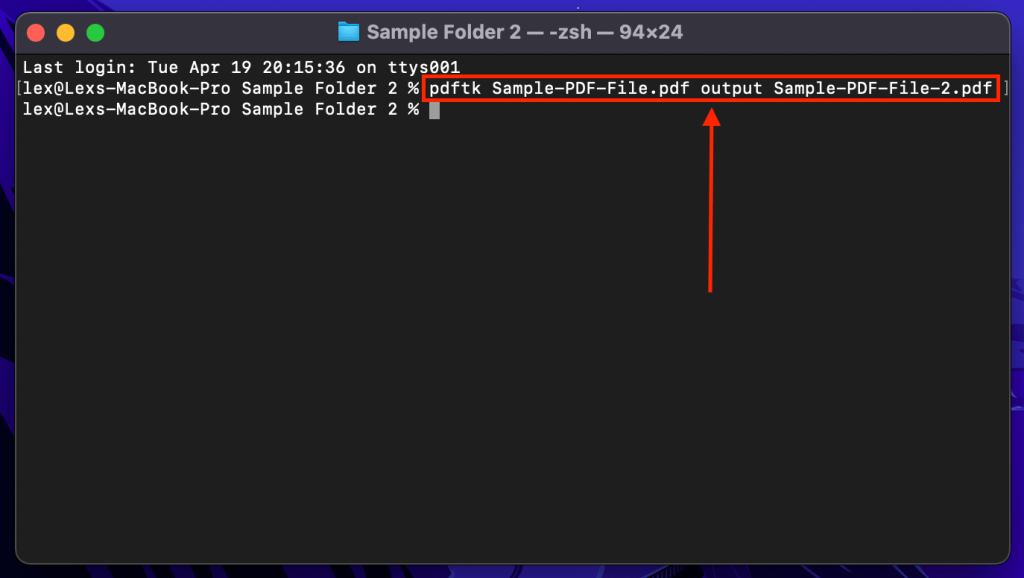
If online tools don’t work, try a free desktop program. PDFtk (PDF Toolkit) is great for batch repairs. Install it, open a command prompt, and run: pdftk broken.pdf output fixed.pdf. For stream corruption, use qpdf with the –repair flag. These tools can fix a PDF stream and rebuild internal structures. Check out the best PDF repair tool guide for more options.
Step 4: Extract Pages from the Corrupted PDF
Sometimes the whole file can’t be repaired, but individual pages are intact. Use Adobe Acrobat (or a free online extractor) to extract pages from a corrupted PDF. Open the file, go to “Organize Pages,” select the readable ones, and save them as a new PDF. This is especially useful if only a few pages are damaged.

Step 5: Manual Hex Repair (Advanced)
If the PDF has a broken cross-reference table, you can fix it manually with a hex editor. Open the file in a hex editor like HxD, locate the xref table at the end, and correct the offsets. This is complex but powerful—it’s called PDF XREF table repair. Only try this if you’re comfortable with hex values and have a backup.

Common Pitfalls
- Overwriting your original file before backing it up—always keep a copy.
- Using shady online tools that upload your sensitive homework to unknown servers—stick to reputable sites.
- Trying to repair a genuinely empty file (0KB)—if the file size is zero, there’s nothing to recover. Learn more about how to repair a 0KB PDF.
Where to Next?
Now that you’ve rescued your PDF, explore more repair techniques. If your file still looks weird, check out our guide on why a PDF is unreadable. Or if you lost pages, learn how to recover password protected PDFs. Keep this page bookmarked for midterms and finals—good luck!




