You’re on your phone, you tap the PDF file you need, and nothing happens. Or maybe you get an error message like “Can’t open file.” It’s frustrating, especially when you’re on the go. This guide is for anyone who’s ever had a PDF refuse to open on their Android or iPhone. By the end, you’ll have a working PDF on your phone, and you’ll know how to prevent this from happening again.
We’ll walk through simple fixes first—like restarting your phone—then move into deeper solutions like repairing the file itself. Most causes are easy to solve, and you don’t need to be a tech wizard. Ready? Let’s get that PDF open.
What You’ll Need
- Your phone (Android or iPhone)
- A stable internet connection (for downloads or online tools)
- A PDF reader app (e.g., Adobe Acrobat Reader, Google PDF Viewer)
- Optionally, a computer if you need to transfer or repair the file
Step 1: Restart Your Phone and Try Again
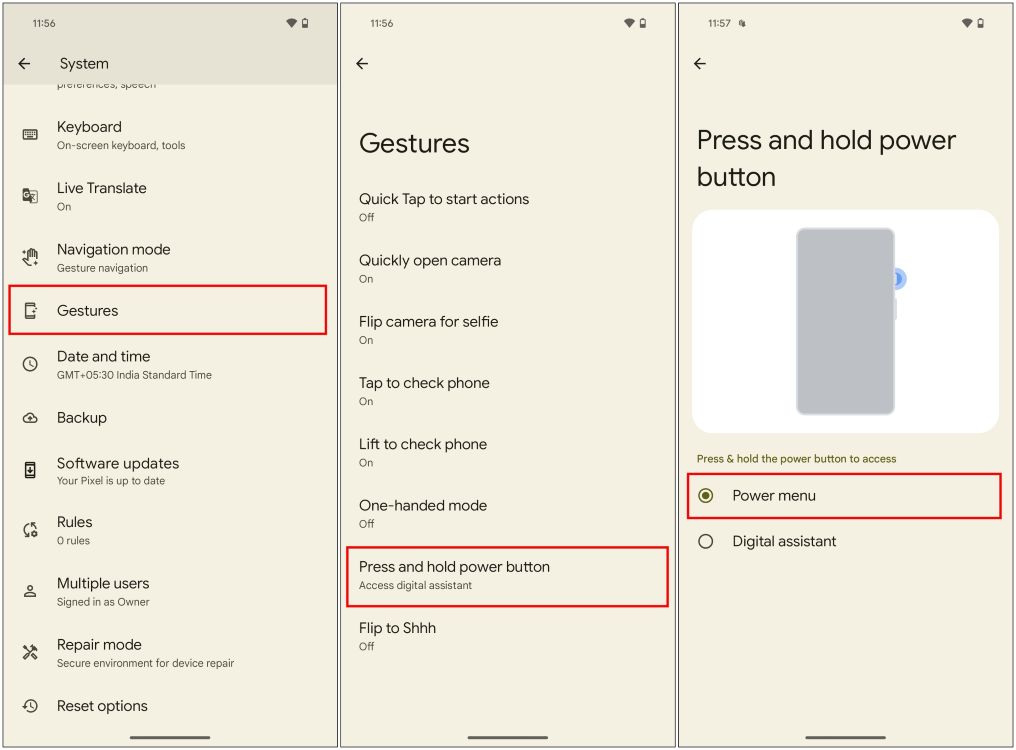
It sounds too simple, but a quick restart often fixes temporary glitches. Your phone’s file system or PDF reader might have a hiccup that a reboot clears. Hold down the power button, tap “Restart,” and wait for your phone to come back on. Then open the PDF again. If it works, you’re done. If not, move to Step 2.
Step 2: Check if the PDF Is Corrupted
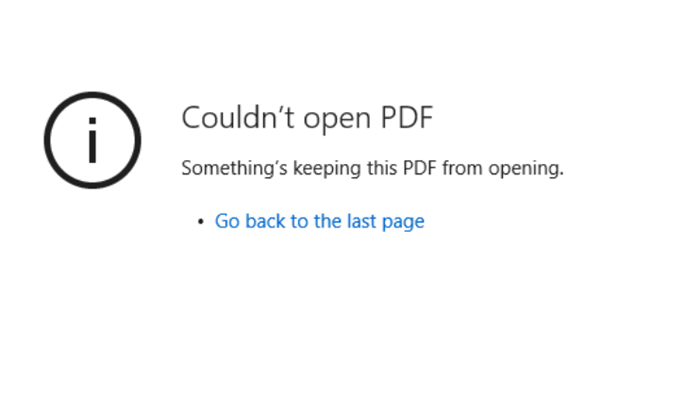
A corrupted PDF is a common reason your phone can’t open it. If the file is broken, no app on your phone will make it work. You can check this by trying to open the same PDF on a computer. If it fails there too, it’s almost certainly corrupt. In that case, you need to repair the file. An online tool can help you fix a corrupted PDF quickly. Alternatively, you can scan your PDF for errors using a dedicated utility to see what’s wrong.
Step 3: Update Your PDF Reader App
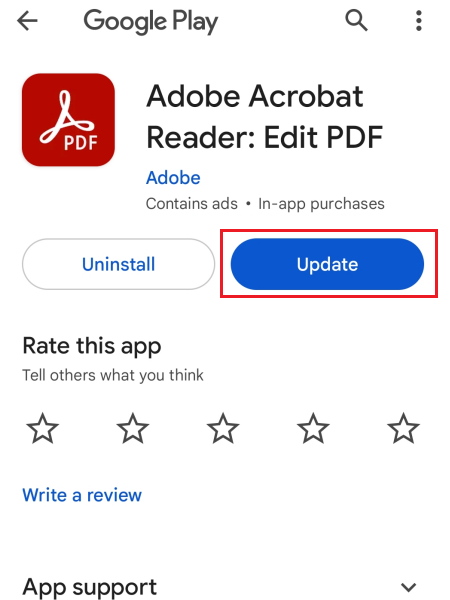
An outdated PDF reader might not be compatible with the file format, especially if the PDF uses newer features. Go to your app store (Google Play or Apple App Store), search for your PDF reader, and tap “Update.” Once updated, try opening the PDF again. This fixes many compatibility issues.
Step 4: Try a Different PDF Reader App
Sometimes the problem isn’t the file—it’s the app. If your default reader can’t open it, download another free PDF reader. Popular options include Adobe Acrobat Reader, Google PDF Viewer, and Xodo. Install one, then open the PDF from within that app. This often works when the original app is buggy or lacks certain features.
Step 5: Re-Download or Re-Transfer the PDF
If you downloaded the PDF from an email, website, or cloud storage, the file might have been corrupted during transfer. Delete the copy on your phone and download it fresh. For emails, save the attachment again. For cloud storage, make sure you download the original file. If you transferred it from a computer, try using a different method (e.g., USB cable vs. Bluetooth). Sometimes, you need to repair pdf after download to fix any corruption that occurred.

Common Pitfalls
- Assuming the file is fine without checking: Always test the PDF on a computer first to confirm it’s not corrupt.
- Ignoring app updates: An old reader app can’t handle new PDF features. Keep apps updated.
- Not checking file extension: Make sure the file actually ends in .pdf and isn’t disguised as something else.
Where to Next
Now that your PDF is opening, you might want to explore more advanced fixes. Check out our guide on pdf file not opening repair if you encounter a similar issue again. If the file was damaged, our post on repair pdf after download has tips to avoid future problems. For persistent corruption, learn how to fix a corrupted PDF permanently. And don’t forget to scan your PDF for errors before sharing important documents.
Happy reading!




