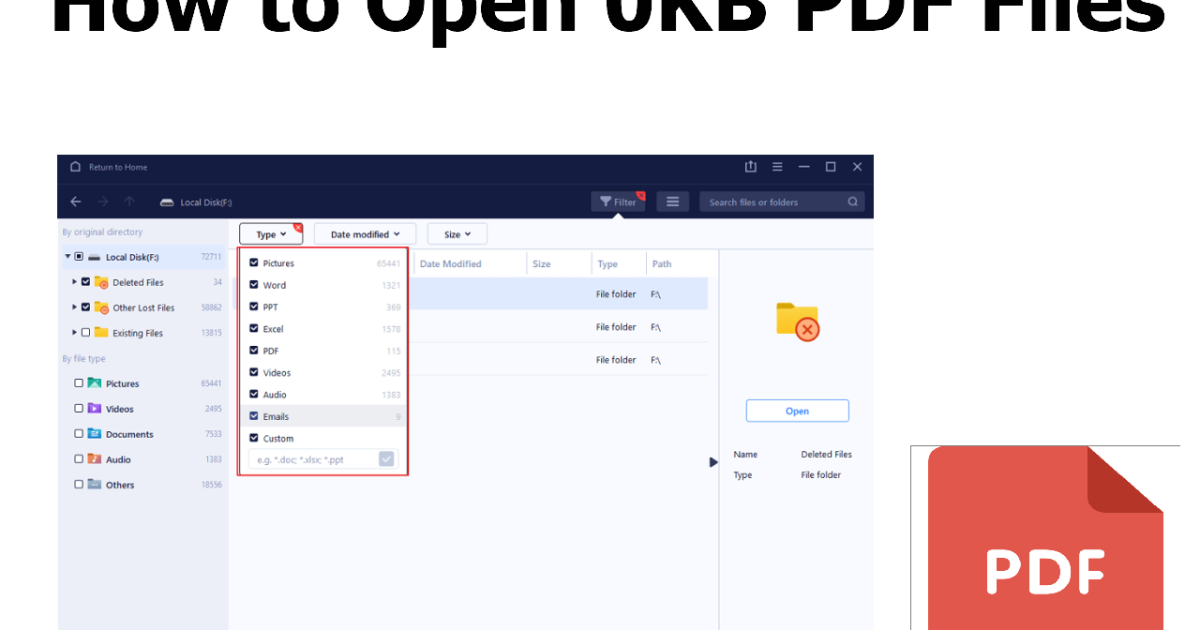
You’re working on an important document, save it, and come back later — only to find your PDF file is now 0KB. Zilch. Nada. It’s empty. Before you freak out, know this: it’s often recoverable. This guide is for anyone who’s faced this dreaded zero-byte PDF and wants to get their data back without paying for expensive software. By the end, you’ll have tried several free, proven methods to resurrect your file — or at least salvage the content.
We’ll walk through diagnosing the problem, using command-line tools like qpdf and mutool, extracting text, and even checking your email attachments. Most steps can be done on Windows, Mac, or Linux. The tools are free and lightweight. Let’s get your PDF back from the dead.
What You’ll Need
- A computer with internet access
- The corrupted 0KB PDF file (and a backup if you have one)
- Basic comfort with the command line (I’ll hold your hand)
- qpdf (free tool) — download from qpdf.sourceforge.net
- mutool (part of MuPDF) — get it from mupdf.com
- pdftotext (included in Poppler) — or use online converters
- A PDF viewer (Adobe Reader, browser, etc.)
Step 1: Verify the File Really Is 0KB
Sometimes the file explorer lies due to caching or a glitch. Right-click the PDF, choose Properties, and check the file size. If it says 0 bytes, the data is likely gone from the file system — but parts of it might still exist elsewhere (like in temporary files or email attachments). If you see a non-zero size but the file won’t open, check out our guide on how to detect corrupted PDF for more diagnostics.
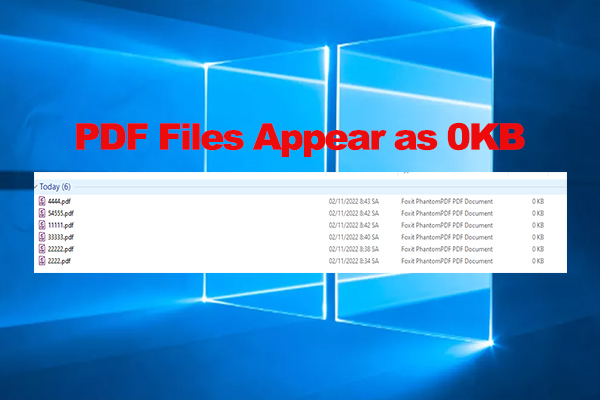
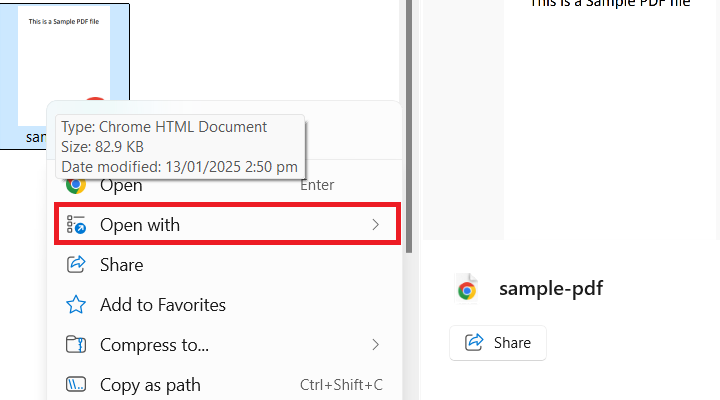
Still 0KB? Let’s try opening it in a different viewer. Sometimes the file has a header that’s intact but the content is missing. Open it in a browser (Chrome, Firefox, Edge) — right-click > Open with > Chrome. If it opens blank or not at all, move on.
Step 2: Try a Different PDF Reader or Online Tool
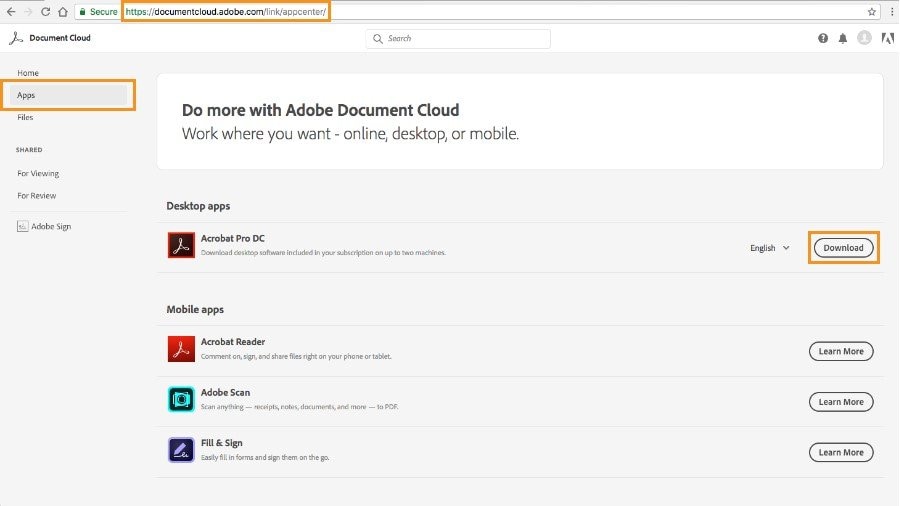
A 0KB file might actually be a corrupted header that some readers handle differently. Try Adobe Acrobat Reader (if not installed, get from Adobe’s site). Also try the built-in PDF reader in your OS. If none work, upload the file to a free online PDF repair tool — but be cautious with sensitive data. However, most online tools won’t handle a true 0KB file because they expect a certain file size.
Step 3: Use qpdf to Attempt Repair
qpdf is a powerful command-line tool that can often fix a PDF whose internal structure is damaged. Even if the file is 0KB, qpdf may still be able to extract something if the file system hasn’t zeroed out all allocated blocks. First, install qpdf (download the latest binary for your OS). Then open a terminal or command prompt and navigate to the folder with your 0KB file. Run:
qpdf –check input.pdf
qpdf check command
If qpdf says “this file is not a PDF” or similar, try the repair command:
qpdf –repair input.pdf output.pdf
qpdf repair command
Check the output file size. If it’s still 0KB, move on. If qpdf successfully created a non-zero output, you’re in luck. That’s a classic repair pdf with qpdf success. Remember to always work on a copy, not the original.
Step 4: Reconstruct with Mutool
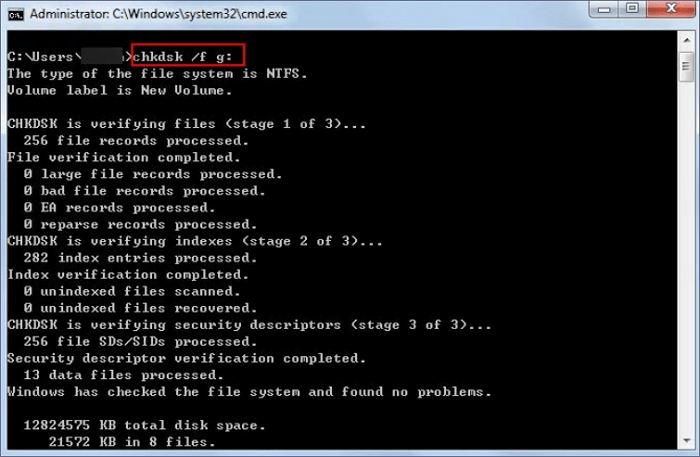
mutool is part of the MuPDF library and includes a ‘clean’ command that can sometimes reconstruct a PDF from whatever bytes remain on disk. Even if the file shows 0KB, the data might be sitting in a temporary location or the file system’s slack space. Download mutool and run:
mutool clean -s input.pdf output.pdf
mutool clean command
The ‘-s’ flag sanitizes the file, removing invalid objects. If the output has content, you can then use mutool’s ‘show’ command to extract text or images. This is a common broken pdf solution when standard repairs fail. For more details, see our step on repair pdf with mutool.
Step 5: Extract Text with pdftotext
If the file is truly 0KB but you suspect the content was partially written, you might be out of luck for images and formatting. However, if the file has even a few bytes, pdftotext (part of Poppler) can scrape any text content. Install pdftotext (on Windows use a pre-built binary, on Mac brew install poppler, on Linux apt install poppler-utils). Run:
pdftotext input.pdf output.txt
pdftotext command
If the output.txt is empty, the file is truly empty. But sometimes you’ll get text from a file that appears empty in explorer. This technique is perfect for when you need to extract text from corrupted pdf regardless of the file size.
Step 6: Recover from Email Attachment or Backup
If the file was emailed to you or you saved it as an attachment, the original might still be in your email’s Sent or Inbox folder. Log into your email and search for the file. Gmail, Outlook, and others keep copies of attachments even after download. If you have a backup system (Time Machine, cloud sync, version history), restore a previous version. That’s often easier than any repair. For more on this, check out our guide on how to recover pdf email attachment.
Common Pitfalls
- **Not checking file permissions.** Sometimes the file is 0KB because it’s locked or permissions prevent reading. Check that you have read/write access. If the file is on a network drive, try copying it locally first.
- **Overwriting the original.** Always work on a copy. If you run a repair command that writes back to the same file, you might destroy any remaining recoverable data. Make a backup before anything.
- **Skipping email/backup recovery.** Users often jump into complex repairs without checking simpler sources. Your PDF might be intact in your email’s attachment history. Don’t neglect that.
Where to Next
Hopefully one of these methods saved your PDF. If you’re still stuck, consider that the file may be gone for good — but you can prevent future headaches by enabling version history in your document editor or using cloud storage with file recovery. For more PDF rescue tips, browse our other articles like how to use pdfinfo damaged pdf to diagnose issues early, or learn general broken pdf solution techniques. Good luck!




