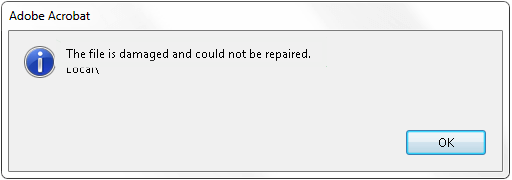
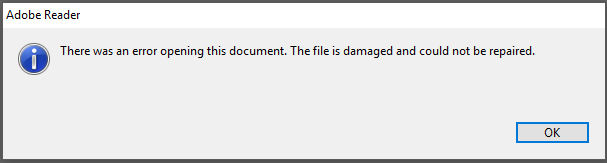
So you’ve tried everything to repair that damaged PDF file – maybe you used an online tool, a desktop app, or even followed our guide on the best free PDF repair tool – but nothing worked. The file still won’t open or is gibberish. Don’t panic. This guide is for anyone who has a PDF that couldn’t be repaired. You’re not out of options yet.
By the end of this article, you’ll know several practical methods to extract whatever content is left in that file – from raw text to images – so you can rescue your data without the original formatting. We’ll cover text extraction, hex editing, online recovery, and even file recovery from the disk itself. Even if the PDF is toast, your information doesn’t have to be.
What You’ll Need
- The original corrupted PDF file (don’t modify it yet)
- A hex editor (like HxD or 010 Editor)
- Internet access for online tools
- Optional: file recovery software (e.g., Recuva, PhotoRec)
- A backup of the file if you have one
Step 1: Try Different PDF Readers
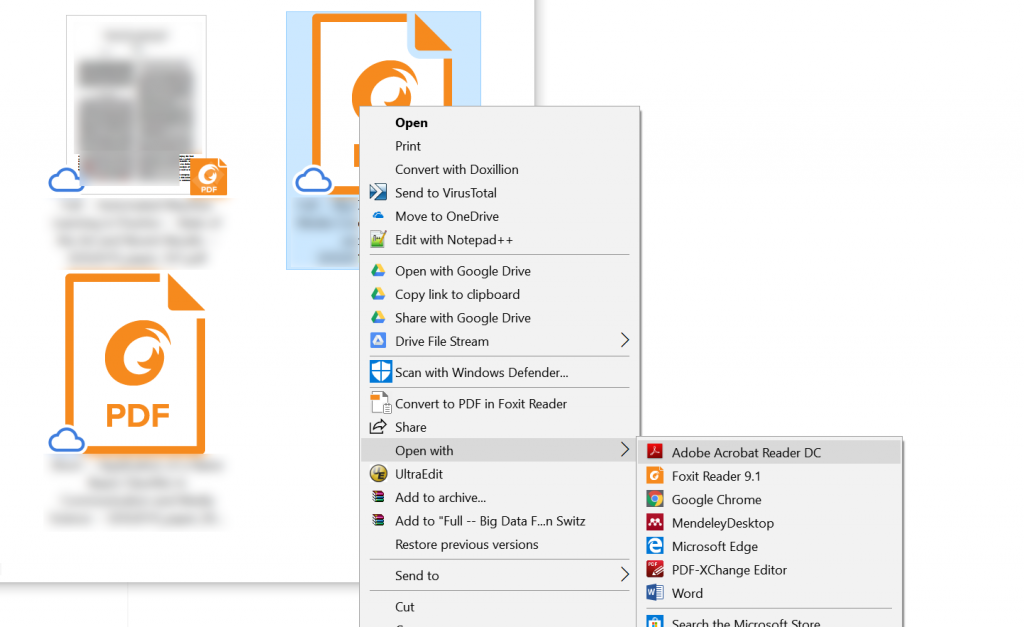
Before assuming the file is totally dead, open it in different PDF viewers. Sometimes a specific reader’s error handling can display partial content. Try Adobe Reader, Foxit Reader, and even a web browser like Chrome or Firefox. If any reader shows at least some content, you can copy it out manually.
Step 2: Use an Online Recovery Service
Even if dedicated repair tools failed, some online services can still salvage content. Upload your file to Google Drive and open it with Google Docs – it often converts damaged PDFs to editable text. For more targeted help, check our guide on corrupted PDF repair online for a list of trusted options. Note: never upload sensitive files to unknown sites.
Step 3: Extract Raw Text with Command Line Tools
If the PDF contains any readable text, command-line tools like pdftotext (part of Poppler) can extract it without rendering the file. Install Poppler, then run: `pdftotext damaged.pdf output.txt`. This often pulls out plain text even from severely corrupted files. For a full walkthrough, see our guide to recover text from corrupted PDF.
Step 4: Inspect the File with a Hex Editor
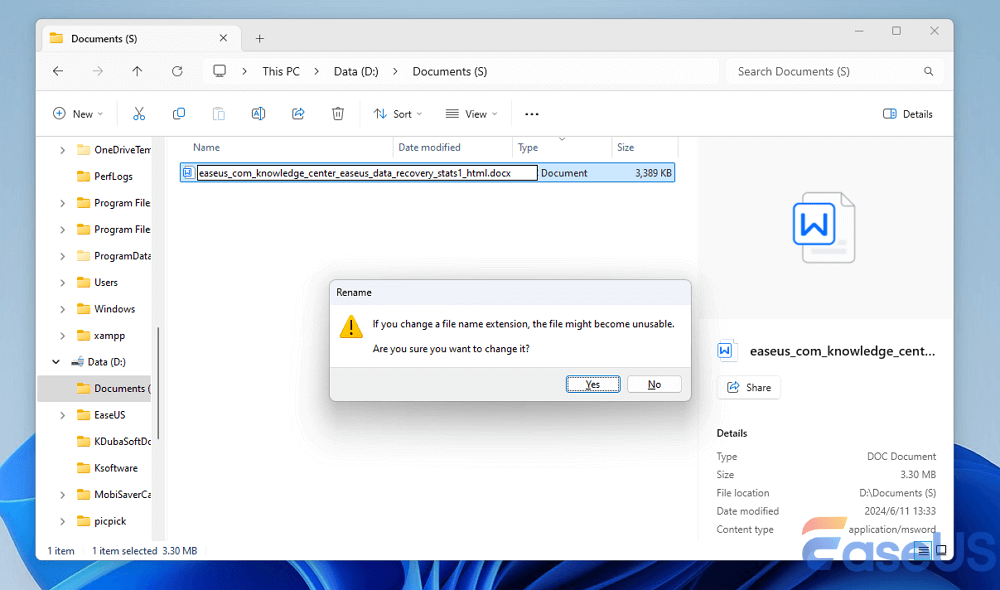
When automated tools fail, go manual. Open the corrupted PDF in a hex editor (e.g., HxD). Look for readable ASCII strings – often the content is still there but the structure is broken. You can copy these strings to a text file. This is tedious but can save vital data. Focus on areas between readable markers like ‘BT’ (begin text) and ‘ET’ (end text).
Step 5: Try File Recovery Software
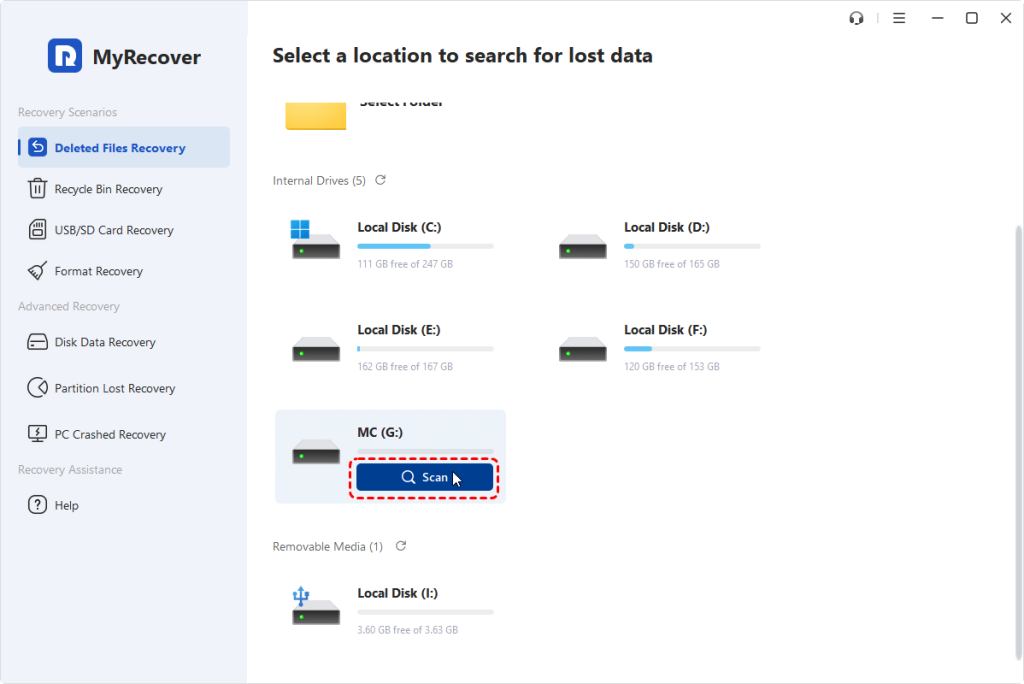
If the PDF is stored on a failing hard drive, the damage might be read errors. Use file recovery tools like Recuva or PhotoRec to scan the drive for a better copy of the file. They can sometimes reconstruct a version that opens. For drives with physical issues, consider professional recovery. Also, remember that if you can’t repair the whole file, extracting pages from corrupted PDF might still work.
Common Pitfalls
- Editing the original file without a backup – always work on a copy.
- Using unknown online tools that may steal your data – stick to reputable services.
- Giving up too soon – combine multiple methods for the best chance.
Where to Next
If you managed to recover something but it’s incomplete, check out our article on extracting pages from corrupted PDF to piece together a working document. For preventative measures, learn how to repair PDF from hard drive before it becomes critical. And if you still need help, feel free to explore more tools in the PDF Repair & Tools category.