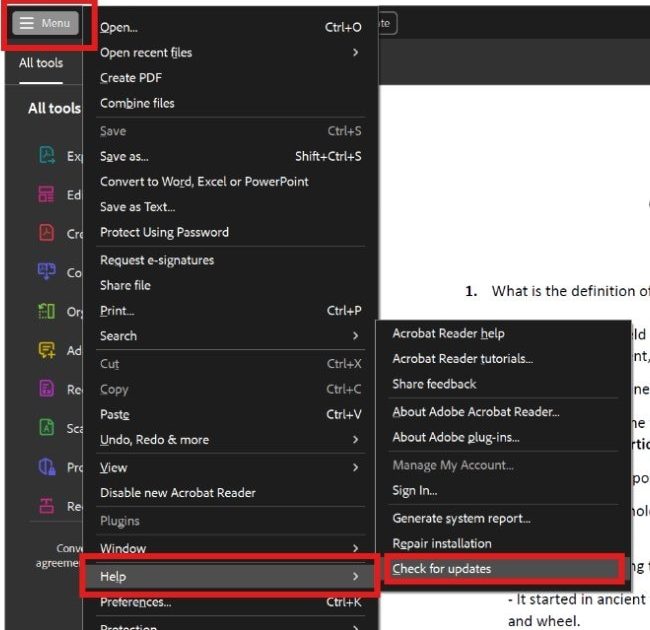
Ever opened a PDF only to get a blank screen, garbled text, or a cryptic error? You might have a damaged PDF on your hands. This guide is for anyone who works with PDFs regularly—students, office workers, freelancers—and wants to catch corruption early before it messes up your work. By the end, you’ll know how to spot a damaged PDF using visual signs, file properties, and free tools.
We’ll walk through several detection methods, from the simple eyeball test to running automated checks. You don’t need any special skills—just a computer and a few minutes. Let’s dive in and save you from future PDF headaches.
What You’ll Need
- A computer (Windows, Mac, or Linux) with a PDF reader like Adobe Acrobat Reader or a browser.
- The PDF file you suspect may be damaged.
- Optional: A free online PDF repair tool (like PDF24) for a second opinion.
Step 1: Try Opening the PDF in Multiple Viewers
Sometimes the issue is with your PDF reader, not the file itself. Open the PDF in at least two different viewers. For example, try your browser (Chrome, Edge, Firefox) and a dedicated reader like Adobe Acrobat. If both show errors, the file is likely damaged. Look for these common signs: a blank page, partial loading, scrambled text, or an error message like ‘This file cannot be opened’.
Step 2: Check the File Size and Properties
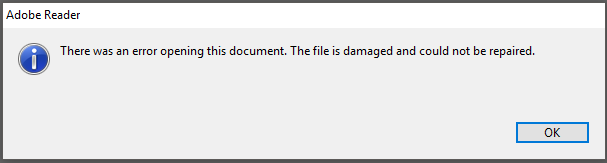
A damaged PDF might have an unexpectedly small or large file size. Right-click the file and select Properties (Windows) or Get Info (Mac). Compare its size to a similar healthy PDF. If it’s way too small (e.g., 1 KB for a multi-page document) or suspiciously huge, it could be corrupted. Also, check the ‘Modified’ date—if it changed without you editing it, something may have gone wrong during transfer or save.
Step 3: Use a Free PDF Validation Tool
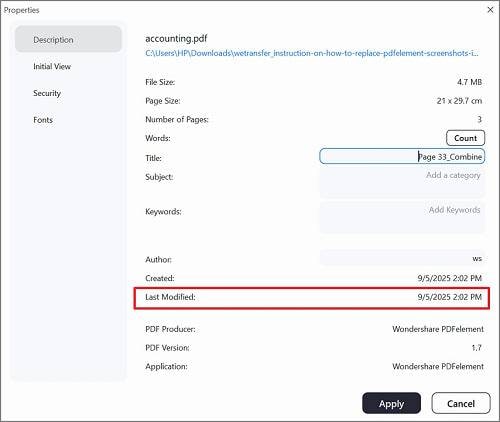
Online tools like PDF24 or iLovePDF can analyze your file for corruption without modifying it. Visit a trusted online PDF validator or repair tool. Upload your file and run a free check. These tools will report structural issues like missing EOF markers, broken cross-reference tables, or invalid headers. For instance, if you get an ‘EOF marker not found’ error, you can use an EOF marker fix to repair it.
Step 4: Test with PDF Repair Software (Optional)
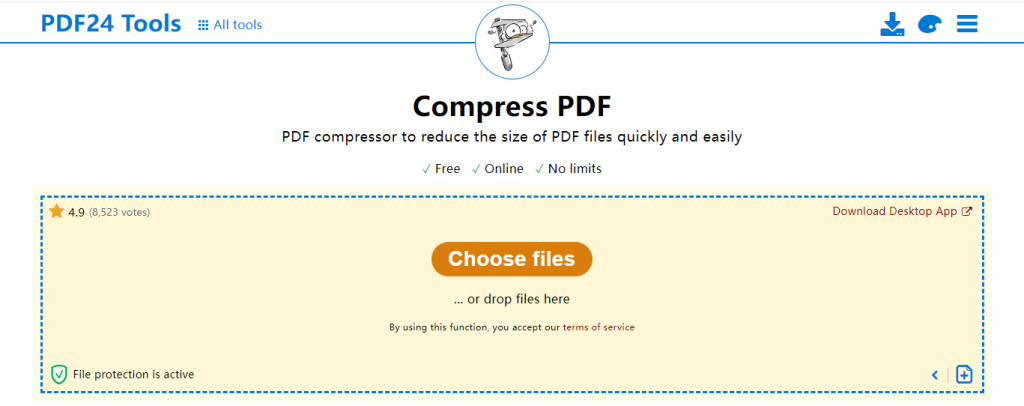
If you want a deeper check, consider using a dedicated PDF repair program. Many offer a free trial that can scan your file and list all issues. For example, the best free PDF repair tool might show you exactly which parts are broken. Just be cautious—some tools request payment before showing results. Stick to reputable ones like PDF24 or Adobe’s built-in repair.
Common Pitfalls
- Assuming a blank page means the file is empty: It could be a rendering issue. Try printing to a new PDF or using a different viewer.
- Ignoring small file sizes: A PDF that’s only a few kilobytes when it should be megabytes is almost certainly damaged.
- Trusting a single test: A file might open fine in one viewer but still have hidden corruption. Always test in at least two viewers and run a validation tool.
Where to Next
Now that you’ve detected a damaged PDF, you might need to fix it. Check out our guides on disk error repair and PDF header repair. If the file is beyond repair, try extracting pages from a corrupted PDF to salvage usable content. And remember, the best free PDF repair tool can often breathe new life into stubborn files.




