You’re in a rush, you open a critical PDF, and all you see is an error message or garbled text. Maybe it’s a work document, a bank statement, or a contract you need to sign. Before you panic, know this: you can fix a corrupted PDF online for free with no watermark. No need to install software or pay for a subscription. This guide is for anyone who just needs their document back, fast.
By the end of this tutorial, you’ll have a fully functional PDF that looks exactly as it should—without any watermarks added by the repair tool. We’ll use two trusted free services: PDF24 and Sejda. Both are browser-based, handle files up to a few hundred MB for free, and leave no trace of watermark. Let’s get your PDF working again.
What You’ll Need
- Your corrupted PDF file (keep a backup copy just in case)
- A stable internet connection
- A modern web browser (Chrome, Firefox, Edge, Safari)
- Less than 10 minutes of your time
Step 1: Choose a Free Online PDF Repair Tool
Not all online PDF repair tools are created equal. Many free versions either limit file size or slap a watermark on the output. Stick with PDF24 or Sejda—both are completely free for files up to 500MB and don’t add watermarks. They work directly in your browser, so there’s nothing to download.
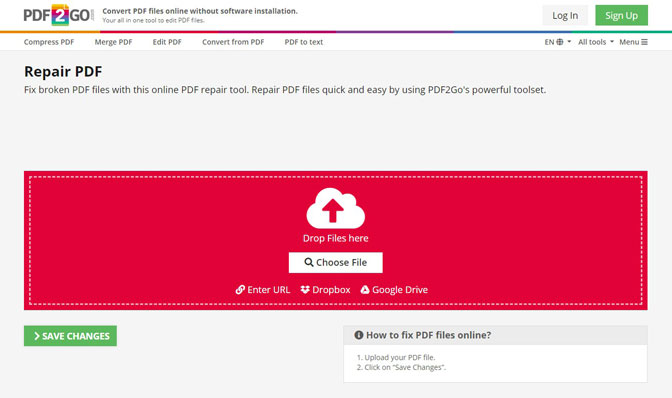
Open PDF24’s PDF repair tool in your browser (https://tools.pdf24.org/en/repair-pdf). You’ll see a clean interface with a big “Choose file” button. Alternatively, head to Sejda’s PDF repair page (https://www.sejda.com/repair-pdf). Both are secure and delete your files from their servers after processing.
Step 2: Upload Your Corrupted PDF
Click the “Choose file” or “Upload PDF” button. Navigate to your corrupted PDF file and select it. If you’re using PDF24, you can also drag and drop the file into the browser window. Sejda supports drag-and-drop too. For large files, the upload may take a moment, especially if you’re doing a free corrupted pdf recovery.
Once uploaded, the tool will analyze your PDF and attempt to repair common issues like header corruption, stream errors, or blank pages. You don’t need to do anything else. After a few seconds, you’ll see a preview or a download button.
Step 3: Download the Repaired PDF
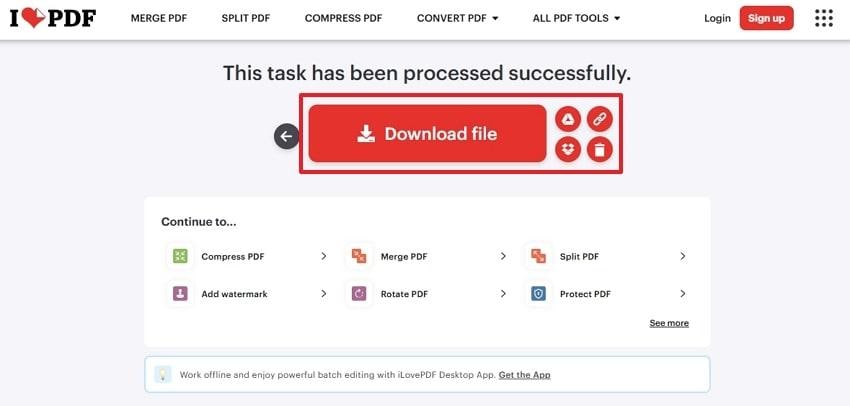
After processing, click the “Download” button to save the fixed PDF to your computer. With PDF24, you can also choose to open the file directly in your browser. The repaired file will have no watermark—just your original content restored. If you used Sejda, the same applies.
Open the downloaded PDF in your viewer (Adobe Acrobat, browser, etc.) to confirm it works. Scroll through all pages, check for missing text or images. If the file still has issues, try the other tool—sometimes one catches what the other misses. This is a solid pdf repair method.
Step 4: Verify and Backup (Optional but Recommended)
If your PDF is critical—like an invoice you need to recover invoice pdf—make a backup copy right away. You can also run it through a second repair tool for extra peace of mind. For files under 500MB, both PDF24 and Sejda handle them easily, as noted in our repair pdf under 500mb guide.
Now you have a clean, usable PDF. Share it, print it, or archive it—whatever you need.
Common Pitfalls
- Pitfall 1: The file is too large. Free online tools usually cap at 500MB. If your PDF is bigger, split it first using a free PDF splitter or use a desktop tool. Our repair pdf under 500mb guide covers this.
- Pitfall 2: The repair tool adds a watermark. Stick with PDF24 and Sejda—they’re watermark-free. Avoid lesser-known sites that promise “free” but sneak in branding.
- Pitfall 3: The repaired PDF still has issues. Some corruption is too severe for online tools. If that happens, try a command-line tool or a dedicated desktop app. Check our pdf repair guide for more advanced options.
Where to Next
You’ve just fixed your PDF online for free with no watermark. That’s a win! If you often deal with corrupted files, get familiar with other techniques like how to fix a legal PDF or recover a PDF from a hard drive. Bookmark this page—you never know when you’ll need it again.




