
This guide is for anyone who works with legal PDFs—lawyers, paralegals, legal secretaries, or self-represented litigants—and has encountered a corrupted, unreadable, or damaged PDF. Maybe you downloaded a court filing that won’t open, got a blank screen on a contract, or the text is garbled. At the end, you’ll have a step-by-step process to repair that file using free or built-in tools, without needing a tech degree.
Legal documents are time-sensitive and often critical. You’ll learn quick fixes like re-downloading, using Adobe Acrobat’s built-in repair, or turning to online tools for complex corruption. We’ll also cover how to prevent future issues. By the end, you’ll be able to open, extract text, and print your legal PDFs again.
What You’ll Need

- Your corrupted legal PDF file
- Adobe Acrobat Reader DC (free) or Adobe Acrobat Pro (trial available)
- Internet connection (for online tools)
- A backup copy of the file (if possible)
- Basic familiarity with your computer’s file system
Step 1: Try the Simple Fixes First
Before diving into repair tools, eliminate the easy culprits. Many legal PDFs are encrypted or require a password. Make sure you have the right password. Also, try opening the PDF in a different viewer like your web browser (drag and drop into Chrome or Edge). Sometimes the original viewer is the problem.
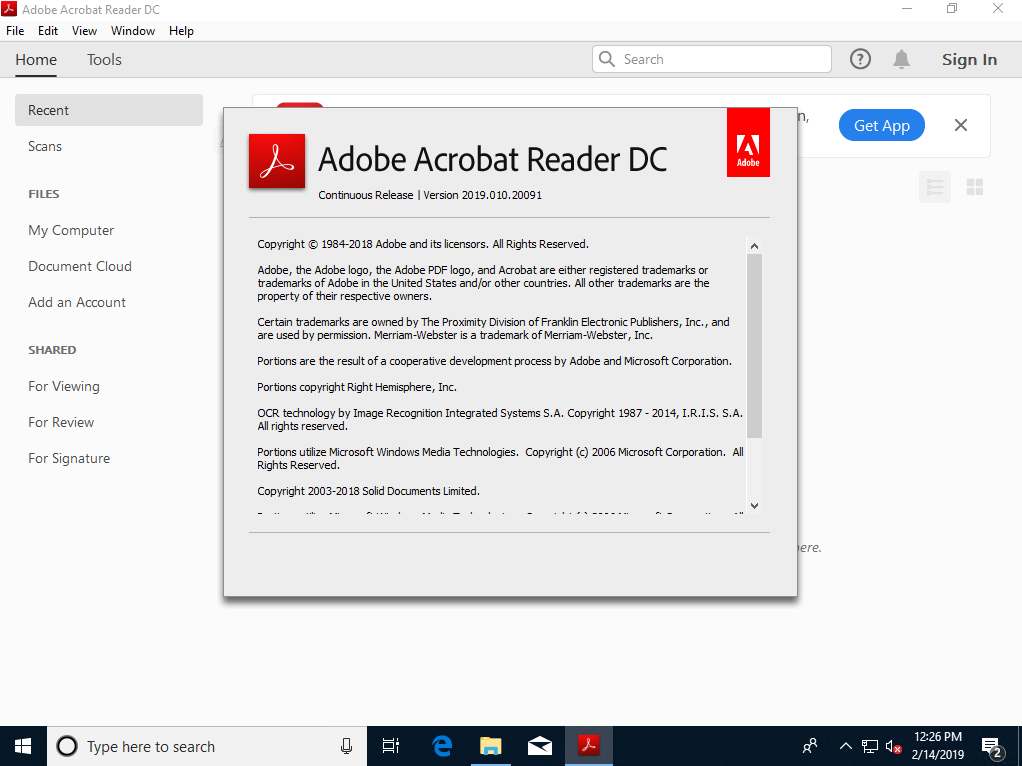
If the file is blank, try re-downloading it from your email or the court portal. Corruption often happens during transfer. If that works, you’re done. For a similar issue with financial documents, the same approach applies as in our guide on how to from invoice PDFs.
Step 2: Use Adobe Acrobat’s Built-In Repair
Adobe Acrobat Pro has a hidden feature to repair PDFs. Open the file in Acrobat Pro. Go to File > Properties… and check if the PDF complains about corruption. If it does, go to Tools > Protect & Standardize > More > Repair PDF. This rebuilds the internal structure.
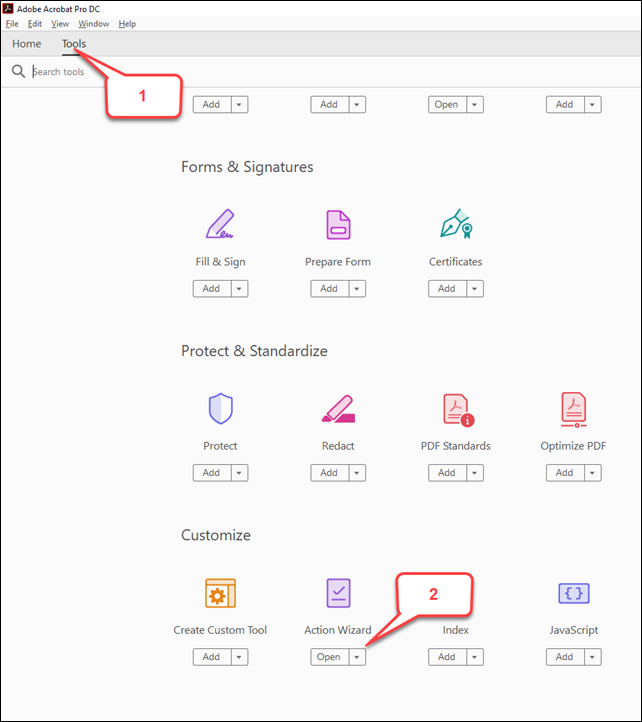
If that doesn’t work, you can also try File > Save As > Optimized PDF. This sometimes clears up corruption. For more advanced corruption, our guide covers additional Acrobat methods.
Step 3: Recover Content via Export
When direct repair fails, extract the content. In Acrobat Pro, go to Tools > Export PDF. Choose an export format like Microsoft Word (.docx) or Plain Text (.txt). This pulls out the text and structure, even if the PDF won’t display. Then re-save as a new PDF.
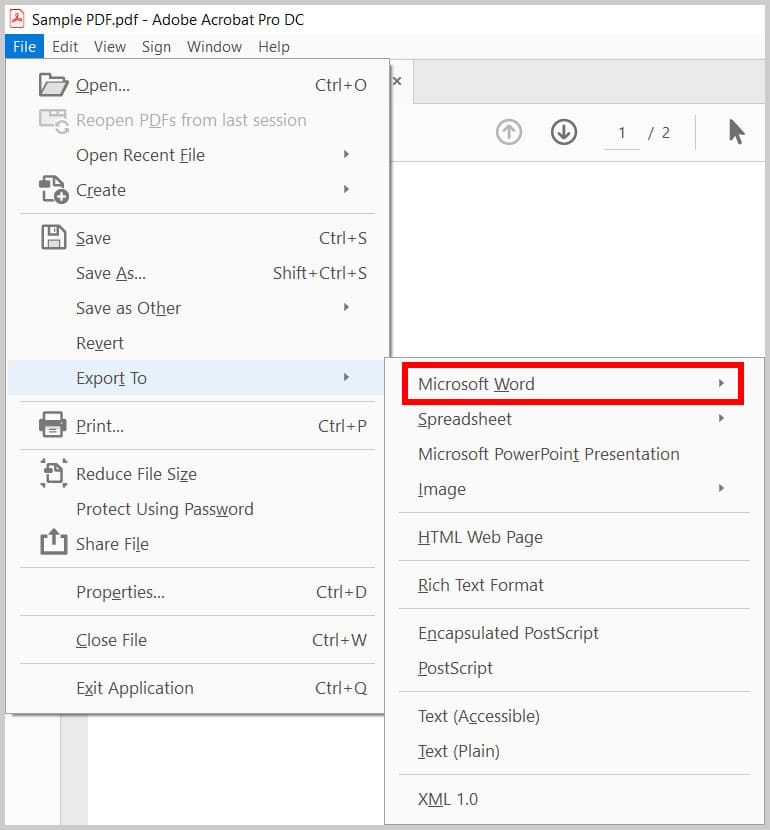
For scanned legal documents, use the export feature to get an editable Word file. If the scan is poor, you might need to first before exporting.
Step 4: Try a Dedicated Online PDF Repair Tool
If software doesn’t work, use a browser-based tool. Go to a trusted online PDF repair site (like PDFRepairs.click). Upload your file, wait for processing, and download the repaired version. No installation needed.
This method is great for urgent fixes on any device. For a reliable free option, check out our recommendation. If the file is under 500MB, it should process quickly.
Step 5: Command Line Repair (Advanced)
If you’re comfortable with the terminal, you can use qpdf or pdfcpu. Download qpdf, then run: qpdf --linearize input.pdf output.pdf. This linearizes and often fixes structural issues. Similarly, pdfcpu repair does a deep rebuild.
Our guide on includes command-line methods for stubborn files. This approach is especially useful for batch processing multiple legal documents.
Common Pitfalls
- Assuming the file is corrupted when it’s actually password-protected or encrypted. Always check for a lock icon and try known passwords.
- Using online tools with sensitive legal documents without respecting privacy. Only use reputable services that delete files after processing, or use offline methods.
- Not making a backup before repairing. If the repair fails, you might lose the original. Always copy the file first.
Where to Next
Now that you’ve fixed your legal PDF, consider preventing future issues. Use a reliable PDF tool like Adobe Acrobat, keep backups in cloud storage, and avoid converting from unstable sources. For more help, browse our articles on or if you handle other document types. Stay legal, stay digital.




