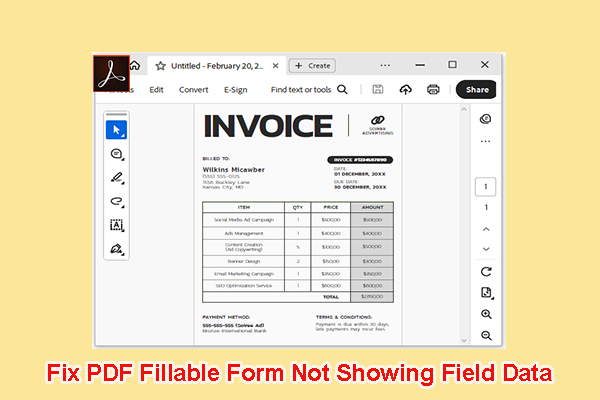
You’ve got a fillable PDF that should work—maybe it’s a job application, a tax form, or a survey—but when you click on the fields, nothing happens. Or maybe the fields are there but won’t accept text, or the file refuses to save your entries. Frustrating, right? This guide is for anyone who needs to get a fillable PDF back in working order. Whether you’re dealing with a corrupted file, disabled fields, or awkward formatting, by the end you’ll have a functional, clickable form that actually works.
We’ll cover everything from checking for corruption to manually editing form fields—no coding required. If you’ve ever tried to fill out a PDF and felt like throwing your computer out the window, this one’s for you. Let’s roll up our sleeves and fix that fillable PDF.
What You’ll Need
- A copy of the problematic fillable PDF (back it up first to avoid accidental changes).
- Adobe Acrobat Pro or a free alternative like LibreOffice Draw (for creating new fields).
- Basic familiarity with your PDF reader—you know where the toolbar is.
- Patience (form fields can be fiddly, but we’ve got your back).
Step 1: Check if the PDF Is Corrupted
Before diving into form-specific fixes, rule out corruption. A corrupted PDF can cause fields to disappear or act weird. To check, try opening the PDF in a different viewer (like a web browser or mobile app). If it works elsewhere, the problem is likely with your program. If it’s glitchy everywhere, you may need to repair a PDF under 200MB using a dedicated tool. For larger files, check out our guide on how to fix a damaged PDF.
Step 2: Enable Fillable Fields in Adobe Acrobat
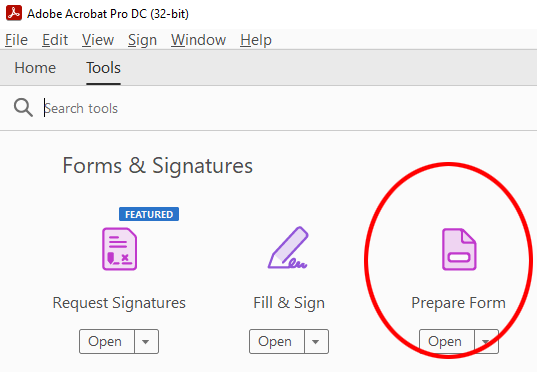
If the fields exist but are grayed out or unclickable, the interactive form feature might be disabled. In Adobe Acrobat Pro, go to Tools > Prepare Forms. A dialog may ask if you want to detect form fields automatically—click Yes. This scans the document and turns static fields into fillable ones. If nothing happens, the file might not have been created with form fields in the first place (check Step 4).
Step 3: Repair Form Fields Manually
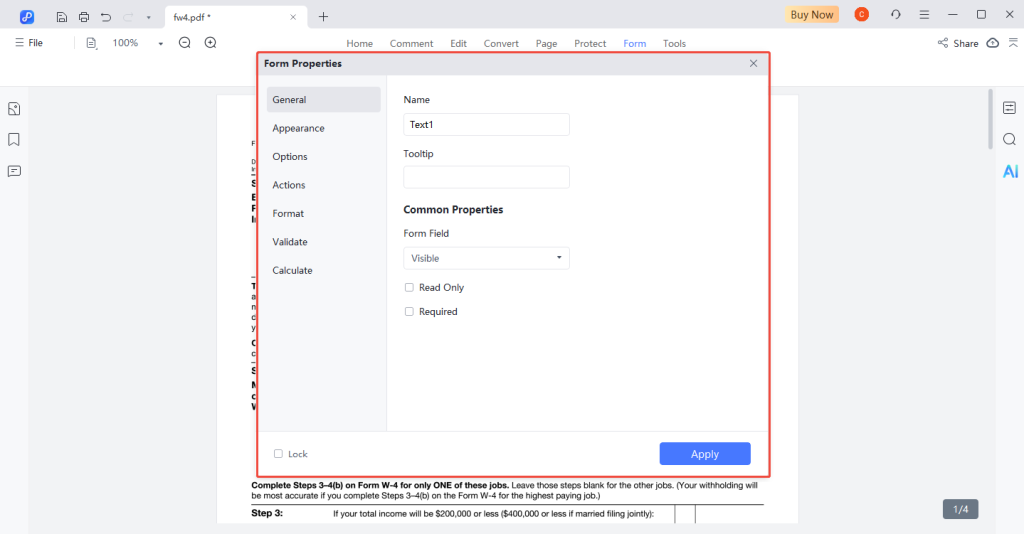
Sometimes automatic detection misses fields or gets properties wrong. Open the form in Acrobat, go to Prepare Forms again, and click the Edit button. Right-click on a broken field and choose Properties. Make sure the field type matches its purpose (e.g., Text for text entry, Check Box for tick boxes). Check the General tab—if the field name is empty or weird, rename it. Also verify that the field is not set to Read Only. This is where PDF repair experience comes in handy: fields with incorrect metadata can lock you out. For deeper issues, learn how to fix PDF error 109 or fix PDF metadata that might be interfering.
Step 4: Use LibreOffice to Create New Fillable Fields (If Fields Are Missing)
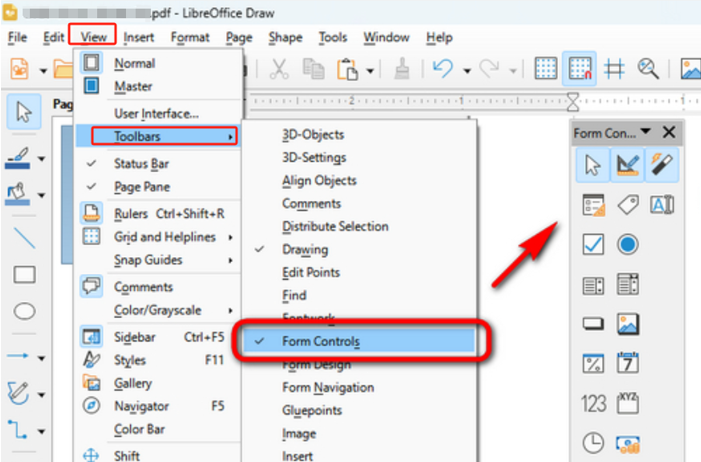
If the PDF has no interactive fields at all—it’s just a flat image of a form—you need to create fields from scratch. Download LibreOffice (free) and open the PDF in LibreOffice Draw. Click View > Toolbars > Form Controls to show the form toolbar. Use the Text Box and Check Box buttons to draw new fields over the original form content. Right-click each field, choose Control Properties, and set a name. When done, export as PDF: File > Export As > Export as PDF. Make sure the “Create PDF form” option is checked. This approach works with most simple forms and avoids the cost of Acrobat.
Step 5: Test the Form and Save
Open your newly fixed PDF in a standard viewer (Adobe Reader, Chrome, etc.). Click each field to see if you can type or check boxes. Try tabbing between fields to ensure order. Save the file and reopen it—your entries should persist. If fields still behave strangely, repeat Step 3 on those specific fields. For ongoing reliability, back up the working file and consider using a consistent tool (like Acrobat) for future form creation.
Common Pitfalls
- Fields not recognized as interactive – The PDF might be a scanned image, so it needs OCR before you can add fillable fields. Use a tool like Adobe Scan first.
- Incorrect field properties – A field might be set to Read Only or have the wrong type. Double-check Properties under the Options tab.
- File corruption causing form data loss – If your file is corrupt, form responses may vanish. Always run a basic corruption check (Step 1) before spending time on manual edits.
Where to Next
Got your fillable PDF working? Great. If you want to dig deeper, check out our general PDF repair guide for more tools, or learn how to fix lost metadata if your form’s author information is causing issues. For stubborn errors like “Error 109,” we’ve got a dedicated fix. And remember—a backed-up file is a happy file.




