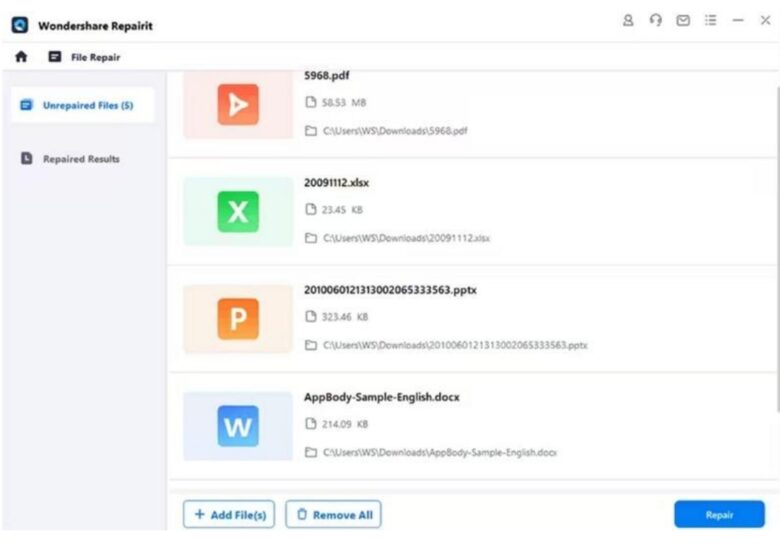
So your important PDF is glitching out — blank pages, garbled text, or just won’t open. And it’s a beefy file, maybe close to 200MB? Don’t panic. This guide is for anyone who needs to fix a corrupted PDF under 200MB without losing their mind (or their data). By the end, you’ll have a working PDF and a few go-to repair tricks for next time.
Whether you’re a student, office worker, or just someone who downloaded a huge report that broke, these steps are tested and practical. We’ll cover everything from built-in tools to free command-line utilities. No fancy software required — just a bit of patience and a decent internet connection.
What You’ll Need
- The corrupted PDF file (under 200MB)
- A computer with internet access
- Optional: Adobe Acrobat Reader or Pro (free version works)
- Optional: Ghostscript or qpdf (free command-line tools)
- A backup copy of the file (seriously, make one)
Step 1: Check the Damage and File Size
First, confirm your file is actually corrupted and under 200MB. Right-click the file, choose Properties (Windows) or Get Info (Mac), and check the size. If it’s over 200MB, you might need to compress it first — but for this guide we’re assuming it’s within limits. Try opening the PDF in any viewer to see the error. Common signs: “File is damaged and cannot be repaired,” blank pages, or weird characters.
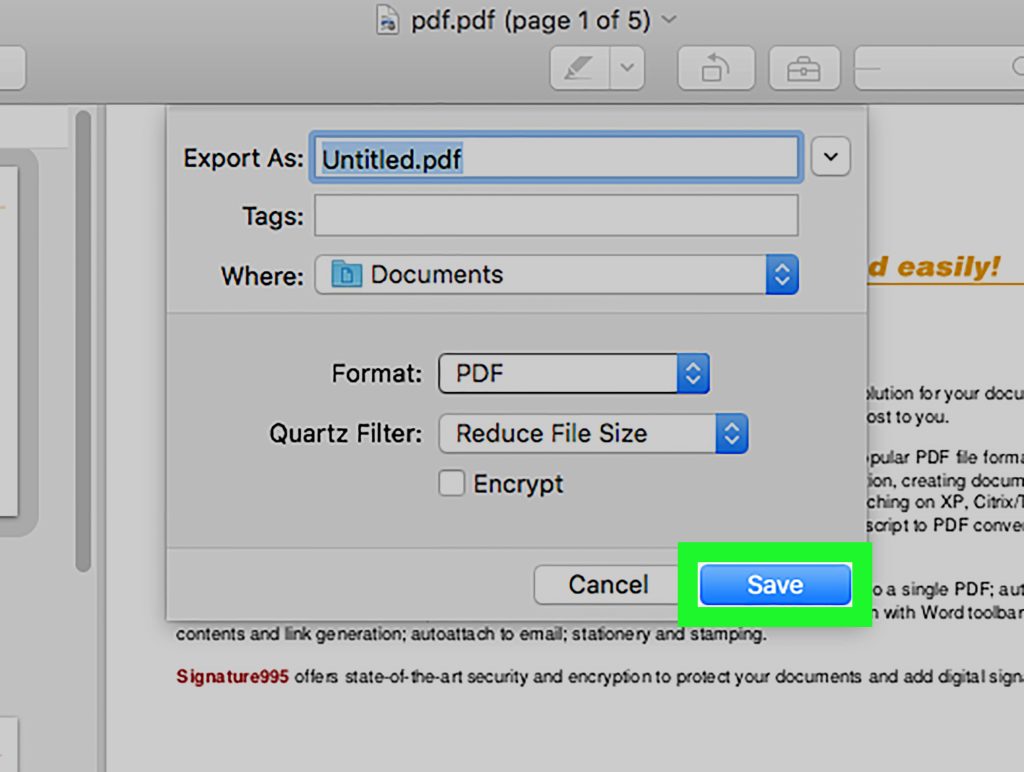
Step 2: Use Adobe Acrobat’s Built-In Repair
If you have Adobe Acrobat (even the free Reader), open the file. Go to File > Open and select your PDF. Acrobat will often auto-detect corruption and prompt to repair it. If not, try File > Save As and choose a different name. This re‑encodes the PDF and can fix minor issues. For a more thorough fix, use the PDF repair option: File > Export To > Image > PNG (then recombine images), or use the “Optimize Scanned PDF” tool if it’s a scan.
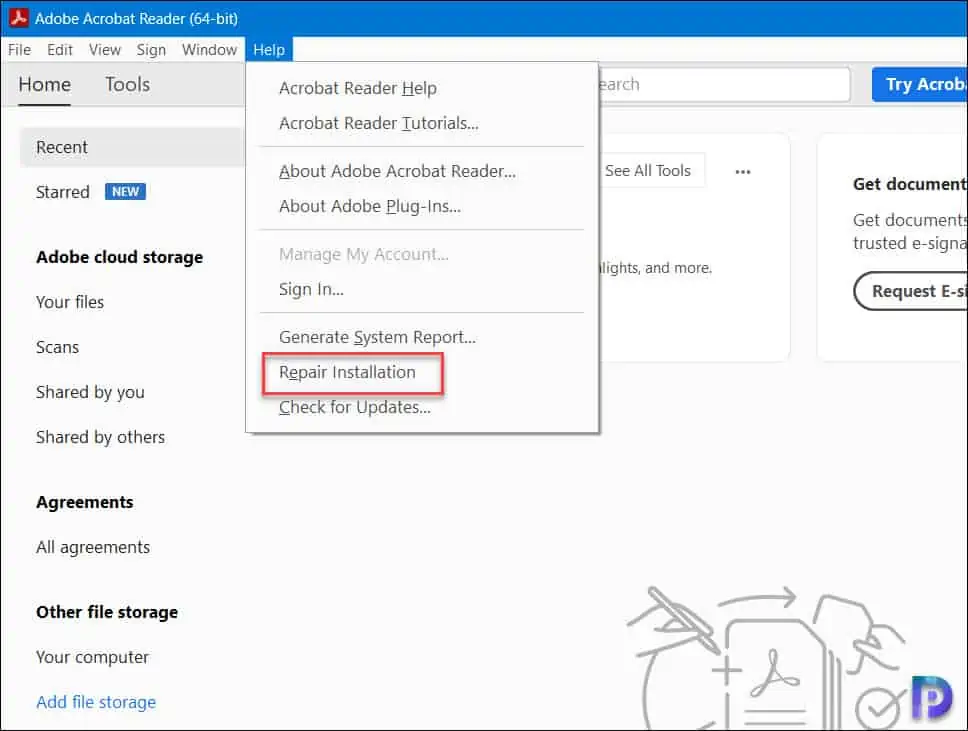
Step 3: Try a Reliable Online PDF Repair Service
When Acrobat fails, an online tool can work wonders. Use a trusted website like the pdf repair service we reviewed. Upload your PDF (most accept files up to 200MB for free), and let it process. The tool rebuilds the file structure. This is great for corrupted headers or cross-references. Just remember to check privacy policies for sensitive documents.
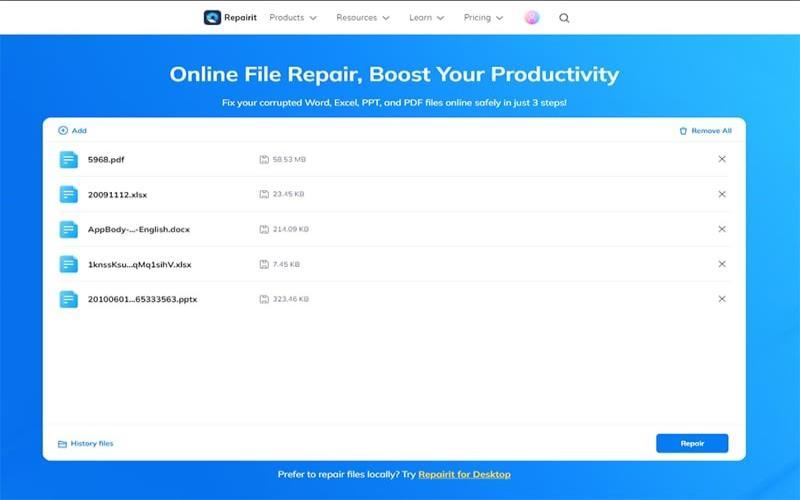
Step 4: Command-Line Repair with Ghostscript or qpdf
For tech‑savvy users, command line pdf repair tools like Ghostscript or qpdf are powerful. Install Ghostscript from gsview.com or use your package manager. Then open a terminal and run: gswin64c -o repaired.pdf -sDEVICE=pdfwrite -dPDFSETTINGS=/prepress corrupted.pdf. This re‑distills the PDF, fixing many structural issues. For qpdf, use: qpdf --linearize corrupted.pdf repaired.pdf. These methods handle large files efficiently and don’t upload data anywhere.
Step 5: Verify the Repaired File
Open the repaired PDF and skim through all pages. Check for missing content, fonts, or images. If it still looks off, try combining methods: run the online tool first, then apply Ghostscript. Keep the original backup in case you need to retry. Once satisfied, save the repaired version with a clear name.
Common Pitfalls
- Skipping the backup: Always backup before any repair. A failed repair can make things worse.
- Using sketchy online tools: Free sites can be malware traps or lose your data. Stick to well-known services.
- Ignoring file size limits: Some tools cap at 100MB. If your PDF is close to 200MB, use desktop software instead.
Where to Next
Repairing a PDF under 200MB is totally doable with the steps above. If you hit a wall, check out our guides on open source pdf repair or the pdf repair service for more options. And remember — prevention beats cure: keep your files backed up and avoid downloading suspicious PDFs. Happy repairing!




