Ever tried to open a PDF only to get an error message? Maybe the file shows garbled text, won’t download, or throws a ‘damaged file’ warning. This guide is for anyone who needs to rescue a corrupted PDF—whether you’re a student, office worker, or casual user. By the end, you’ll have a step-by-step method to repair your PDF using free and paid services, and you’ll know what to do when the repair doesn’t quite work.
We’ll walk through identifying the problem, choosing the right repair service (online or desktop), uploading your file, and verifying the fix. Along the way we’ll point out common mistakes and link to deeper guides on specific issues like a why pdf file is corrupted or how to validate and repair pdf after a transfer. Let’s get that PDF working again.
What You’ll Need
- A corrupted or unopenable PDF file
- Internet connection (for online repair services)
- Optional: a free PDF repair tool like PDF24 or Adobe Acrobat trial
- A backup of the original file (just in case)
Step 1: Identify the Problem
Before you jump into repair, know what you’re dealing with. Is the PDF completely unopenable, or does it show garbled content? Look at the error message—common ones include ‘File is damaged and could not be repaired’ or ‘PDF is corrupted.’ This tells you whether a simple repair pdf xref table might fix it, or if the whole file structure is broken. Also note the file size: a 0KB PDF is different from a multi-megabyte one that’s just scrambled.
Step 2: Choose a Repair Service
Now decide if you want an online tool or a desktop app. Online services like iLovePDF, Smallpdf, or PDF2Go are convenient and often free—just drag and drop. They’re great for quick fixes. For tougher cases, desktop tools like Adobe Acrobat Pro or PDF Repair Toolbox have deeper algorithms. If you prefer something quick and easy, try a web based pdf repair service first. If that fails, go offline.
Step 3: Upload and Repair
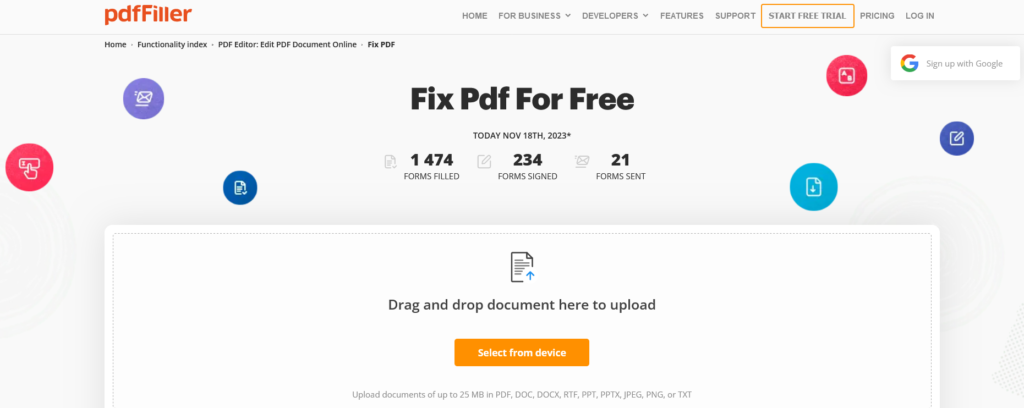
Upload your PDF file. Most services accept drag-and-drop. Click the ‘Repair’ or ‘Fix’ button and let the tool do its magic. This may take a few seconds to a minute, depending on file size. Some tools give you a preview or a success message. If the repair uses an offline application, open the program, select ‘File > Open’ and navigate to the corrupted PDF. Then choose the repair option from the menu.
Step 4: Download and Verify
Once the repair finishes, download the repaired file. Open it in a PDF viewer. Check that all pages are intact, text is readable, and images display correctly. If something seems off, try a different service or run the repaired file through a validate and repair pdf tool. Also compare the file size to the original—if it’s drastically smaller, the repair may have stripped content. Always keep your original backup.
Common Pitfalls
- Not backing up the original file before repairing. If the repair goes wrong, you lose your only copy.
- Using an untrustworthy online service that may steal your data or insert malware. Stick to well-known names.
- Expecting 100% recovery. Some corruption is too severe; you may need to recreate the PDF from the source document instead.
Where to Next
Now you know the basics of PDF repair. If you’re dealing with a file that got messed up during transfer, check out our guide on how to repair pdf after transfer. For recurring issues, read about why pdf file is corrupted to prevent future headaches. And if you ever run into a specific error code, search our site for dedicated fixes.




