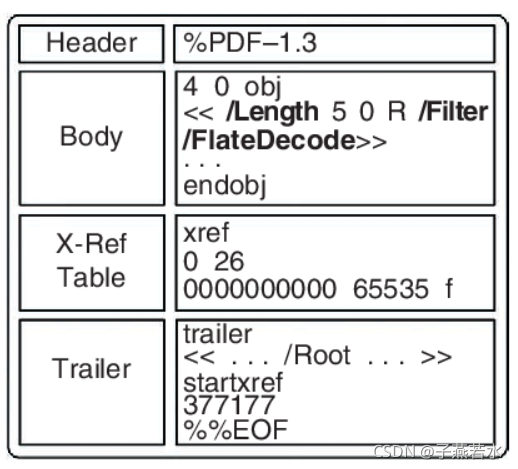
If your PDF won’t open or throws an error about a broken cross-reference table, you’re in the right place. The xref table is like the index of a book — it tells the PDF reader where each object lives. When it gets corrupted, the file becomes unreadable. This guide is for anyone who’s hit a ‘Invalid xref table’ error and wants to fix it without expensive software. By the end, you’ll have a working PDF and a solid understanding of what went wrong.
We’ll use free, open-source tools that run on Windows, macOS, and Linux. No coding experience required — just follow the steps. If you’re in a hurry, there’s a quick PDF repair method using qpdf that can rebuild the xref table automatically. Let’s dive in.
What You’ll Need
- A corrupted PDF file (back it up first!)
- qpdf (free, command-line tool) – download from qpdf.sourceforge.io
- PDFtk (optional, free GUI tool) – get it at pdftk.com
- A text editor like Notepad++ (Windows) or BBEdit (Mac) for inspecting the file
- Basic comfort with the command line (you’ll just copy-paste commands)
Step 1: Identify the Problem
Open your PDF in a viewer like Adobe Acrobat or Chrome. If you see ‘Invalid xref table’ or ‘Cross-reference error’, the table is damaged. To confirm, open the PDF in a text editor. Scroll near the end — you should see a line starting with ‘xref’. If it’s missing or garbled, the table needs repair.
Step 2: Use qpdf to Rebuild the Xref Table
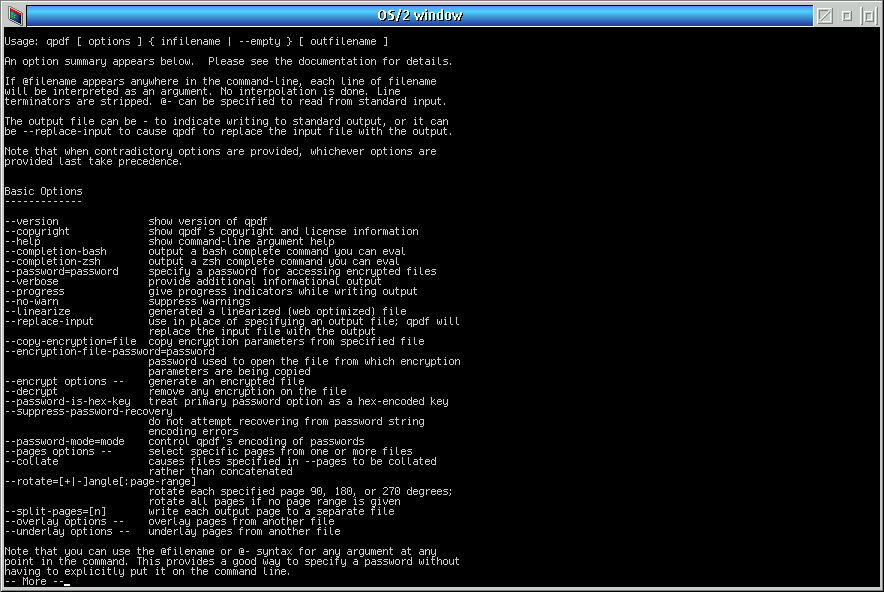
qpdf is the Swiss Army knife for PDF repair. Open your terminal (Command Prompt on Windows, Terminal on Mac/Linux). Run this command: qpdf --linearize input.pdf output.pdf. Replace ‘input.pdf’ with your corrupted file and ‘output.pdf’ with a new filename. The --linearize flag forces qpdf to rebuild the entire cross-reference structure. Try opening the new file.
Step 3: Try the –repair Flag
If step 2 didn’t work, use qpdf’s repair mode: qpdf --repair input.pdf output.pdf. This attempts to fix the xref table by scanning the file for objects and reconstructing the table. It’s slower but more thorough. If you get an error about missing objects, you may need to use the --no-original-objects flag as well.
Step 4: Manual Fix with a Text Editor (Advanced)
For stubborn files, edit the xref table by hand. Open the PDF in a hex editor or advanced text editor. Find the ‘xref’ keyword and the ‘trailer’ section after it. The table lists object offsets. Count the number of objects and ensure the table entries match the actual object numbers. This is tedious but works if the damage is minor. If you’re comfortable with the structure, check our guide on fixed PDF objects for object-level repair.
Step 5: Use PDFtk as a GUI Alternative
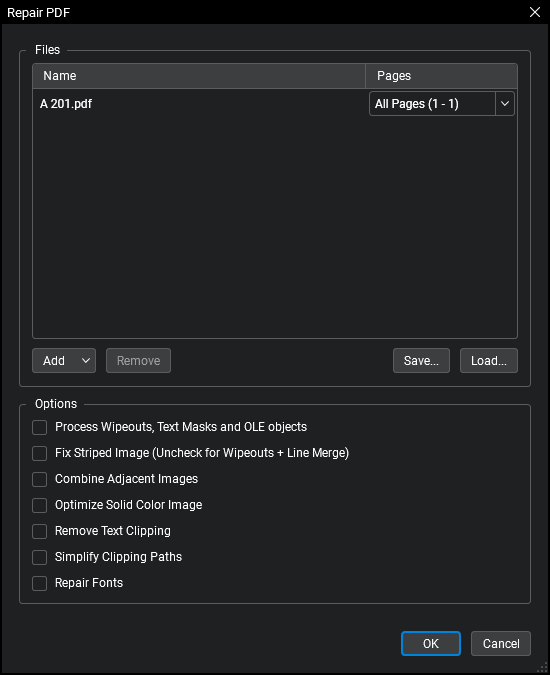
If command lines aren’t your thing, PDFtk offers a simple GUI. Open PDFtk Pro (free version works), add your corrupted PDF, and choose ‘Repair’ from the options. It will attempt to rebuild the xref table. This is a great quick PDF repair method when you need a visual interface.
Step 6: Verify the Fixed PDF
Open the repaired PDF in your preferred reader. Check all pages, bookmarks, and hyperlinks. If the file still has issues, try running qpdf with --check to diagnose remaining errors: qpdf --check repaired.pdf. Sometimes the xref table is just a symptom of deeper corruption. For that, see our full guide on how to fix a corrupted PDF.
Common Pitfalls
- Not backing up the original file. Always keep a copy before any repair — qpdf can sometimes make things worse.
- Confusing xref table with object streams. If your PDF uses compressed objects (look for ‘ObjStm’), the xref table may be in an object stream. Use qpdf’s
--preserve-unreferencedto keep them intact. - Trusting a single tool. qpdf is great, but some corruption requires a combination of tools. If qpdf fails, try PDFtk or a manual edit. Our invalid xref table repair guide covers more edge cases.
Where to Next
You’ve successfully repaired the xref table! Now that your PDF is back, consider optimizing it or batch-fixing multiple files. Learn command-line PDF repair for automation, or explore how to recover PDFs after more severe damage. For everyday fixes, keep qpdf in your toolkit — it’s the most reliable free option.




