If your PDF won’t open or throws errors, you don’t always need expensive software. Command-line tools like qpdf and pdftk can often fix corruption quickly and reliably. This guide is for anyone comfortable with a terminal who wants to rescue a damaged PDF without clicking through GUI wizards. By the end, you’ll have a repaired PDF and a solid understanding of common command-line repair techniques.
We’ll cover the most common repair scenarios: a broken cross-reference table, object corruption, and linearization issues. You’ll also learn how to batch repair multiple PDFs at once. If you’ve ever wondered how to fix corrupted pdf from the command line, this is the tutorial for you.
What You’ll Need
- A terminal (Command Prompt on Windows, Terminal on macOS/Linux)
- qpdf installed (get it from qpdf.sourceforge.net or your package manager)
- pdftk (optional, but useful for some repairs; available from pdftk.com)
- A corrupted PDF file to practice on (backup the original first!)
Step 1: Install qpdf and pdftk (If Needed)
Most Linux distros have qpdf in their repos: sudo apt install qpdf (Ubuntu/Debian) or brew install qpdf (macOS). Windows users can download the installer from the official site. Pdftk is also available via sudo apt install pdftk or as a Windows installer. Verify installation by running qpdf --version and pdftk --version.
Step 2: Try a Basic Repair with qpdf
The simplest command to attempt recovery is: qpdf --repair input.pdf output.pdf. This attempts to fix a damaged cross-reference table and object streams. If the PDF opens in a viewer after this, you’re done. If not, move to the next step.
Step 3: Fix a Corrupt Cross-Reference Table with pdftk
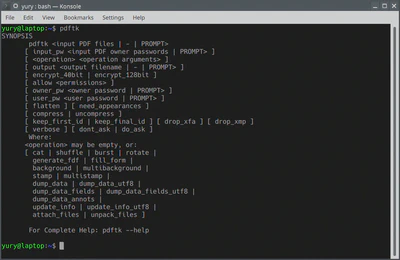
Pdftk can often re-generate a broken cross-reference table. Run: pdftk input.pdf output output.pdf. This forces pdftk to rebuild the file structure. If the invalid xref table pdf repair is your issue, this usually works. Note: pdftk may not handle encrypted or password-protected files.
Step 4: Extract Objects to Salvage Content
If the PDF is severely corrupted, you can try extracting its objects with qpdf: qpdf --split-pages input.pdf output_%d.pdf. This splits the PDF into single pages (if page structure is intact). You can then open each page and recombine usable ones. For a deeper dive, see the guide on fix pdf objects.
Step 5: Batch Repair Multiple PDFs
To fix many PDFs at once, use a loop. On Linux/macOS: for f in *.pdf; do qpdf --repair "$f" "repaired_$f"; done. On Windows PowerShell: Get-ChildItem *.pdf | ForEach-Object { qpdf --repair $_.Name "repaired_$_.Name" }. This saves time when dealing with batch corruption. See our post on quick pdf repair for more tips.
Common Pitfalls
- Not backing up the original file – Always keep a copy before attempting repair, as commands can further damage the file.
- Overlooking password or encryption – qpdf and pdftk may fail on encrypted PDFs; use
qpdf --decryptfirst with the password. - Assuming one tool fixes all – Different corruption types require different tools; try qpdf, then pdftk, then page extraction.
Where to Next
Command-line repair is just one piece of the puzzle. If you’re still stuck, check out our guide on the best way to repair pdf for alternative methods. You can also explore automated solutions or GUI tools if the terminal isn’t your jam. Happy repairing!




