If you’re reading this, you’ve probably clicked a PDF link in Chrome only to see a blank page, a download prompt, or an error message. It’s a common frustration, especially when you need that file for work or school. This guide is for motivated beginners—no technical expertise required. We’ll walk through the most likely fixes step by step.
By the end of this tutorial, Chrome will open PDFs smoothly again. You’ll understand the key settings and common culprits behind the issue. Plus, we’ll cover what to do if the PDF itself is corrupted—because sometimes the problem isn’t your browser.
What You’ll Need
- A computer with Google Chrome installed
- An active internet connection
- A PDF file that won’t open (for testing)
- About 15 minutes of your time
Step 1: Check Chrome’s PDF Viewer Settings
Chrome has a built-in PDF viewer that can be toggled on or off. If it’s disabled, Chrome will download PDFs instead of opening them. Here’s how to check:
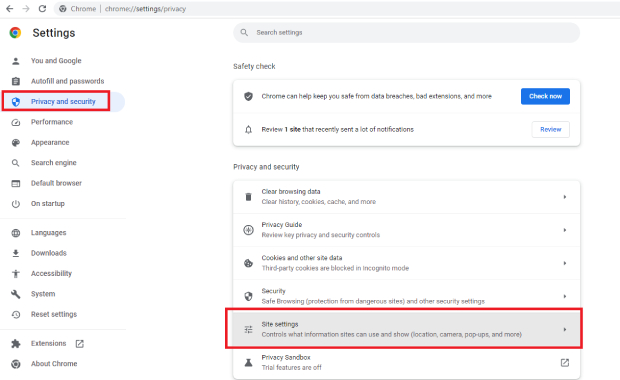
- Type chrome://settings/content/pdfDocuments in the address bar and press Enter.
- Look for the toggle labeled ‘Download PDF files instead of automatically opening them in Chrome.’
- If the toggle is ON, turn it OFF.
- Restart Chrome and try opening your PDF again.
Step 2: Clear Browser Cache and Cookies
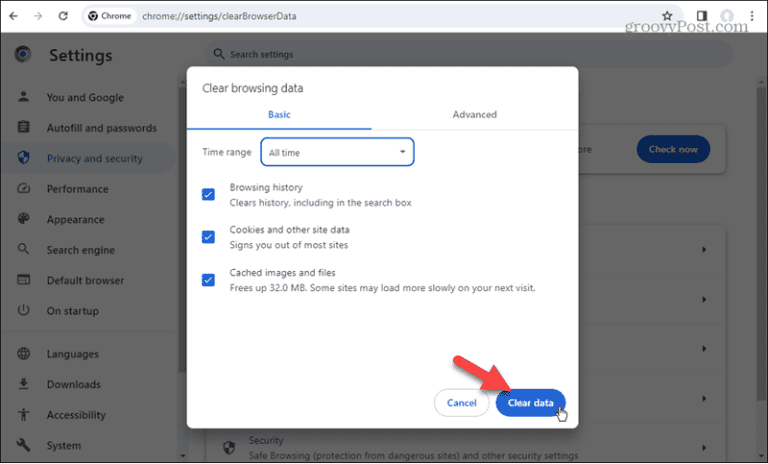
A corrupted cache or outdated cookies can interfere with how Chrome handles PDFs. Clearing them often resolves the issue.
- Go to chrome://settings/clearBrowserData.
- Select ‘Cached images and files’ and ‘Cookies and other site data.’
- Set the time range to ‘All time.’
- Click ‘Clear data.’
- Reload the PDF page.
Step 3: Disable Conflicting Extensions
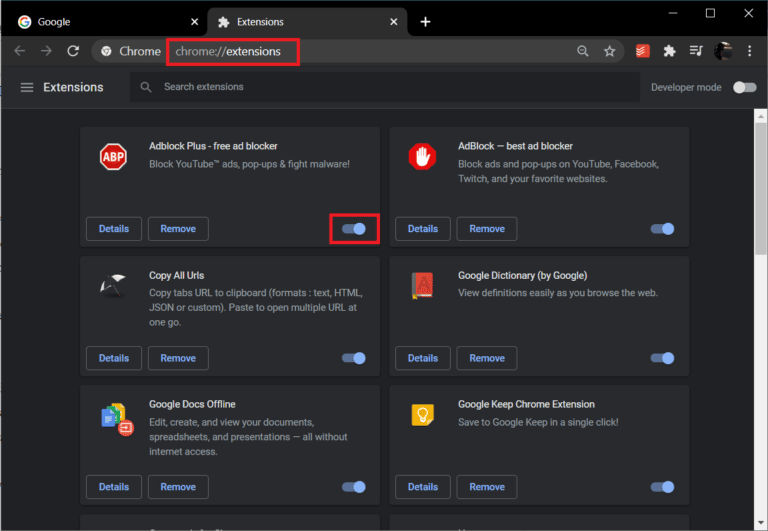
Some extensions, especially PDF readers like Adobe Acrobat or DocuSign, can override Chrome’s built-in viewer and cause conflicts. Disable them one by one to find the culprit.
- Type chrome://extensions in the address bar.
- Toggle off any PDF-related extensions (e.g., Adobe Acrobat, DocuSign, or any PDF tool).
- After disabling each, try opening a PDF. If it works, you’ve found the problem extension. Consider removing it.
- If you still have issues, try disabling all extensions temporarily via Chrome’s Incognito mode (Ctrl+Shift+N) and test a PDF there.
Step 4: Update Google Chrome
An outdated browser can have bugs that affect PDF viewing. Keeping Chrome updated is a simple fix.
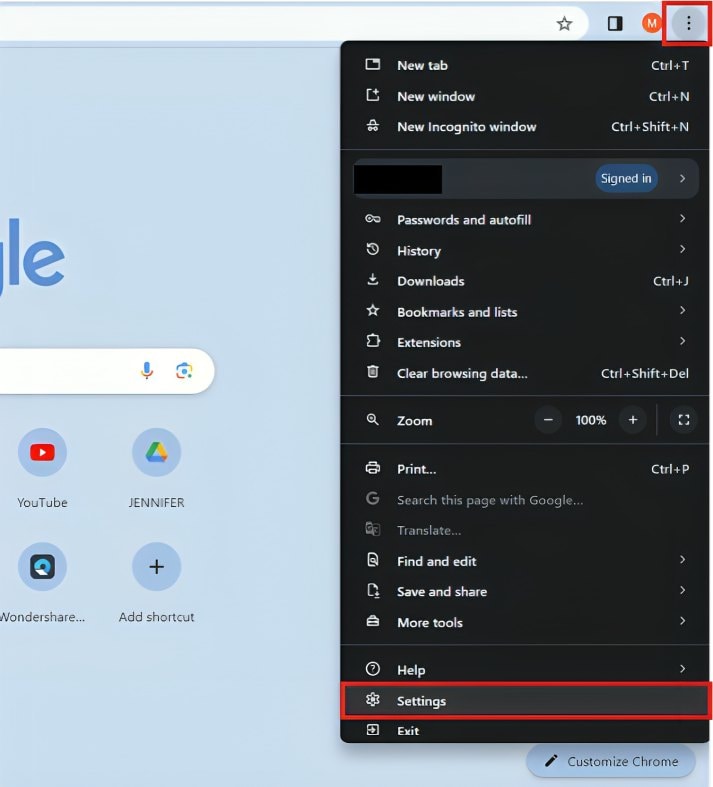
- Click the three-dot menu (top-right), then go to Help > About Google Chrome.
- Chrome will automatically check for updates. If one is available, it will download and prompt you to relaunch.
- Click ‘Relaunch’ to apply updates.
- Test your PDF again.
Step 5: Re-enable Chrome’s Built-in PDF Viewer
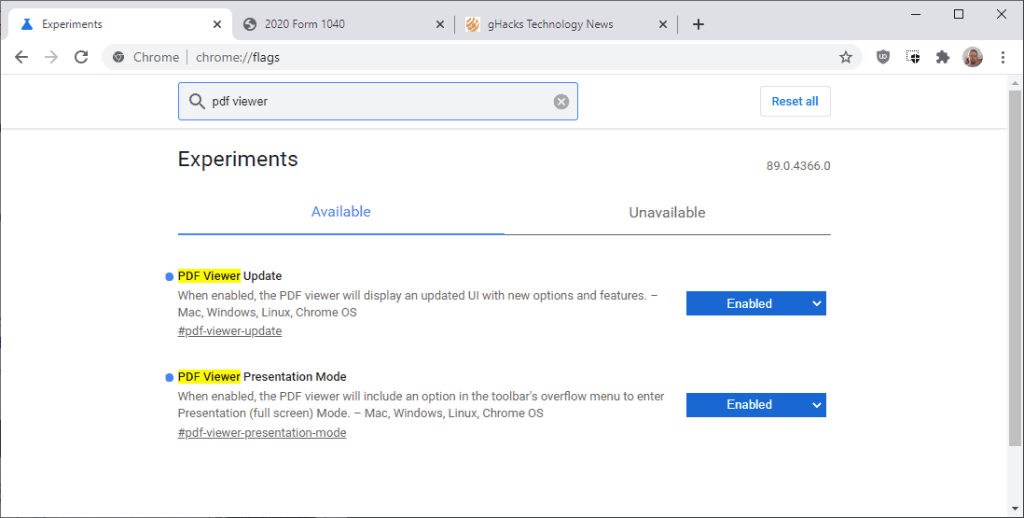
There’s an experimental flag that controls the built-in viewer. If it’s disabled, Chrome won’t show PDFs at all.
- Type chrome://flags in the address bar and press Enter.
- In the search box, type ‘PDF’.
- Look for ‘Override software rendering list’ or similar—actually, look for ‘Enable PDF Viewer’ (the exact name may vary by version).
- Set the flag to ‘Enabled’ if it isn’t already.
- Click ‘Relaunch’ at the bottom to apply changes.
- If you’re still stuck, try opening the PDF in an Incognito window (Ctrl+Shift+N) to rule out extension interference.
Common Pitfalls
- Forgetting to restart Chrome: Many settings and changes require a browser restart to take effect. Always restart after making changes.
- Multiple PDF viewers conflicting: Having several PDF extensions or external PDF readers installed can create chaos. Stick with Chrome’s default viewer or choose one.
- The PDF file itself is corrupted: Sometimes the file is damaged, especially after a failed download. In that case, you may need to repair a PDF after transferring it or use a web-based PDF repair tool.
Where to Next
If your PDF still won’t open after these steps, it’s likely the file is corrupted. Check out our guide on why PDF files get corrupted and how to prevent it. You might also try a simple PDF repair tool or validate and repair PDFs using free online services. Don’t let a stubborn PDF slow you down!




