So you just transferred an important PDF—maybe via email, a USB stick, or cloud sync—and now it won’t open, or it looks like garbage. You’re not alone. PDFs are surprisingly fragile during transfer, and a single bit flip can corrupt the file structure. This guide is for anyone who needs their PDF working again, fast. By the end, you’ll have a repaired, usable PDF and know how to avoid the same issue next time.
We’ll walk through several methods, from quick online fixes to desktop tools for stubborn corruption. You don’t need any special skills—just a computer and a bit of patience. Whether it’s a blank page, a cross-reference error, or a file that refuses to open, there’s a good chance we can fix it. Let’s get your PDF back in shape.
What You’ll Need
- The corrupted PDF file (keep a backup copy!)
- A computer with internet access
- A web browser (Chrome, Firefox, Edge, etc.)
- Optional: Adobe Acrobat Reader or Pro (if you have it)
- Optional: A dedicated PDF repair tool (free or paid)
Step 1: Identify the Corruption Symptoms
Before diving into repair, check what’s actually wrong. Common symptoms: the PDF won’t open at all, shows an error like “Invalid xref table” or “File is damaged”, pages look blank or jumbled, or text appears as symbols. Knowing the problem helps you choose the right fix. For example, an invalid xref table is very repairable.
Step 2: Try a Quick Online Repair
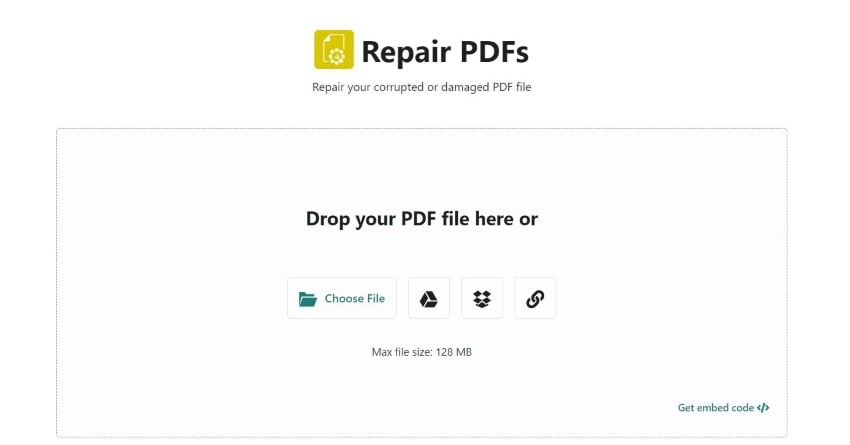
Start with a free web based pdf repair tool. Upload your corrupted file to a service like PDFRepair.org or Smallpdf’s repair tool. They run basic fixes automatically. This works for about 70% of transfer-corruption cases, especially if the file structure is mostly intact. Download the repaired version and test it.
Step 3: Use Adobe Acrobat’s Built-in Fixes
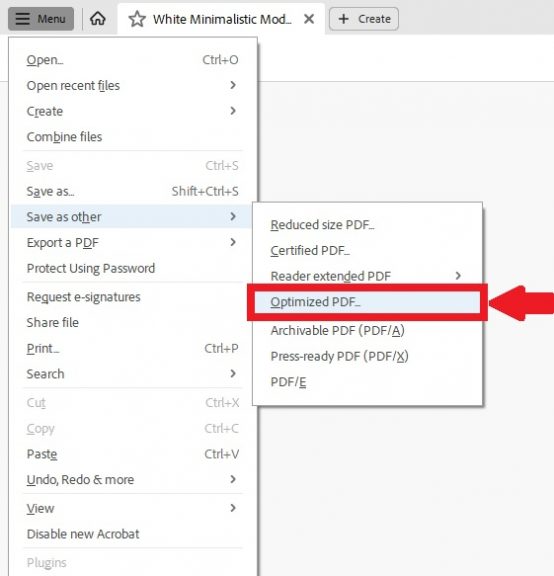
If the online tool didn’t cut it, and you have Adobe Acrobat (Reader or Pro), try these two tricks. First, open the PDF in Acrobat—even if it shows errors, it might open partially. Then go to File > Save as > Optimized PDF. This rewrites the internal structure, often fixing minor corruption. Second, you can “print” the PDF to a new file: choose Print, then select “Microsoft Print to PDF” or “Adobe PDF” as the printer. This creates a fresh file from the rendered content, skipping broken metadata.
Step 4: Use a Dedicated PDF Repair Tool
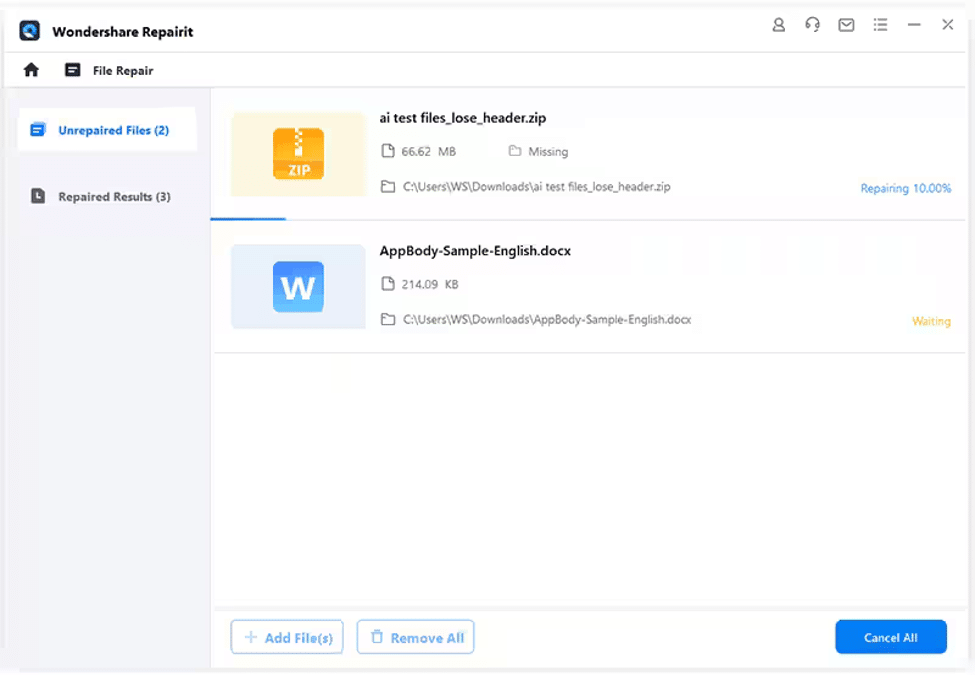
For serious corruption—like when the file won’t open at all or the xref table is completely broken—you need a tool designed for the job. A simple pdf repair tool like Recoll (free) or PDF Fixer (free trial) can scan and reconstruct the file. Download the tool, select your corrupted PDF, and start the repair. It will output a new file. This method can recover even heavily damaged documents.
Step 5: Validate the Repaired PDF
Once you have a repaired file, don’t just assume it’s good. Open it and check: Are all pages there? Is text selectable and searchable? Do images and graphics display correctly? If you want to be thorough, run a validation using Adobe’s Preflight (Pro) or an online validator. This ensures the file follows the PDF spec and won’t cause issues later. You can also use a free tool to validate and repair pdf again to confirm.
Common Pitfalls
- Not making a backup first – If a repair tool makes things worse (it happens), you’ll lose the original. Always keep a backup.
- Using sketchy free tools that require credit cards – Genuine free tools exist, but some sites trick you into paying. Stick to reputable names or read reviews first.
- Ignoring xref table errors – The cross-reference table is like the PDF’s index. If it’s broken, many tools will still open the file by rebuilding it, but you might need a specialized method to repair pdf xref table directly.
Where to Next?
Now that your PDF is working, you might want to prevent future corruption. Check out our guide on why pdf file is corrupted to learn common causes. If you often deal with damaged documents, bookmark the web based pdf repair tool you used. And remember, always back up important files before transferring them. Happy reading!




