Ever tried to open a PDF only to find it’s both damaged and locked? It’s a double whammy that can stop you dead in your tracks. This guide is for anyone who’s staring at a password prompt on a file that won’t even display properly. By the end, you’ll have a clear path to unlock and salvage your document—whether it’s a work report, a tax form, or a scanned contract.
We’ll cover methods that work for different levels of damage: simple online tools for lightly corrupted files, command-line tricks for stubborn locks, and repair steps to fix what the unlocking process might have broken. You don’t need to be a tech wizard—just follow along and you’ll get your data back.
What You’ll Need
- The damaged PDF file (make a backup copy first)
- A computer with internet access (for online tools)
- Optional: Python installed (for advanced repair with pikepdf)
- Optional: Command-line tools like qpdf (available on Windows, macOS, Linux)
- Adobe Acrobat Reader or another PDF viewer for testing
Step 1: Assess the Damage
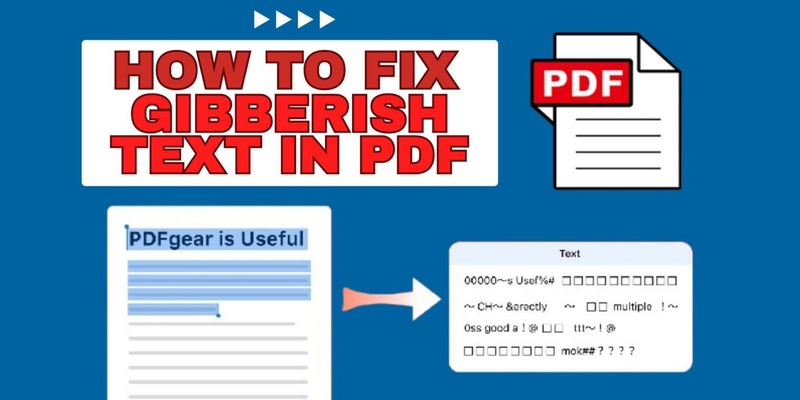
Before you try to remove the lock, check if the file can be opened at all. Try opening it in a regular PDF viewer. If you get an error like ‘Invalid cross-reference table’ or ‘File is damaged’, note that. Also check if you’re prompted for a password. If the file is totally blank or gibberish, you’ll need to repair it first. Sometimes the lock is just a side effect of corruption—fixing the file may remove the password automatically.
Step 2: Try a Simple Online Unlocker
For lightly damaged files that still open but ask for a password, a free online unlocker can work. Search for ‘PDF unlock online’ and use a trusted site like Smallpdf or ILovePDF. Upload your file, enter the password if you know it, or let the tool try to remove security. These services are great for quick fixes but won’t repair deeper damage. If the file is severely corrupted, the tool might fail. That’s fine—move to the next step.

Step 3: Use Command Line qpdf to Remove Security
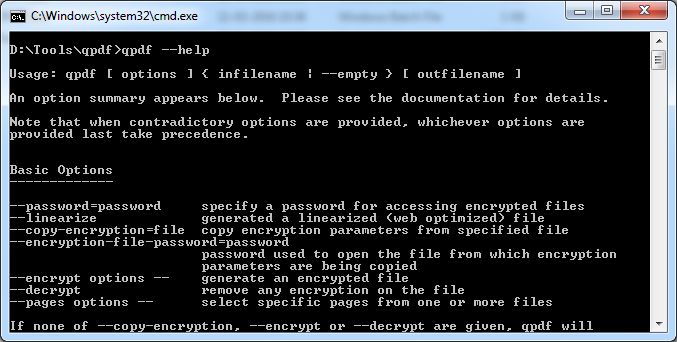
If online tools fail, the command-line tool qpdf is a powerful ally. It can decrypt a password-protected PDF without needing the password (for some encryption types) and also fix minor stream damage. First, install qpdf from its official site. Then open your terminal and run:
qpdf –decrypt –password=YOUR_PASSWORD input.pdf output.pdf
qpdf command syntax
If you don’t know the password, try –decrypt without –password—qpdf will attempt to remove security even if the password is empty or weak. For more stubborn locks, you might need to try a different approach like extracting pages. This method also cleans up some structural issues, which can help with problems like PDF pages out of order or invalid cross-reference tables.
Step 4: Repair the PDF After Unlocking
Once you’ve unlocked the file, it might still have underlying corruption. Use a dedicated repair tool to fix it. You can try web based PDF repair services like RepairPDF.net, or use Python with the pikepdf library to rebuild the file. In Python, install pikepdf and run a script that copies all objects to a new PDF. This often fixes issues like ‘PDF error 14 repair‘ messages or missing metadata. If the file still acts weird, check the xref table with a text editor.
Step 5: Extract Pages If Unlock Fails
If the file is so damaged that no unlock method works, you can still salvage individual pages. Use a tool like PDFtk or the free Chrome extension ‘PDF Viewer’ to extract pages one by one. Sometimes only certain pages are locked or corrupted. By extracting readable pages, you at least recover part of the content. This is also a good workaround for why PDF files get corrupted in the first place—you can bypass the damaged sections.
Common Pitfalls
- Password removal tools fail because the encryption is too strong: If the PDF uses AES-256 encryption, most free tools can’t crack it. You’ll need to know the password or use brute-force software (which is slow and not guaranteed).
- Unlocking causes further corruption: Aggressive decryption can mess up internal pointers. Always work on a backup and re-repair after unlocking. Problems like ‘PDF not opening in Firefox‘ often stem from this.
- Online tools strip metadata or reduce quality: Free services sometimes compress images or remove annotations. For important documents, prefer offline methods like qpdf.
Where to Next
Unlocking a damaged PDF is just the beginning. Once you have your file, check out our guides on fixing specific issues like PDF pages out of order or validating xref tables. You can also learn about why PDF files get corrupted and how to prevent it in the future. Happy document recovery!




