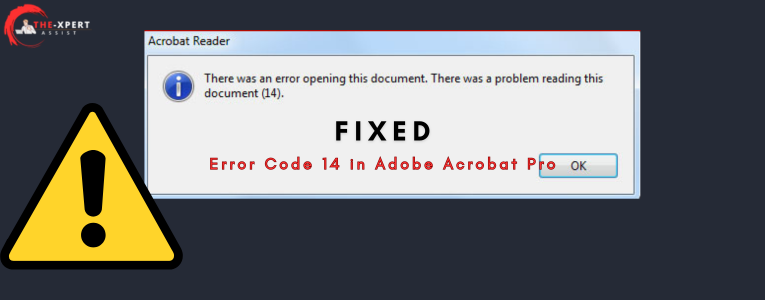
If you’re seeing a cryptic ‘Error 14’ when trying to open a PDF, don’t panic. This error almost always points to a damaged xref table — the part of the file that tells your PDF reader where each object lives. I’ve run into this countless times, and in most cases you can get your document back without expensive software. This guide is for anyone who’s stuck with a PDF that refuses to open and needs a practical, free fix.
By the end of this tutorial, you’ll have a working PDF. You’ll learn how to diagnose the error, manually repair the xref table, and use both online and command-line tools to salvage your file. I’ll also point you to related resources like how to fix corrupted PDF if you run into other issues along the way.
What You’ll Need
- The corrupted PDF file (keep a backup!)
- A text editor like Notepad++ (Windows) or TextEdit (Mac) — or any plain-text editor
- A PDF repair tool (we’ll use a free online validator and a simple PDF repair tool)
- Basic comfort navigating command line (optional, for advanced repair)
- Optional: qpdf or pdftk installed on your computer
Step 1: Diagnose the Error and Backup Your File
Before you do anything, make a copy of the broken PDF. Error 14 usually means the xref table is missing or corrupt. Open the PDF in a text editor (not a reader) and scroll to the very end of the file. Look for a line that says ‘xref’ — if it’s missing or looks like gibberish, that’s your culprit. I’ll show you how to validate and repair PDFs using online tools first, because it’s the easiest.
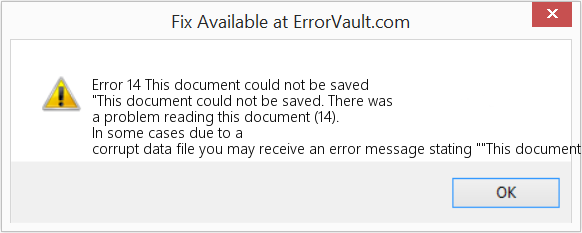
Once you’ve confirmed the xref table is the problem, head to a free online PDF validator. Upload your file and let it scan for errors. It will often tell you exactly which object offsets are wrong. This is your roadmap for the next step.
Step 2: Use a Simple PDF Repair Tool (Free)
If the online validator doesn’t fix the file automatically, try a dedicated tool. The simple PDF repair tool I recommend is PDF Repair Toolbox (or any lightweight utility that rebuilds the xref table). Download it, open your PDF, and click ‘Repair’. Most of the time, it will recreate the missing cross-reference entries. This tool handles error 14 especially well.
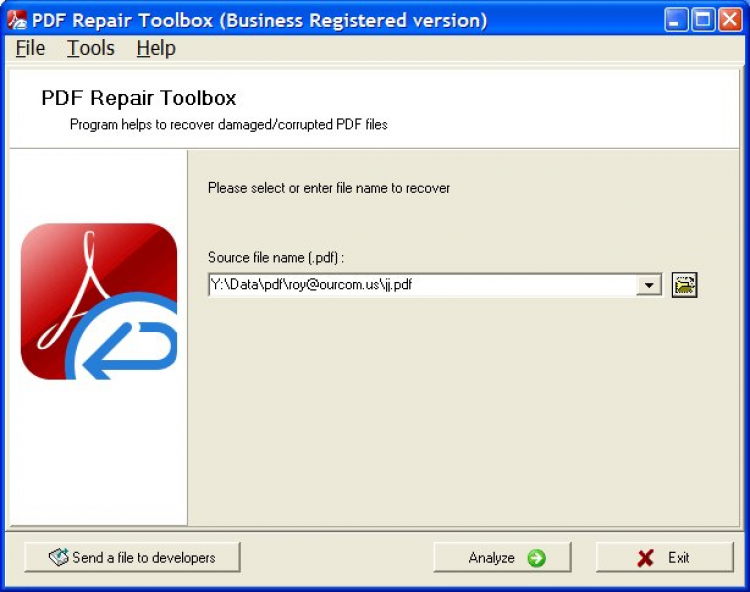
After repair, save the output as a new PDF and try opening it. If it works, great! If not, move on to the manual method.
Step 3: Manually Repair the PDF Xref Table
When automatic tools fail, you can repair PDF xref table by hand. Open the file in a text editor that shows line numbers. Delete everything after the last valid object (usually indicated by ‘trailer’). Then write a new xref section. You’ll need to know the byte offset of each object — this is tricky, but qpdf can generate a corrected file. Run: qpdf –replace-input –linearize broken.pdf. This forces a full rebuild of the cross-reference table.
If you prefer a visual guide, our full tutorial on repairing PDF xref table walks through every detail. This method has a high success rate for error 14.
Step 4: Recover Content with PDF Repair Command Line
Still no luck? Use the command line for a deep recovery. Tools like pdftk can extract pages and rebuild the file. Run: pdftk broken.pdf output fixed.pdf. This often strips out the corrupt xref and regenerates a clean one. For advanced users, PDF repair command line options include ghostscript: gs -sDEVICE=pdfwrite -dCompatibilityLevel=1.4 -dPDFSETTINGS=/default -dNOPAUSE -dQUIET -dBATCH -sOutputFile=fixed.pdf broken.pdf. This re-interprets the entire PDF and outputs a fresh file.
If you need to fix a document that came from email or an Excel export, the same techniques apply — just adapt the tools.
Common Pitfalls
- Opening the PDF in a rich text editor (like Word) and saving it — this destroys the binary structure. Always use a plain-text editor.
- Forgetting to backup the original file before trying multiple repairs. If you mess up, you lose the only copy.
- Running qpdf or pdftk without the correct syntax. Double-check your command or use a GUI wrapper.
Where to Next
Error 14 is just one of many PDF hiccups. If you regularly deal with damaged documents, bookmark our guides on validate and repair PDFs, and how to fix corrupted PDF. You’ll be ready for anything. Got a different error? Check out the full PDF repair category for more solutions.




