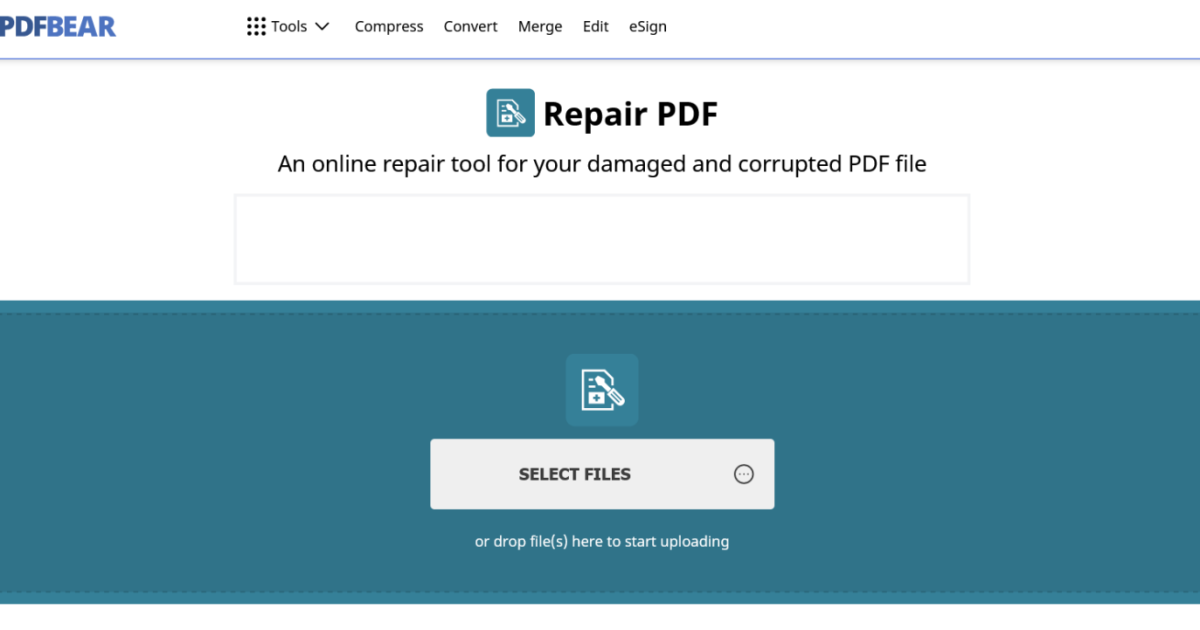
Have you ever opened a PDF only to see an error message or garbled content? You’re not alone. Corrupted PDFs happen to everyone—from email attachments that didn’t download properly to large files that got interrupted. This guide is for anyone who needs a quick, no-fuss fix. By the end, you’ll have a clean, readable PDF using a simple free tool.
We’ll use PDF24 Tools, a free online PDF repair tool that works right in your browser. No sign-ups, no downloads. Just upload your broken file and get a repaired version in seconds. It’s the easiest way to fix a corrupted PDF without tech skills.
What You’ll Need
- A computer or smartphone with internet
- The corrupted PDF file
- A modern web browser (Chrome, Firefox, Edge, Safari)
Step 1: Locate Your Corrupted PDF
First, find the PDF file that’s giving you trouble. It might be from an email attachment, a download, or a saved document. Make sure you know where it’s stored on your device so you can upload it later. If you’re dealing with a file from email, check out our guide on how to fix a PDF attachment from email for more specific tips.
Step 2: Open PDF24 Tools
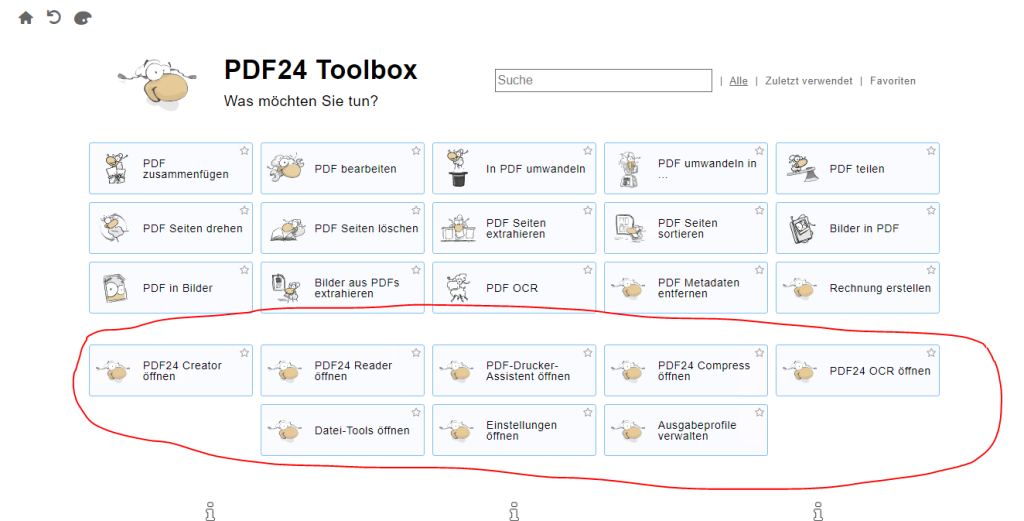
Open your web browser and go to tools.pdf24.org. You’ll see a page with many PDF tools. Click on ‘PDF Repair‘ from the list. Don’t worry if the site looks busy—just focus on the repair tool. If you prefer a dedicated online service, our article on online PDF recovery service covers other options.
Step 3: Upload Your PDF
Once you’re on the PDF Repair page, click the ‘Choose file’ button and select your corrupted PDF from your computer. The upload starts automatically. If your file is large, it might take a few seconds. For very large files, see our guide on how to repair a huge PDF.
Step 4: Start the Repair
After the upload completes, you’ll see a green ‘Repair’ button. Click it. The tool will analyze and try to reconstruct your PDF. This usually takes less than a minute. You’ll see a progress bar—wait until it finishes.
Step 5: Download the Repaired PDF
When the repair is done, a download button appears. Click ‘Download’ to save the fixed file to your device. The file name will be similar to the original but with ‘_repaired’ added. Save it somewhere you’ll remember.
Step 6: Verify Your PDF
Open the repaired PDF in your usual viewer (Adobe Acrobat, browser, etc.). Check that all pages are there and the text is readable. If it works, great! If not, try a different tool or check our quick pdf repair guide for alternative methods.
Common Pitfalls
- File too large: Free online tools often have a file size limit (e.g., 100 MB). If your PDF is bigger, try splitting it first or use a desktop tool.
- Upload fails: Make sure your internet connection is stable. If the site is slow, try a different browser or clear your cache.
- Repair doesn’t fix everything: Some corruptions are too severe. In that case, try a more advanced tool or recover a backup. Our article on fix a corrupted PDF offers more solutions.
Where to Next
Now that you’ve successfully repaired your PDF, explore more ways to handle PDF issues. Learn how to fix multiple PDF files at once with batch repair, or recover a PDF after a virus attack. Whatever your PDF problem, there’s a solution here.




