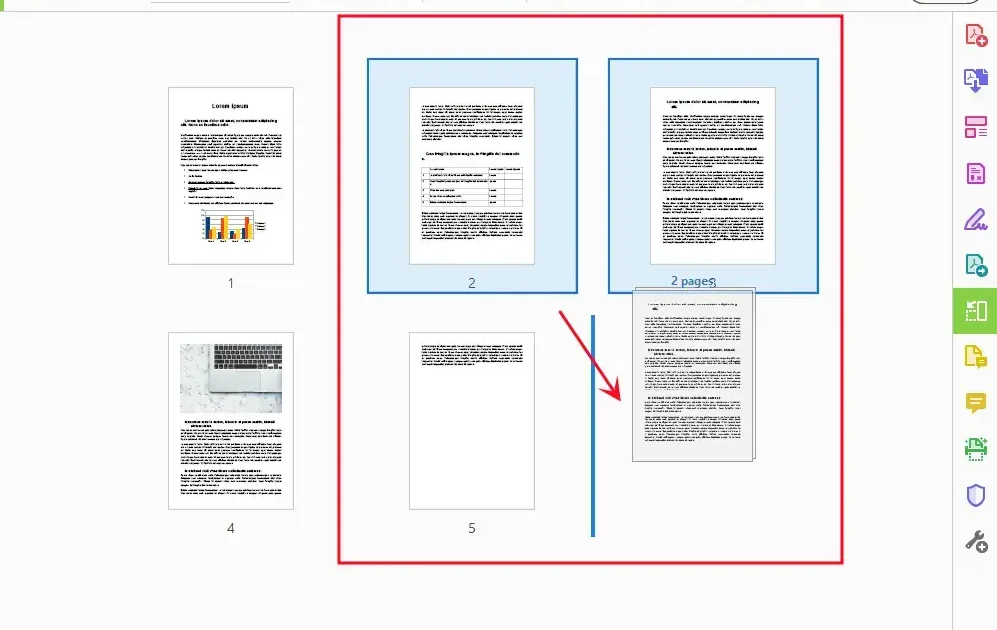
Ever opened a PDF only to find pages in a completely random order? Maybe you scanned a stack of papers upside down, or merged multiple PDFs into a chaotic mess. This guide is for anyone—whether you’re a student, office worker, or casual user—who needs to put those pages back in the right sequence. By the end, you’ll have a perfectly ordered PDF (and a lot less frustration).
We’ll cover three methods: using Adobe Acrobat Pro (the gold standard), free desktop tools like PDFsam, and quick online editors. No matter your budget or tech comfort level, there’s a solution here for you. Let’s dive in and get those pages sorted.
What You’ll Need
- The PDF file with pages in the wrong order
- A computer (Windows, Mac, or Linux)
- Optional: Adobe Acrobat Pro (paid) or a free alternative like PDFsam Basic, PDF Arranger, or an online service
- A PDF viewer to verify the final result (like Adobe Reader or your browser)
Step 1: Check the Current Page Order
Before you start reordering, open the PDF in any viewer and flip through the pages. Make a mental note of the current sequence—or better yet, jot down the order you want on a piece of paper. This step saves time later and helps avoid mistakes. If you need help with a damaged PDF that won’t open properly, you might want to first fix a corrupted PDF before attempting to reorder pages.
Step 2: Reorder Pages in Adobe Acrobat Pro
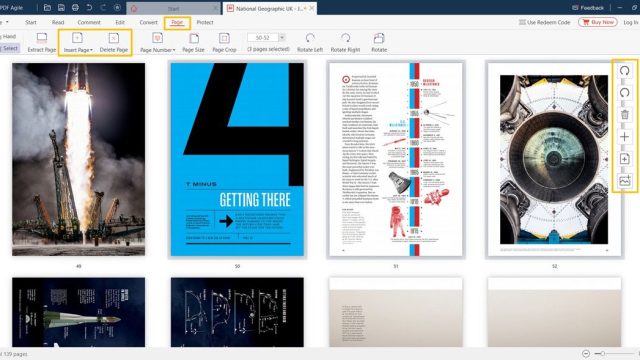
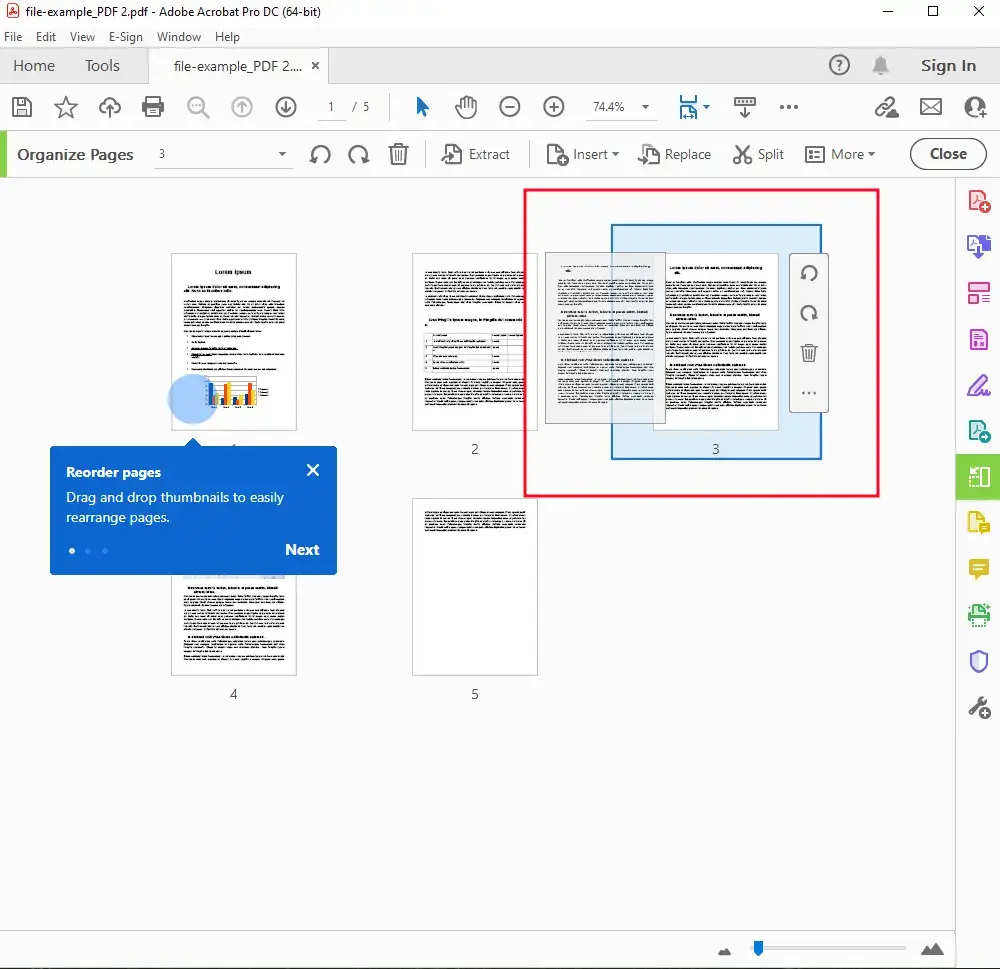
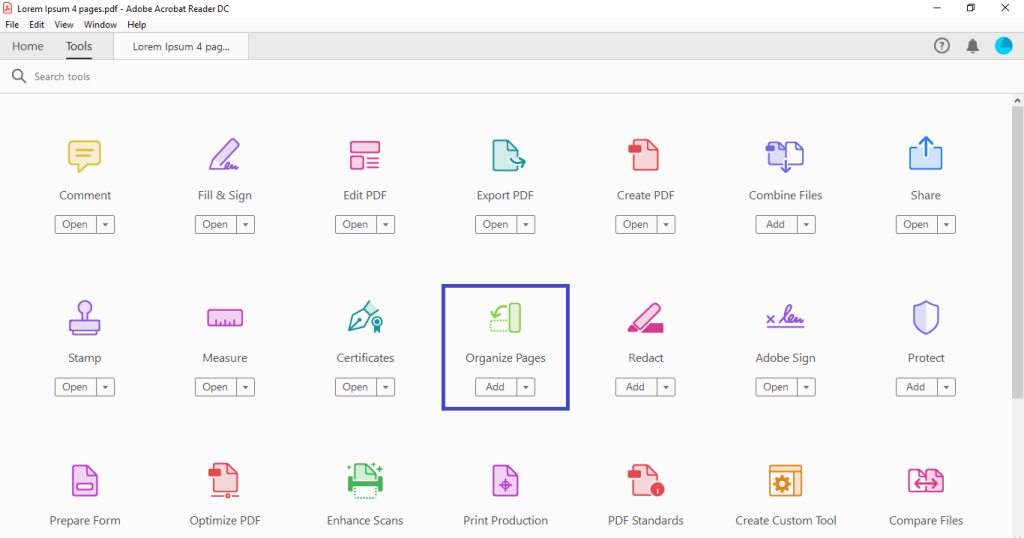
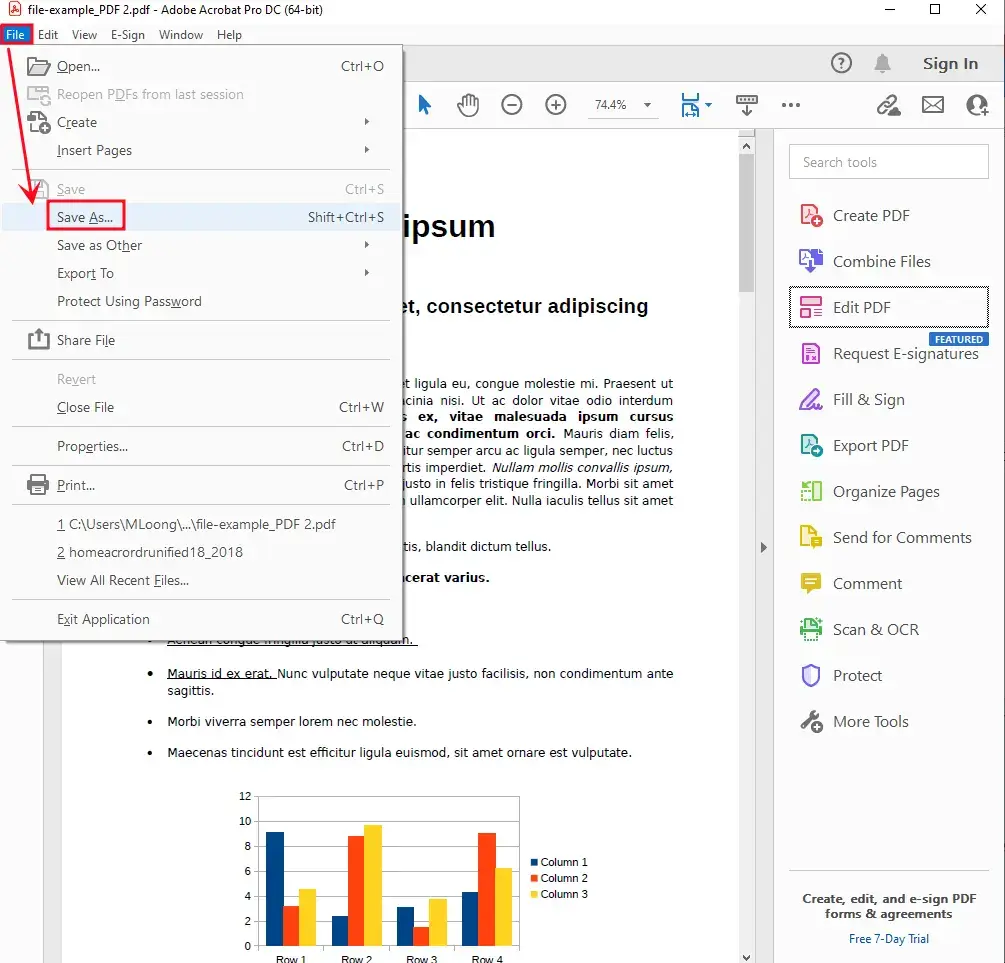
If you have Adobe Acrobat Pro, this is the quickest and most reliable method. Open your PDF, then go to the “Organize Pages” tool from the right-hand pane or under Tools. You’ll see thumbnails of every page. Simply drag and drop them into the correct order. You can also use the “Insert” or “Replace” options if needed. Once done, click “Save” to keep the changes. For a quick PDF repair of other issues, check our quick PDF repair guide.
Step 3: Use a Free Desktop Tool (PDFsam Basic)
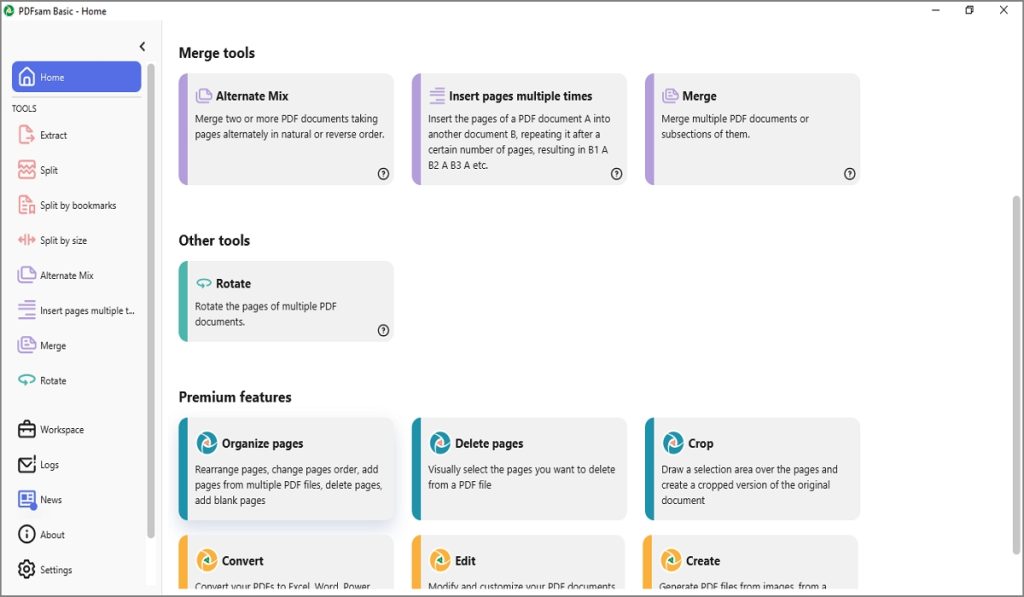
Don’t have Acrobat? No problem. Download PDFsam Basic (free, open-source). Open the app and select “Merge” or use the “Split & Reorder” module. With “Merge”, you can add the same file multiple times and arrange the pages by dragging. Alternatively, use “Split & Reorder” to extract pages as individual files and then recombine them in your desired order. This method gives you full control, and if you run into object issues, you can later focus on fixing individual PDF objects.
Step 4: Reorder Online (Smallpdf, iLovePDF, PDF Candy)
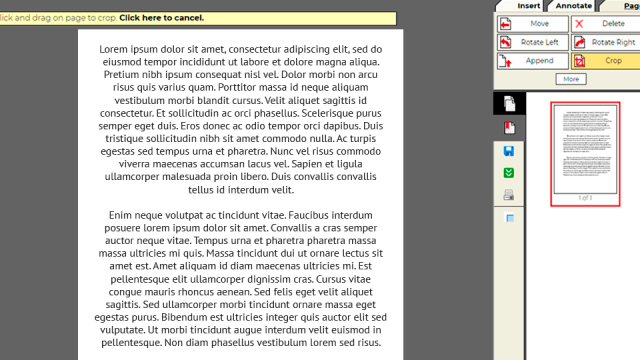
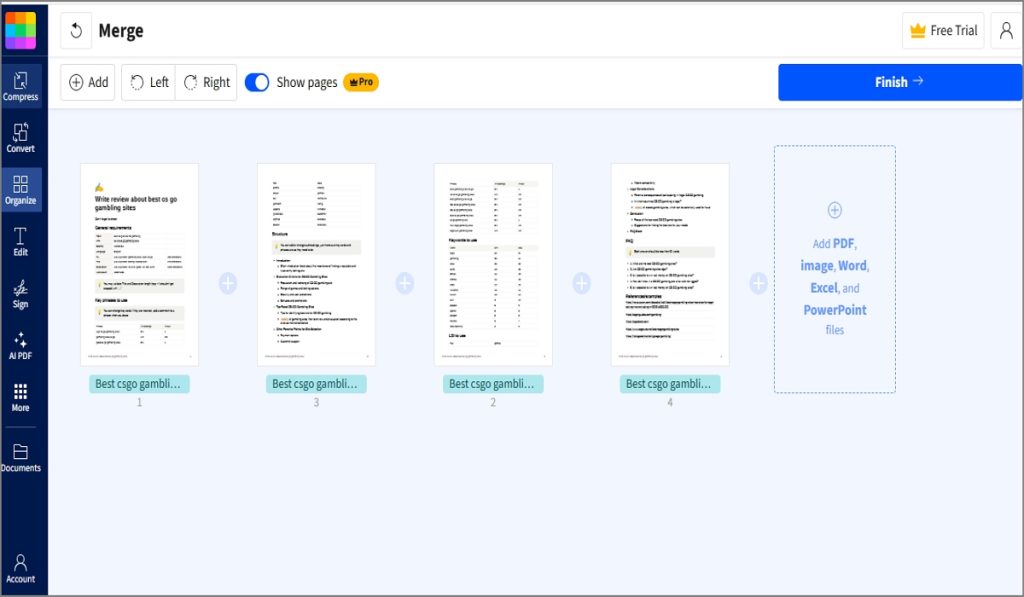
For a no-install solution, online tools work great for small files. Go to a site like Smallpdf or iLovePDF, upload your PDF, and use the “Reorder Pages” feature—just drag thumbnails into place. Download the result. Be mindful of file size limits (usually under 100 MB) and privacy: avoid uploading sensitive documents. For a broader set of options, see our guide on the best way to repair a PDF.
Step 5: Verify Your Fixed PDF
Open the newly saved PDF and scroll through every page. Check that no pages are missing, duplicated, or out of order. If everything looks good, you’re done! If not, go back to the tool and try again. Also, keep in mind that reordering can sometimes break bookmarks or internal links—if that happens, you may need to fix PDF bookmarks separately.
Common Pitfalls
- Accidentally duplicating or deleting pages when dragging—double-check your thumbnails before saving.
- Losing hyperlinks or bookmarks after reordering—if this matters, use Acrobat Pro’s advanced features or revisit the original file.
- Online tools may have file size limits or privacy risks—always use a trusted service and avoid uploading confidential data.
Where to Next?
Congratulations, your PDF pages are now in the right order! If you encountered other issues along the way—like a file that wouldn’t open or strange errors—check out our guides on fixing individual PDF objects or a quick PDF repair. For ongoing maintenance, bookmark our PDF repair hub. Happy sorting!