Got a corrupted PDF that won’t open or shows gibberish? Before you shell out cash for a repair service, know that powerful open-source tools can often bring your file back to life—for free. This guide is for anyone who’s comfortable running a few commands in the terminal (don’t worry, I’ll walk you through each one) and wants a reliable, no-cost way to fix common PDF issues like broken xref tables, missing pages, or rendering errors.
By the end of this tutorial, you’ll have a repaired PDF that you can open in any viewer. You’ll also know how to validate your file, fix cross-reference tables, and even automate repairs with scripts. Whether you’re dealing with a printer-created mess or a transfer that went wrong, these open-source methods have got you covered.
What You’ll Need
- A computer running Windows, macOS, or Linux
- Terminal or command prompt access
- Open-source PDF tools: Ghostscript, qpdf, and PDFtk (installation instructions below)
- A corrupted PDF file to repair
Before diving in, you might also want to check out other approaches like web based pdf repair for quick fixes, or python pdf repair if you’re comfortable scripting.
Step 1: Install the Open-Source Tools
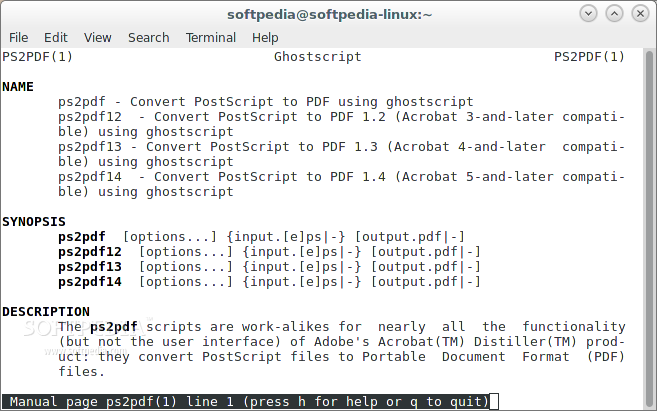
First, install Ghostscript, qpdf, and PDFtk. On Ubuntu/Debian, run sudo apt install ghostscript qpdf pdftk. On macOS, use brew install ghostscript qpdf pdftk-java. For Windows, download installers from each tool’s official site. Make sure each command is available by running gs --version, qpdf --version, and pdftk --version.
Step 2: Repair Using Ghostscript
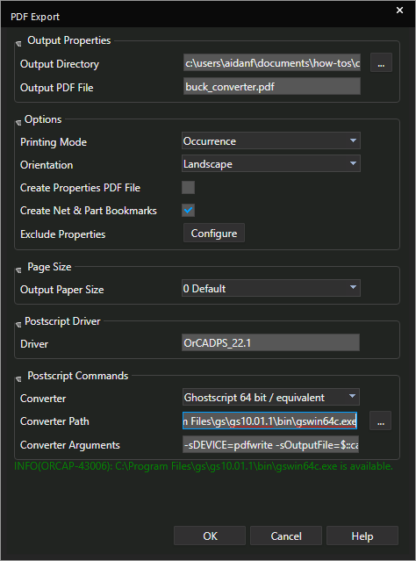
Ghostscript can reinterpret a PDF’s content and output a clean version. Run: gs -o repaired.pdf -sDEVICE=pdfwrite -dPDFSETTINGS=/prepress corrupted.pdf. This rebuilds the internal structure. If your file has rendering issues, this often fixes them. For more advanced options, see the pdf repair command line guide.
Step 3: Fix Cross-Reference Table with qpdf
A broken xref table is a common cause of PDF corruption. Use qpdf to linearize and regenerate the table: qpdf --linearize --replace-input corrupted.pdf. This writes a corrected version in place. If you need a deeper fix, check the repair pdf xref table post.
Step 4: Rebuild Metadata with PDFtk
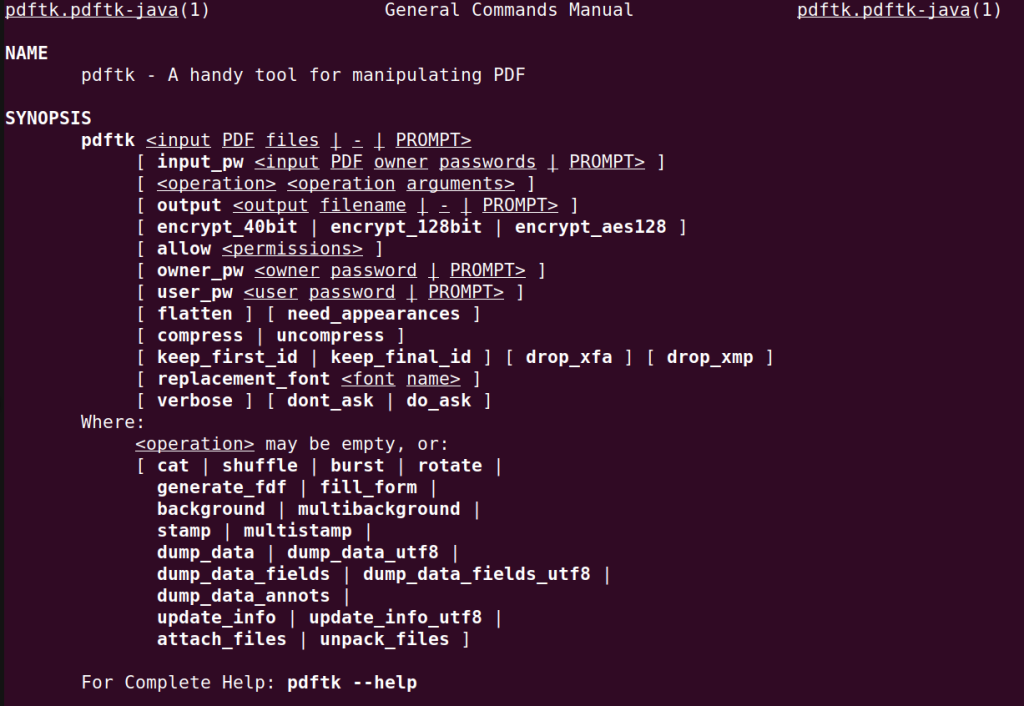
Sometimes corruption is in the metadata. PDFtk can dump and rebuild it: pdftk corrupted.pdf output repaired.pdf. This simple command often resolves issues with file size showing 0KB or missing page labels. If you’re dealing with printer-created files, this is particularly effective.
Step 5: Validate the Repaired PDF
Finally, validate your repaired file using pdfinfo repaired.pdf (comes with poppler-utils). It should show correct page count and no error messages. For a thorough check, use qpdf --check repaired.pdf. This step ensures your file is truly fixed. For a broader approach, see validate and repair pdf.
Common Pitfalls
- Skipping validation: Don’t assume the repaired file is good—always run validation to catch lingering issues.
- Using the wrong tool for the job: Ghostscript excels at rendering repairs, while qpdf is best for structural issues. Mix them up and you might not fix the root cause.
- Overwriting the original: Always work on a copy of your corrupted file. If the repair makes things worse, you can start fresh.
Where to Next
You’ve now got a repaired PDF and a solid toolbox for future problems. If you’re curious about automating repairs, dive into python pdf repair. For quick fixes without the command line, try web based pdf repair. And remember, many issues like PDF pages out of order can be tackled with the same open-source tools. Happy repairing!




