So your PDF won’t open, shows errors, or looks scrambled? Don’t panic. This guide is for anyone who knows a bit of Python and wants to repair corrupted PDFs without expensive software. By the end, you’ll have a working Python script that can fix common issues like broken xref tables and messed-up object streams. Whether you’re salvaging a work report or a personal document, these steps will get you back on track.
We’ll use two free Python libraries—PyPDF2 and pdfminer.six—to tackle the most frequent PDF corruption problems. No advanced skills required, just basic terminal usage and a willingness to run a few lines of code. Let’s turn your broken file into something readable again.
What You’ll Need
- Python 3.6 or newer installed on your computer
- A corrupted PDF file (we’ll call it broken.pdf)
- Basic familiarity with the command line (terminal)
- An internet connection to install libraries
Step 1: Install the Required Libraries
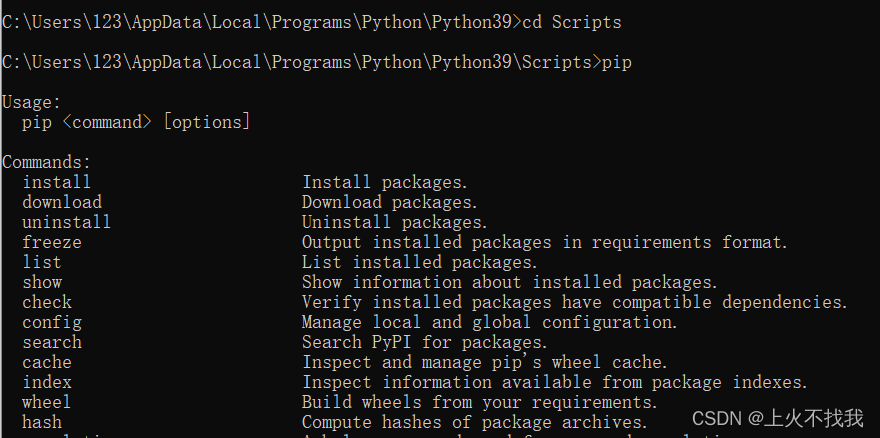
Open your terminal (Command Prompt on Windows, Terminal on macOS/Linux) and run these two commands one after the other:
That’s it! PyPDF2 handles basic PDF structure repair, while pdfminer.six is great for extracting and recompressing objects. If you run into permission errors, add –user at the end of each command.
Step 2: Identify the Corruption Type
Not all PDF corruption is the same. Common types include a damaged xref table (which tells the PDF reader where objects are), corrupted object streams (where content like text or images is stored), or a missing trailer (the footer that wraps up the file). To decide which fix to apply, open the PDF in a plain text editor (like Notepad++ or VS Code). If you see a bunch of garbage at the start or end, it’s likely an xref issue. If objects are garbled, you need object stream repair. For a general approach, you can also use existing tools to validate and repair pdf first.
Step 3: Write a Script to Rebuild the Xref Table
If you suspect the xref table is broken, write a Python script that uses PyPDF2 to rebuild it. Here’s a minimal example:
“`python
from PyPDF2 import PdfReader, PdfWriter
reader = PdfReader(‘broken.pdf’)
writer = PdfWriter()
for page in reader.pages:
writer.add_page(page)
with open(‘fixed.pdf’, ‘wb’) as f:
writer.write(f)
“`
This reads the PDF and writes a brand new file with a fresh xref table. It’s the first thing to try. If you want a deeper dive, check out our dedicated guide on repair pdf xref table.
Step 4: Repair Object Streams with pdfminer.six
Sometimes the xref table is fine but object streams are corrupted. In that case, pdfminer.six can extract and recompress every object. Run this command in the terminal:
“`bash
pdf2txt.py -o fixed.pdf broken.pdf
“`
That extracts all text and tries to rebuild the PDF. For images, you may need to use `dumppdf.py` to dump and re-embed streams. This approach is especially useful when individual objects are damaged. For more complex cases, see how to fix pdf objects with custom scripts.

Step 5: Test the Repaired PDF
Open the newly created fixed.pdf in your favorite PDF viewer (Adobe Acrobat, Chrome, etc.). Check that all pages are there and content looks right. If you still see errors, try combining both methods: first run the PyPDF2 script, then pass the output through pdfminer. Remember, not every PDF is recoverable, but these steps save many files. If you’re still stuck, check out our general guide on fix corrupted pdf for more ideas.
Common Pitfalls
- Forgetting to install dependencies: Always run pip install again if you get ImportErrors.
- Working on huge files: PDFs over 500 pages may take a while—be patient or use smaller test files first.
- Overwriting your original: Always save the fixed output as a new file (like fixed.pdf) so you can revert if something goes wrong.
Where to Next
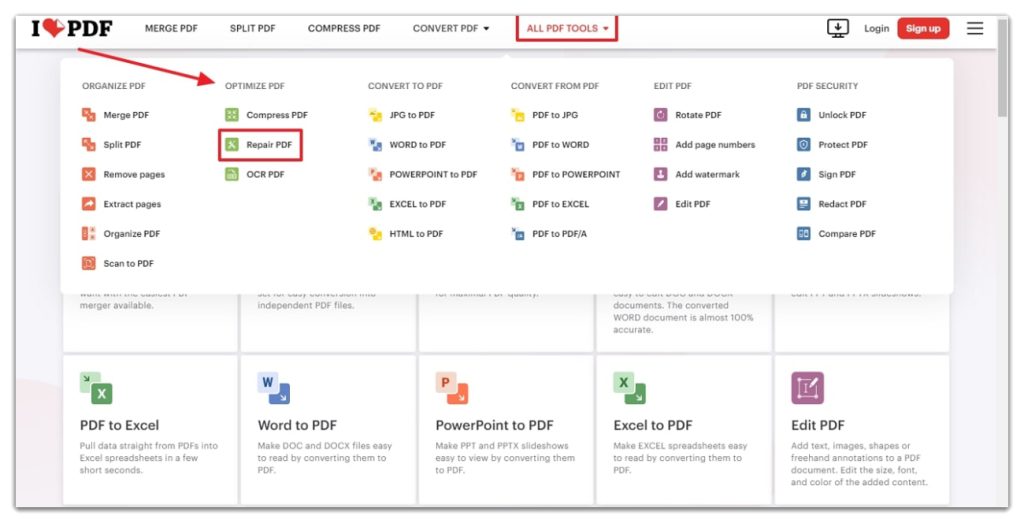
Now you know how to repair a PDF with Python. Want to explore more? Check out our simple pdf repair tool if you prefer a point-and-click solution, or dive deeper into advanced topics like fixing bookmarks or recovering tax PDFs. Happy fixing!




