Ever opened a PDF only to find page 10 right after page 1? Or maybe a scanned document came out completely backwards. You’re not alone — scrambled page order happens more often than you’d think, especially after exporting from office software, combining multiple files, or dealing with corrupted downloads. This guide is for anyone who needs to get those pages back in the right sequence fast, without losing your mind (or your document). By the end, you’ll have a perfectly ordered PDF and a few go-to methods for next time.
We’ll cover free desktop tools like PDFsam and Adobe Acrobat Reader, online services, and even a manual trick for when you’re stuck with just your browser. Whether it’s a two-page contract or a 200-page report, these steps work. Let’s get those pages in order.
What You’ll Need
- The scrambled PDF file (make a backup copy just in case).
- A computer with internet access (for online tools).
- Optional but helpful: PDFsam Basic (free, open-source), Adobe Acrobat Pro (trial works), or a modern browser like Chrome.
- Patience — but honestly, this takes less than 5 minutes once you know the steps.
Step 1: Check Your File Isn’t Corrupted First
Sometimes what looks like a page order issue is actually a sign of corruption. Before you rearrange anything, confirm the file is intact. Open it in a different PDF reader (try Chrome’s built-in viewer or Adobe Acrobat) and see if the pages are truly out of order or if some aren’t loading at all. If you see garbled text or missing content, you might need to start with “validating and repairing PDFs” before reordering. Otherwise, move on to Step 2.
Step 2: Use PDFsam Basic (Free Desktop Tool)
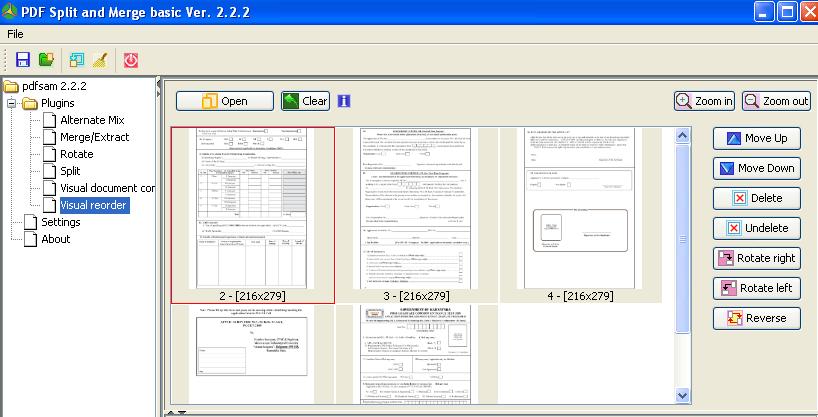
PDFsam (PDF Split and Merge) is a free, trusted tool that handles reordering like a champ. Download PDFsam Basic from their official site, install it, and open it. Click ‘Merge’ (yes, it’s under Merge — don’t worry, you’re not merging files). Add your PDF file. You’ll see a list of pages. Drag and drop them into the correct order. Then hit ‘Run’ and save the new file. That’s it. This method is great for quick jobs and works offline.
Step 3: Reorder Pages in Adobe Acrobat Pro (or Reader with Add-On)
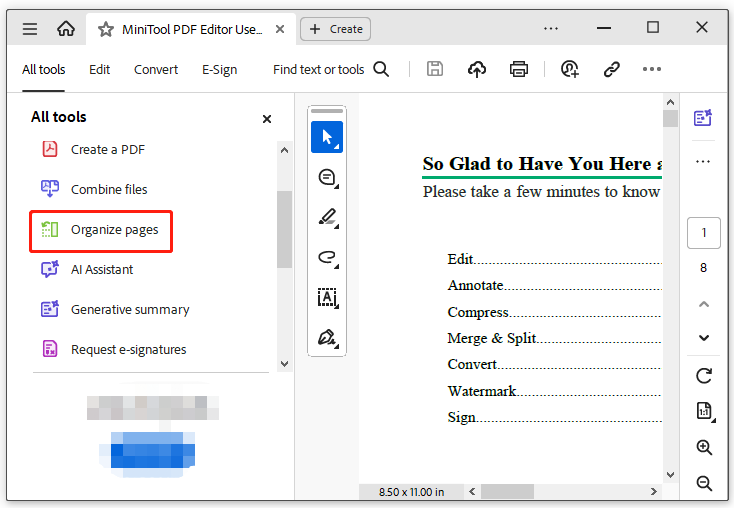
If you have Adobe Acrobat Pro, open the file, go to Tools > Organize Pages. A thumbnail view appears — simply drag pages to where they belong. You can also right-click a page to rotate or delete it. Adobe Reader (free) doesn’t have this feature natively, but you can install the ‘Organize Pages’ add-on from the Acrobat Exchange store. If you often deal with scrambled documents, this is worth setting up. For even more control, learn about “repairing page order” in dedicated tools.
Step 4: Try an Online PDF Reorder Tool
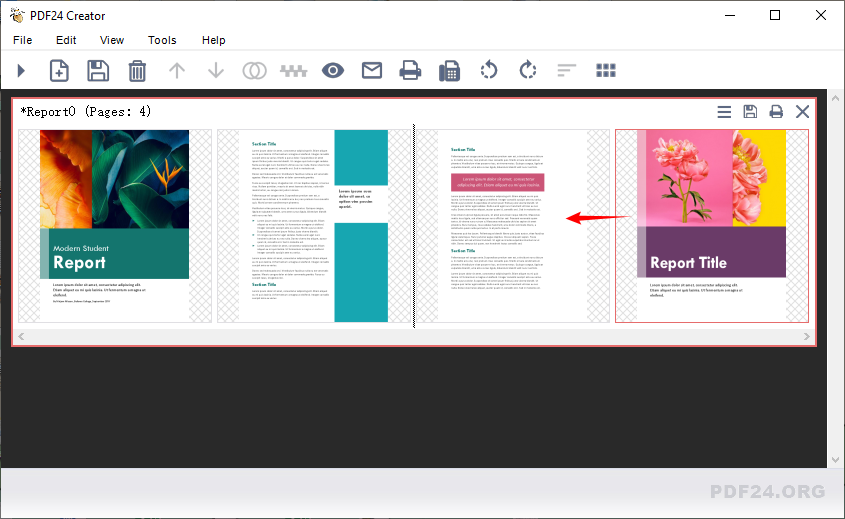
Prefer not to install anything? Online tools like Smallpdf, ILovePDF, or PDF24 let you reorder pages right in your browser. Go to the site, upload your file, drag pages into the correct order, and download. Be cautious with sensitive documents — avoid uploading personal info to unknown servers. For public or non-confidential files, this is the fastest method. Many of these services also offer a “quick PDF repair” option if you suspect corruption alongside order issues.
Step 5: Manual Renumbering (Last Resort)
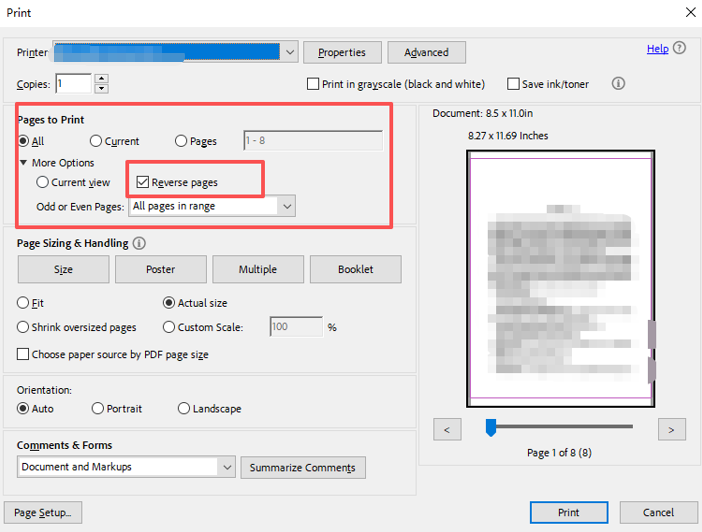
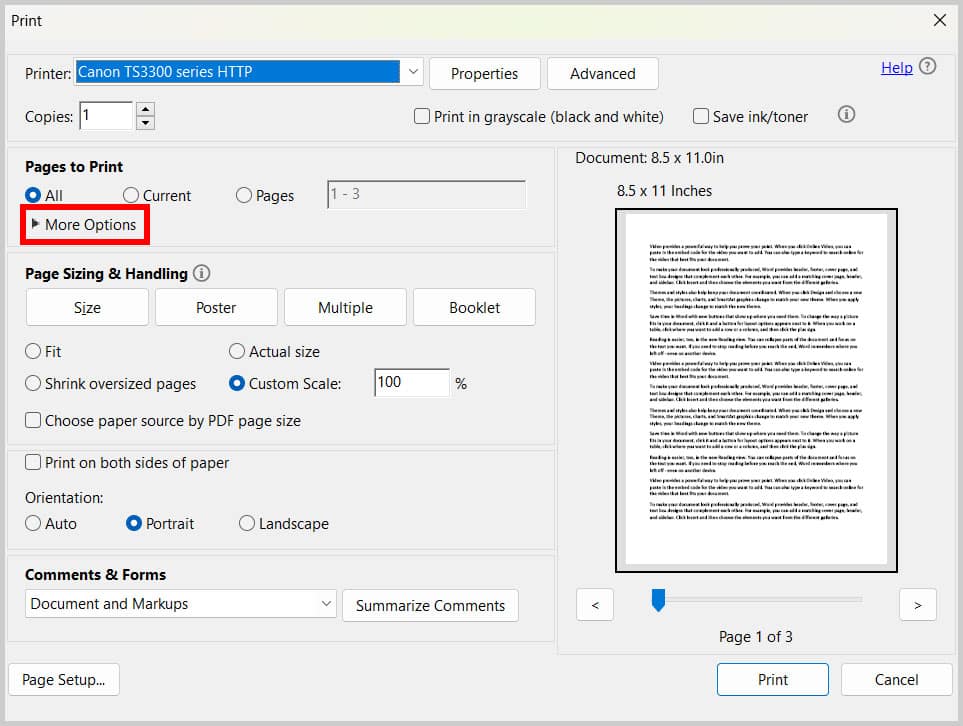
If your PDF is scanned images and tools won’t cooperate, you can print the document in reverse order (or a custom order) and then scan it back into a PDF. In the Print dialog, select ‘Print to PDF’ and enter the page range in the order you want (e.g., 10,9,8…). It’s clunky but works when nothing else does. After that, you may want to run a “simple PDF repair tool” to clean up any artifacts.
Common Pitfalls
- Saving over the original file without a backup. Always work on a copy — if something goes wrong, you still have the original.
- Overlooking corrupted pages. If reordering doesn’t fix it, the issue might be deeper. Check for signs of corruption like missing text or broken images before reordering.
- Using a tool that adds watermarks or limits pages for free users. Many online services require a subscription for large files. PDFsam Basic is free and unrestricted for personal use.
Where to Next
Now that your pages are in order, you might want to tidy up other PDF issues. If your document still has broken links or weird formatting, check out guides on “repairing page order” for deeper fixes, “fixing PDF bookmarks” to make navigation easier, or “quick PDF repair” for a full health check. You’ve got the tools — go fix ’em.




