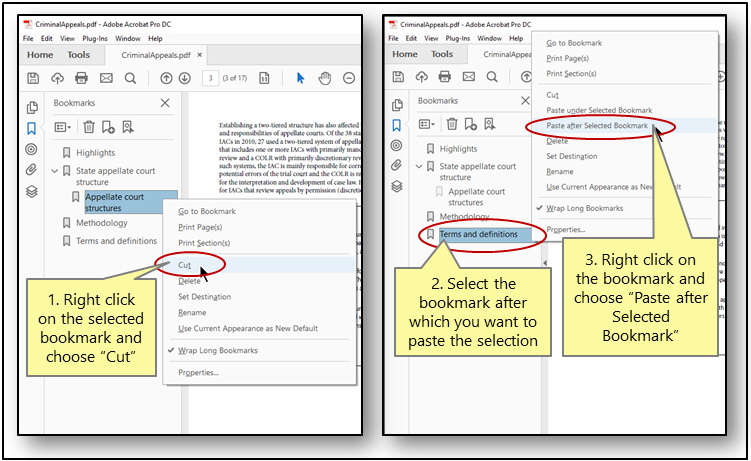
So your PDF has bookmarks that are broken, missing, or pointing to the wrong pages. Maybe you downloaded a manual, created a report, or converted a document and the navigation went haywire. This guide is for anyone who needs to restore order to their PDF bookmarks — whether you’re a student, office worker, or casual user. By the end, you’ll have a clean, working bookmark tree that makes your PDF easy to navigate.
We’ll cover fixes using Adobe Acrobat (the full version), free tools like PDF-XChange Editor, and even an online option. No advanced skills required. If your PDF has deeper corruption, you might also want to check out our guide on pdf corruption fix for a broader repair before tackling bookmarks.
What You’ll Need
- Your PDF file (keep a backup copy)
- Adobe Acrobat Pro or free alternative (PDF-XChange Editor recommended)
- Optional: a web browser for an online tool
- 5–10 minutes of your time
Step 1: Check Your Bookmarks
Open your PDF in Adobe Acrobat or a reader. Click the bookmark icon on the left sidebar (it looks like a ribbon). If the panel shows bookmarks but they don’t jump to the right places, or some are missing, you’re in the right place. If the panel is empty, your PDF might have lost its bookmark structure entirely. Note the current state — it helps to know what you’re dealing with.
Step 2: Delete and Recreate Bookmarks (Acrobat Pro)
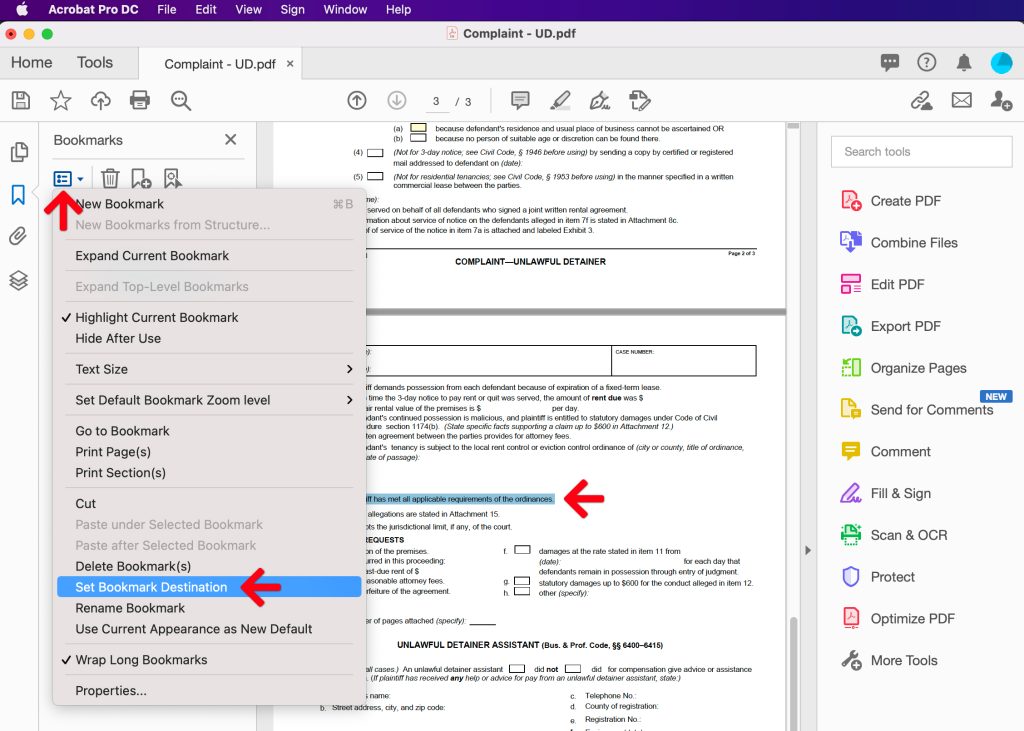
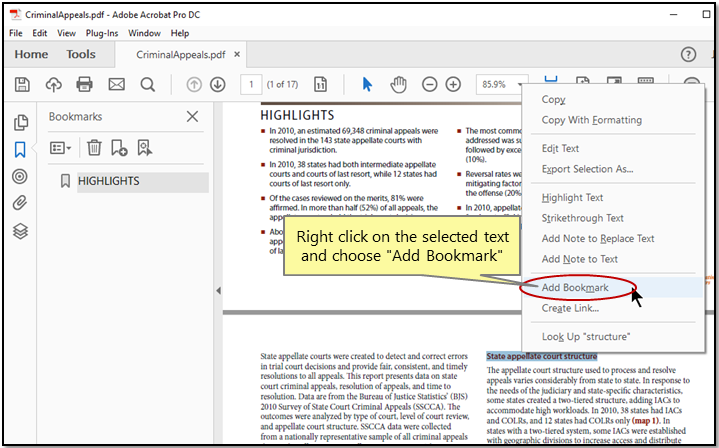
In Adobe Acrobat Pro, the quickest way to fix a few broken bookmarks is to right-click the problematic bookmark, choose Properties, then set the correct page zoom and destination. If that doesn’t work, just delete the broken ones and add new ones: navigate to the page you want, click the option icon in the bookmarks panel, and choose ‘Add Bookmark’. Name it and repeat. This is manual but reliable for small numbers. For a bulk approach, see Step 3.
Step 3: Export and Reimport Bookmarks (Acrobat Pro)
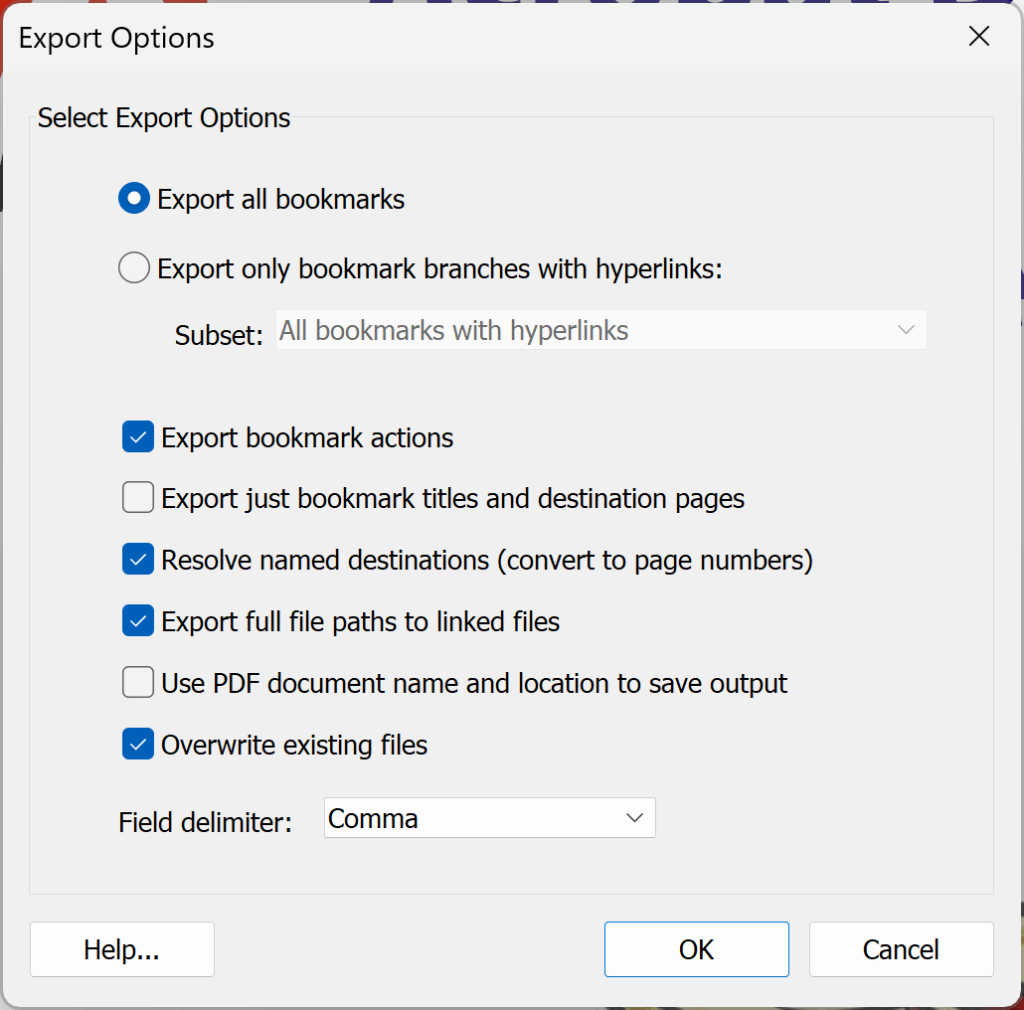
If you have many bookmarks, use the export feature. In Acrobat Pro, go to the bookmarks panel options, select Export Bookmarks, and save as a .txt file. Open that file in a text editor. You’ll see each bookmark’s title and page number. Fix the page numbers manually, then go back to Acrobat and choose Import Bookmarks. This will overwrite old bookmarks with your corrected list. This is a lifesaver for large documents. If you need to handle multiple PDFs at once, our guide on fix multiple pdf files shows how to batch similar operations.
Step 4: Use a Free Tool (PDF-XChange Editor)
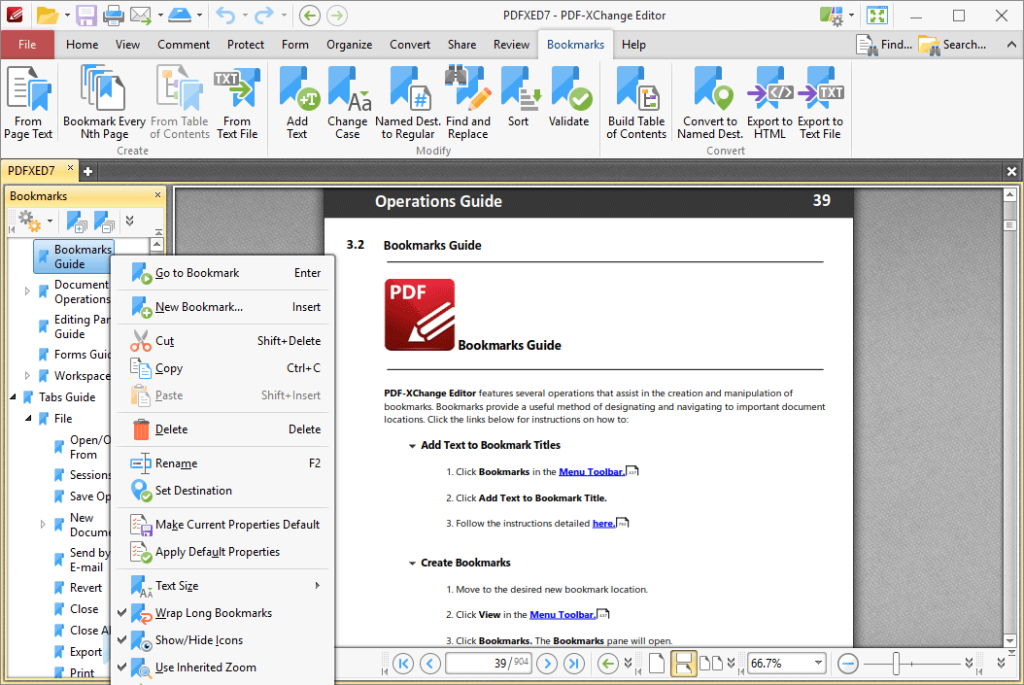
Don’t have Acrobat Pro? No problem. Download PDF-XChange Editor (free version works). Open your PDF, click View > Bookmarks (or Ctrl+B). The bookmarks panel appears. Right-click any bookmark to edit its destination, or use the ‘Add Bookmark’ button. You can also drag and drop to reorganize. It’s almost as powerful as Acrobat for bookmark editing. If your PDF is severely corrupted, you might need a quick pdf repair first using a dedicated tool.
Step 5: Online Option (Sejda.com)
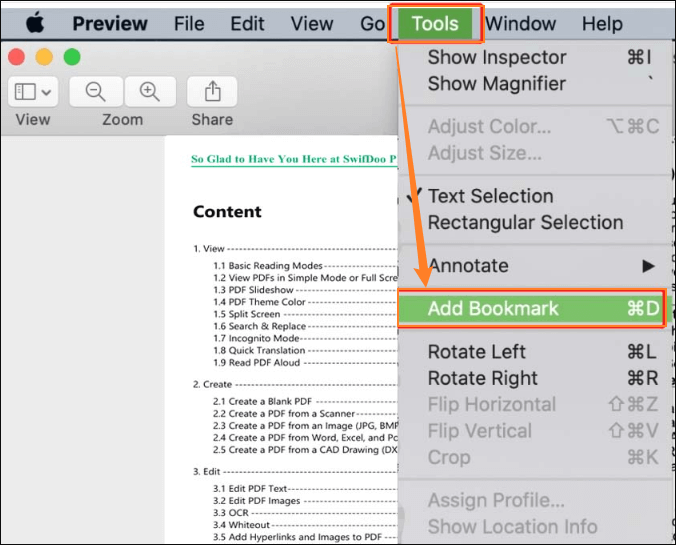
For a quick fix without installing software, try Sejda.com. Upload your PDF, go to ‘Edit Bookmarks’. You can rename, reorder, and change page numbers. It’s free for files up to 200 pages. Keep in mind you’re uploading to a third party—avoid sensitive documents. For a more private solution, stick with desktop tools. If you need to repair pdf for printing, online tools may not preserve bookmarks properly, so test first.
Step 6: Rebuild Bookmarks from Scratch (Manual)
If everything else fails and you have a clean PDF (no corruption), just recreate the bookmarks manually. Use any PDF reader that supports bookmarks (like Adobe Reader). Navigate to each section, add a bookmark, name it, and repeat. It’s tedious but foolproof. For a better workflow, consider the best way to repair pdf is to keep a clean source document and generate bookmarks from your word processor before conversion.
Common Pitfalls
- Forgetting to back up – Always save a copy before editing bookmarks. A wrong import can wipe out your entire bookmark structure.
- Page number offset – If your PDF has a cover page or table of contents, actual page numbers might be offset by 1 or 2. Double-check by scrolling to the page.
- Not saving properly – After editing bookmarks, make sure to save the PDF (File > Save or Save As). Closing without saving loses all changes.
Where to Next?
Now your PDF bookmarks should be working like a charm. If the problem persists, your PDF might have deeper corruption. Check out our guide on quick pdf repair for a general fix. Also, if you’re planning to print the document, you might want to repair pdf for printing to ensure bookmarks don’t break. Got multiple files? Learn how to fix multiple pdf files at once. Happy navigating!




