
You’ve got a PDF that looks perfect on screen, but when you hit print, it’s a mess—missing pages, garbled text, or blurry images. This guide is for anyone who needs to get a PDF ready for printing without the headache. By the end, you’ll have a clean, print-ready PDF that behaves on paper just like it does on your monitor.
We’ll walk through the most common print problems and how to fix them using tools you probably already have. No fancy software required—just a little patience and a few clicks. Whether you’re printing a report, a flyer, or your thesis, these steps will save you time and paper.
What You’ll Need
- Your problematic PDF file
- A computer with Adobe Acrobat Reader DC (free) or Adobe Acrobat Pro (trial works)
- Optional: an online PDF repair tool (we’ll recommend one)
- A sample print test page (to check progress)
Step 1: Identify What’s Wrong with the PDF
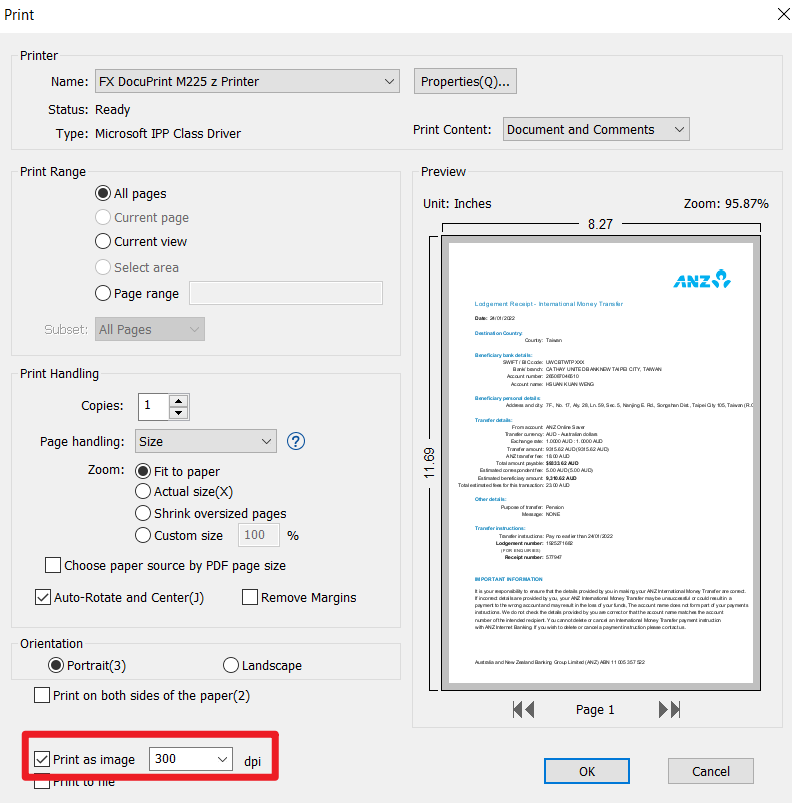
Before you fix anything, figure out what’s actually broken. Open your PDF and go to File → Print. In the print preview, check if text is missing, images are replaced with boxes, or pages are blank. Also look for font issues—if the print preview shows empty spaces where letters should be, that’s a font problem. For scanned PDFs, low resolution might be the culprit. Knowing the symptom helps you pick the right fix.
Step 2: Use Adobe Acrobat’s Preflight Tool
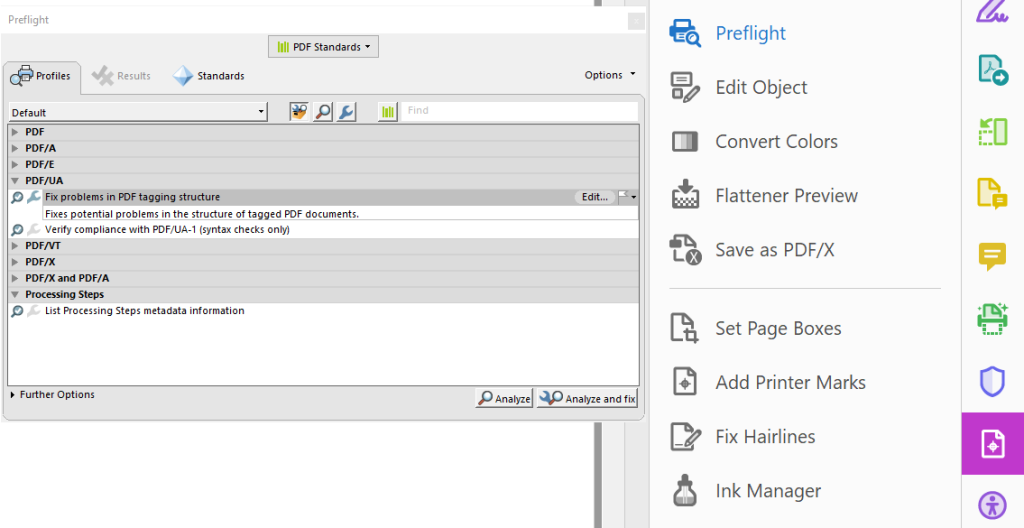
Adobe Acrobat Pro has a built-in fix called Preflight. Go to Tools → Print Production → Preflight. Click the “Fixups” tab, then search for “repair.” You’ll see options like “Repair PDF file” and “Re-embed missing fonts.” Run these one by one. This often resolves common print issues instantly. For more stubborn problems, check out our guide on damaged PDF files for printing.
Step 3: Re-embed Missing Fonts
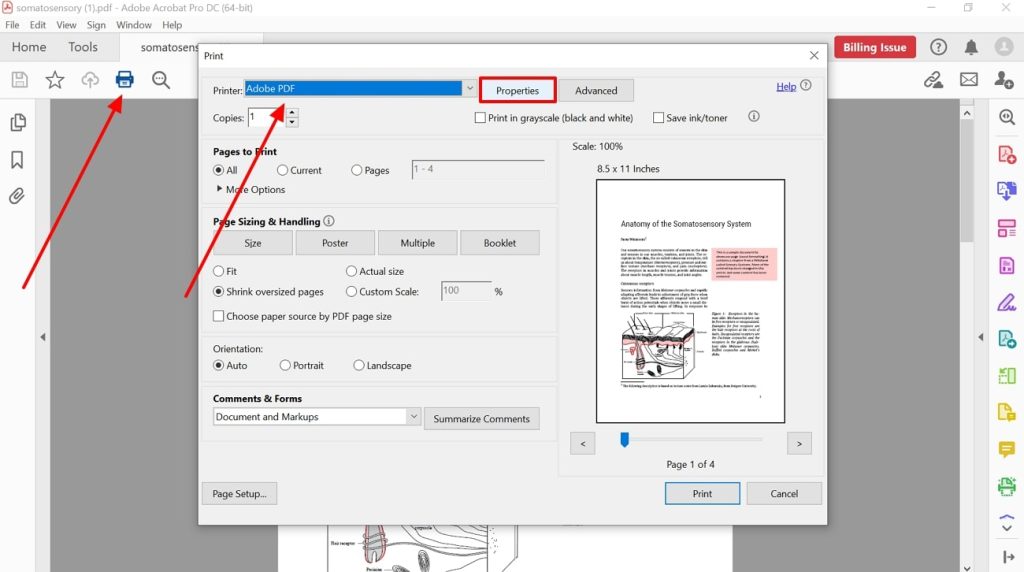
If your print preview has blank spaces or weird characters, it’s usually a font issue. PDFs often reference fonts that aren’t embedded, so the printer substitutes—or simply ignores—them. To fix, open the PDF in Acrobat Pro, go to File → Properties → Fonts. Check which fonts are not embedded. Then use the Preflight fixup “Embed missing fonts.” For more font-specific help, see how to recover PDF fonts.
Step 4: Convert to PDF/A for Print Compatibility
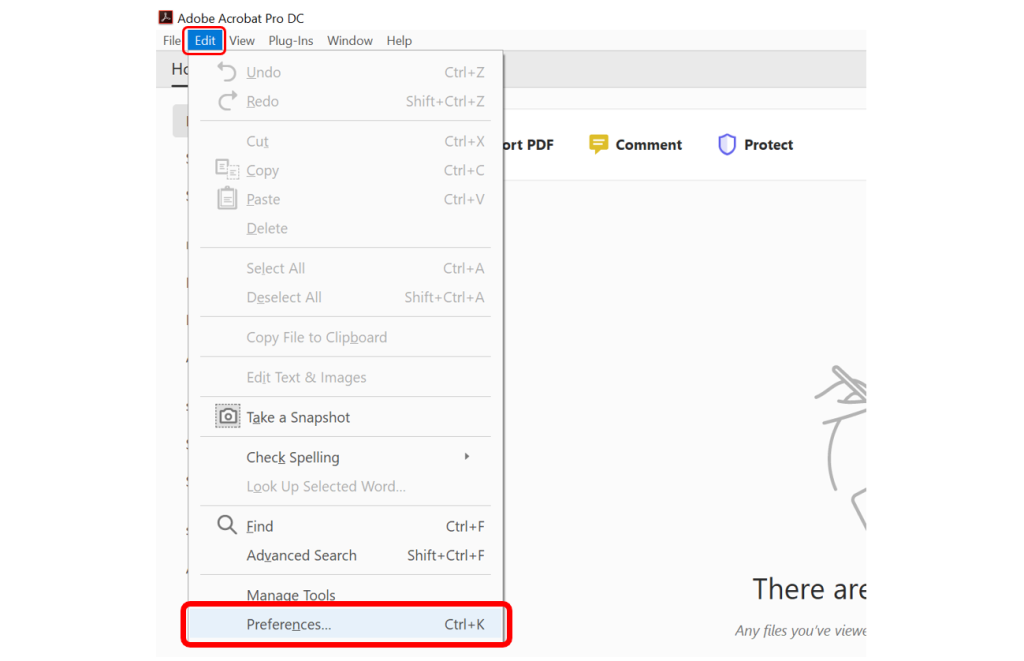
PDF/A is an ISO-standardized version of PDF designed for long-term archiving and reliable printing. It embeds all fonts, uses standard color spaces, and bans audio/video. In Acrobat Pro, go to File → Save As Other → Archivable PDF (PDF/A). Choose a version (PDF/A-1b is fine for most prints). This forces the PDF to comply with strict print rules. Also great for repair scanned PDF files that have resolution issues.
Step 5: Try an Online PDF Repair Tool
If the above steps don’t work, an online repair tool can often salvage the file. Websites like PDFRepairs.click let you upload your PDF and automatically fix corruption. These tools are good for persistently damaged PDF files that refuse to open or print correctly. Upload, wait a few seconds, and download the repaired version. Always test the print again afterward.
Common Pitfalls
- Forgetting to check the print preview – don’t assume the screen view is accurate. Always preview before printing.
- Using a free online tool without verifying security – stick to trusted sites to avoid malware or data leaks.
- Ignoring color issues – your PDF might use a color profile that the printer doesn’t support, causing washed-out prints. Convert to CMYK if possible.
Where to Next
If you’re working on a big project like a dissertation, check out our specific advice on thesis PDF print issues. And if your PDF still won’t cooperate, try the fix damaged PDF for printing method again with a different approach. Happy printing!




