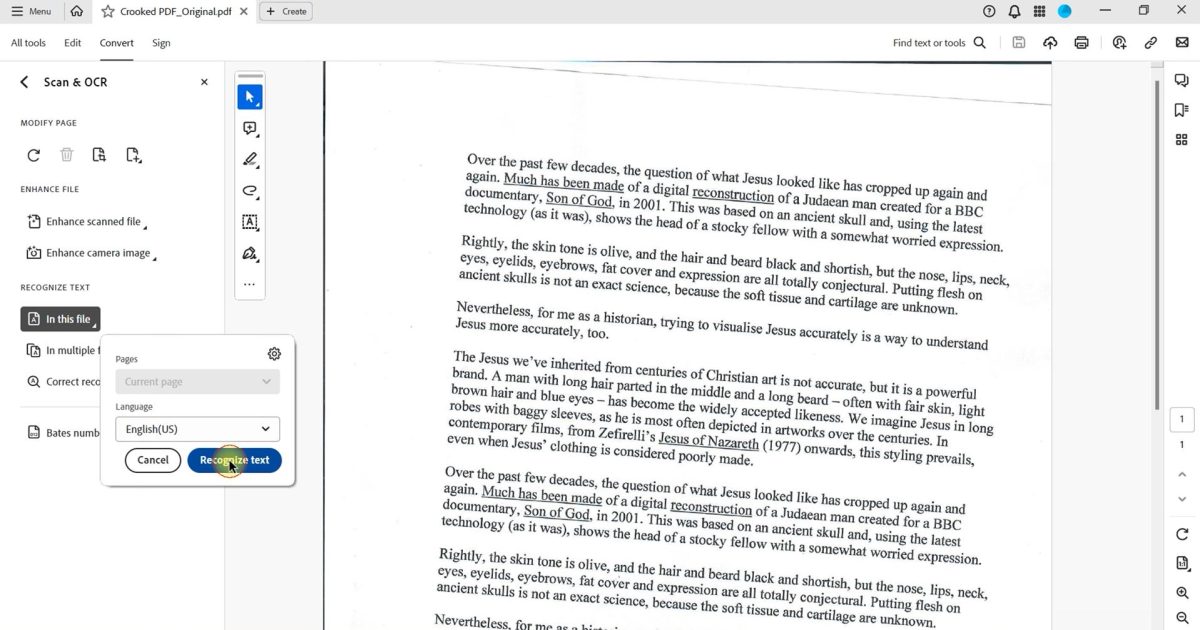
Ever opened a scanned PDF only to find a jumbled mess of missing text, black boxes, or a ‘file is damaged’ error? You’re not alone. Scanned PDFs are notoriously fragile — a slightly off scanner setting or a bad upload can corrupt the file. This guide is for anyone who needs to get a scanned PDF working again, fast. By the end, you’ll have a clean, readable document without paying a dime.
We’ll cover the whole workflow: first figuring out what’s wrong, then using a free online repair tool, fixing OCR and text issues, and finally cleaning up image problems. Whether you’re dealing with a single-page form or a multi-hundred-page book, these steps will get your PDF back in shape.
What You’ll Need
- A computer with internet access
- The damaged scanned PDF file
- A free online PDF repair tool (like PDF24, Smallpdf, or iLovePDF)
- Optional: Adobe Acrobat Reader (free) or Adobe Acrobat Pro (trial) for advanced OCR
- A backup of the original file (just in case)
Step 1: Identify the Problem
Before applying a fix, take a moment to notice the symptoms. Does the file refuse to open? Are pages missing? Is the text garbled or images blurred? Knowing the exact issue helps you choose the right approach. For a systematic way to analyze errors, check out our guide to detect damaged pdf.
Step 2: Try a Free Online Repair Tool
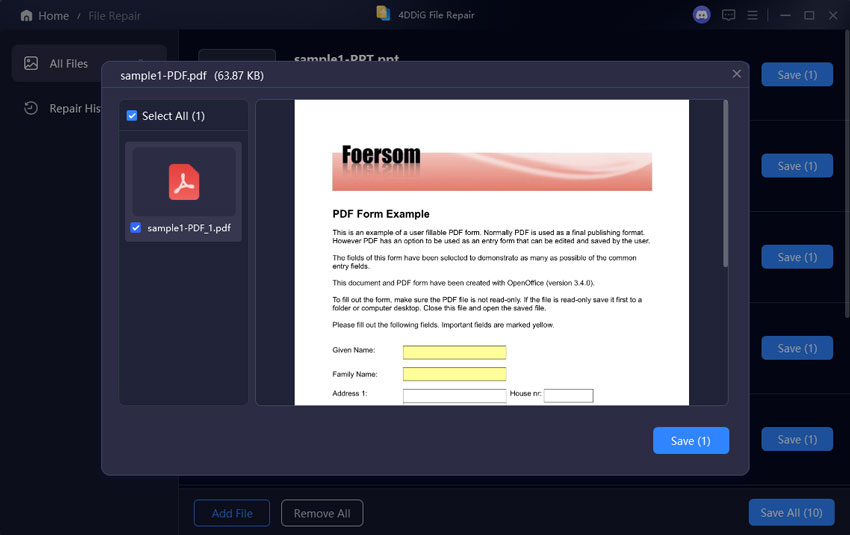
The quickest fix for most scanned PDF problems is a dedicated repair tool. Head over to PDF24’s website — widely regarded as the best free pdf repair tool. Upload your file, click ‘Repair,’ and download the result. This alone fixes many corruption issues like broken headers, EOF markers, and missing objects. The whole process takes under a minute.
Step 3: Repair OCR and Text Issues
If the PDF opens but the text is unselectable or looks like strange symbols, the OCR layer is corrupted. Use Adobe Acrobat’s ‘Enhance Scanned Document’ feature (available in the free trial) to re-run OCR. You can also try online OCR tools. For a deeper dive, see our guide on how to recover text from corrupted pdf.
Step 4: Fix Image and Layout Problems
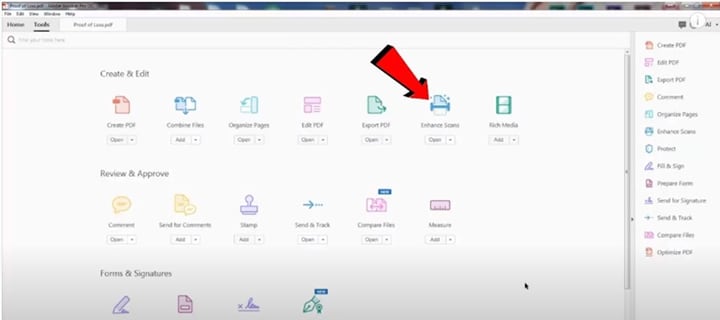
Blurry images, skewed pages, or black boxes often mean the PDF’s image compression went wrong. Open the file in an image editor (like GIMP or Photoshop) and re-save each page as a new PDF, or use the ‘Optimize Scanned Document’ feature in Adobe Acrobat. If the file is very small, it may have been compressed too aggressively — check our guide to repair small pdf file for tips.
Common Pitfalls
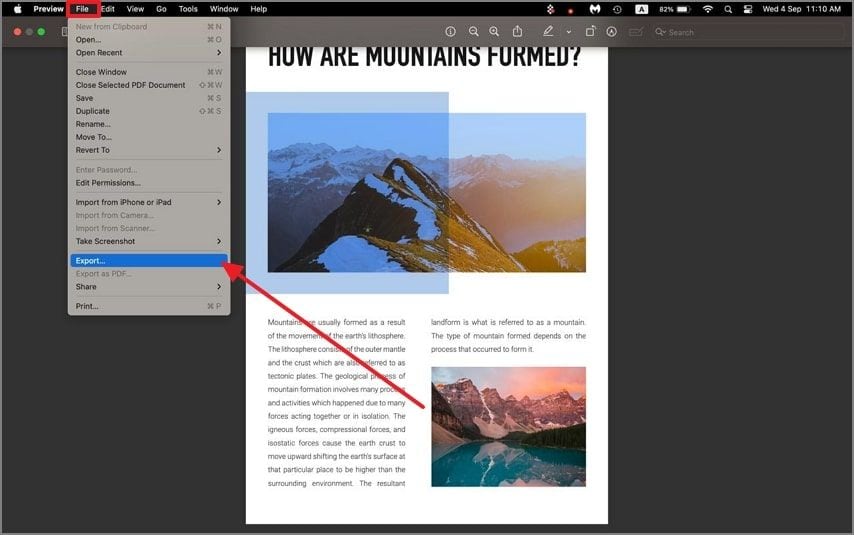
- Not saving the original before editing: Always keep a backup. If a repair tool makes things worse, you can revert.
- Using the wrong tool: Not all PDF repair tools handle scanned documents well. Stick to ones designed for scanned PDFs (like PDF24 or Adobe Acrobat).
- Ignoring file size issues: A very small scanned PDF (under 50 KB per page) may have lost too much data to repair. Re-scan at higher resolution.
Where to Next
If you prefer not to install anything, learn how to repair pdf in browser using other free services. For recurring issues, consider preventive steps like using better scanner settings. You’ve now got a reliable process to rescue almost any scanned PDF — keep it bookmarked for the next emergency!




