
So you need to print or share a certificate PDF, but the file won’t open or looks like garbage. Whether it’s a course completion, a professional certification, or a formal award, a damaged PDF can be a headache. This guide is for anyone who has a corrupted certificate PDF and wants to get it working again. By the end, you’ll have a repaired PDF or at least recovered the text and images from it.
Don’t panic—most certificate PDFs are small and can be fixed with free tools. We’ll walk through from the simplest checks to more advanced manual repairs. You don’t need to be a techie; just follow each step. And if one method doesn’t work, try the next. Let’s get that certificate back in shape.
What You’ll Need
- Your corrupted certificate PDF file
- A computer with internet access
- A free PDF repair tool like PDF24 (we’ll use the online version)
- Optional: a hex editor like HxD (Windows) or Hex Fiend (Mac)
- A backup copy of the original file (always keep the original!)
Step 1: Verify the Damage
First, try opening the PDF in your regular viewer (like Adobe Acrobat Reader or your browser). Note the exact error message: ‘File is damaged’, ‘EOF marker not found’, or blank pages. This helps you choose the right fix. For example, if you see an EOF error, you’ll want to fix PDF EOF marker. If the file was scanned, you might need to repair scanned pdf approach. Take a screenshot of the error for reference.
Step 2: Use an Online Repair Tool (PDF24)
The quickest fix is to upload the file to a free online repair tool. PDF24 is our recommended best free PDF repair tool. Go to the PDF24 website, select ‘PDF Repair’, upload your certificate PDF, and click ‘Repair’. Download the fixed version. This works for many common corruption issues like missing headers or broken cross-reference tables. If the download opens fine, you’re done!
Step 3: Try Adobe Acrobat Pro’s Built-in Repair
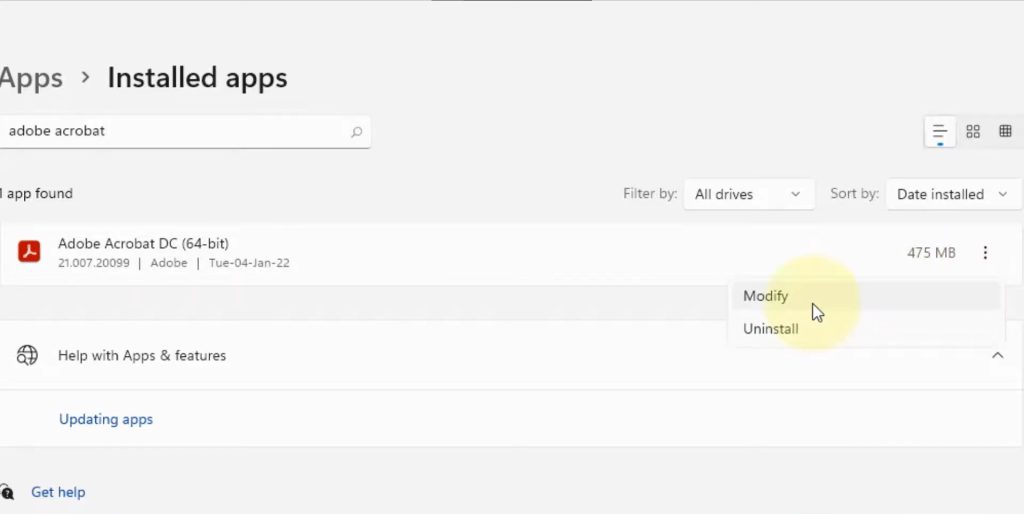
If you have Adobe Acrobat Pro (not just Reader), you can use its repair feature. Open the PDF, then go to File > ‘Save As Other’ > ‘Optimized PDF…’. Click ‘OK’ without changing any settings—this forces Acrobat to recompile the file and often fixes minor errors. If that doesn’t work, try File > ‘Export To’ > ‘Image’ and then recombine the pages into a new PDF. This can recover content even if the structure is messed up.
Step 4: Manual Hex Editing (Advanced)
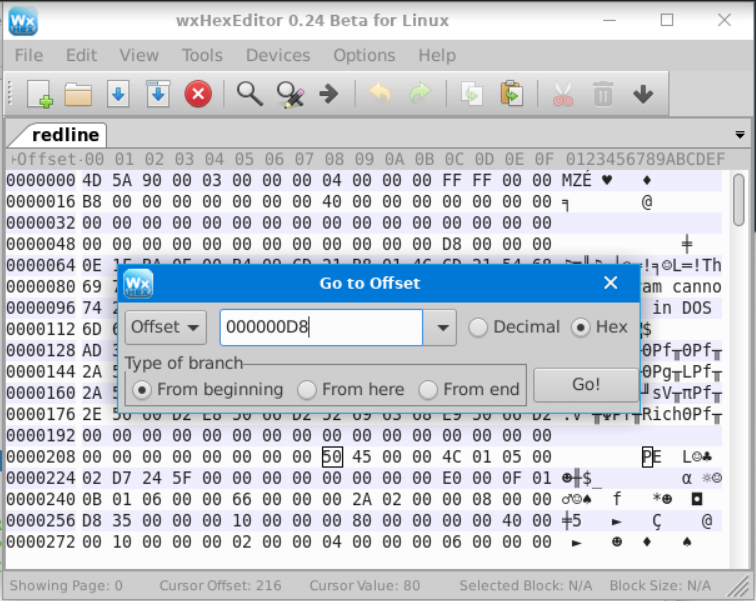
For stubborn errors like a missing EOF marker or incorrect header, you can use a hex editor. Open the PDF in HxD or Hex Fiend. The file should start with ‘%PDF-1.x’ (e.g., ‘%PDF-1.4’). If the header is missing or garbled, you can fix it by typing it in manually. Also check the end of the file for ‘%%EOF’—if it’s missing, add it on a new line at the very end. This is a precise fix but works wonders. Refer to our guide on fix PDF EOF marker for exact steps.
Step 5: Extract Pages or Content
If the file is completely unreadable, you can still salvage the content. Use PDF24 or another tool to extract pages from corrupted PDF—sometimes only a single page is damaged, and the rest are fine. Upload the file to an extractor and save the good pages as a new PDF. For text, try to recover text from corrupted pdf using an online converter or opening the file in Word (it may handle the text extraction). If everything fails, you might need to contact the issuer for a replacement.
Common Pitfalls
- Not making a backup first. Always save the original corrupted file before trying any repair—some tools can make things worse.
- Using the wrong tool for a simple problem. An online repair tool often solves header or cross-reference issues, so start there before jumping into hex editing.
- Forgetting that the certificate might be password-protected or digitally signed. If it’s encrypted, you’ll need the password. Repairs won’t work on encrypted files without unlocking them first.
Where to Next
You’ve got your certificate back—hopefully! If you run into other PDF issues, check out our guides on repair scanned pdf, fix PDF EOF marker, or repair PDF from SD card. For more general tools, the best free PDF repair tool article is a great starting point. And if you need to salvage just the text, we have a guide on extract pages from corrupted PDF.




