So you’ve got a PDF file that’s showing up as 0 bytes. Maybe you tried to open it and got nothing, or you checked its properties and it says ‘Size: 0 bytes.’ Don’t throw in the towel just yet. This guide is for anyone who’s staring at a zero-sized PDF and wants their data back—whether it’s a work document, a scanned receipt, or a beloved ebook. By the end of these steps, you’ll either have a working PDF or a clear understanding of why recovery isn’t possible (and how to prevent it next time).
We’ll walk through several methods, from simple checks to file recovery software and even hex editor tricks. No special skills are required—just a bit of patience and a computer. Let’s get that PDF back.
What You’ll Need
- A PC with Windows, macOS, or Linux (instructions focus on Windows, but tools often have Mac versions)
- Your 0 byte PDF file (obviously!)
- A file recovery tool like Recuva (free) or PhotoRec (open-source)
- A hex editor, such as HxD (free) for Windows or Hex Fiend for Mac
- Backup software or a recent backup of your drive (helpful, not required)
- Internet connection to download tools
Step 1: Understand Why PDFs Become 0 Bytes
A 0 byte PDF usually means the file’s contents were wiped or never saved properly. Common causes include sudden power loss during save, failed file transfers, virus attacks, or accidental deletion of file data. The file entry remains in the file system, but the actual data is gone. In some cases, the file might be a placeholder or a shortcut gone wrong.
Step 2: Check If the File Is Truly 0 Bytes or Just Looks That Way
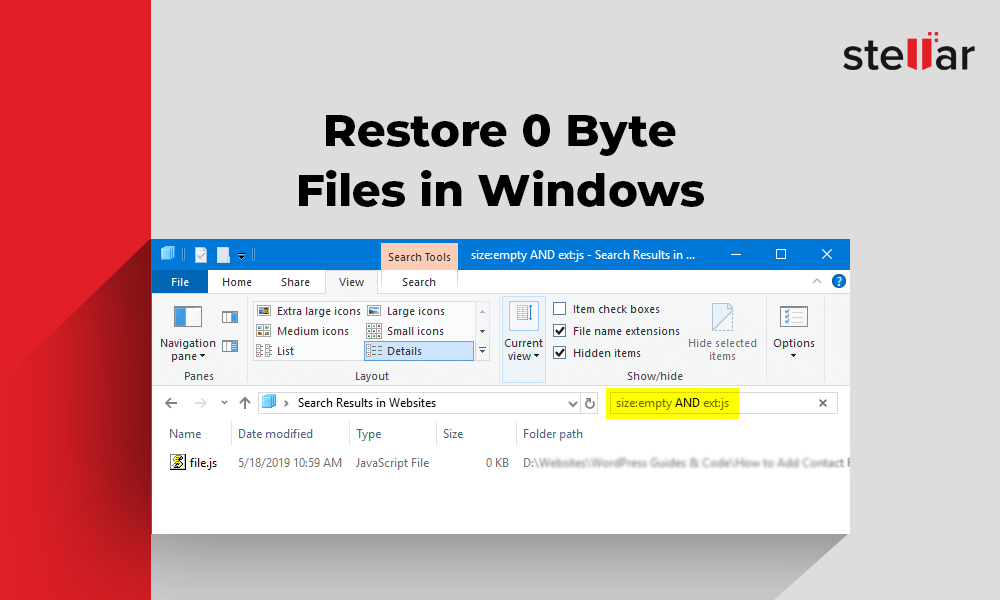
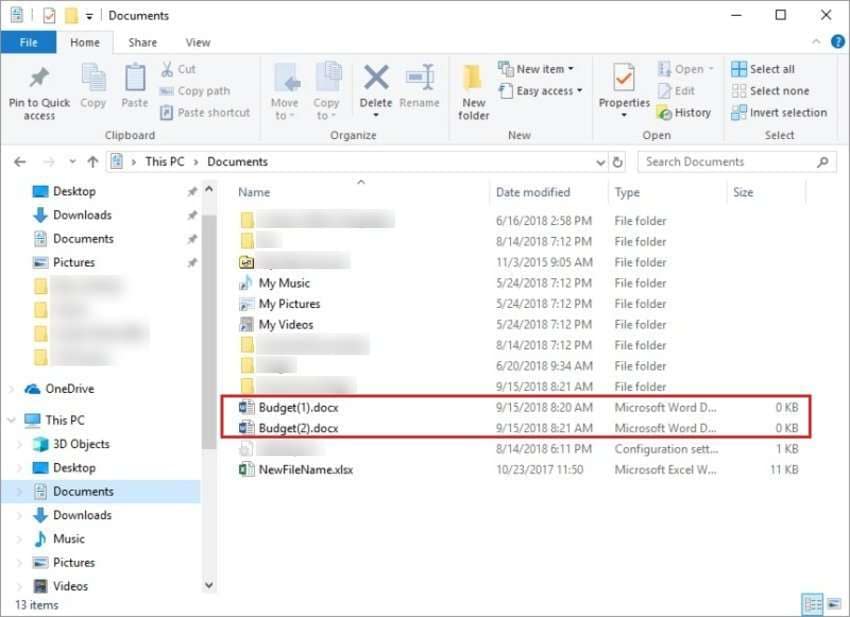
Right-click the PDF file and select ‘Properties’ (Windows) or ‘Get Info’ (Mac). Look at the ‘Size’ field. If it says 0 bytes, the file has no data. But sometimes the file system glitches and shows 0 bytes while the data is still there. Try copying the file to a different location—if it copies with a non-zero size, you’re lucky. If not, proceed.
Step 3: Check Your Recycle Bin and Backup
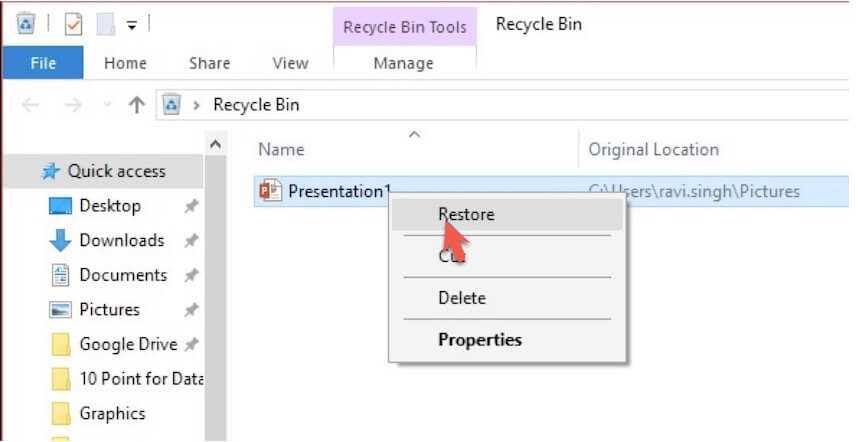
Before diving into recovery tools, look in your Recycle Bin (Windows) or Trash (Mac). If you accidentally deleted the file, you might find the original there. Also check any cloud backups (Google Drive, OneDrive, Time Machine) or external drives. If you have a recent backup, restore from that—it’s the easiest fix.
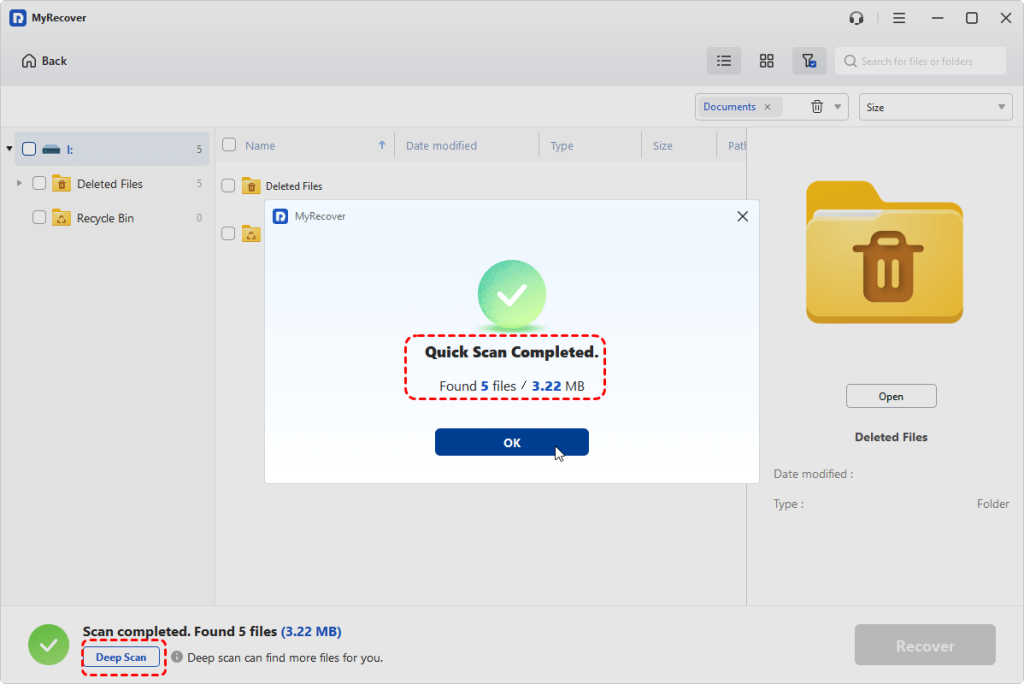
Step 4: Use File Recovery Software (Recuva or PhotoRec)
If the file is truly 0 bytes but you suspect it was once a real PDF, try recovering it with a file recovery tool. Recuva (Windows) is beginner-friendly: download and install it, run a deep scan on the drive where the PDF was located. Look for files with the .pdf extension—even if they show 0 bytes in the file system, Recuva might find the actual data. PhotoRec (cross-platform) is more powerful but command-line based; it can carve PDF headers from raw disk data.
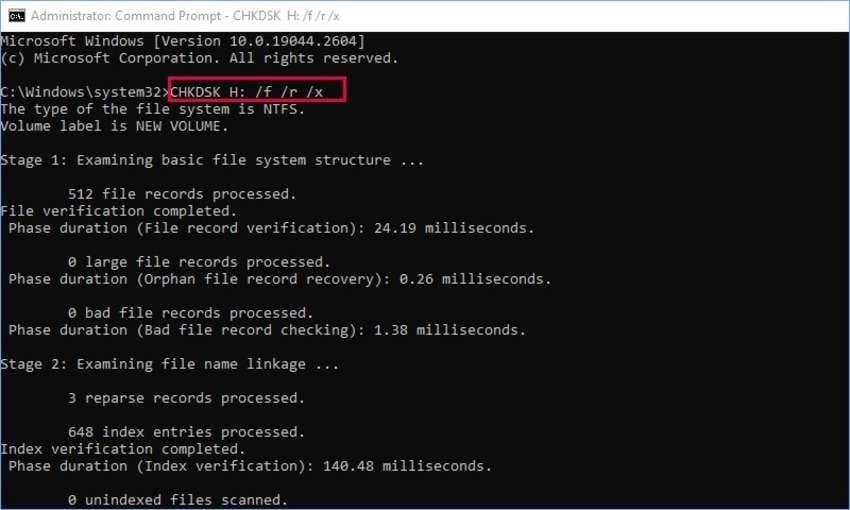
Step 5: Run chkdsk or Disk Utility to Fix File System Errors
Sometimes a file shows 0 bytes because of file system corruption. On Windows, open Command Prompt as Administrator and run `chkdsk C: /f` (replace C: with your drive letter). On Mac, use Disk Utility’s First Aid. This can repair the file table and restore the file’s size. After running, check the PDF again.
Step 6: Examine the File with a Hex Editor
Open the 0 byte PDF in a hex editor like HxD. If it truly has no data, the hex editor will show an empty file. But if you see any hex data, even a few bytes, you might be able to reconstruct the file. PDFs start with ‘%PDF’ (hex: 25 50 44 46). If that header is present, the file might be recoverable by truncating trailing garbage. If the header is missing but you see other data, you can try to insert the correct header manually, but that’s advanced.
Common Pitfalls
- Opening the 0 byte PDF repeatedly in Acrobat or a viewer—this can trigger autosave and overwrite any ghost data. Always copy the file first.
- Not checking the Recycle Bin or backup before running recovery software—recovery tools can overwrite the very data you want to restore.
- Installing recovery software on the same drive where the lost PDF resides—this can overwrite the file’s clusters. Use a different drive or a portable version.
Where to Next
If you managed to recover your PDF but it’s still damaged, try our guide to repair pdf from hard drive. For issues like missing end-of-file markers, see how to fix pdf eof marker. Need the text out of a wrecked PDF? Learn to recover text from corrupted pdf. If you can open the PDF but not all pages, check out extract pages from corrupted pdf. And for a no-fuss fix, try the best free pdf repair tool.




