You’ve got an important PDF that just won’t open – maybe it’s a work contract, a scanned document, or a certificate you need to submit. Before you panic and search for expensive repair software, know this: you can often fix the file right in your browser for free. This guide is for anyone who’s ever stared at a “file is damaged” error and felt their stomach drop. By the end, you’ll have a clean, usable PDF without spending a dime or installing anything.
We’ll walk through three proven online methods, from quick automated fixes to manual intervention for stubborn cases. Whether your PDF is showing blank pages, won’t open at all, or has weird formatting, there’s a step here for you. I’ve used all these tools myself, and they work. Let’s get your file back.
What You’ll Need
- A corrupted or damaged PDF file (the one you want to fix)
- A stable internet connection
- A modern web browser (Chrome, Firefox, Edge, or Safari)
- About 10 minutes of time
- Optional: A backup of your original PDF (just in case)
Step 1: Try an Online PDF Repair Tool
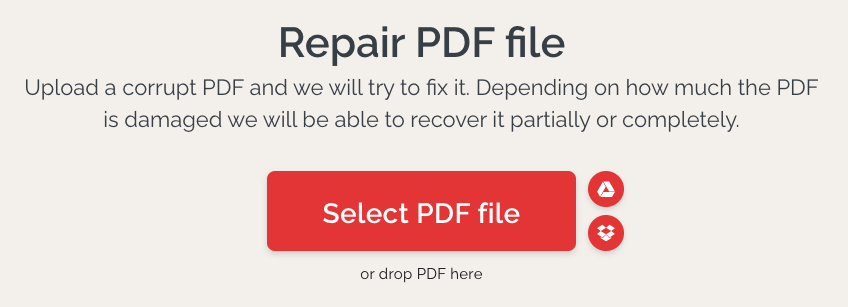
The quickest way to fix a corrupted PDF is to use a dedicated online repair tool. These services analyze your file and try to reconstruct the damaged parts. My go-to is the best free PDF repair tool called PDF24 – it’s reliable and handles most common errors.
Action: Go to the PDF24 website and look for the “PDF Repair” option. Click it, then upload your corrupted file. The tool will process it automatically – this might take a minute for larger files. Once done, download the repaired version. If it worked, you’re all set! If not, move to Step 2.
Step 2: Use Google Drive’s Built-in Preview
Sometimes the corruption is minor, and a simple re-save can fix it. Google Drive has a neat trick: it can often display corrupted PDFs that other readers can’t. Upload your file to Drive, open it with Google Docs viewer, then re-download it as a PDF. This rewrites the file structure and can clear up issues.
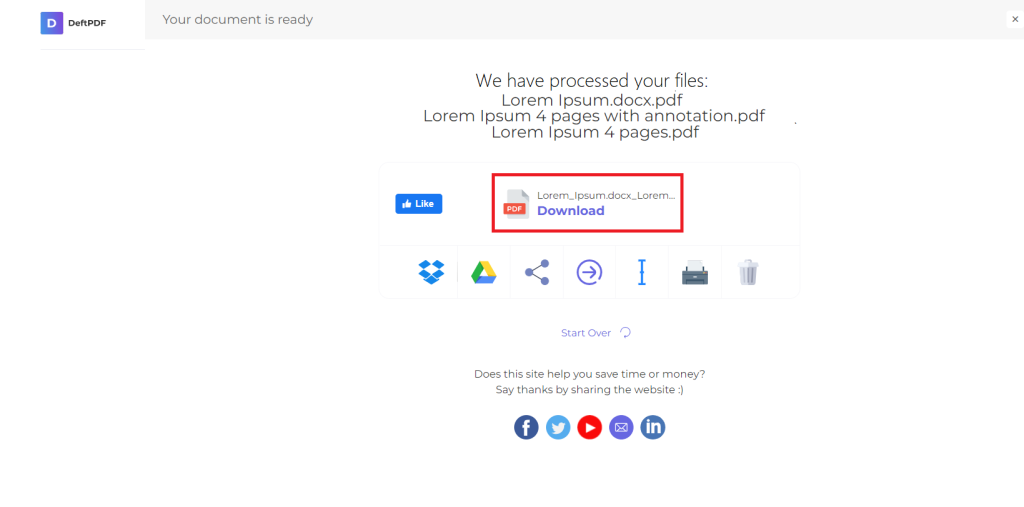
Action: Upload your PDF to Google Drive. Double-click to open it in the preview. If you can see the content, click the three-dot menu and choose “Download” – the file will come out refreshed. This method is great for repairing a certificate PDF that looks garbled but still displays in Drive.
Step 3: Use an Online PDF Editor to Save a Copy
If the above steps don’t work, the corruption might be deeper. Online PDF editors like Smallpdf, iLovePDF, or Sejda can sometimes salvage the file by re-encoding it. These tools essentially open the PDF and re-save it, which can fix structural damage.
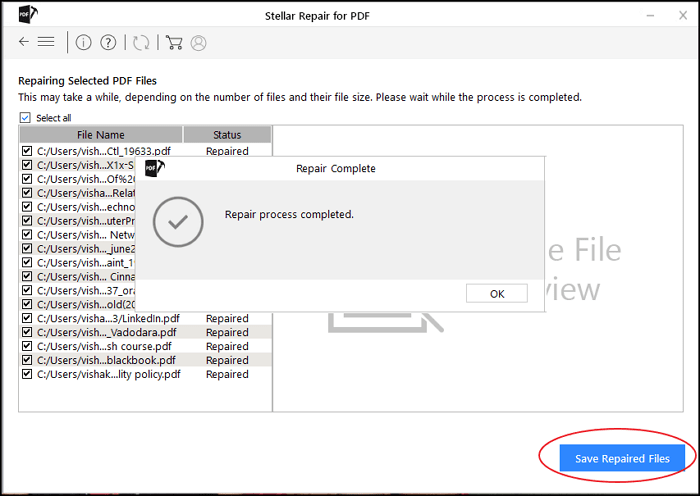
Action: Go to a free online PDF editor (I recommend Smallpdf). Upload your damaged PDF. Don’t worry if it doesn’t preview perfectly – just find the option to “Save as PDF” or “Export to PDF.” Download the result. This trick helped a friend fix thesis PDF that had missing images after a disk error.
Common Pitfalls
- Not making a backup first. Always keep your original corrupted file. If a repair tool makes things worse, you’ll need the original to try another method. I learned this the hard way when a tool stripped formatting and I had to recover missing pages from the original.
- Using sketchy or ad-filled sites. Some “free” repair tools are riddled with malware or limit file sizes. Stick to well-known names like PDF24, Smallpdf, or the browser-based PDF repair offered by Google Drive. Avoid unknown sites that ask for your email.
- Ignoring specific errors. Some errors, like an EOF marker missing, need different approaches. Look up the exact error message before trying generic repair – you might find a targeted fix like fixing a PDF EOF marker error that works instantly.
Where to Next
You’ve just repaired your PDF online. If the file is still giving you trouble, consider that the corruption might be in the source – for example, a repairing a certificate PDF might need the original issuer. For ongoing PDF health, I recommend always keeping backups and detecting damaged PDF early with a quick check. Good luck!




