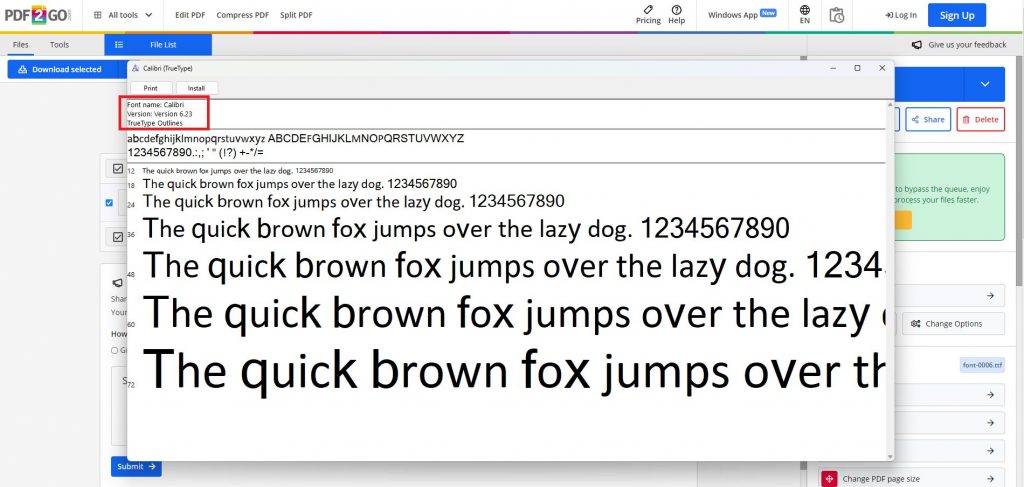
Ever opened a PDF only to see a bunch of boxes or weird symbols instead of the nice fonts you expected? You’re not alone. Missing fonts happen when the font files aren’t embedded in the PDF or when the document gets corrupted. This guide is for anyone who needs to recover those fonts and get their PDF looking right again. By the end, you’ll have a clean PDF with properly displayed fonts, and you’ll know how to prevent this issue in the future.
Font issues can range from slight substitution to completely garbled text. Sometimes the font is simply not embedded; other times the PDF itself is damaged. We’ll cover both scenarios with practical steps you can follow using free or low-cost tools. If your PDF is also damaged, you might want to repair PDF online first to fix any structural problems before tackling fonts.
What You’ll Need
- A PDF file with missing or garbled fonts
- Adobe Acrobat Reader (free) or Pro (trial available)
- Internet connection (for online tools)
- Optional: original font files if you have them
Step 1: Identify Missing Fonts
Open your PDF in Adobe Acrobat Reader. Go to File > Properties > Fonts tab. You’ll see a list of fonts used in the document. Look for any that say “not embedded” or have a warning icon. Write down the font names. If the font list shows a substitution like “Arial (substituted)”, that’s a clue the original font is missing.
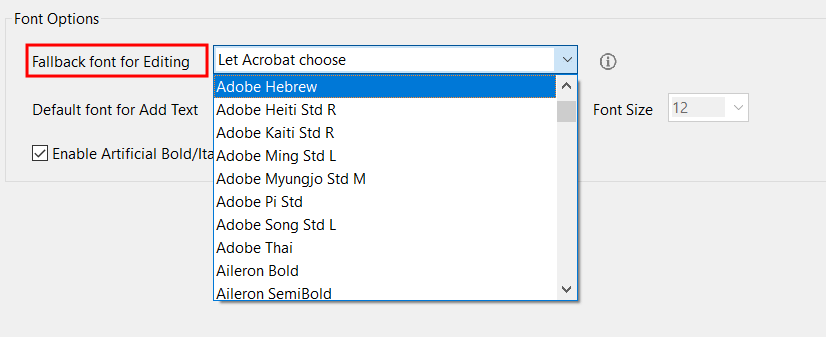
Knowing which fonts are missing is the first step. If the PDF doesn’t open at all, you may need to detect damaged PDF using our guide before proceeding.
Step 2: Embed Fonts Using Adobe Acrobat Pro
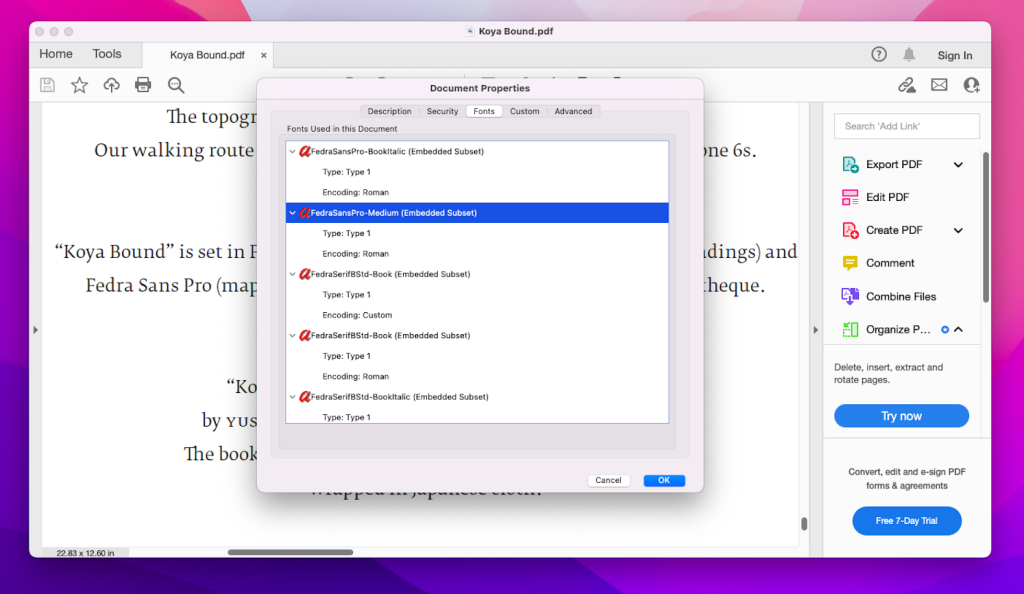
If you have Adobe Acrobat Pro (not just Reader), open the PDF and go to the Print Production tools. Select Preflight, then search for “embed fonts”. Run one of the preflight profiles that embeds all fonts. This will add the font data to the PDF if the fonts are installed on your system. Save the file. If you don’t have Acrobat Pro, skip to Step 3.
Step 3: Use an Online Font Embedding Tool
Free online tools like PDF24 or iLovePDF can embed fonts without extra software. Go to PDF24’s website, upload your PDF, and choose the “Optimize” or “Embed Fonts” option (labels vary). Download the result. These tools work best when the fonts are common (like Arial or Times New Roman) and already present on their servers. If the fonts are rare, this may not help.
If the online tool fails, the PDF might have deeper corruption. In that case, you could try to fix PDF EOF marker issues that sometimes prevent font data from loading.
Step 4: Replace Missing Fonts Manually
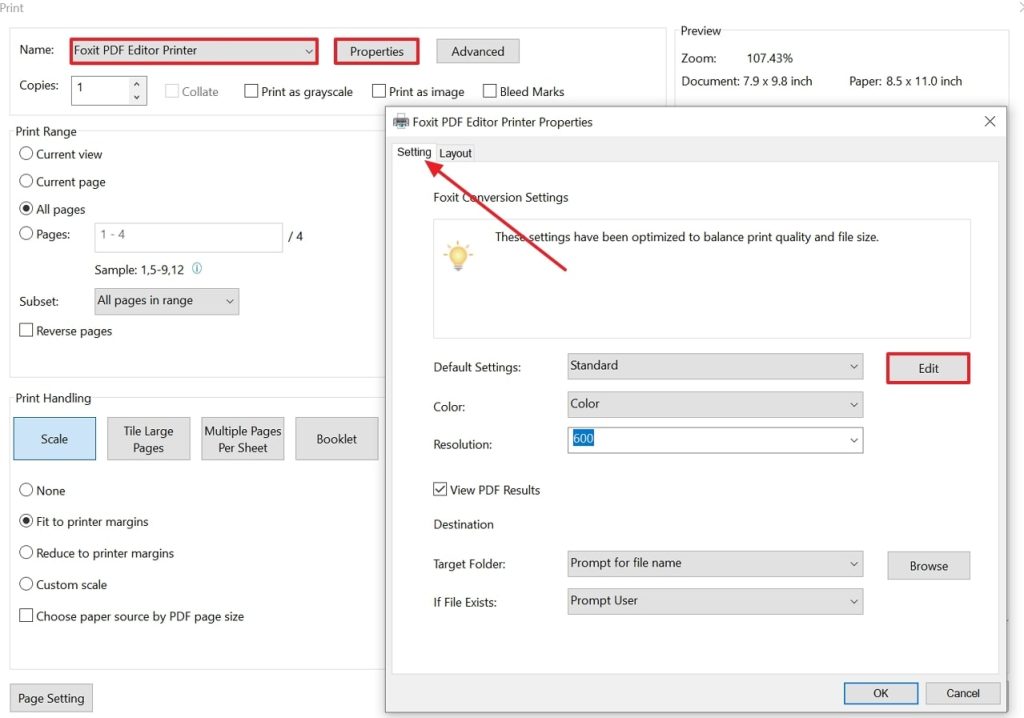
When embedding isn’t possible, manually replace the missing font with a similar one. Use a PDF editor like Sejda (online) or LibreOffice Draw (free desktop app). Open the PDF, select the text that uses the missing font, and change the font to a standard one like Arial or Times New Roman. This works best for simple layouts. For complex documents, you may lose some formatting.
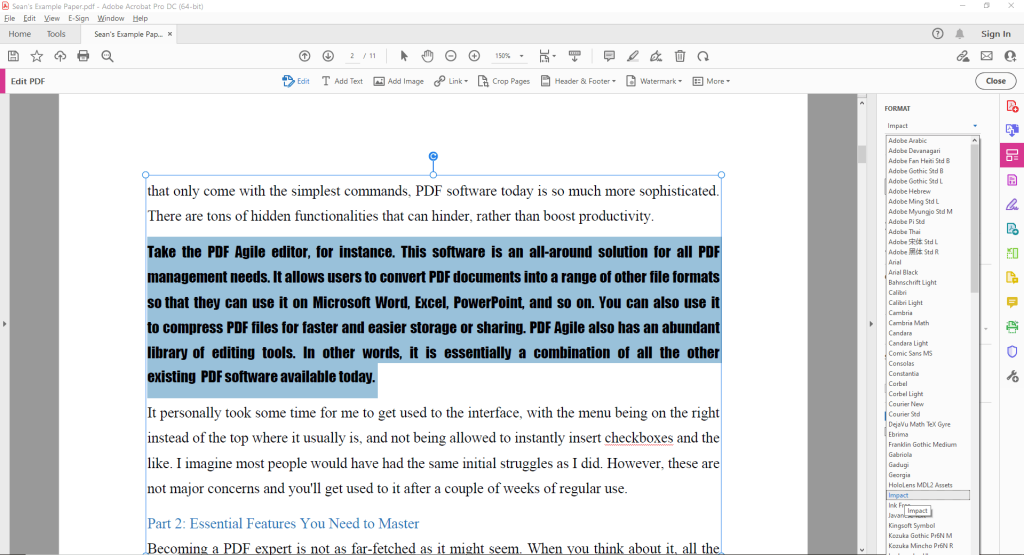
This step is time-consuming but effective. If you have the original font files, you can install them on your system and then use Acrobat Pro to embed them. If not, consider recovering text from corrupted PDF as a backup plan to at least get the text out.
Step 5: Convert PDF to Word and Back
Another workaround is to convert the PDF to a Word document using Adobe Acrobat (or an online converter), fix the fonts in Word, and then convert back to PDF. This method usually preserves most formatting and gives you full control over fonts. Steps: In Acrobat, go to Export PDF > Microsoft Word > Word Document. Open the .docx in Word and change fonts as needed. Save as PDF again.
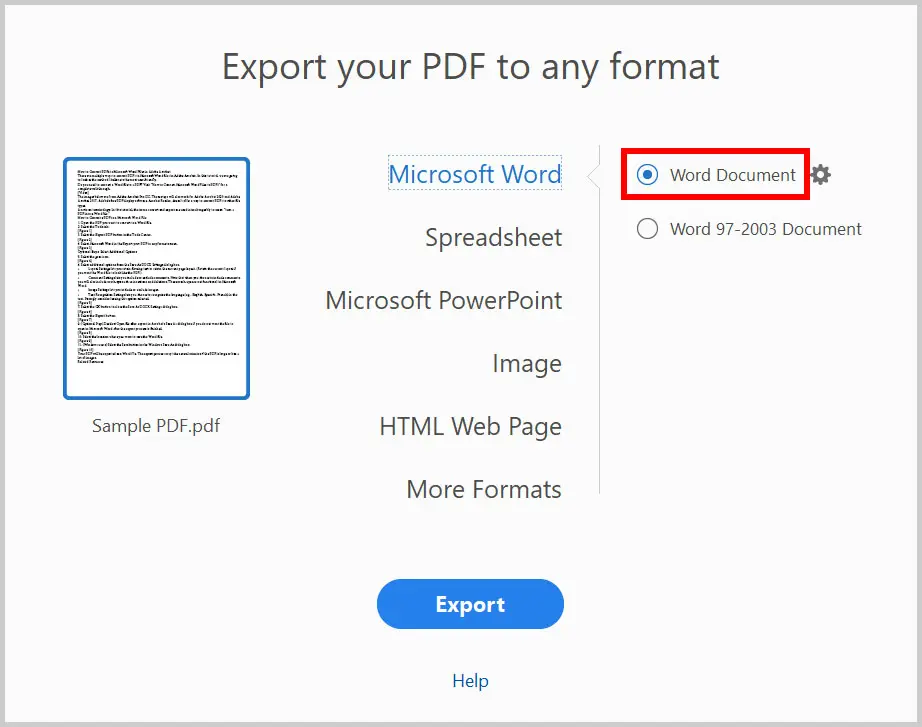
This approach works especially well for text-heavy documents. If your PDF was damaged by a disk error, you might need to repair PDF after disk error before attempting conversion.
Common Pitfalls
- 1. Font licensing: Not all fonts allow embedding. Check the license before distributing a PDF with embedded fonts, or you could face legal issues.
- 2. Online tool quality: Free online tools may reduce image quality or add watermarks. Use them for non-critical documents only.
- 3. Forgetting to embed from the start: When creating PDFs, always embed fonts in the original software (like Word’s “Embed fonts in the file” option) to avoid future problems.
Where to Next
Now you know how to recover fonts in a PDF. If you still run into issues, your PDF might have other problems. Check out our guides on repair PDF online for structural fixes, or recover text from corrupted PDF if you just need the content. Stay proactive by embedding fonts in future PDFs—it’ll save you a lot of headaches.




