So your PDF is acting up — maybe it won’t open, shows garbage characters, or throws an error. If you’re on Linux, you’re in luck. The command line is packed with powerful, free tools that can often salvage a corrupted file. This guide is for beginners who aren’t afraid to type a few terminal commands. By the end, you’ll know how to diagnose the issue, attempt repairs with qpdf and Ghostscript, and if all else fails, recover the content by extracting pages or text.
We’ll cover the most common PDF problems and the exact commands to fix them. No fancy software purchases needed — just your trusty terminal and a few packages. Let’s turn that broken PDF back into something usable.
What You’ll Need
- A Linux system (any distro — Ubuntu, Fedora, Debian, etc.) with sudo access.
- Basic familiarity with opening a terminal (Ctrl+Alt+T usually works).
- The corrupted PDF file you want to repair.
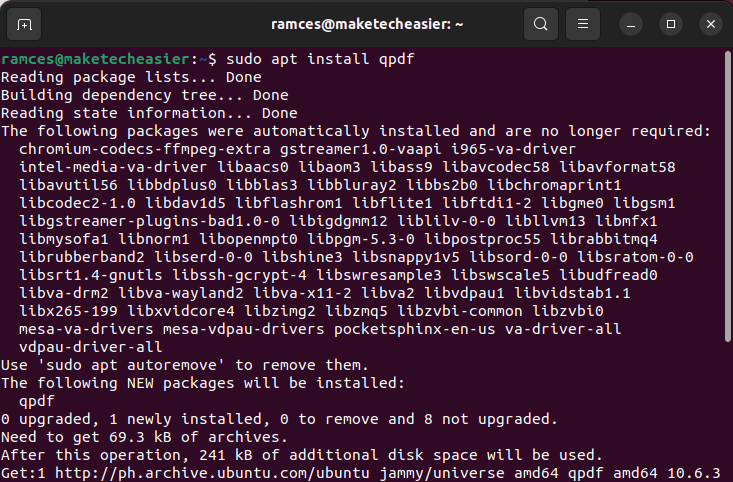
- A few command-line tools installed: qpdf, Ghostscript, poppler-utils (for pdfinfo, pdftotext), and optionally pdftk. Install them via your package manager. On Debian/Ubuntu: sudo apt install qpdf ghostscript poppler-utils pdftk-java.
- Backup of the original file — just in case.
Step 1: Diagnose the Problem
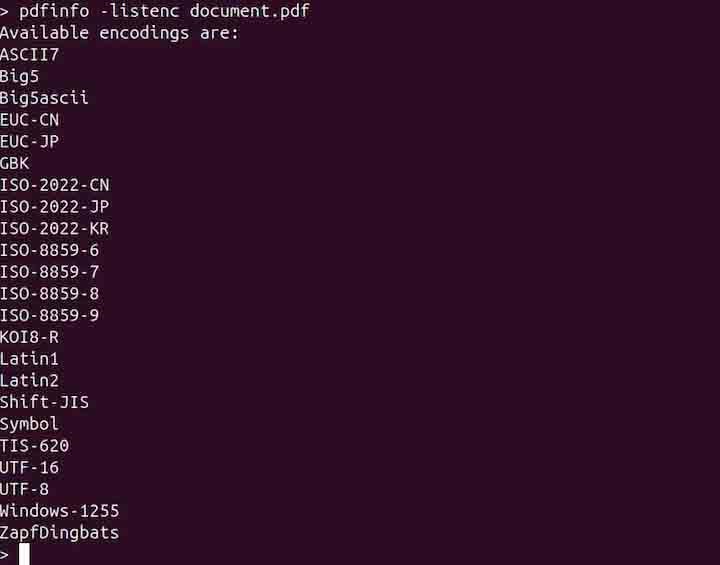
Before you start fixing, you need to understand what’s wrong. Run pdfinfo on your file: pdfinfo broken.pdf. If it returns metadata (pages, size, etc.), the file structure is mostly intact. If it errors out, the damage is deeper. Another quick test: extract text with pdftotext broken.pdf – | head. If you see readable text, you can at least recover the content. This helps you decide which repair method to try first — or if you should just extract pages from corrupted pdf directly.
Step 2: Repair with qpdf
qpdf is my go‑to for quick repairs. It can linearize (optimize for web) or recreate the file structure. Try this: qpdf –linearize broken.pdf repaired.pdf. If that fails, use the more aggressive flag: qpdf –replace-input broken.pdf. This modifies the file in place. If you get an error like “unexpected EOF”, the file is truncated — you might still recover partial content. qpdf is excellent at fixing cross‑reference table issues, so it’s worth a shot before moving on.
Step 3: Rebuild with Ghostscript
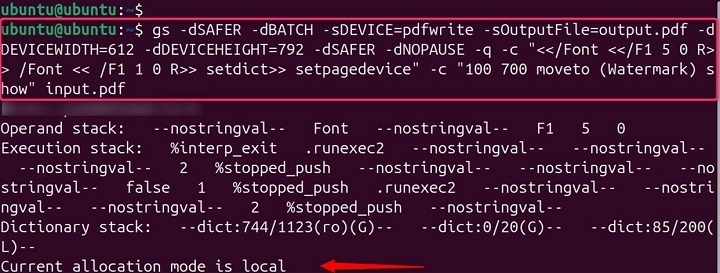
Ghostscript can interpret the PDF and output a fresh, clean version. Run: gs -o repaired.pdf -sDEVICE=pdfwrite -dPDFSETTINGS=/prepress broken.pdf. The -dPDFSETTINGS=/prepress flag preserves high resolution. If your file contains corrupted fonts, this often fixes them — but if fonts are the issue, you may want to first check our guide on how to recover pdf fonts. Ghostscript works best on files that open but display strangely. It’s not magic for severely truncated files, but it’s worth trying.
Step 4: Use pdftk as a Last Resort
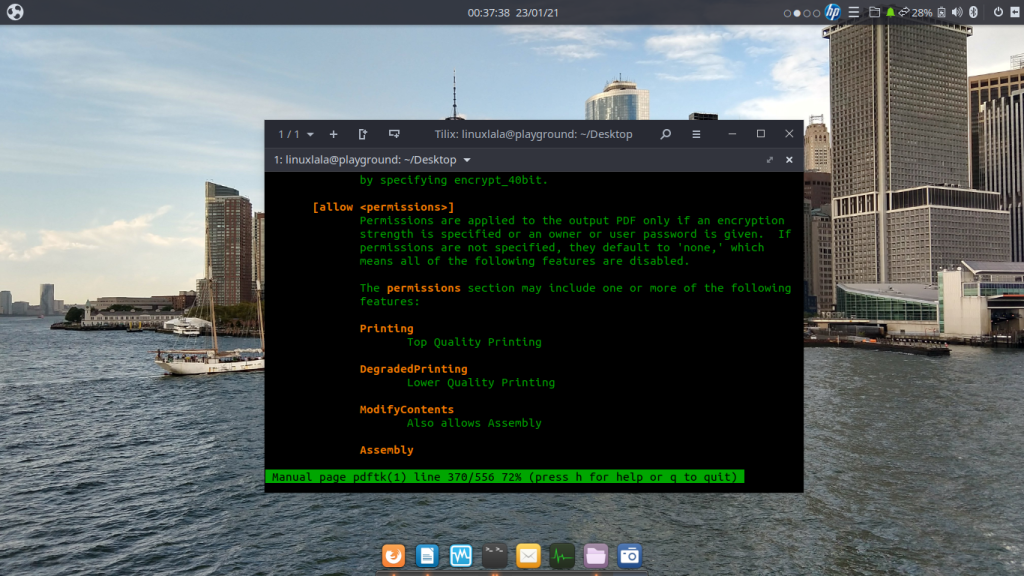
pdftk is another handy tool, though it’s not always installed by default. Try: pdftk broken.pdf output repaired.pdf. This may fail on badly damaged files, but it can fix minor issues. If pdftk complains about the file being encrypted or having inconsistent structure, you might need to use the qpdf or Ghostscript route instead. For a truly stubborn file, consider a best free pdf repair tool like PDF24 (works online, but Linux users can run it in a browser).
Step 5: Extract Pages or Text
If full repair fails, salvage what you can. Use qpdf to split into single pages: qpdf –split-pages broken.pdf %d.pdf. Then open each page file; you may find most pages intact. Alternatively, extract text with pdftotext: pdftotext broken.pdf output.txt. This gives you all the text, though formatting is lost. For graphics, try converting each page to an image: gs -o page_%d.png -sDEVICE=png16m -r300 broken.pdf. This can rescue content from files that won’t display otherwise.
Common Pitfalls
- Missing dependencies: Running a command and getting ‘command not found’ is the top issue. Always install qpdf, ghostscript, and poppler-utils first. On Fedora, use dnf install. On Arch, use pacman.
- Overwriting the original: When using commands with –replace-input, you lose the original. Always make a backup before running potentially destructive repairs.
- Not checking file permissions: If you can’t read the file or write to the directory, repairs fail. Use chmod to fix permissions or run commands with sudo (but be careful).
Where to Next
If your PDF is still broken after these steps, don’t give up. Try a pdf repair online service for a different approach. You can also detect damaged pdf issues with tools like pdfinfo to get more clues. For files from specific sources, see our guide on repair pdf after disk error or repair pdf from hard drive. And if you only need the text, recovering it directly might be easier. Good luck!




