You’re not alone — SD cards are notoriously easy to mess up. One accidental delete, a sudden ejection, or a corrupted filesystem and your precious PDFs can vanish. This guide is for anyone who’s lost PDF files from a camera, phone, or other SD card and wants them back. By following these steps, you’ll have your recovered PDFs (possibly repaired) ready to open again.
We’ll walk through using free recovery software, then fixing any corruption that might make the PDF unreadable. No tech wizardry required — just a few careful steps and a little patience. At the end, you’ll have your PDF files back on your computer, good as new.
What You’ll Need
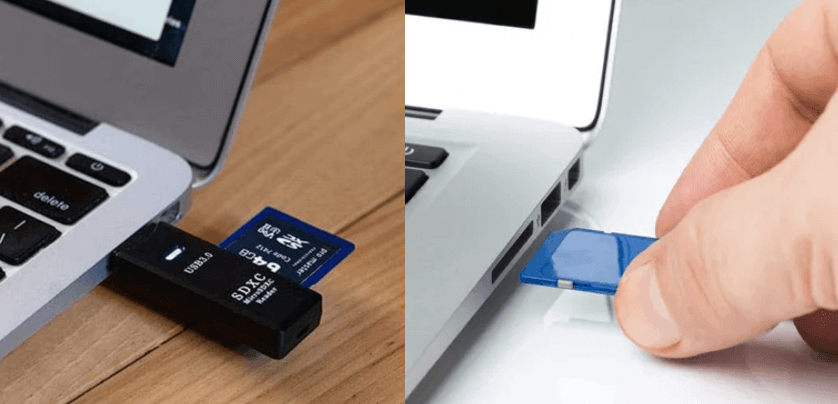
- An SD card reader (built-in or USB adapter)
- A computer (Windows, Mac, or Linux) with at least one free USB port
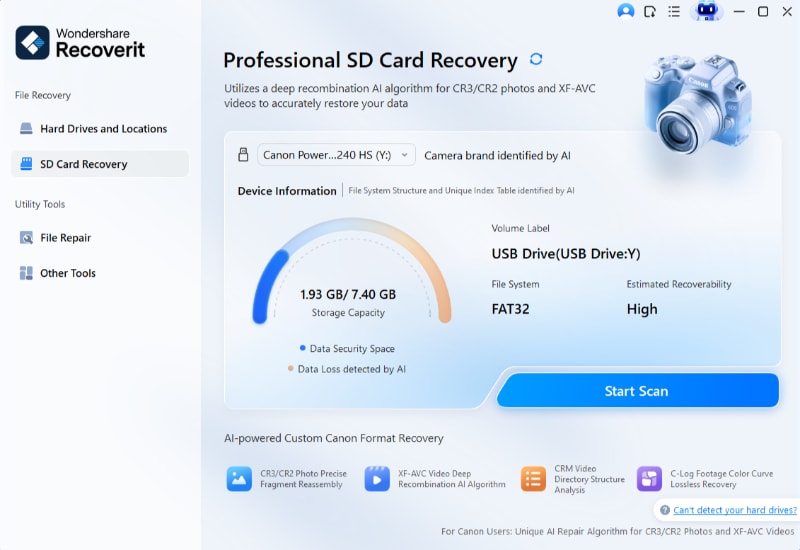
- Free data recovery software like Recuva (Windows) or PhotoRec (cross-platform)
- A PDF repair tool (we’ll cover free online options)
- A separate storage location (hard drive or external drive) to save recovered files — never overwrite the SD card
Step 1: Stop Using the SD Card Immediately
The moment you realize PDFs are missing, eject the SD card and don’t use it again. Every new file saved or deleted can overwrite the space where your deleted PDFs still exist. They’re not gone — just marked as available. Give them a fighting chance by keeping the card idle.
Step 2: Download and Install Recovery Software
For Windows, Recuva is free and beginner-friendly. For any OS, PhotoRec is more powerful but command-line based. Install the program on your computer’s hard drive — not on the SD card. If you already installed something on the card, don’t panic; move Step 1 before install next time.
Open the recovery tool and select the SD card drive letter (e.g., E:) or device. Choose deep scan for best results — it takes longer but finds more files, including PDFs that are partially overwritten.
Step 3: Scan and Recover Your PDFs
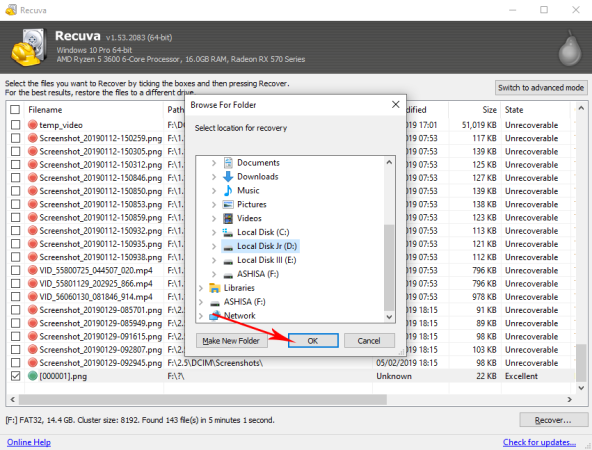
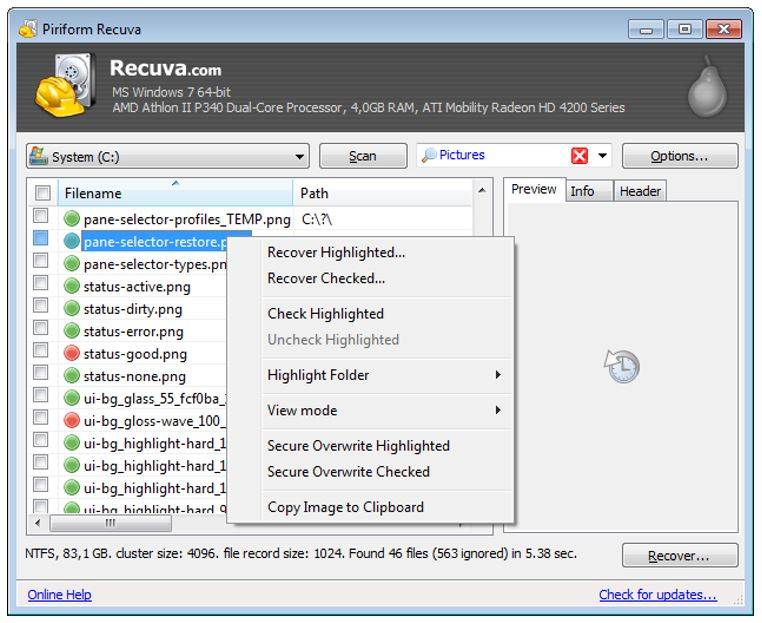
Start the scan. This can take anywhere from a few minutes to an hour depending on card size. Once done, filter results by file type — look for PDFs. Recuva shows a green dot for recoverable files, red for likely lost. Select the PDFs you want and choose a recovery destination on your computer (not the SD card).
If the recovered PDF won’t open, it’s likely corrupted. That’s okay — we’ll fix it next. Also, if the file shows 0 bytes, you’re in luck: we have a guide specifically for that — check out our post on recovering a 0 byte PDF for detailed steps.
Step 4: Repair Corrupted Recovered PDFs
Even after recovery, some PDFs may have read errors or display garbage. Use a free online PDF repair tool (like PDF Repair Online from our earlier guide) or open-source software like PDFtk. Upload the broken file and download a repaired version. If the damage is severe, you might need to extract pages — our guide on repairing a PDF and recovering missing pages can help.
If the file seems completely dead, try recovering text from a corrupted PDF — sometimes the data is still there even if the structure is gone. And if everything fails, don’t give up yet; check our tips for dealing with a PDF that seems damaged beyond repair.
Common Pitfalls
- Saving recovered files back to the same SD card — this overwrites the very data you’re trying to rescue. Always save to a different drive.
- Forgetting to scan as deep as possible — quick scans often miss deleted PDFs. Choose deep/RAW scan even if it takes longer.
- Ignoring preliminary corruption signs — if a recovered PDF looks fine but has missing pages, run it through a repair tool. Don’t assume it’s perfect.
Where to Next
Now that you’ve got your PDFs back, keep them safe! Consider backing up important documents to cloud storage or an external drive. If you frequently work with SD cards, our full guide on repairing a PDF from an SD card covers more advanced scenarios. And if the file is still acting up, try the other repair methods in our blog. Good luck!




