So you’ve got a corrupted PDF sitting on an SD card. Maybe it came from a camera, a drone, or an Android tablet. You try to open it and get an error like ‘File is damaged’ or ‘Could not repair the file’. Frustrating, right? This guide is for anyone who needs to rescue important documents or photos from an SD card. By the end, you’ll have a working PDF that you can open and read.
We’ll walk through a series of steps that start with safe handling of your SD card, then move through free and paid repair methods. Along the way, I’ll show you how to detect the exact problem, use dedicated tools, and even recover the raw text if the file is beyond repair. You don’t need to be a tech wizard — just follow along.
What You’ll Need
- The SD card with the corrupted PDF
- A card reader (if your computer doesn’t have an SD slot)
- A computer running Windows, macOS, or Linux
- A backup of the SD card (optional but highly recommended)
- Internet access for downloading tools
- A PDF repair tool (free or paid — I’ll recommend one below)
Step 1: Remove and Connect the SD Card Safely
First, power down the device that the SD card came from. This prevents any further corruption. Then remove the card and insert it into your computer’s SD slot or a USB card reader. If you’re using a reader, plug it in and wait for the system to recognize the card. Don’t format it or run any disk utilities yet — we just need read access.
Step 2: Copy the PDF to Your Computer
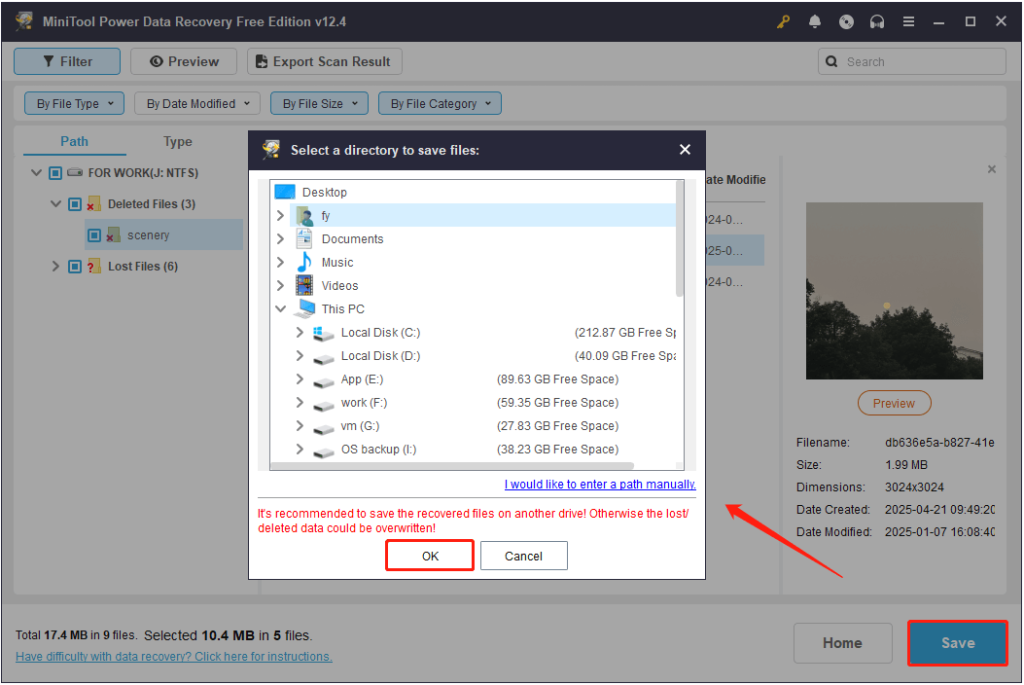
Never work directly on the SD card. Any failed repair attempt could further corrupt the file. Instead, open the SD card in your file explorer, locate the PDF, and copy it to a folder on your computer’s hard drive. If the copy process gives an error, try a tool like ddrescue (free) to clone the card sector by sector. Once the file is on your computer, you can work on it safely.
Step 3: Check for Damage
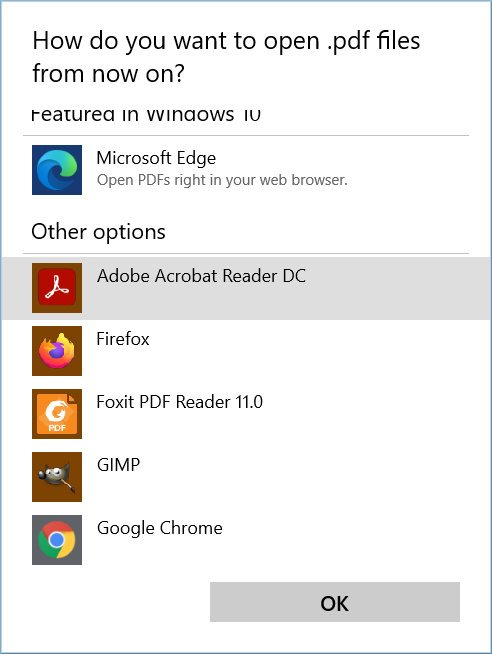
Before you start repairing, it helps to know what’s wrong. Try opening the PDF with a few different readers (Adobe Acrobat, web browser, etc.). If you get a specific error, write it down. You can also use online tools to detect damaged pdf. This will tell you if the problem is a broken header, missing pages, or something else. Knowing the issue will guide your next steps.
Step 4: Use a Free Online Repair Tool
For many corrupted files, a free online tool is all you need. I recommend PDF24. It’s a best free pdf repair tool that works in your browser. Go to pdf24.org, upload your copied PDF, and click ‘Repair’. Wait a few seconds, then download the repaired file. Try opening it. If it works, you’re done! If not, move on to the next step.
Step 5: Try a Desktop Repair Application
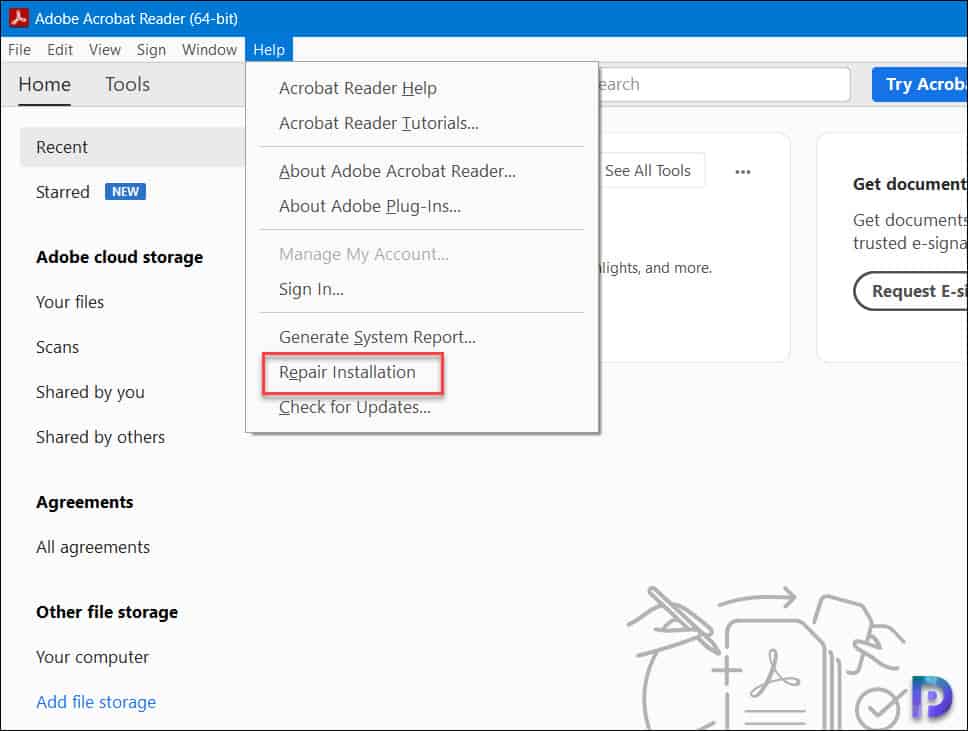
If online tools fail, a desktop application might have more power. If you have Adobe Acrobat Pro, open the file and go to File > Save As Other > Optimized PDF, then click ‘Audit’ and fix errors. Alternatively, try dedicated software like SysTools PDF Repair or Recovery Toolbox for PDF. Many offer free trials. Run a scan and see if it can repair the structure. Sometimes this can repair pdf and recover pages that seemed lost.
Step 6: Recover Text if All Else Fails
When the file is too damaged to repair visually, you may still be able to recover text from corrupted pdf. Tools like PDF Text Extractor or even opening the PDF in a text editor (like Notepad++) can pull out raw text between the garbled code. You’ll lose formatting and images, but you’ll get the content. There are also online services that specialize in this.
Step 7: Repair the PDF Header
A common corruption on SD cards is a damaged header. If your PDF opens as a blank page or gives a ‘Not a PDF’ error, the header might be missing or overwritten. You can try hex editing or use a tool that specializes in pdf header repair. Simply changing the first line to %PDF-1.4 or using a script might fix it. But be careful—back up the original before editing.
Common Pitfalls
- Working directly on the SD card — always copy the file first to avoid further damage.
- Assuming the file is corrupted when it might be a reader issue — always try multiple PDF readers.
- Not backing up the original file — if a repair tool fails, you might lose the original. Keep a copy.
Where to Next
I hope your PDF is now readable! If you ran into trouble with specific errors like ‘EOF marker not found’, check out our guide on fixing pdf after disk error. And remember, for future SD card issues, always eject safely and keep backups. Happy repairing!




