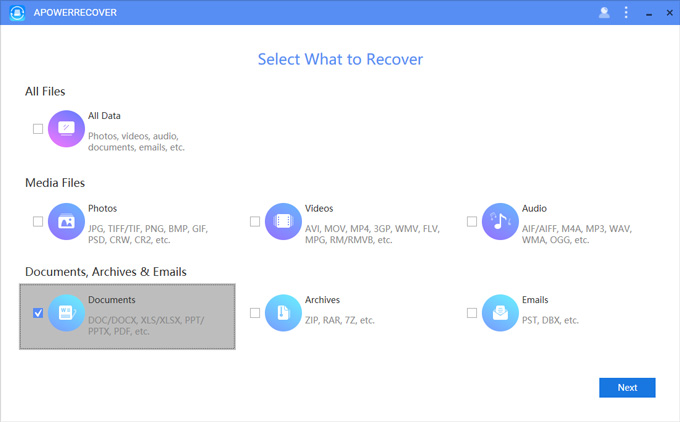
You’ve got a massive PDF file—maybe it’s a 500-page report, a scanned book, or a collection of high-res images—and now it won’t open. The file is too large, corrupted, or just plain stubborn. This guide is for any motivated beginner who’s facing a big PDF that’s gone rogue. By the end, you’ll have a fully recovered PDF (or at least the content you need) using free and affordable tools.
We’ll walk through a series of practical steps, from simple checks to advanced recovery methods. No fancy jargon, just real solutions. Whether your PDF is too big to handle or suffering from corruption, you’ll know exactly what to do.
What You’ll Need
- The large, problematic PDF file (keep the original safe!)
- A backup copy – seriously, make one before trying anything
- A PDF reader like Adobe Acrobat Reader or Foxit
- A PDF repair tool (free options: PDF24 Tools, qpdf; paid: Adobe Acrobat Pro)
- A stable internet connection if using online tools
- At least twice the free disk space of your PDF file size
Step 1: Make a Backup
Before touching anything, copy your large PDF to a safe location. This is crucial because some recovery attempts might damage the file further. Store the backup on a different drive or folder.
Step 2: Try Opening in a Different Viewer
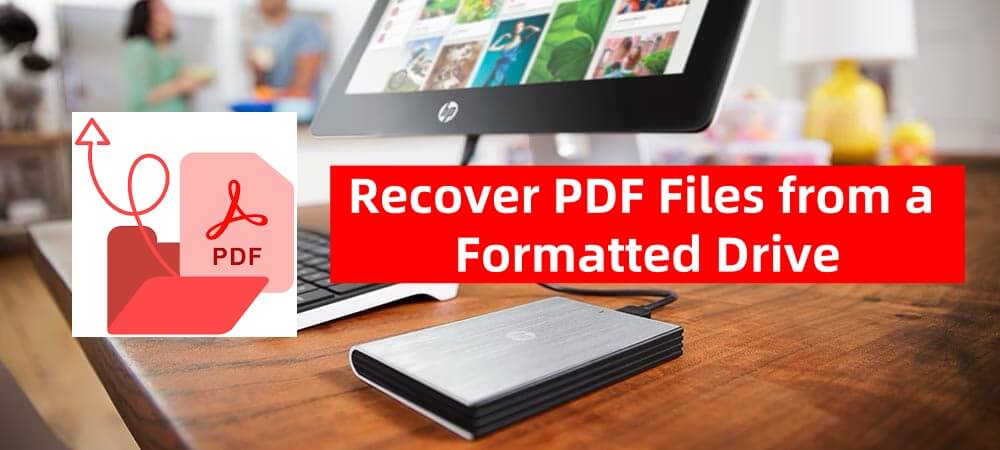
Sometimes the problem is your PDF reader, not the file. Download a free alternative like Foxit Reader or SumatraPDF and try to open the PDF there. If it works, you’ve saved yourself a lot of trouble! If not, move on.
Step 3: Use a Free Online PDF Repair Tool
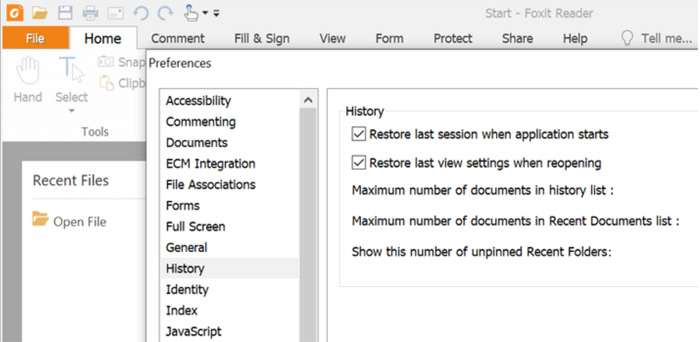
Online tools like PDF24 Tools or iLovePDF can often fix corruption in large files. Simply upload your PDF and let them repair it. Note: big files may take a while to upload, so be patient. For a more robust option, check out the best free PDF repair tool PDF24.
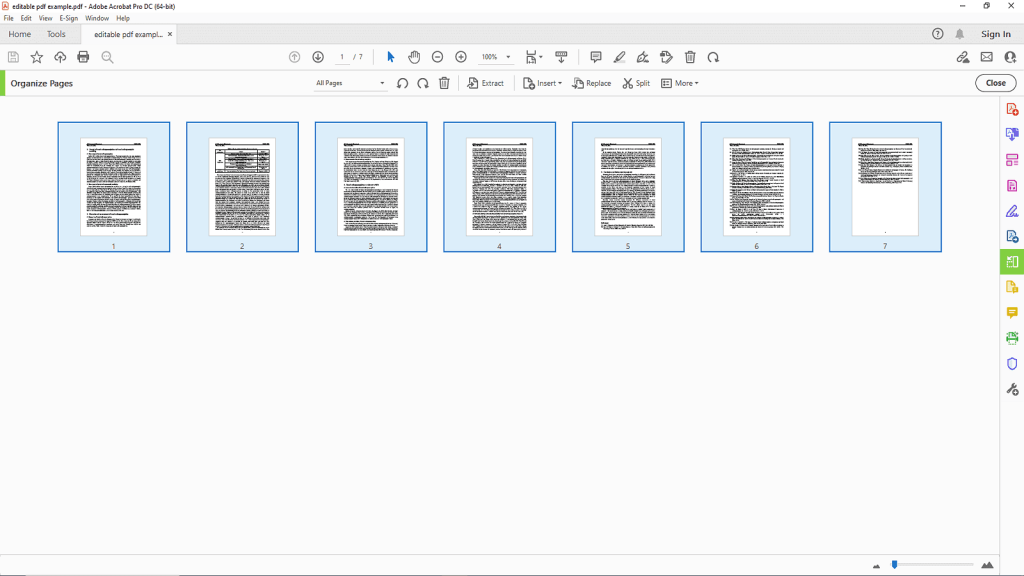
Step 4: Extract Pages from the Large PDF
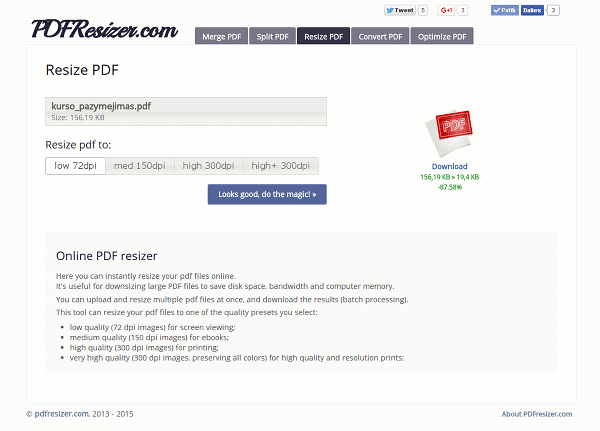
If the file is too large or only partially corrupted, try extracting individual pages. Tools like Adobe Acrobat or online splitters let you extract pages from corrupted PDF. Download them one by one and see which parts are healthy. This can recover most of your content.
Step 5: Repair with Adobe Acrobat Pro
If you have Adobe Acrobat Pro, go to Tools > Protect & Standardize > Optimize Scanned PDF. This can fix structural issues. Also try File > Save As Other > Optimized PDF. This often helps with large file errors. For more serious damage, use the ‘Repair PDF’ option under the PDF Optimizer.
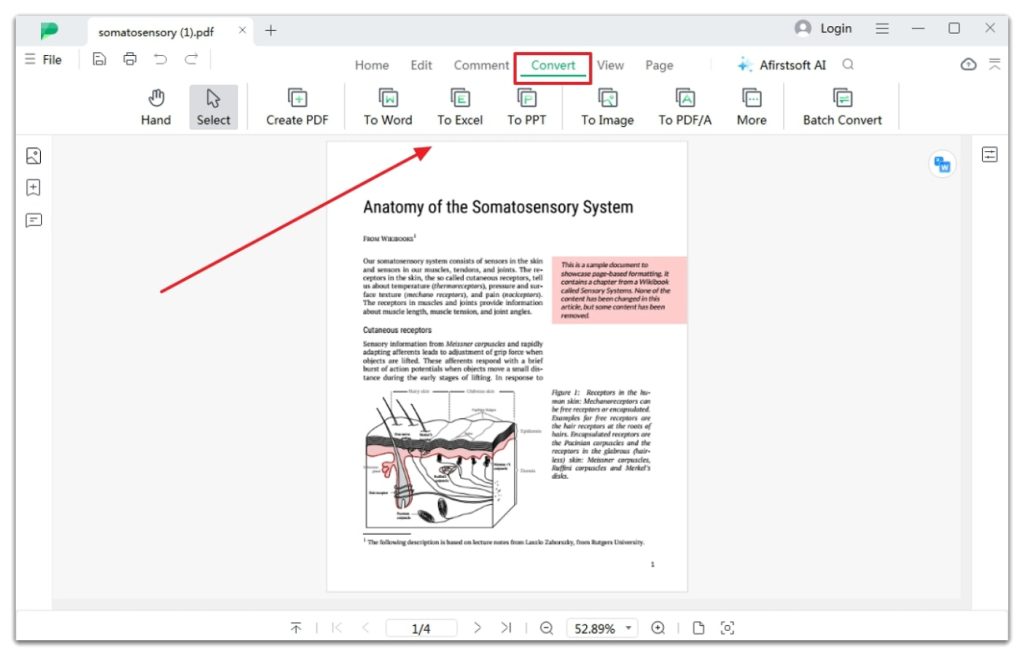
Step 6: Use qpdf for Command-Line Recovery
Tech-savvy? qpdf is a free command-line tool that can recover data from corrupted PDFs. Open a terminal and run: qpdf --linearize input.pdf output.pdf. This forces the file into a more readable format. If that fails, try qpdf --replace-input input.pdf. It works wonders on large files.
Step 7: Fallback – Recover Text from the Large PDF
If the file is too damaged to view, you can recover text from corrupted PDF using tools like pdftotext (from Xpdf) or online OCR services. Even if images are lost, you’ll get the words. This works especially well for scanned documents.
Common Pitfalls
- Skipping the backup – You might make the file worse. Always backup first.
- Using unreliable free tools – Some add watermarks or limit file size. Stick to reputable ones like PDF24 or Adobe.
- Expecting 100% recovery – Large corrupted files may lose formatting, images, or some pages. Aim for the essential content.
Where to Next
You’ve recovered your large PDF, but maybe you’re curious about preventing future issues. Check out our guides on how to repair PDF and recover pages, or learn how to detect a damaged PDF early. For more specific problems, our corrupted PDF repair online guide has you covered.




