If you’ve ever opened a PDF only to see garbled text, missing images, or blank pages, you’re in the right place. This guide is for anyone who has a corrupted PDF and needs to recover the lost pages—whether it’s a work report, a digital book, or a school project. By the end, you’ll have a repaired PDF with all your pages back, using free tools and a few simple steps.
We’ll cover how to assess the damage, create a safe backup, use a reliable repair tool, and then reassemble your document. No fancy software purchases required. Let’s get your PDF back to normal.
What You’ll Need
- The corrupted PDF file (keep the original untouched)
- A PDF repair tool – I recommend PDF24 (free) or Adobe Acrobat (paid)
- A backup location (external drive or cloud storage)
- Basic computer skills (you’ve got this)
- Patience – some repairs take a few minutes
Step 1: Assess the Damage
Before you try to fix anything, check how bad the problem is. Open the PDF in different viewers (like Chrome, Adobe Reader, or SumatraPDF) to see if the corruption is consistent. Note which pages are missing or broken. If you’re unsure what to look for, check out our guide to detect damaged PDF.
Step 2: Create a Backup
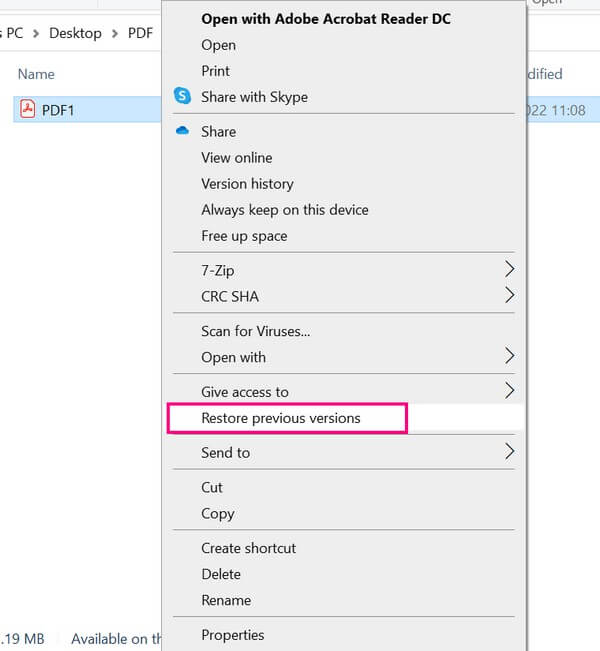
Always work on a copy. Copy the corrupted PDF to a safe location, such as an external hard drive or cloud folder. This ensures you can go back to the original if something goes wrong (and it often does). Name the copy something clear like “original_backup.pdf”.
Step 3: Use a PDF Repair Tool
Now it’s time to fix the file. The easiest free option is PDF24’s online tool – widely regarded as the best free PDF repair tool. Go to pdf24.org, upload your corrupted PDF, and let it process. The tool will attempt to repair the file structure and recover text and images. If you prefer offline software, Adobe Acrobat’s built-in repair feature (File > Save As Other > Optimized PDF) also works well. For severe cases, check our guide to repair PDF after disk error.

Step 4: Recover Pages from the Corrupted PDF
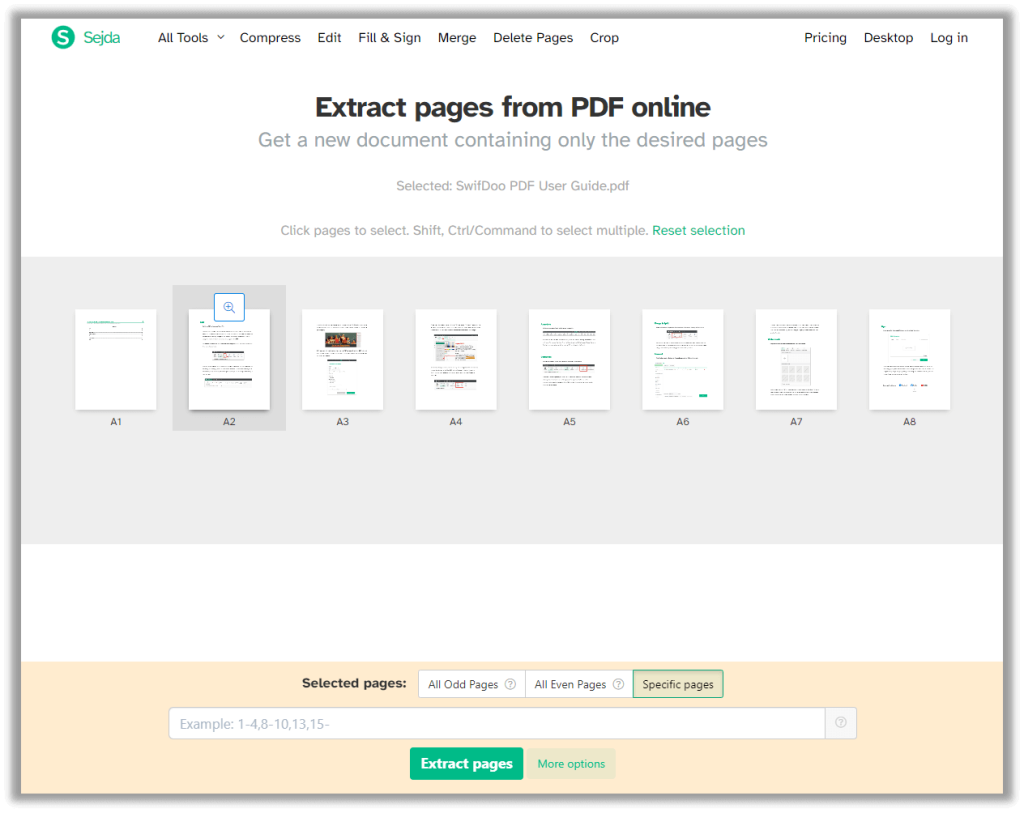
If the repair tool can’t salvage the whole document, you can still recover individual pages. Use a tool like Adobe Acrobat or the free PDFsam to extract pages from corrupted PDF. Open the file, select the pages that are still readable (you might have to try a few ranges), and export them as a new PDF. Alternatively, use the ‘Organize Pages’ feature to remove unreadable ones.
Step 5: Reassemble the Document
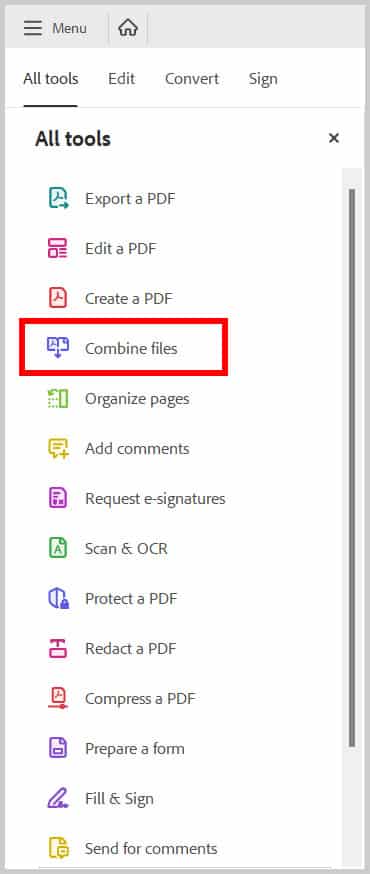
Once you have a repaired version and any individually extracted pages, combine them into a single PDF. In Adobe Acrobat, use the ‘Combine Files’ tool. In free tools, PDFsam or PDF24 can merge PDFs. Arrange the pages in the correct order – this is easier if you numbered them during extraction. If some pages are still missing, you may need to recreate them from scratch or use a snapshot of the original. This is common when dealing with corrupted thesis files – see our guide to fix thesis PDF for more tips.
Common Pitfalls
- Working on the original file instead of a backup – one mistake and you lose everything.
- Using unreliable online tools that might delete your data or inject malware. Stick to trusted options like PDF24 or Acrobat.
- Assuming all pages are recovered – always double-check the final document page by page. Missing headers or footers can hide missing content.
Where to Next
Repairing a PDF and recovering pages can feel like detective work, but with the right tools and a methodical approach, you can save your document. If you run into specific errors like EOF marker issues or font corruption, browse our other tutorials for targeted fixes. And remember – always keep backups!




