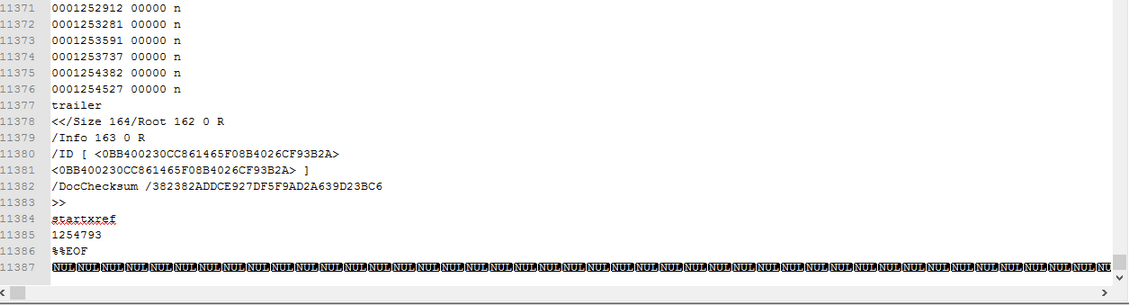
Ever tried opening a PDF and got slapped with ‘startxref not found’? That’s your PDF throwing a tantrum because the cross-reference table at the end of the file got corrupted or truncated. This usually happens after a crash, a bad download, or a disk error. But don’t panic—this guide is for you if you’re a beginner who just wants the damn file back. By the end, you’ll have your PDF repaired (or at least the text recovered) using free tools and a tiny bit of hands-on editing.
We’ll start with the easiest method—online repair—then move to manual fixes if that doesn’t cut it. I’ll also show you how to recover the text even if the structure is toast. No prior experience needed, just follow along.
What You’ll Need
- A computer running Windows, macOS, or Linux
- A hex editor (I’ll recommend a free one for each OS)
- The broken PDF file (obviously)
- Optional: a backup of the corrupted file (just in case)
- An internet connection for the online repair step
Step 1: Try a Quick Online Repair
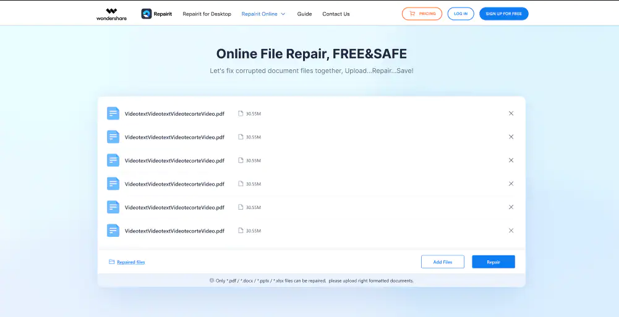
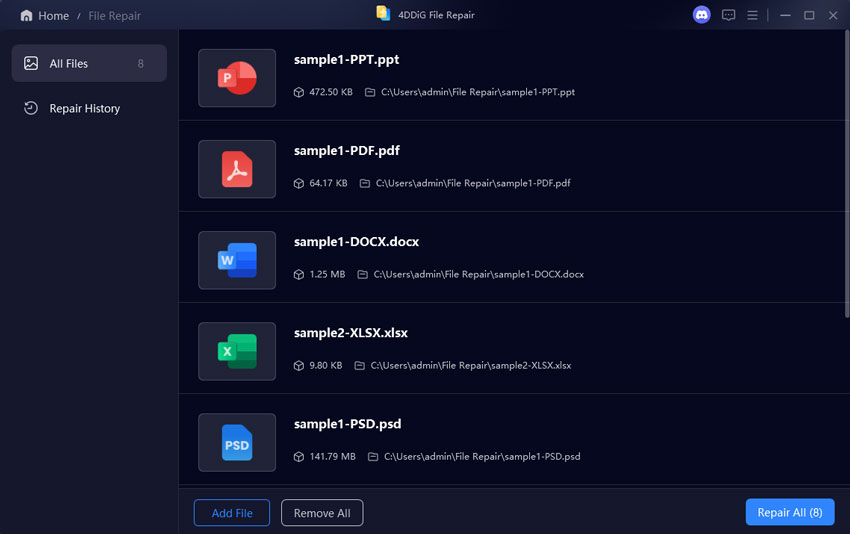
Sometimes a simple online tool can fix the ‘startxref not found’ error because it rebuilds the cross-reference table from scratch. Go to a reputable pdf repair online service (I’ll link one in the internal links). Upload your file, wait a minute, and download the repaired version. If that works, you’re done. If not, move to Step 2.
Step 2: Open the PDF in a Text Editor to Check Damage
PDFs are text-heavy at the start and end. Open the corrupted file in a plain text editor (like Notepad on Windows or TextEdit on Mac). Scroll to the very end. You should see something like ‘%%EOF’. If it’s missing or followed by garbage, that’s the issue. Also look for ‘startxref’ a few lines above ‘%%EOF’. If ‘startxref’ is there but the number is wrong, we can fix that manually.
Step 3: Use a Hex Editor to Fix the Cross-Reference Table
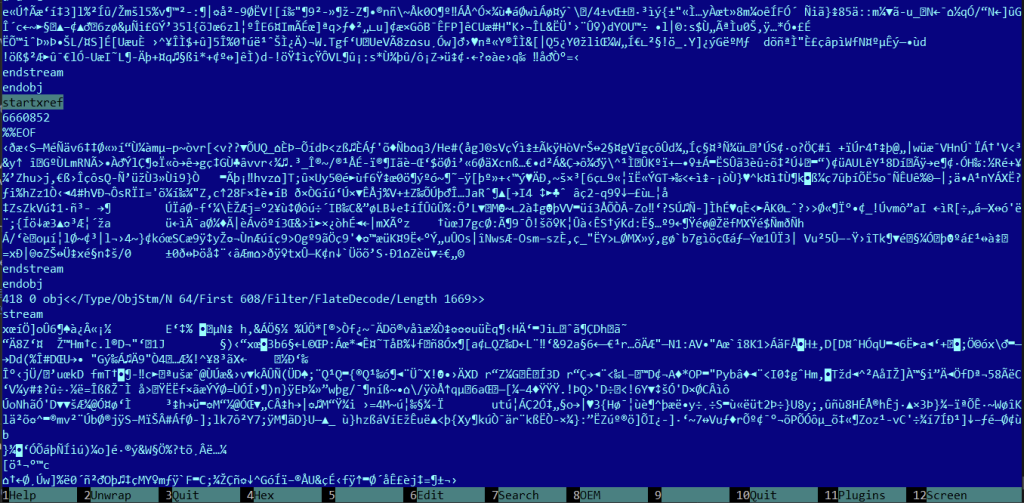
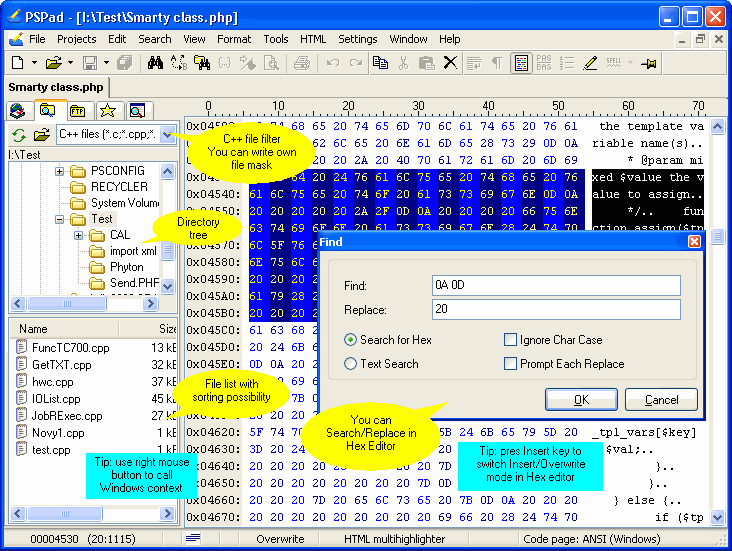
If the text editor approach didn’t work, we’ll go deeper. Download a hex editor (e.g., HxD for Windows, 0xED for Mac, or hexedit for Linux). Open your PDF in the hex editor. Look for the start of the ‘xref’ section near the end of the file. It should start with ‘xrefrn’ (or ‘xrefn’). If it’s missing or garbled, you can try to reconstruct it.
A simpler approach: delete everything after the last visible object that looks correct. The PDF specification allows you to remove trailing junk. In the hex editor, locate the last ‘endobj’ tag. Delete everything after it. Then manually add ‘startxref’ followed by the byte offset of the ‘xref’ keyword (needs calculation) and ‘%%EOF’. This is tricky—see the next step for a smarter way.
Step 4: Use a Dedicated PDF Repair Tool (Command Line)
If manual hex editing feels overwhelming, grab a tool like ‘pdftotext’ (from Xpdf) or ‘qpdf’. These can extract content from even broken PDFs. Open a terminal (Command Prompt on Windows) and run: ‘qpdf –linearize corrupted.pdf repaired.pdf’. This often regenerates the cross-reference table and fixes the ‘startxref not found’ error. If qpdf throws an error, try ‘pdftotext corrupted.pdf output.txt’ to at least recover the text. You can then convert the text back to PDF if needed.
Step 5: Recover Data Using PDF Stream Extraction
When all else fails, it’s time to recover text from corrupted pdf by extracting raw streams. Tools like ‘pdf-parser.py’ (from Didier Stevens) can pull out all objects. Run ‘pdf-parser.py -o 0 corrupted.pdf’ to list objects. Look for streams containing compressed content. You can decompress them with ‘pdf-parser.py -f corrupted.pdf > output.txt’. This yields raw text, sometimes with metadata. Another approach is to use a hex editor to manually copy any readable fragments. For images, you might find JPEG headers and save them separately.
Common Pitfalls
- Editing the hex wrong: One wrong byte can destroy the entire file. Always work on a copy.
- Assuming online tools are safe: Some free online repair tools may upload your file to servers you don’t trust. For sensitive documents, use offline methods.
- Thinking the error is always at the end: Sometimes ‘startxref not found’ happens because the xref table is missing entirely, not just corrupted. In that case, you need to rebuild the table using a tool like qpdf, which is covered in Step 4.
Where to Next
You’ve made it through the grittiest part of PDF repair. Now that you know how to handle a missing startxref, check out these related guides to bolster your repair skills: learn how to fix pdf eof marker when that’s the issue, dive into pdf header repair for corrupt headers, or explore how to repair pdf and recover pages if your PDF is missing content. And if you’re dealing with hefty documents, our recover text from corrupted pdf guide has more advanced techniques. Happy repairing!




