Hey there! So you’ve got a PDF file that just won’t open, or maybe it opens but looks like a garbled mess. Don’t panic — this happens to the best of us. Whether it’s a corrupted download, a failed save, or a disk error, broken PDFs are surprisingly fixable. In this guide, I’ll walk you through several methods to recover your file, from quick online fixes to more hands-on approaches. By the end, you’ll have a working PDF (or at least its text content) back in your hands.
This tutorial is for anyone who’s ever seen a scary error like ‘PDF file is damaged and could not be repaired’ or ‘startxref not found’ — we’ve all been there. You don’t need to be a tech wizard; just follow along step by step. I’ll cover free online tools, desktop software, and a couple of manual tricks. Let’s get your PDF back!
What You’ll Need
- Your broken PDF file (obviously!)
- A backup copy if you have one (just in case)
- Internet connection (for online tools)
- A PDF repair tool — I’ll recommend free ones like PDF Repair Toolbox or IlovePDF
- Optional: A PDF viewer like Adobe Acrobat or Foxit Reader for testing
- Patience — recovery isn’t always instant
Step 1: Try a Quick Online PDF Repair
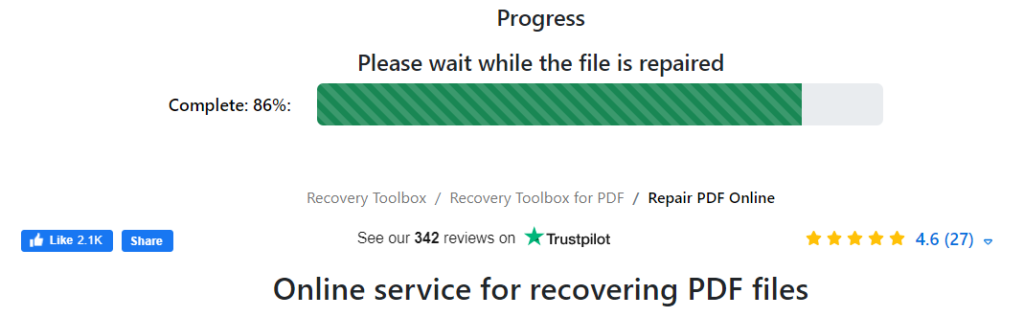
The easiest first step is to use an online PDF repair tool. Services like IlovePDF, Smallpdf, or PDF24 can fix minor corruption without you installing anything. Head to one of these sites, upload your broken file, and let them work their magic. Most of these tools are free for small files and give you a repaired download in seconds. If you’re lucky, that’s all you need!
Online tools are great for quick fixes, but they have limits — they might not handle severe corruption or large files. If this step fails, don’t worry. Move to the next one.
Step 2: Use a Dedicated PDF Repair Software
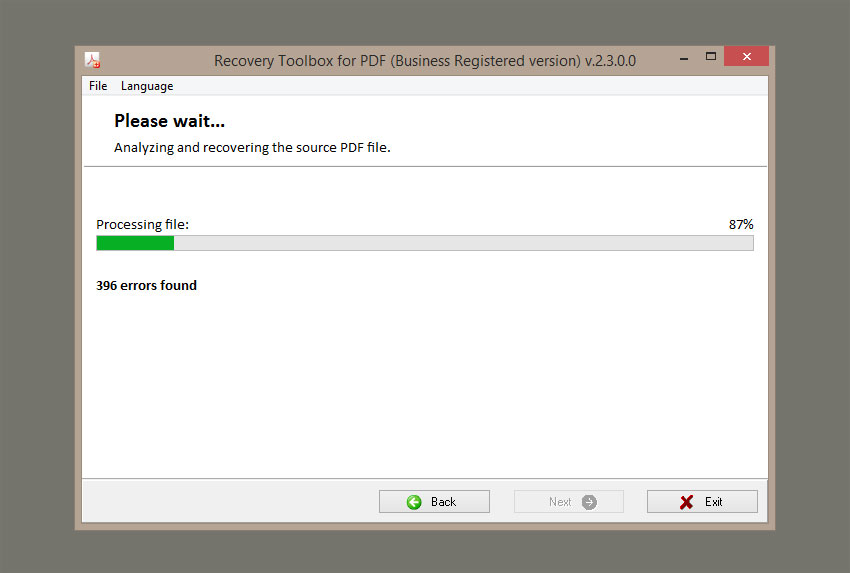
When online tools aren’t enough, dedicated software offers more power. Programs like PDF Repair Toolbox (free for basic use) or Recoll (free and open-source) can dig deeper. Download and install one, then open the corrupted PDF. The software will scan and attempt to reconstruct the file structure. Some tools even let you extract pages or objects individually. Be patient — this can take a few minutes for large files.
One important tip: always save the repaired file with a new name to avoid overwriting the original. If the software fails, don’t give up — you can try recovering text directly from the raw data.
Step 3: Recover Text from the Corrupted PDF
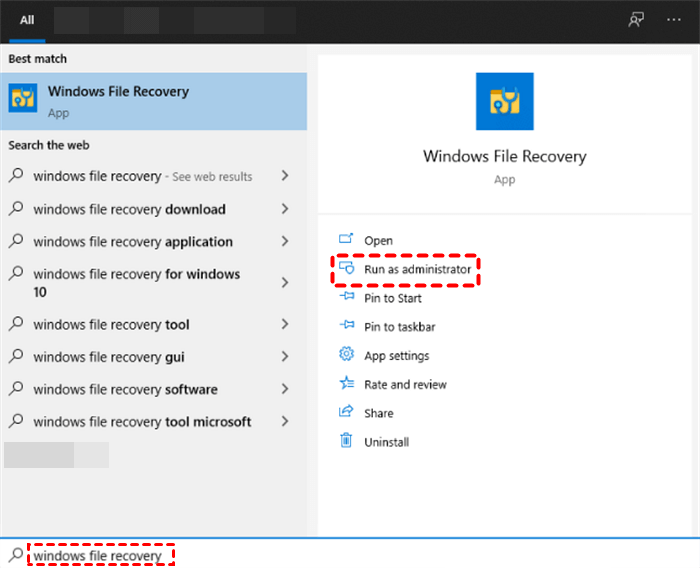
If the structure is too damaged, you might still be able to recover text from a corrupted PDF. Tools like pdftotext (part of Xpdf) or online extractors can pull readable text out of the wreckage. Even if the file won’t open normally, the raw text data often survives. Run the extraction tool on the broken file – you’ll likely get a text file with most of the content, though formatting may be lost.
This method is especially helpful for document-heavy PDFs like reports or theses. You can then paste the text into Word or Google Docs and rebuild the layout. It’s not perfect, but it’s way better than losing everything.
Step 4: Manual Hex Editing (Advanced)
For the brave, a hexadecimal editor can fix specific corruption like a broken PDF header or missing EOF marker. If you know the PDF structure, you can use a tool like HxD to open the file and correct header bytes or add the ‘%%EOF’ trailer. This is technical but can save a file when nothing else works. I’d only recommend this if you’re comfortable with hex and have already tried the easier steps. For a guided approach, check out our article on PDF header repair.
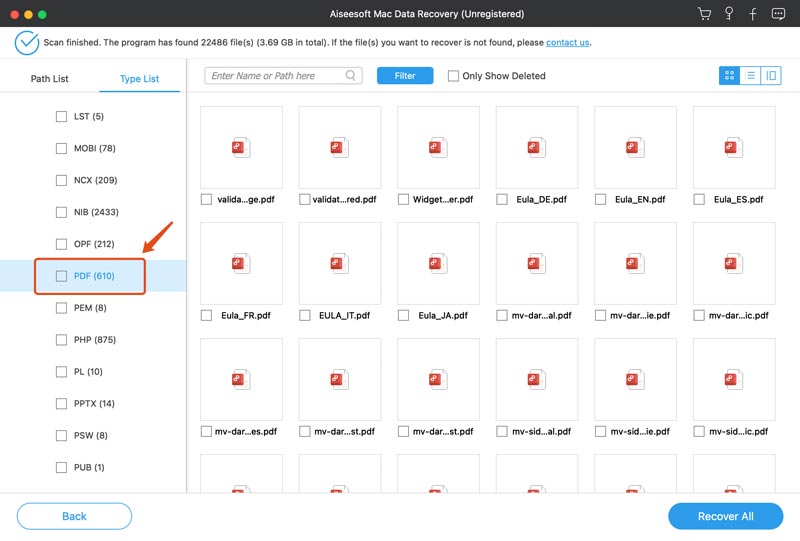
Before editing, always make a copy of the broken file. One wrong byte can make things worse. If you’re not sure what to look for, stick to the earlier steps.
Common Pitfalls
- Overwriting the original file before the repair is confirmed. Always work on a copy!
- Using an online tool for a huge PDF (over 100 MB) — many free services have file size limits. Use desktop software instead.
- Assuming the file is beyond repair after one failed attempt. Try multiple tools and methods — often one works when others don’t.
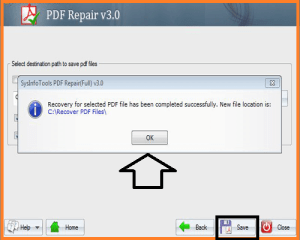
Remember, even if you can’t recover the full PDF, you can often recover text or images. Don’t give up too soon.
Where to Next
Now that you’ve got your PDF back (or at least its content), you might want to prevent future corruption. Regularly back up important files, and avoid interrupting downloads or saves. If you’re still stuck with a stubborn file, check out our guides on how to detect a damaged PDF or fix a PDF EOF marker. And if you ever need to recover text from a corrupted PDF, we’ve got you covered. Happy repairing!




