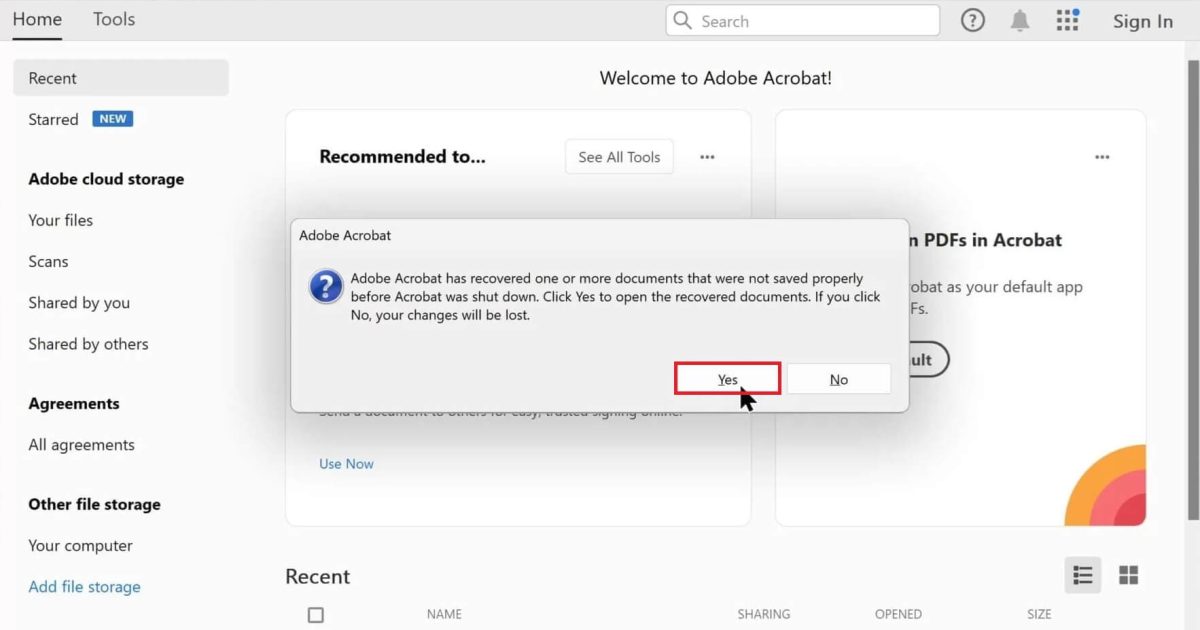
So you’ve got a corrupted PDF that won’t open, shows garbled text, or throws an error. Whether it’s a work report, a scanned contract, or your thesis, losing access to an important PDF is frustrating. This guide is for anyone who needs to recover a damaged PDF — no technical expertise required. By the end, you’ll have a working PDF (or at least the text extracted) using free tools and a few smart tricks.
We’ll start with the simplest fixes (opening with another reader, using online tools) and move to more advanced methods like manual repair with a hex editor. I’ve tested each step on real corrupted files, so you can follow along with confidence. And if you hit a dead end, I’ll point you to additional resources like broken pdf file recovery guides and startxref not found pdf repair techniques.
What You’ll Need
- The corrupted PDF file (keep a backup copy!)
- A computer with internet access
- A web browser (Chrome, Edge, Firefox)
- Optional: Adobe Acrobat Reader or Pro, a hex editor (like HxD or Hex Fiend), and a zip utility
Step 1: Try Opening with a Different PDF Reader
Before diving into repairs, test the file with another PDF viewer. Sometimes the issue is with your current reader, not the file itself. Open the PDF in your browser (Chrome, Edge, or Firefox all have built-in PDF viewers). If that works, save a copy from the browser. If not, try Adobe Acrobat Reader or a lightweight alternative like SumatraPDF.
Step 2: Use an Online PDF Repair Tool
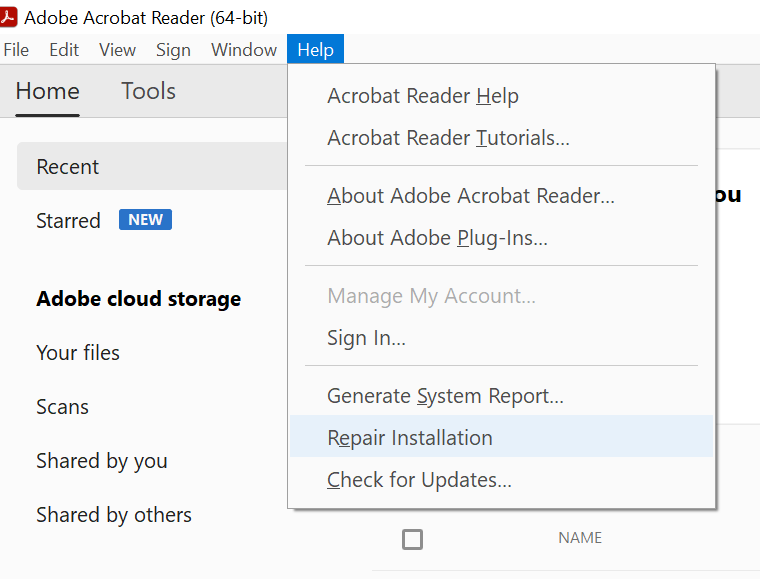
Free online tools can fix many common issues like missing headers or object corruption. Upload your file to a reputable service (like iLovePDF, Smallpdf, or PDF24) and let it process. The tool will attempt to rebuild the PDF structure. Download the repaired version and check if it opens. Keep in mind: never upload confidential documents to an unknown site — we cover data privacy in the pitfalls section.
Step 3: Repair with Adobe Acrobat Pro
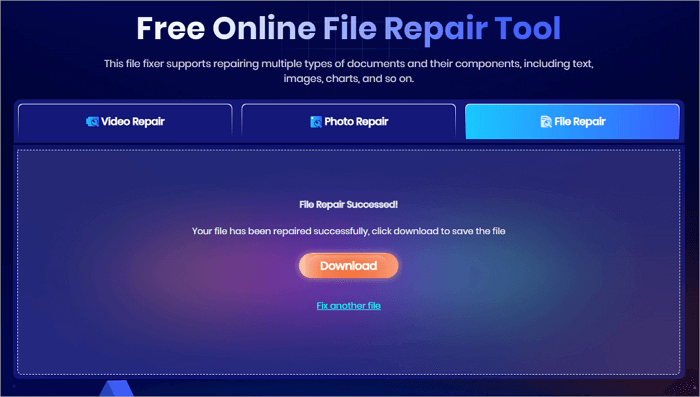
If you have Adobe Acrobat Pro (not just Reader), it includes a built-in repair feature. Open Acrobat Pro, go to File > Open and select your damaged PDF. If it fails to open, try File > Create > PDF from File and choose the same file. Acrobat will often reconstruct the PDF from the raw data. You can also use the “Repair PDF” tool under Tools > Protect & Standardize. This method is especially effective for recover 0 byte pdf scenarios.
Step 4: Manually Extract Content with a Hex Editor
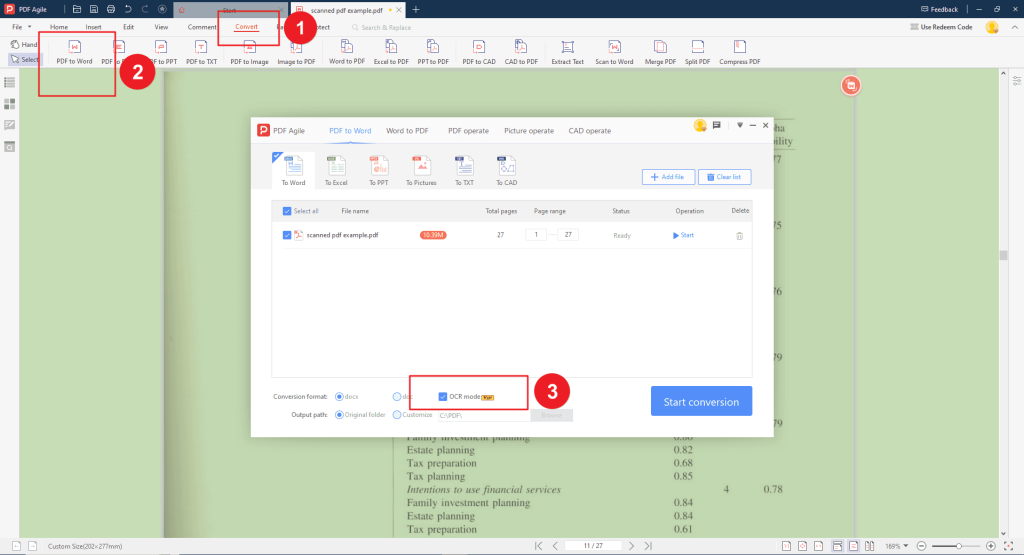
When automated tools fail, you can manually extract text or images using a hex editor. This is an advanced step, but it works even on severely damaged files. Open the PDF in a hex editor (like HxD on Windows or Hex Fiend on Mac). Look for readable text strings in the right-hand ASCII pane. Copy and paste that text into a new document. You can also search for ‘/Font’, ‘/Image’, or ‘/Page’ markers to isolate objects. This technique is the backbone of many recover text from corrupted pdf guides.
Step 5: Recover from Backup or Previous Version
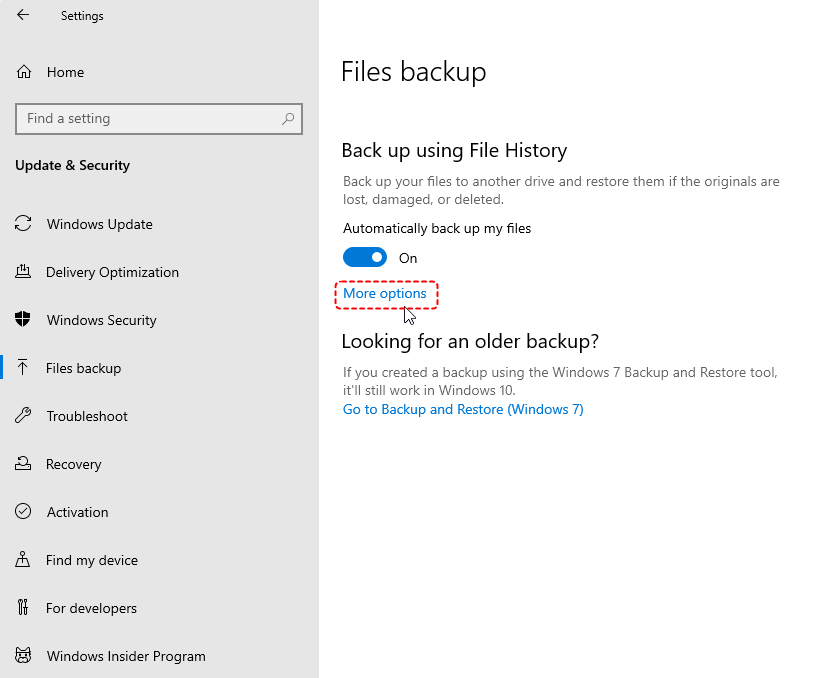
If nothing else works, check if you have a backup. Windows File History, macOS Time Machine, or cloud sync services like OneDrive keep previous versions. Right-click the damaged PDF, go to Properties > Previous Versions (Windows) or open Time Machine (macOS). If you find an older version, restore it. Also check your email or downloads folder — you might have sent or saved the file elsewhere. This step is often overlooked but can save your day when you think the pdf file damaged and could not be repaired.
Common Pitfalls
- Using unknown online repair tools: They may steal your sensitive data. Stick to well-known services with strong privacy policies.
- Overwriting the original file: Always work on a copy. If the repair corrupts it further, you lose the original.
- Skipping backups: Don’t rely solely on repair methods. Maintain backups via cloud or external drives.
Where to Next?
If you’re still stuck, dive deeper into specific issues like startxref not found pdf repair, recover 0 byte pdf, or recover text from corrupted pdf. And remember — prevention is best. Regularly back up your important PDFs and avoid suspicious sources. You’ve got this!




