So ransomware hit your computer, and now your precious PDFs are either encrypted, renamed, or just plain gone. Maybe it’s tax returns, a thesis, or a signed contract—whatever it is, you want it back. This guide is for anyone who’s dealing with a ransomware aftermath and needs to recover their PDF files without paying a cent to the attackers. By the end, you’ll have tried a handful of practical methods—from checking backups to using specialized recovery tools—and hopefully have your documents in hand again.
We’re going to keep things casual and straight to the point. No scare-tactic warnings, just steps that work. Ransomware can feel like a nightmare, but PDFs are actually one of the easier file types to recover because of their structure and the variety of recovery tools available. Let’s get started.
What You’ll Need
- A separate (clean) computer or external drive to work from—don’t install tools on the infected machine yet.
- Your original backup drive or cloud backup credentials, if you have one.
- A USB drive or external hard drive to store recovered files.
- Data recovery software (like Recuva, EaseUS Data Recovery Wizard, or Disk Drill).
- PDF repair software (e.g., Stellar Repair for PDF, Adobe Acrobat Pro, or online tools).
- Patience and a bit of luck.
Step 1: Disconnect and Assess the Damage
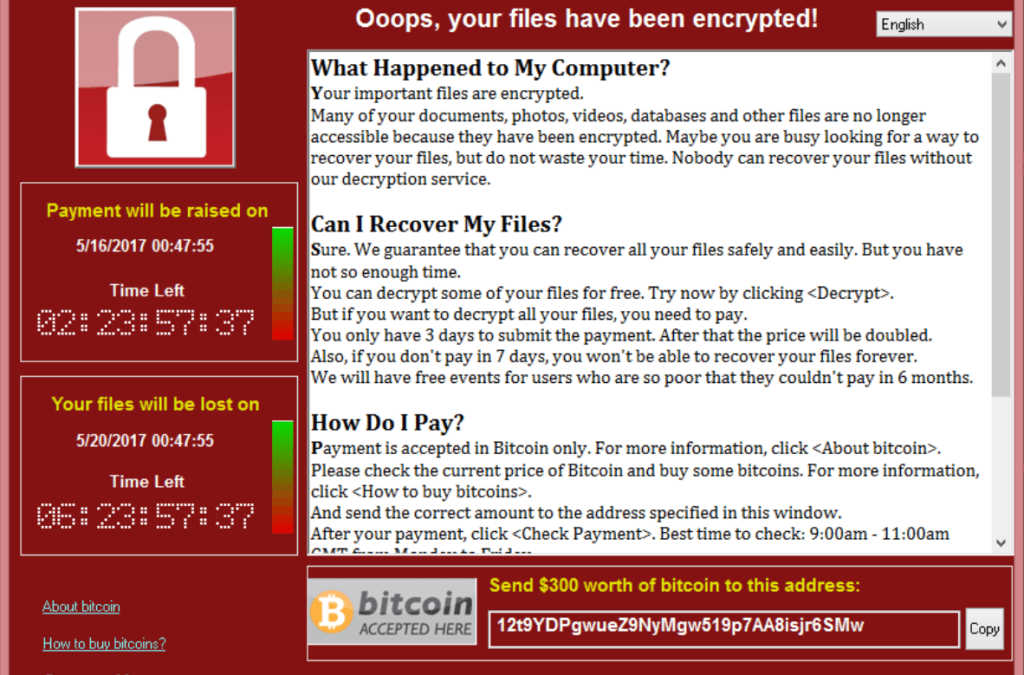
First things first—unplug your computer from the internet. Yank the Ethernet cable or turn off Wi-Fi. If it’s a desktop, power it down safely (hold the power button if you have to). Ransomware may still be encrypting files or communicating with its command server. Then boot from a bootable USB with a live Linux environment or a Windows PE to avoid triggering the ransomware again. Once you’re on a clean OS, note what kind of ransomware you’re dealing with (check the ransom note or file extensions). Some strains only lock specific file types—PDFs are common targets.
Step 2: Restore from a Backup
If you have any kind of backup—cloud (Google Drive, Dropbox, Backblaze) or local (external drive, NAS)—this is your best bet. Connect your external backup drive to the clean computer and look for your PDFs. Ransomware often deletes or renames shadow copies, so even Windows File History might have been wiped. But don’t skip this step: check your cloud’s version history. Many cloud services keep previous versions. For example, use the “recover pdf document” guide for more detail if your cloud backup has the files but they’re corrupted. If you find a clean copy, copy it to a new folder and verify it opens.
Step 3: Try File Recovery Tools for Deleted PDFs
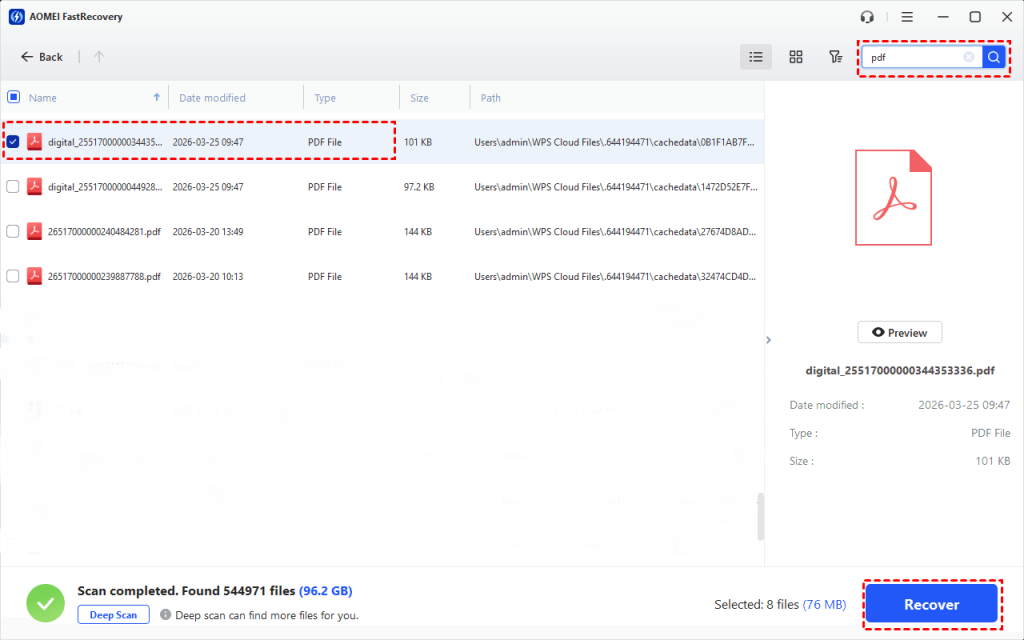
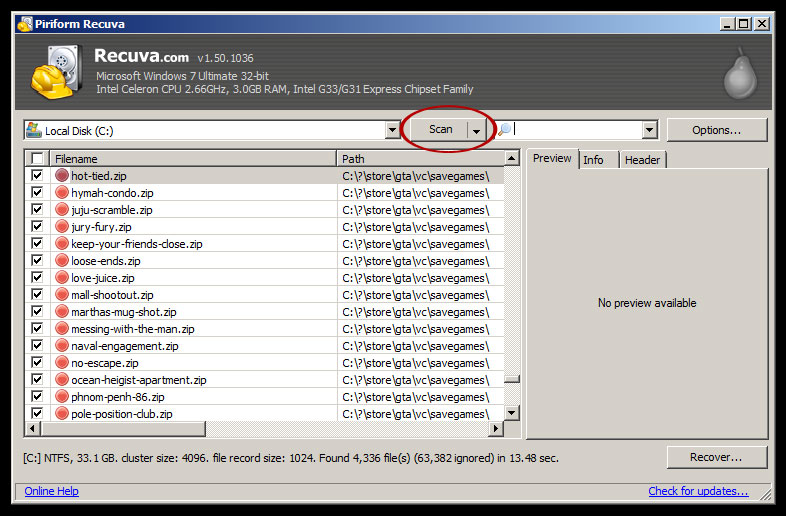
Ransomware often deletes original files after encrypting them, but the data may still exist on the drive until overwritten. Boot from a clean system and run a recovery tool like Recuva or EaseUS. Select the drive where the PDFs were stored and scan for deleted files. Look for PDFs that have their original names or the ransomware’s encrypted versions (e.g., .encrypted, .locked). If you find the originals, recover them to a different drive immediately. This technique works best if you act soon—every write to the drive reduces chances. For a deeper dive on recovering deleted PDFs from external media, see our “recover pdf from sd card” guide—the same principles apply to hard drives.
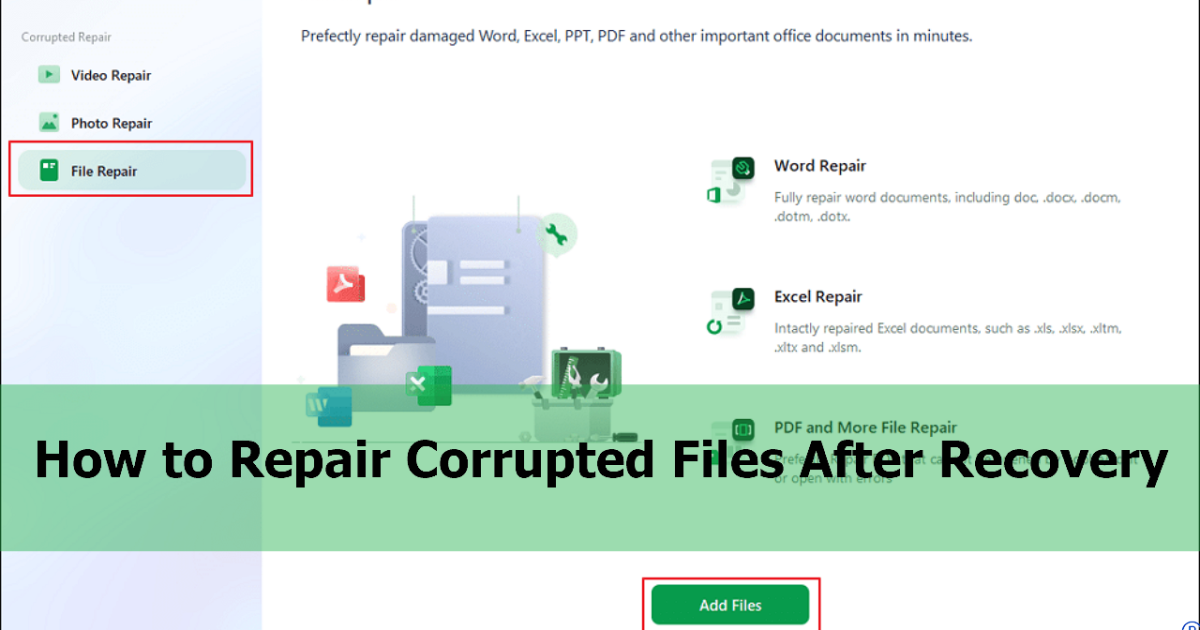
Step 4: Use PDF Repair Software on Encrypted Copies
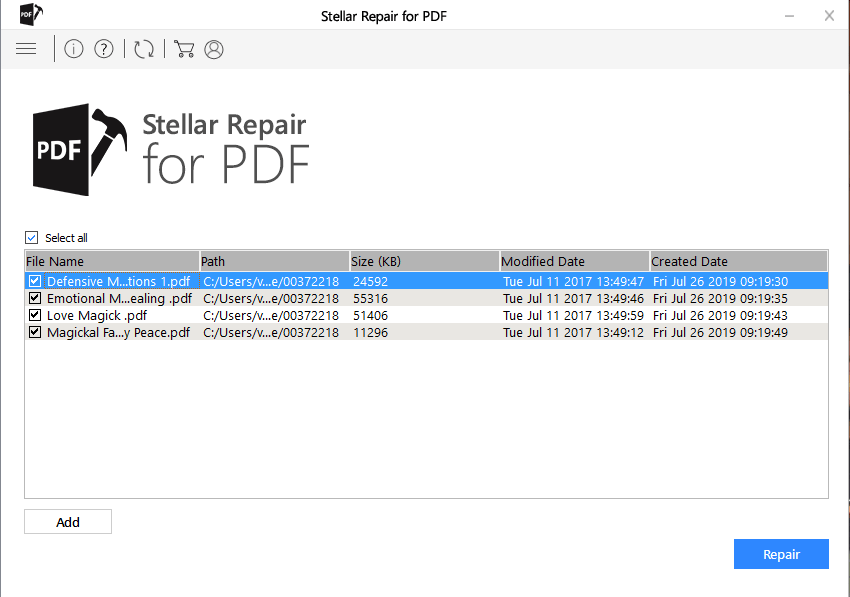
If all you have are the encrypted files, don’t give up—some ransomware strains only encrypt the file header or a portion of the data, leaving the rest intact. You can try to repair the damaged PDF using specialized tools. Download Stellar Repair for PDF or Adobe Acrobat Pro on your clean machine, and load the encrypted file. These tools can reconstruct the file structure and recover readable content. Check the “broken pdf file recovery” guide for a detailed walkthrough—it covers techniques that work even on massively corrupted files. If the PDF is completely encrypted (unreadable), you might need to wait for a decryptor; check No More Ransom project. But often, partial recovery is possible.
Step 5: Try Online PDF Recovery (Last Resort)
If desktop tools fail, you can upload the encrypted file to an online PDF repair service. These services often have robust algorithms that can strip ransomware headers and rebuild the PDF. Use a trusted site (like pdfrepairs.click’s own tool or other reputable options). Be cautious—uploading sensitive documents to third parties always carries risk. For a list of safe online tools, see our “pdf repair online” guide. And if the ransomware corrupted the PDF’s internal markers (like the EOF marker), the “fix pdf eof marker” technique might be exactly what you need to salvage the file manually.
Common Pitfalls
- Installing recovery tools on the infected drive. This overwrites the very data you’re trying to recover. Always use a separate clean system or bootable USB.
- Paying the ransom. Even if you pay, there’s no guarantee you’ll get the files back—and you’re funding cybercrime. Focus on technical recovery first.
- Waiting too long to recover. The longer you wait, the higher the chance that deleted files get overwritten by normal Windows operations. Act immediately.
Where to Next
Once you’ve recovered your PDFs, make sure to store them in multiple safe locations—a local external drive and an encrypted cloud backup. Ransomware doesn’t have to be a total loss if you’re prepared. Check out our other guides for more PDF repair scenarios, like fixing a damaged PDF from a hard drive or recovering a 0 byte PDF. Stay safe out there.




