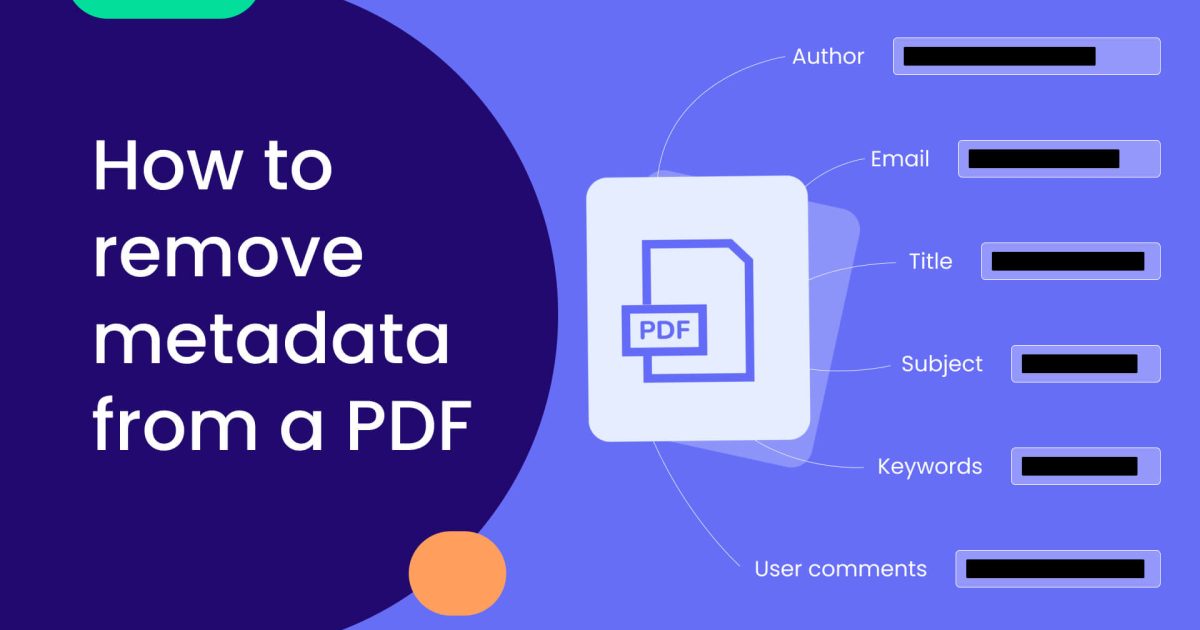
Ever opened a PDF only to find the title says ‘Untitled’ or the author is missing? You’re not alone. PDF metadata – things like title, author, subject, and keywords – can get stripped or corrupted when files are emailed, downloaded, or improperly edited. This guide is for anyone who needs to restore that metadata, whether you’re organizing a library of documents, preparing files for work, or just want your PDFs to look professional again.
By the end of this tutorial, you’ll have the skills to view, edit, and restore PDF metadata using free, cross-platform tools. No expensive software required. We’ll use ExifTool, a powerful command-line utility, but I’ll walk you through every step so you don’t need to be a tech wizard. Let’s fix that metadata!
What You’ll Need
- A computer running Windows, macOS, or Linux
- A PDF file with missing or incorrect metadata (we’ll use a sample called ‘report.pdf’)
- ExifTool – free download from exiftool.org
- Basic comfort with opening a command prompt or terminal
- A backup of your original PDF (just in case)
Step 1: Download and Install ExifTool
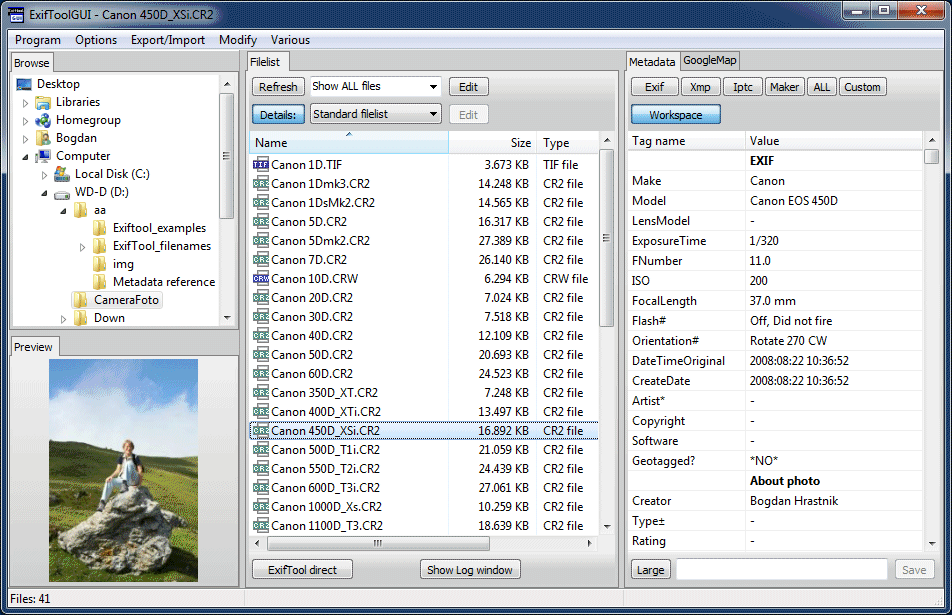
First, head over to exiftool.org and download the version for your operating system. For Windows, grab the ‘Windows Executable’ zip file. For macOS or Linux, you can use the Perl package or install via a package manager like Homebrew (macOS) or apt (Linux). Extract the downloaded file to a folder, like ‘C:exiftool’ on Windows, or just place the executable anywhere convenient.
Step 2: Back Up Your Original PDF
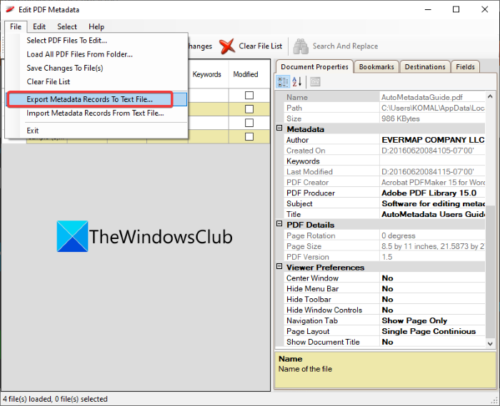
Before messing with metadata, make a backup copy of your PDF. Simply copy the file and rename it something like ‘original_report.pdf’. Store it in a different folder or add a ‘backup’ prefix. This way, if something goes wrong (unlikely, but better safe), you can always restore the original. Speaking of restoration, if you ever need to recover a whole document, check out our guide on how to recover pdf document.
Step 3: Open Your Command Prompt or Terminal
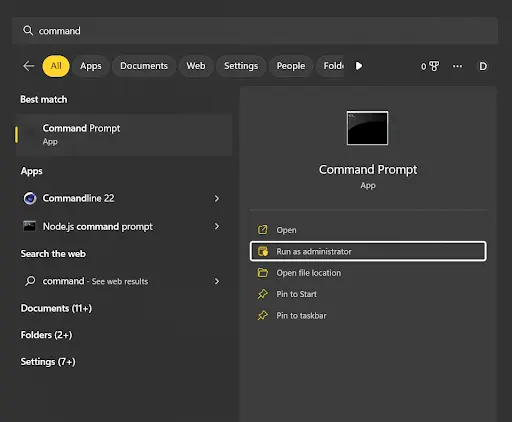
On Windows, press Win+R, type ‘cmd’, and hit Enter. On macOS, open Terminal from Applications > Utilities. On Linux, use your preferred terminal emulator. This is where you’ll run ExifTool commands. Don’t worry – they’re simple once you get the hang of them. If you’d rather use a graphical interface, there are tools like pdf repair online, but we’ll stick with the command line for full control.
Step 4: View Current Metadata
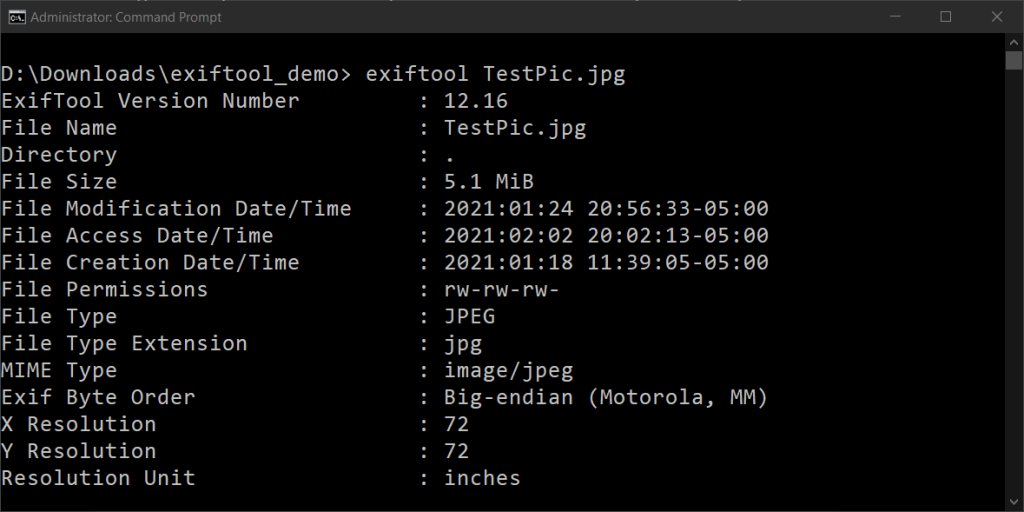
Navigate to the folder containing your PDF using the ‘cd’ command (e.g., ‘cd C:UsersYourNameDocuments’). Then run: exiftool report.pdf (or the path to exiftool if not in PATH). You’ll see a long list of metadata fields. Look for Title, Author, Subject, etc. If they’re missing, the fields will show as empty or won’t appear. This step confirms what you need to restore.
Step 5: Restore or Edit Metadata
Now to write new metadata. Use the -Title, -Author, -Subject, and -Keywords parameters. For example: exiftool -Title=”Annual Report 2025″ -Author=”John Doe” -Subject=”Financial Summary” report.pdf. This command updates the existing file. ExifTool automatically creates a backup of the original with ‘_original’ appended. If you want to remove a field, set it to an empty string. For scanned PDFs, you might need to repair scanned pdf first if the text is inaccessible.
Step 6: Verify the Changes
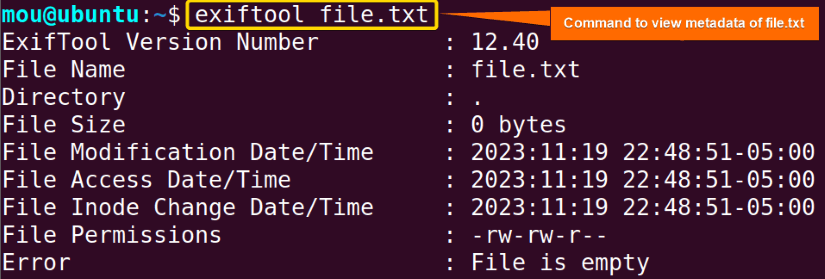
Run exiftool report.pdf again to confirm the new values appear. You can also right-click the file, go to Properties > Details (Windows) or Get Info (macOS) to see the updated metadata visually. If everything looks good, you’re done! If you encounter issues like garbled text, you may need to recover text from corrupted pdf before editing metadata.
Common Pitfalls
- Overwriting the original file: ExifTool creates a backup by default, but if you use the -overwrite_original option, you lose the backup. Always double-check you have a separate backup first.
- Syntax errors: Misspelled parameters or missing quotes can cause the command to fail. Use double quotes around values. If you get an error, copy-paste exactly from the guide.
- Permission issues: On some systems, you might need administrator/root rights to modify files in protected folders. Run your terminal as admin (Windows) or use sudo (macOS/Linux).
Where to Next
Now that your PDF metadata is restored, you might want to explore other repair tasks. If your PDF had printing issues, check out our guide on repair pdf for printing. For more serious damage, learn how to recover pdf document structure. And if you prefer a web-based solution, try pdf repair online for quick fixes without installing software. Happy organizing!




