So your computer got hit by a virus, and now your PDFs are acting up — some won’t open, others are encrypted, and a few might even be renamed. Don’t panic. This guide is for anyone who’s dealing with PDFs that got messed up after a malware attack. Whether you’re a student, a remote worker, or just someone with important documents, by the end of this you’ll have a clear path to get your files back.
We’ll cover everything from basic antivirus scans to dedicated repair tools and online services. You’ll learn how to determine if your PDF is encrypted, corrupted, or just pretending to be broken. And if all else fails, we’ll talk about backups. Ready? Let’s get your PDFs back.
What You’ll Need
- A working computer (not the infected one, if possible)
- Antivirus software (Windows Defender is fine, but any reputable one works)
- An internet connection for downloading tools and using online services
- A USB drive or external hard drive for safe file transfer
- Patience — some steps take time
Step 1: Scan Your System and Remove the Virus
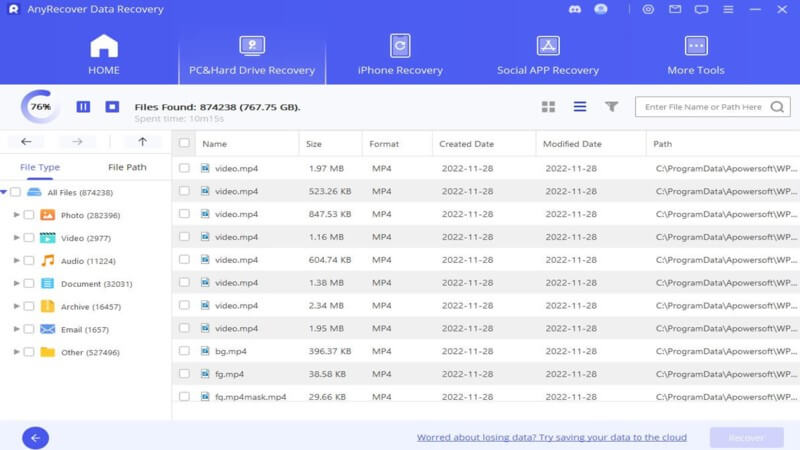
First things first — make sure the virus is gone. Run a full system scan with your antivirus. If you’re using Windows, Windows Defender is built-in and pretty good. Let it remove or quarantine any threats. Do not try to open suspicious PDFs during this step; the virus might still be active. Once the scan is complete, restart your computer and run a second scan to be safe.
Step 2: Check if PDFs Are Encrypted or Corrupted
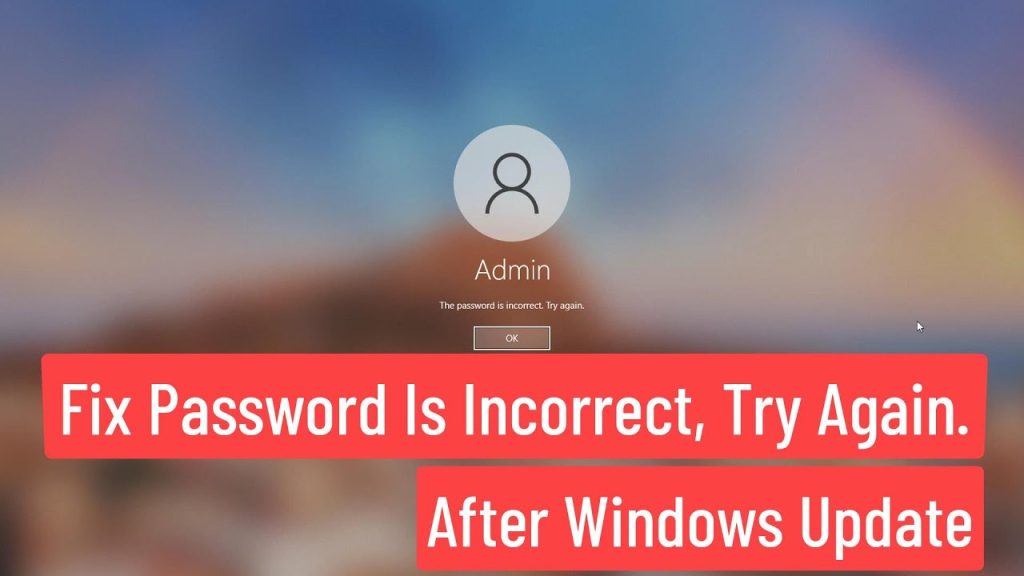
After cleaning, try opening a PDF. If you get a password prompt, it’s likely encrypted by ransomware. If you see a garbled mess or an error like ‘file is damaged’, it’s corrupted. This distinction matters because encryption requires a different approach — you might need a decryptor or backup. For corruption, you can try a pdf corruption fix tool. Refer to our guide on how to recover pdf after ransomware if encryption is the issue.
Step 3: Use a Dedicated PDF Repair Tool
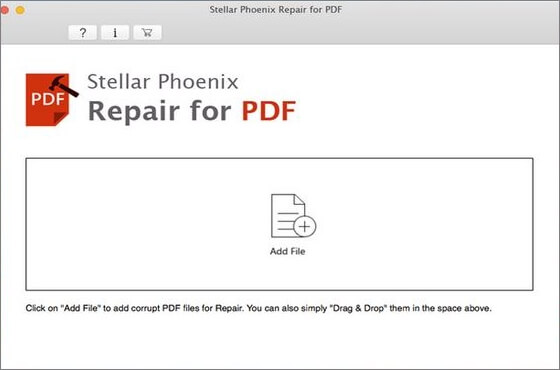
If the PDF is corrupted, a dedicated repair tool can often fix it. There are both free and paid options. For a quick pdf repair, try a tool like PDF Repair Toolbox or SysTools PDF Repair. Download the software (on a clean computer), select your damaged PDF, and click repair. Most tools create a new repaired copy. This is the best way to repair pdf for stubborn corruption.
Step 4: Try an Online PDF Recovery Service
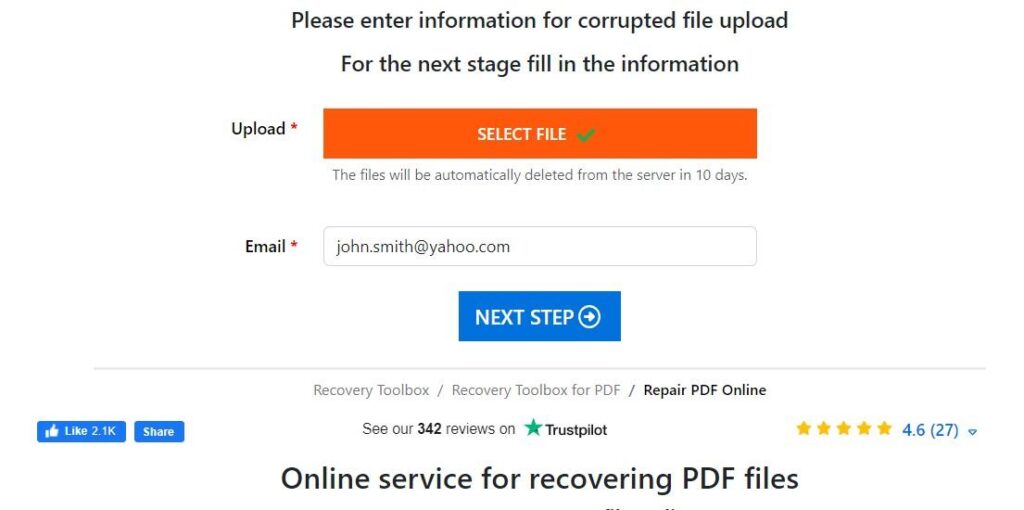
Don’t want to install anything? Use an online pdf recovery service. Websites like ilovepdf or Smallpdf allow you to upload your damaged PDF and they’ll attempt to repair it. This is handy if the file isn’t too large and you’re comfortable with uploading. Be cautious with sensitive documents — check the site’s privacy policy. Some services keep your files for a limited time then delete them.
Step 5: Restore from Backup (If Available)
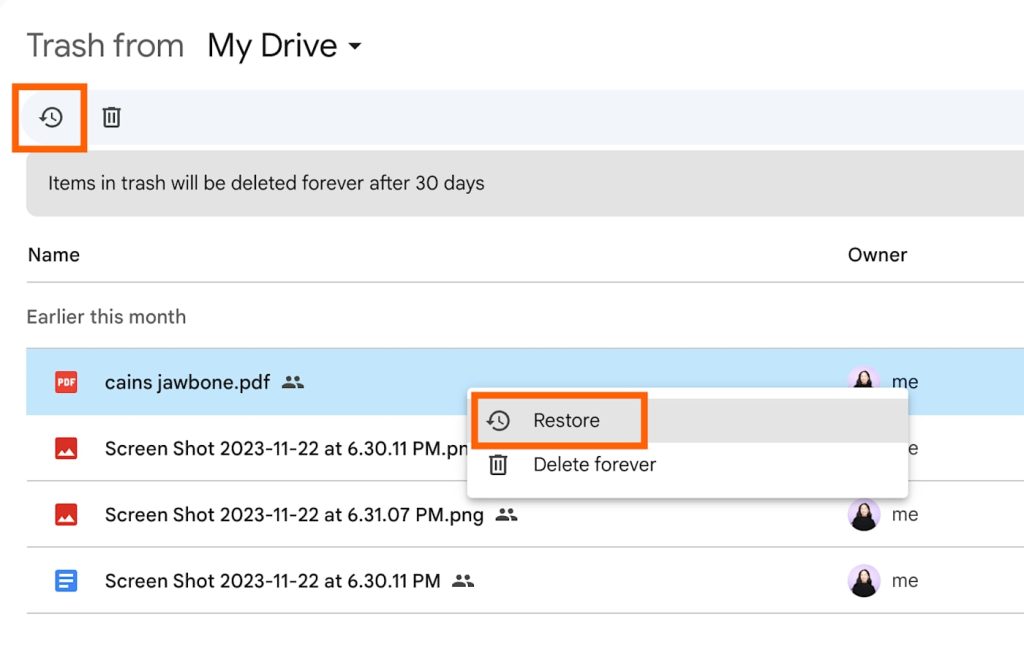
If you have a backup — from cloud storage, an external drive, or a system restore point — now’s the time to use it. Copy the backed-up PDFs to your clean computer. This is the safest and fastest method. If you don’t have a backup, consider setting one up after recovery. Pro tip: backup important PDFs regularly to avoid future headaches.
Common Pitfalls
- Trying to open encrypted PDFs without removing the ransomware first — this can spread the virus further.
- Using random ‘free’ repair tools from shady sites — they might contain malware. Stick to reputable ones.
- Overwriting original files — always work on a copy so you have the original if something goes wrong.
Where to Next?
You’ve recovered your PDFs — awesome! Now protect yourself. Learn how to prevent future infections with good security habits. And if you ever need to repair other document types, check out our other guides. Happy reading!




