You’ve got an important PDF in your Dropbox, but when you download it, it won’t open. Maybe you see an error like “Failed to load PDF document” or the file looks garbled. Don’t panic—this is a common issue, and fixing a PDF from Dropbox is usually straightforward. Whether you’re a student trying to access lecture notes or a professional retrieving contracts, this guide will help you get your file back in working order.
By the end of this tutorial, you’ll have a clean, readable PDF saved locally. We’ll cover re-downloading, checking file integrity, using desktop tools like quick pdf repair, and even online services for a quick fix. No advanced tech skills required—just follow the steps in order.
What You’ll Need
- A computer (Windows, Mac, or Linux)
- Internet connection to access Dropbox
- A PDF repair tool (free options available)
- Backup of the original file (just in case)
Step 1: Download the PDF Again from Dropbox
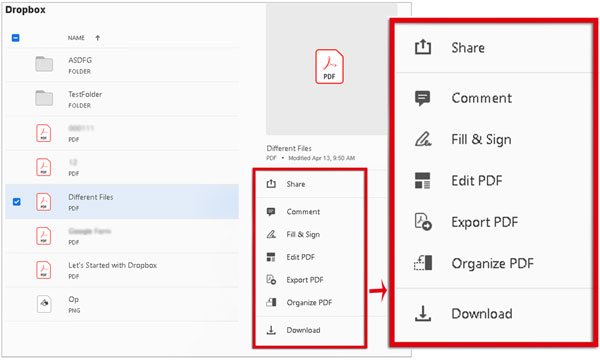
Sometimes the download itself gets interrupted or corrupted. Start fresh by re-downloading the file. Open Dropbox in your browser, locate the PDF, and click “Download.” Make sure you have a stable internet connection. If the file is large, wait for the download to complete fully. After the new download, try opening the PDF. If it works, you’re done!
Step 2: Check File Integrity
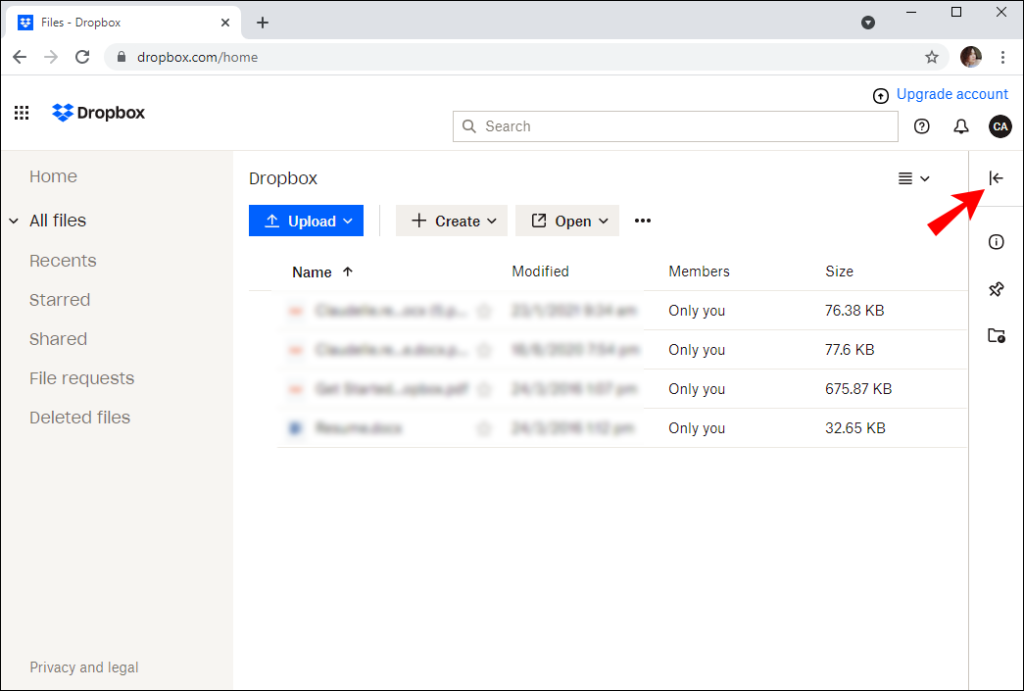
If re-downloading didn’t help, the file itself might be corrupted on Dropbox’s servers. Check the file size: right-click the downloaded PDF and select “Properties” (Windows) or “Get Info” (Mac). Compare it to the size shown in Dropbox. If they match closely, the file is likely intact. A huge mismatch suggests a partial download. If the size seems off, try using a different browser or the Dropbox desktop app to download again.
Step 3: Use a Quick PDF Repair Tool
When the file downloads fully but still won’t open, it’s time for a dedicated repair tool. One of the easiest options is quick pdf repair—a free tool that can fix minor corruption in minutes. Download and install it, then open the program. Click “Add PDF” and select your broken file. Choose an output location, then click “Repair.” The tool will scan and attempt to reconstruct the PDF structure. Most common errors are fixed this way.
Step 4: Try an Online PDF Repair Service
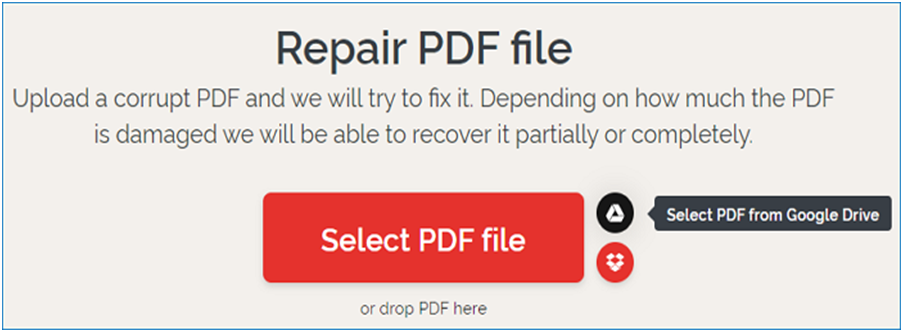
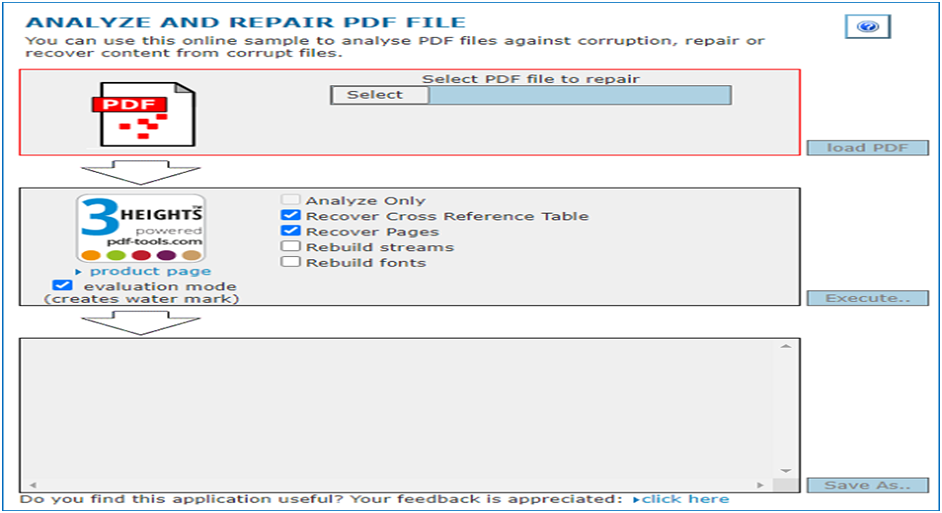
If you’d rather not install software, online services are a solid alternative. Many websites offer free PDF repair—just upload the file and download the fixed version. The best way to repair pdf often involves a reliable online tool like Repair PDF Instantly. Upload your corrupted PDF (from Dropbox or local), wait a few seconds, and download the repaired copy. Always use a trusted service to protect your privacy, especially for sensitive documents.
Step 5: Batch Repair Multiple Dropbox PDFs
Have several broken PDFs from Dropbox? Save time by fixing them all at once. Some tools let you fix multiple pdf files in a single batch. For example, the same quick pdf repair tool mentioned earlier supports batch mode. Add all your corrupted PDFs, set an output folder, and click “Repair All.” This method is perfect if Dropbox’s sync caused a batch corruption after a synchronization hiccup.
Common Pitfalls
- Saving the repaired PDF over the original without a backup. Always keep a copy of the corrupted file in case you need to try a different tool later.
- Using unreliable free online services that may add watermarks or compromise privacy. Stick to reputable sites recommended by users or tech reviews.
- Forgetting to check Dropbox’s file version history. Sometimes a previous version of the PDF is intact. Right-click the file in Dropbox, select “Version history,” and download an older version.
Most Dropbox PDF issues are caused by interrupted downloads or sync conflicts. A simple re-download or a quick repair tool resolves 90% of cases.
PDF Repair Technician
Where to Next
Once you’ve fixed your PDF from Dropbox, you might want to learn more about preventing future corruption or handling other common errors. Check out our guides on pdf corruption fix for deeper dives into structural issues, or repair pdf instantly if you need a lightning-fast solution. And if you ever run into a PDF that refuses to cooperate, remember—you have the tools and knowledge to beat it.




