Hey there! If you’re reading this, you’ve probably tried to open a PDF in Firefox and got nothing but a blank screen, a download prompt, or an error message. Don’t worry—this is a common hiccup, and it usually has a simple fix. This guide is for anyone who uses Firefox regularly and needs to get their PDFs working again. By the end, you’ll have a handful of troubleshooting steps to try, plus some advice on what to do if the file itself is damaged.
We’ll start with the fastest checks (like testing in another browser), then move on to Firefox settings and extensions, and finally cover how to repair a corrupted PDF. Whether you’re a casual user or a tech-savvy person, these steps are easy to follow. Let’s get that PDF open!
What You’ll Need
- A computer running Firefox (Windows, macOS, or Linux)
- The PDF file that won’t open (or a link to it)
- Another browser installed (like Chrome, Edge, or Safari) for testing
- Optional: A PDF repair tool if we determine the file is corrupted
Step 1: Test the PDF in Another Browser
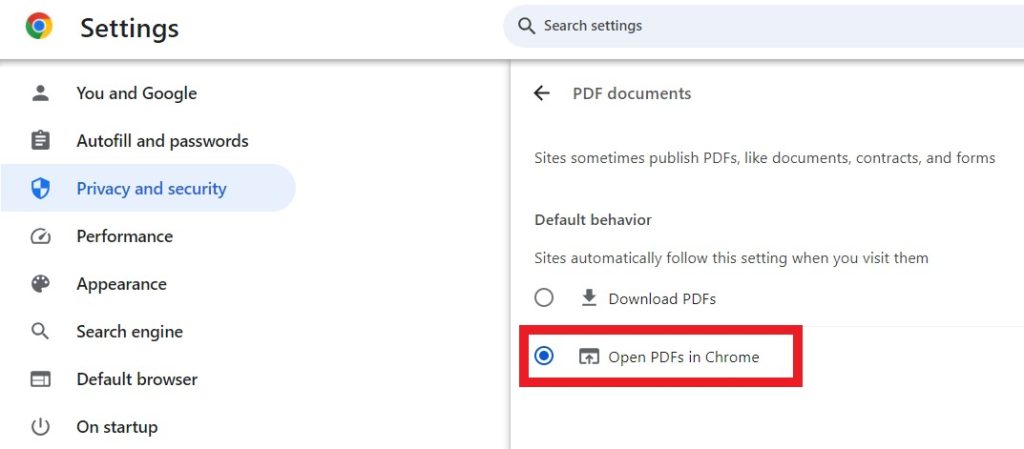
Before diving into Firefox settings, let’s rule out a general PDF issue. Try opening the same PDF in another browser (Chrome, Edge, or Safari). If it opens fine there, the problem is specific to Firefox. If it doesn’t open anywhere, the file might be corrupted—skip to Step 5 to learn how to fix corrupted pdf. But if it works in another browser, keep reading.
Step 2: Clear Firefox Cache and Cookies

A cluttered cache can sometimes cause PDFs to fail. Here’s how to clear it:
- Click the menu button (three horizontal lines) in the top-right corner of Firefox.
- Select ‘Settings’ (or ‘Preferences’ on macOS).
- Go to ‘Privacy & Security’ on the left sidebar.
- Under ‘Cookies and Site Data’, click ‘Clear Data…’.
- Check both ‘Cookies and Site Data’ and ‘Cached Web Content’, then click ‘Clear’.
- Restart Firefox and try opening the PDF again.
Step 3: Disable PDF Viewer Extensions
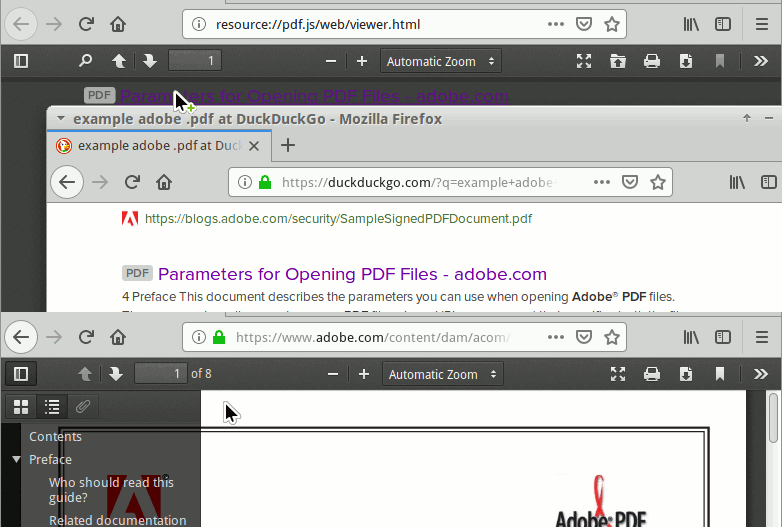
Extensions like Adobe Acrobat or third-party PDF tools can conflict with Firefox’s built-in viewer. Let’s see if one is causing trouble:
- Click the menu button and select ‘Add-ons and themes’.
- Go to ‘Extensions’ on the left.
- Look for any PDF-related extensions (e.g., ‘Adobe Acrobat’, ‘PDF Viewer’, etc.).
- Toggle them off or click the three-dot menu and select ‘Disable’.
- Restart Firefox and test the PDF.
If that works, you can enable extensions one by one to find the culprit. Consider removing or updating the problematic one.
Step 4: Check Firefox’s PDF Handling Settings
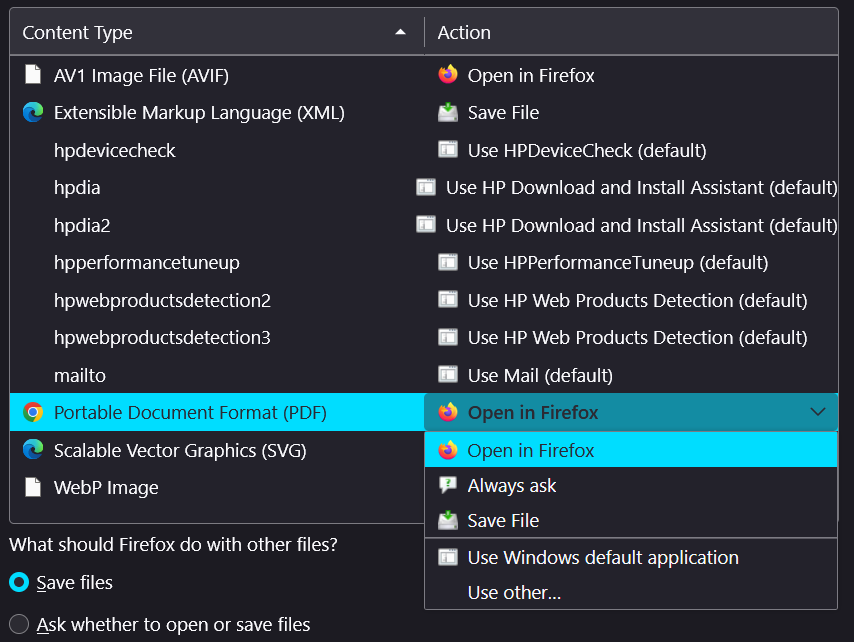
Firefox has a built-in PDF viewer, but it might be disabled or set to download instead. Let’s verify:
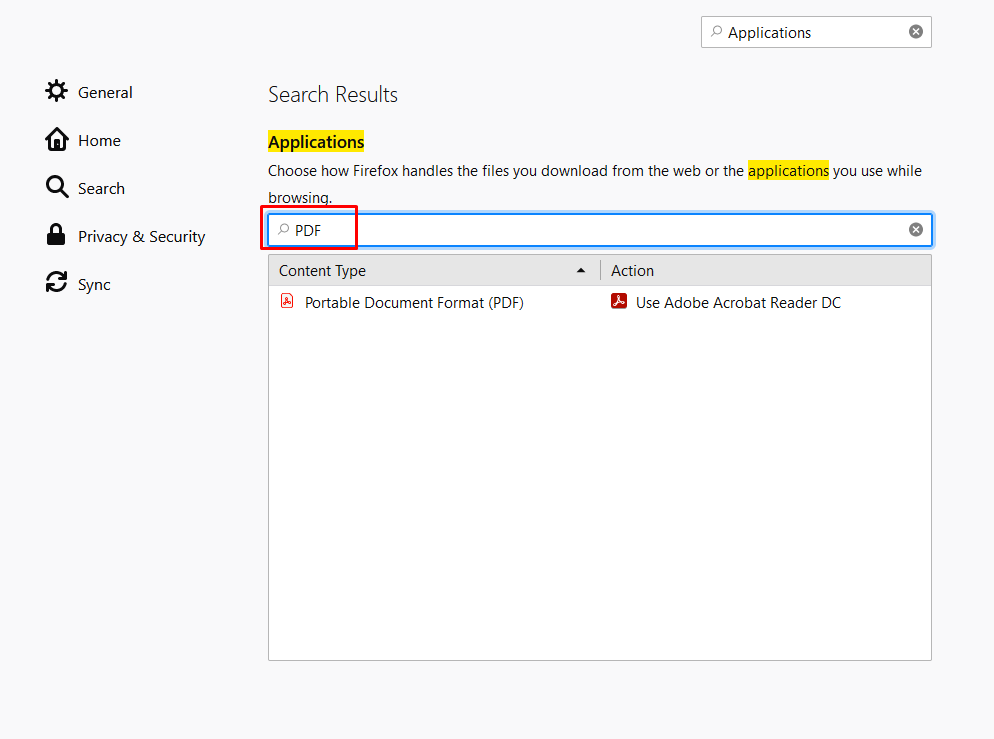
- In Firefox’s address bar, type ‘about:preferences#general’ and press Enter.
- Scroll down to the ‘Applications’ section.
- Find ‘Portable Document Format (PDF)’ in the list.
- Click the dropdown next to it and select ‘Preview in Firefox’ (or ‘Open with Firefox’).
- If it was set to ‘Always ask’ or ‘Save File’, change it to ‘Preview in Firefox’.
- Refresh the PDF page or try opening the file again.
Step 5: Repair the PDF If It’s Corrupted
If the PDF still won’t open—or didn’t open in any browser—it’s likely corrupted. Don’t panic; you can often fix it. Start with a quick pdf repair using a free online tool or a desktop app like Adobe Acrobat. If you need a more thorough fix, check out our guide on how to validate and repair pdf step by step. For files that got damaged after ransomware or a bad download, we have a dedicated guide to repair pdf after ransomware. And if the PDF came from Google Drive, see our tips to fix pdf from google drive.
Step 6: Update Firefox
An outdated browser can have bugs that affect PDF viewing. Make sure you’re running the latest version:
- Click the menu button and go to ‘Help’ > ‘About Firefox’.
- Firefox will automatically check for updates. If one is available, click ‘Restart to update Firefox’.
- After the restart, try opening the PDF again.
Common Pitfalls
- Thinking the file is fine just because it opens in another browser. Sometimes Firefox’s viewer is stricter, so try a quick pdf repair anyway.
- Forgetting to restart Firefox after making changes. Cache clearing, extension disabling, and setting changes often need a restart to take effect.
- Assuming an extension named ‘PDF Viewer’ is safe—it might interfere. Always test with all PDF extensions disabled first.
Where to Next
Thanks for following along! Hopefully your PDF is now opening smoothly. If you still run into issues, explore our other guides: learn how to fix objects in a PDF or recover a tax PDF that won’t open. And remember, if the file is corrupted, our repair tools can help. Happy viewing!




