So you’ve got a PDF that just won’t open. Maybe it throws an error, or it’s all garbled text. That’s frustrating, especially when you need that file now. This guide is for anyone who’s not a tech wizard but wants their PDF back. By the end, you’ll have tried several practical fixes—from simple viewer switches to free online tools—and you’ll most likely walk away with a working file.
We’ll cover five methods, starting with the easiest and moving to more advanced options. No need to buy expensive software—I’ll point you to free or trial stuff that gets the job done. So grab that corrupted PDF, and let’s fix it.
What You’ll Need
- The corrupted PDF file (duh!)
- A computer with an internet connection
- A PDF viewer like Adobe Acrobat Reader or Foxit Reader (free)
- Optional: Adobe Acrobat Pro trial or Python if you want advanced tricks
- A backup of the original file (just in case)
Step 1: Try Opening in a Different PDF Viewer
Sometimes the issue isn’t the file itself but the viewer you’re using. If your PDF won’t open in Chrome’s built-in viewer, try Adobe Acrobat Reader. If that fails, try Foxit Reader or even Microsoft Edge. Different apps handle errors differently—some can open a file that others reject. It’s a quick shot, but it works more often than you’d think.
Step 2: Use Adobe Acrobat’s Built-In Repair
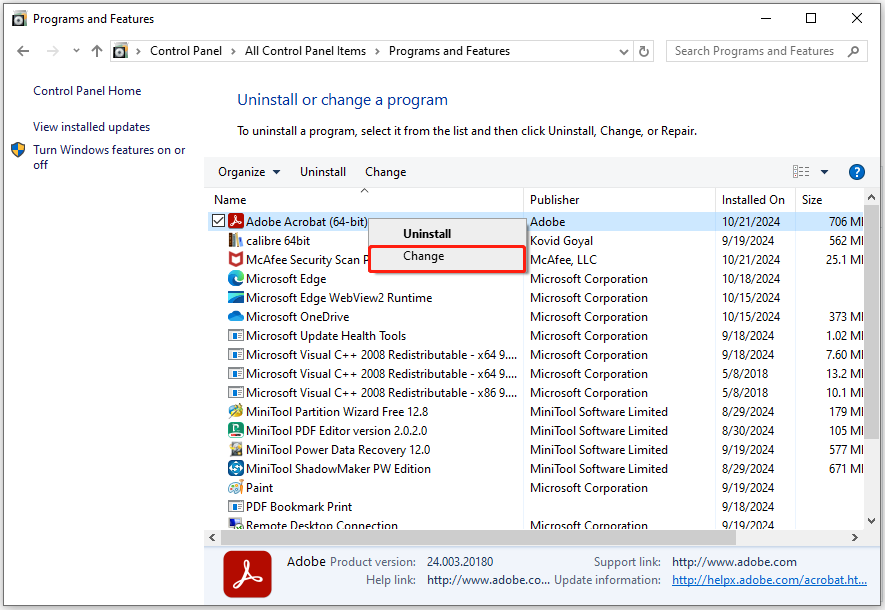
If you have Adobe Acrobat Pro (the paid version), it comes with a repair feature. Open the file—if it fails, go to File → Open → select the PDF → click the arrow next to Open → choose “Repair PDF”. Acrobat will try to rebuild the file structure. This doesn’t always work, but it’s worth a try. If you don’t have Pro, you can use the free trial.
Step 3: Use an Online PDF Repair Tool

Several websites offer free PDF repair services. Sites like Smallpdf, ilovepdf, and PDF2Go let you upload your corrupted file, then they try to fix it and give you a download. Just be careful with sensitive documents—consider an online PDF recovery service that promises no data retention. Upload, wait a few seconds, and download the repaired version. This method is usually effective for mildly corrupted files.
Step 4: Repair with Python (For the Tech-Savvy)
If you’re comfortable with a terminal, Python can work wonders. You’ll need to install a library like pdfminer.six or PyMuPDF. A simple script can extract raw content and rebuild the PDF. For example, you can use pdfminer to parse the file and write out a new one. This approach is great for structural issues. Check out our guide on how to repair PDF using Python for a full walkthrough.
Step 5: Recover from Backup or Cloud Versions

If you saved the file to Google Drive, Dropbox, or OneDrive, those services keep version history. Right-click the file → choose “Version history” → pick an earlier version. That can save you if the corruption happened during a recent edit. We have a specific guide on fixing PDF from Google Drive that covers this in detail.
Common Pitfalls
- Trying to repair a completely destroyed PDF: If the file is just garbled binary, no tool can recover the original content. Cut your losses and find a new copy.
- Using shady online tools: Some sites might keep your uploaded files. Stick with reputable services or use an online PDF recovery service that respects privacy.
- Forgetting to back up the original: If a repair tool makes things worse, you can’t go back. Always keep the original file safe.
Where to Next
Fixing a corrupted PDF doesn’t have to be a nightmare. Start with the simplest steps, and if those fail, try the more advanced ones. If you need a super-fast option, check out our quick PDF repair guide. For a deeper dive, read our comprehensive PDF corruption fix. And if you’re dealing with multiple files, learn how to fix multiple PDFs at once. You’ve got this!




