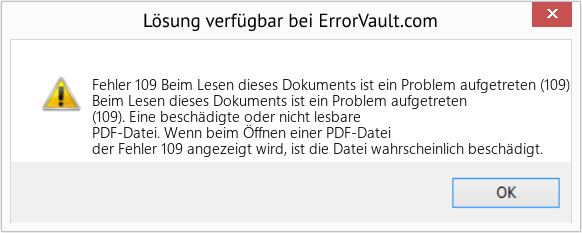
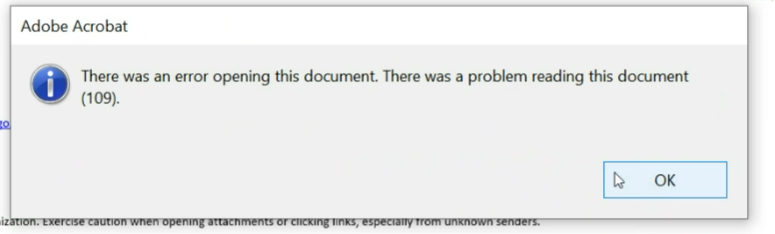
So you just tried to open a PDF and got slapped with error 109. Annoying, right? This error usually means the file is corrupted, incomplete, or has a bad internal structure. Maybe you downloaded it from a dodgy source, transferred it over a shaky connection, or your PDF software is just having a bad day. This guide is for anyone who’s hit this wall—no matter if you’re a total beginner or a seasoned pro. By the end, you’ll have a working PDF (or at least know exactly why it’s broken).
We’ll walk through five proven methods, from quick online fixes to more advanced command-line tools. You don’t need to try them all—start with the easiest and move down. Most people get their file back on step 2 or 3. Let’s get your PDF breathing again.
What You’ll Need
- Your error-109 PDF file (obviously)
- A computer with internet access
- Optional: A PDF reader like Adobe Acrobat or a web browser
- Optional: A tool like Ghostscript or Python (we’ll cover both)
- About 10 minutes of your time
Step 1: Try a Different PDF Viewer
Sometimes the error isn’t the file—it’s the viewer. Chrome’s built-in PDF reader, Foxit, and SumatraPDF often handle slightly corrupted files better than Adobe Acrobat. Right-click your PDF and choose ‘Open with’ > ‘Google Chrome’ (or another viewer). If it opens, great. If not, move on. This step is free and takes ten seconds.
Step 2: Use an Online PDF Repair Tool
If a different viewer didn’t work, try an online repair service. These sites re-parse the PDF’s internal structure and often recover the content. Go to a trusted site like pdfrepairs.click’s own online tool (or any reputable alternative). Upload your file, wait a few seconds, and download the repaired version. Keep in mind: never upload sensitive documents to a random site. If the file contains private info, skip to the offline methods below. Also worth noting: this is a common technique if you need to fix damaged pdf files quickly without installing anything.
Step 3: Repair with Ghostscript (Command Line)
Ghostscript is a powerful open-source tool that can read, write, and repair PDFs. It’s free and works on Windows, Mac, and Linux. First, download and install Ghostscript from the official site. Then open a terminal (Command Prompt on Windows, Terminal on Mac/Linux) and run this command:
gswin64c -o repaired.pdf -sDEVICE=pdfwrite -dPDFSETTINGS=/prepress corrupted.pdf
Ghostscript command
Replace ‘corrupted.pdf’ with the path to your file, and ‘repaired.pdf’ with the desired output name. This command recompresses and re-encodes the PDF, often wiping out corruption. Try it—it’s a core technique in open source pdf repair and can fix even stubborn error 109 files.
Step 4: Repair with Python and pdfminer
If you’re comfortable with a bit of code, Python can be a lifesaver. Install Python from python.org, then install the pdfminer.six library with ‘pip install pdfminer.six’. Create a script that reads the corrupted PDF and writes a new one. Here’s a simple example:
from pdfminer.high_level import extract_text
with open(‘corrupted.pdf’, ‘rb’) as f:
text = extract_text(f)
with open(‘repaired.txt’, ‘w’) as out:
out.write(text)Python script snippet
This extracts the text (losing formatting, but recovering content). For a better fix, use the pdfminer API to rebuild the PDF structure. It’s a bit more advanced, but if you already know python pdf repair, this is a great fallback. For a full guide, check out our detailed Python tutorial.
Step 5: Re-transfer or Re-download the File
If everything above fails, the file might be corrupt beyond repair—but it could also be a transfer issue. If you got the file via email, download it again. If from a USB drive, copy it once more. Use a different network or method (e.g., send yourself a fresh copy via Google Drive). Corruption during transfer is a common cause of error 109. If the original file is still intact on another device, that’s your best bet. And if printing is your end goal, after fixing, check our guide on how to fix pdf printing error to avoid future hiccups.
Common Pitfalls
- Skipping the viewer test: Often error 109 is a viewer issue, not a file issue. Always try a different app first—it’s the simplest fix and saves you from heavy tools.
- Using shady online tools: Some free repair sites are malware traps. Stick to reputable ones like pdfrepairs.click’s own service or well-known sites like Smallpdf. If in doubt, use offline methods like Ghostscript or Python.
- Forgetting to backup: Never upload or modify your only copy of a file. Make a backup before any repair attempt—especially if using command-line tools that might overwrite the original.
Where to Next
Error 109 is a pain, but now you have a toolbox of fixes. If you still can’t open it, the file may be beyond simple repair—consider recovering from a backup or using a professional service. For related issues, check out our guides on repair pdf with poppler (another great open-source option) and more advanced techniques. Also, if the error pops up when printing, our fix pdf printing error guide will help. Good luck, and may your PDFs always open.




