Did your PDF suddenly turn into a garbled mess? Maybe it won’t open at all, or it shows random characters. This guide is for anyone dealing with a damaged PDF—whether it got corrupted during transfer, after an incomplete download, or just out of nowhere. By the end, you’ll have a working PDF again (or at least have recovered the important content). We’ll use free tools and simple steps, no technical background needed.
We’ll cover everything from quick fixes like trying a different PDF viewer to more advanced techniques like using command-line tools. If you’re in a hurry, start with the online options. If those fail, the open-source methods are your best bet. Let’s get that PDF back on its feet.
What You’ll Need
- Your damaged PDF file (keep a backup!)
- A computer with internet access
- Optional: a program like Adobe Acrobat Reader, Foxit Reader, or SumatraPDF
- Optional: a tool like Ghostscript or PDFtk (free, open-source)
Step 1: Try Opening in a Different PDF Viewer
Sometimes the PDF itself is fine, but your viewer is the problem. Open the file in another reader like Foxit or SumatraPDF. If it works, you might just need to update or reinstall your default viewer. If not, the file is truly damaged.
Step 2: Use an Online PDF Repair Service
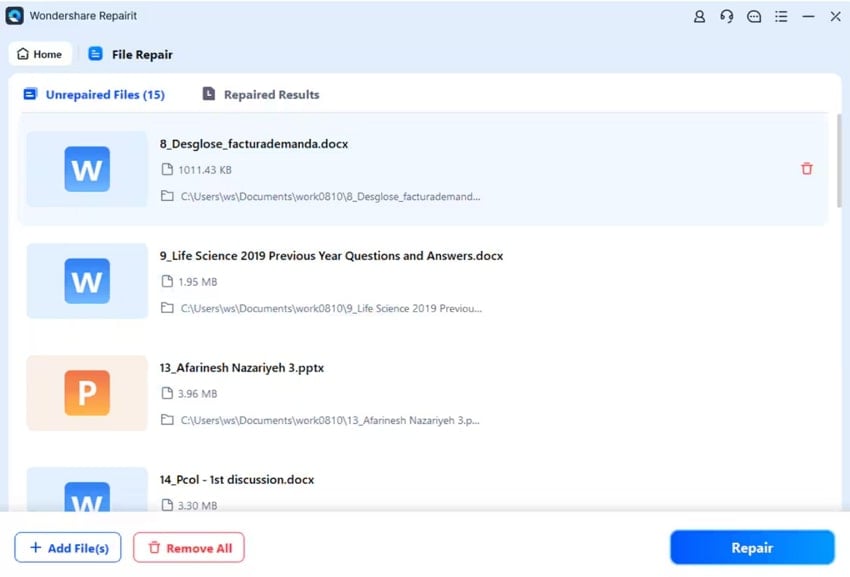
Online tools are the easiest fix. Upload your file to a reputable website like pdfrepairs.click’s own pdf repair service or other trusted options. They’ll try to reconstruct the PDF structure. Be aware of privacy risks—avoid uploading sensitive documents.
Step 3: Repair with Open Source Tools
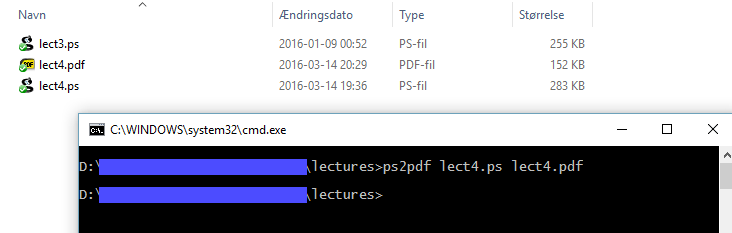
If online tools fail, open-source software can be powerful. For example, you can repair pdf with poppler using the `pdfinfo` and `pdftotext` commands. Another approach is open source pdf repair via Ghostscript—try `gs -o output.pdf -sDEVICE=pdfwrite -dPDFSETTINGS=/prepress input.pdf`. This often fixes structure errors.
Step 4: Extract Text and Images Manually
When the file is too broken to repair as a whole, extract what you can. Use `pdftotext` (part of Poppler) to grab text, or `pdfimages` to pull out embedded images. If you’re comfortable with coding, python pdf repair scripts can automate extraction.
Step 5: Reconstruct the PDF from Extracted Content
Take the recovered text and images and create a new PDF. LibreOffice Writer can import text and images and export to PDF. Use the validate and repair pdf feature in some tools to check your new file. This is a last resort, but it usually saves the day.
Common Pitfalls
- Uploading sensitive files to random online repair sites—stick to trusted services.
- Not making a backup before trying fixes; overwriting the original can make things worse.
- Assuming the PDF is corrupted when it’s actually a specific viewer issue (try step 1 first). Also, if you encounter a fix pdf compression error, that may require a different approach.
Where to Next?
Now that you’ve fixed your PDF, consider learning more about preventing corruption in the future. Check out our guides on repair pdf after transfer and recover pdf from whatsapp for specific scenarios. Happy reading!




