Ever downloaded a PDF from Dropbox only to find it won’t open, or opens with garbled text and missing images? You’re not alone. Dropbox sync issues, interrupted downloads, or file corruption during upload can leave your PDF looking like a digital mess. This guide is for anyone who’s stuck with a broken PDF from Dropbox and wants a working copy without losing their mind.
By the end of this tutorial, you’ll have a fully functional PDF — or at least a salvageable version with readable content. We’ll go from simple checks to more advanced repair methods, including free online tools and command-line utilities. No expensive software needed.
What You’ll Need
- A Dropbox account with the corrupted PDF
- A PDF reader (like Adobe Acrobat Reader, Foxit, or your browser)
- Stable internet connection
- Optional: A computer with command-line access (for poppler tools)
Step 1: Re-Download the PDF from Dropbox
Often, the file is fine on Dropbox but got mangled during download. First, check if Dropbox says the file is fully synced (green checkmark). If not, let it finish. Then try downloading again: right-click the file in Dropbox and select ‘Download’. Save it to a different folder and open it. If it works, you’re done! If not, move to Step 2.
Step 2: Open the PDF in a Different Reader
Sometimes the issue is your PDF reader, not the file. Try opening the corrupted PDF in a different application: web browser (Chrome, Firefox, Edge), another desktop reader (like SumatraPDF), or even a mobile app. If it opens fine elsewhere, your original reader might need an update or reinstall. If it still fails, let’s try a proper repair.
Step 3: Use an Online PDF Repair Tool
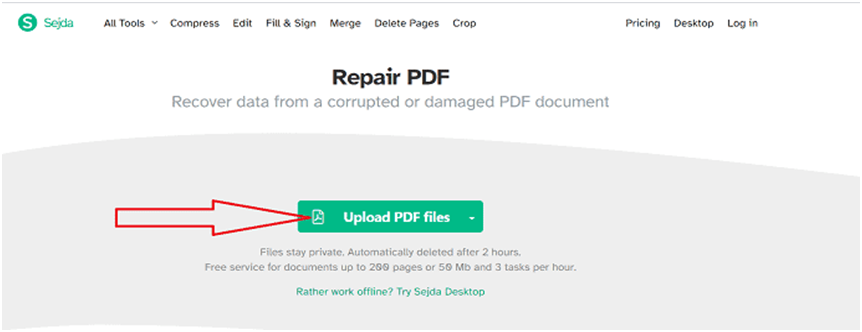
Online tools can fix many common errors. Go to a trusted site like PDFRepair.click. Upload your file and let the service work its magic. The server will attempt to rebuild the internal structure and remove broken objects. After processing, download the repaired PDF. This works for corruption caused by sync issues or partial uploads. For more details, check out our guide on web based pdf repair.
Step 4: Repair with Poppler (Command Line)
If online tools aren’t enough, Poppler — a free, open-source PDF library — can extract content from damaged files. Install Poppler on your system (available for Windows, macOS, Linux). Then open a terminal and run commands like pdfinfo broken.pdf to see metadata, or pdftotext broken.pdf output.txt to extract text. You can also use pdfimages to grab images. This method won’t restore the original layout but will salvage the content. See our detailed guide on repair pdf with poppler for more.
Step 5: Try a Dedicated Repair Service or Advanced Tool
When nothing else works, consider a professional repair service. Some sites offer free repairs for small files or charge for complex cases. Alternatively, use a tool like Ghostscript or QPDF to reconstruct the file. For example, run gs -o fixed.pdf -sDEVICE=pdfwrite -dPDFSETTINGS=/default broken.pdf with Ghostscript. These are more technical but can fix severely broken PDFs. You can also explore open source pdf repair options.
Common Pitfalls
- The file didn’t fully download — always check the file size matches Dropbox’s preview.
- You’re opening the file before Dropbox finishes syncing — wait for the green checkmark.
- The PDF is password-protected — repair tools usually can’t handle encrypted files. You’ll need to unlock damaged pdf first.
Where to Next
Now you’ve got a working PDF from Dropbox. If you run into other issues, check out our guides on fix damaged pdf for general tips, and repair pdf after transfer for files messed up during moves. Happy reading!




