So you’ve got a PDF that throws errors, won’t open, or spits out garbage when you try to print it. Before you panic and pay for a fancy recovery service, give Poppler a shot. Poppler is a free, open-source PDF rendering library that comes with a bunch of command-line tools perfect for salvaging a busted file. By the end of this guide, you’ll have extracted readable text and images from your corrupted PDF and rebuilt them into a fresh, working document.
This tutorial is for anyone comfortable with the command line—Windows PowerShell, macOS Terminal, or Linux shell. No coding experience required. You’ll need a few minutes, your target PDF, and an internet connection to download Poppler. Let’s get that file back in shape.
What You’ll Need
- A computer running Windows, macOS, or Linux.
- A corrupted PDF file (keep the original safe).
- Basic command-line know-how (typing commands and navigating folders).
- Poppler installed on your system (we’ll cover this in Step 1).
Step 1: Install Poppler
First, get Poppler on your machine. On Linux, use your package manager: sudo apt install poppler-utils (Debian/Ubuntu) or sudo dnf install poppler-utils (Fedora). On macOS, use Homebrew: brew install poppler. On Windows, download the latest binary from the Poppler for Windows site (poppler.windows.freedesktop.org) and add the bin folder to your PATH. Open a terminal and test with pdftotext --version—you should see version info.
Step 2: Assess the Damage with pdfinfo
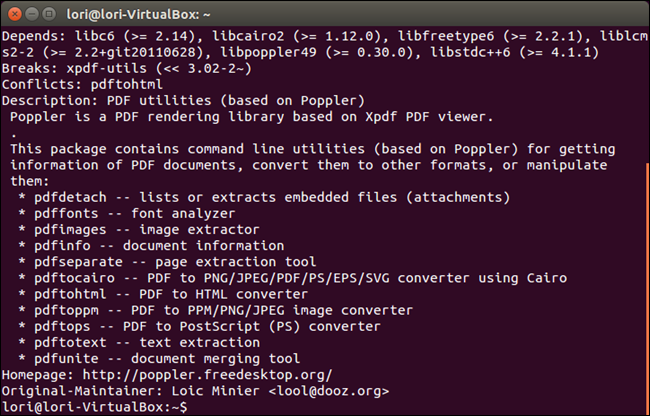
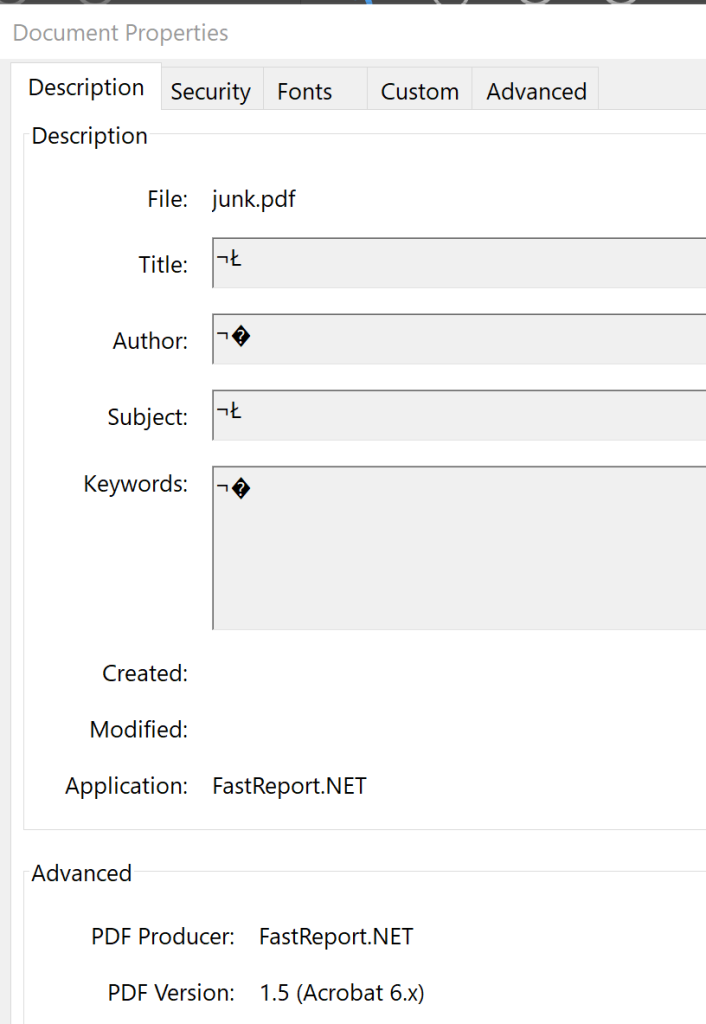
Before diving in, run pdfinfo broken.pdf (replace broken.pdf with your file). This tool reports metadata and errors. If it returns a long list of info like pages, size, and fonts, the PDF isn’t completely trashed. If it crashes or prints “May not be a PDF file”, the header or cross-reference table is damaged. Note the page count—that’ll help later.
Step 3: Extract Text with pdftotext
Now salvage what you can. Run pdftotext broken.pdf output.txt. If the PDF has readable text layers, you’ll get a .txt file. Open it and check for gibberish. Even if the layout is messy, you’ve saved the content. For pages that fail, try pdftotext -layout broken.pdf output.txt to preserve line breaks, or -raw for raw content. If you get errors, the text layer may be corrupt—skip to image extraction.
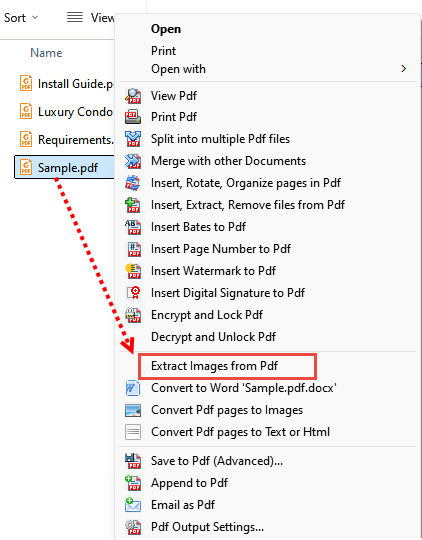
Step 4: Extract Images with pdfimages
If the PDF contains scanned pages or embedded images, use pdfimages -j broken.pdf images. This dumps all images as JPEGs (or other formats with -png, -tiff). Files are named images-000.jpg, etc. For a corrupt PDF, some images may be partial—open them to see if usable. The -all flag extracts every image even if embedded in damaged objects: pdfimages -all broken.pdf images.
Step 5: Rebuild the PDF with pdfunite or pdftocairo
Now it’s time to create a fresh PDF. If you can still open each page individually, use pdfunite to glue them together. First split the damaged PDF with pdfseparate: pdfseparate broken.pdf page_%d.pdf. Then recombine: pdfunite page_*.pdf repaired.pdf. If the original is too mangled, use pdftocairo -pdf broken.pdf repaired.pdf—it rerenders the PDF using Cairo, often fixing rendering glitches. For pages that failed extraction, insert a blank page placeholder using a PDF editor later.
Step 6: Verify the Repaired PDF
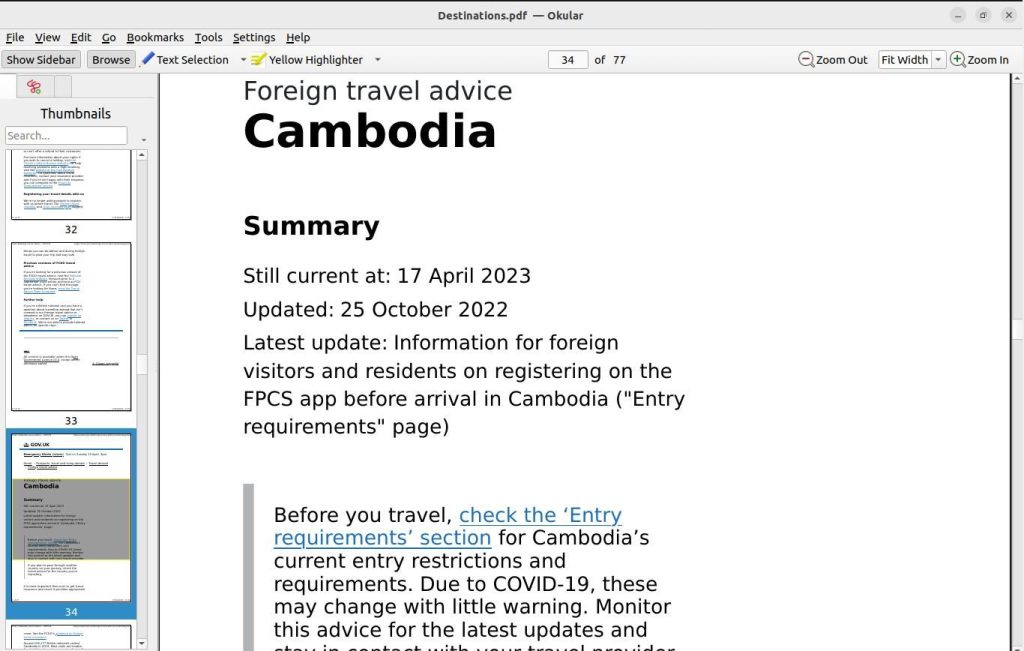
Open repaired.pdf in your PDF viewer. Scroll through each page—text should be selectable, images present, and no error messages. Run a validation with pdfinfo repaired.pdf again to catch hidden issues. If the file still complains, try the pdftocairo route again with -pdf and -nocenter flags. For persistent problems, the xref table may need manual repair—check out our post on how to repair PDF xref table.
Common Pitfalls
- Poppler not found in PATH — On Windows, you must add the Poppler
binfolder to your system’s PATH environment variable. Otherwise commands likepdftotextreturn “not recognized”. Restart your terminal after adding. - PDF is encrypted or password-protected — Poppler tools cannot extract from encrypted PDFs. Use
qpdfto remove the password first, or try an unlock tool. See our guide on how to unlock damaged PDF. - Extracted text is garbage — Some corrupt PDFs have broken character mappings. Try
pdftotext -enc UTF-8or fall back to image extraction and run OCR later.
Where to Next
You’ve successfully used Poppler to breathe life back into a corrupt PDF. Poppler is just one of many open source PDF repair tools available. If you need to automatically detect errors, check out our tutorial on how to validate and repair PDFs. For printer issues, we cover how to fix PDF printing errors. And if you prefer scripting, our Python PDF repair guide shows how to automate Poppler inside a Python script. Happy salvaging!




